WebPro Education

Tech tips everyday
Menu
  • REVIEWS
  • HOW TO
  • TECH NEWS
  • About Us
Home
how to
Android
How To Find The IMEI Number Of A Lost/Stolen Android Phone
Android

How To Find The IMEI Number Of A Lost/Stolen Android Phone

Chris Muniu May 4, 2017

IMEI number is a unique 15 digit serial number on every mobile phone. IMEI stands for International Mobile Equipment Identity. This number is used to find information about a phone.  If your phone is lost,  you’ll need to report to the authorities using the IMEI number for tracking.

The IMEI number is right there on the phone and should be saved somewhere accessible in case the phone is lost or stolen. Dialling *#06* will display the IMEI number of any phone.  It can also be found on the battery if the phone has a removable case. In your phone’s ‘About Phone’  information,  you will also find the IMEI number.

Lost Phone:

If your Android phone is lost or stolen, then you cant get the IMEI number fro the settings or by dialling *#06#. First of all, look for the packaging you bought the phone in.  If it’s not available or too far to find, get to the nearest computer and sign in to your Google account.

Sign in to the Google account you were using on the phone before it got lost/stolen. Then go to the google.com/settings page. Click on the Android icon and you will see a list of all the Android devices connected to your Google account.
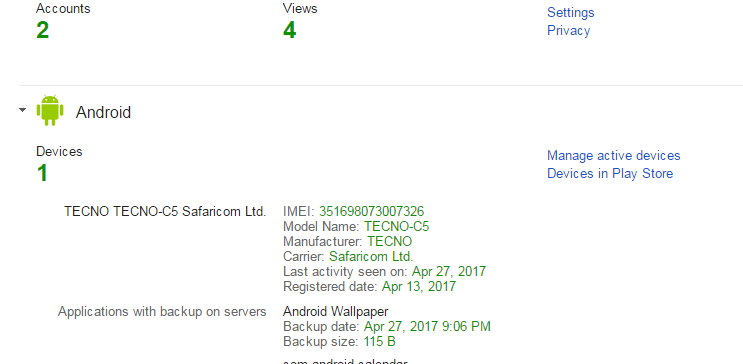
imei number

Identify your lost phone and record it’s IMEI number.  You can now use this IMEI number to report about the missing phone.

Watch: How To Check MAcbook Serial Number

Share
Tweet
Linkedin
Reddit
Tumblr
Stumble
Whatsapp
Telegram
Email
Prev Article
Next Article

Related Articles

How To View and Delete Your Google Maps History On Android
You might be shocked by how much of your location …

How To View and Delete Your Google Maps History On Android

How To Change Your Facebook Name On Android
Facebook allows you to change your name. You can easily …

How To Change Your Facebook Name On Android

  • How To Update Samsung Galaxy Tab A11
  • How To Open Keyboard Settings On Samsung Galaxy Tab A11
  • How To Factory Reset Samsung Galaxy Tab A11
  • How To Enable & Disable Picture In Picture Mode On Samsung Galaxy Tab A11
  • How To Clear Cache Partition On Samsung Galaxy Tab A11
DMCA.com Protection Status

Associates Disclosure

WebPro Education is a participant in the Amazon Services LLC Associates Program, an affiliate advertising program designed to provide a means for sites to earn advertising fees by advertising and linking to amazon.com.

WebPro Education

Tech tips everyday
Copyright © 2025 WebPro Education

Ad Blocker Detected

Our website is made possible by displaying online advertisements to our visitors. Please consider supporting us by disabling your ad blocker.

Refresh