In this comprehensive guide, we’ll walk you through the step-by-step process you can use to format your SD card in the GoPro HERO12, ensuring that you’re ready for your next adventure.
The GoPro HERO12 is a powerful and versatile action camera, capturing breathtaking moments in stunning detail.
To ensure optimal performance and smooth operation, it’s crucial to know how to properly format the SD card.
Watch this: Google Pixel 8 / Pixel 8 Pro: How To Make Phone Calls Hands Free With Google Assistant
Format SD Card In GoPro HERO12
To begin, make sure your SD Card is inserted into your GoPro HERO12 and that the GoPro is on.
Next, swipe down on the camera screen to access the GoPro menu. Flick left and tap on Preferences. Scroll down within the Preferences menu and tap on Reset.
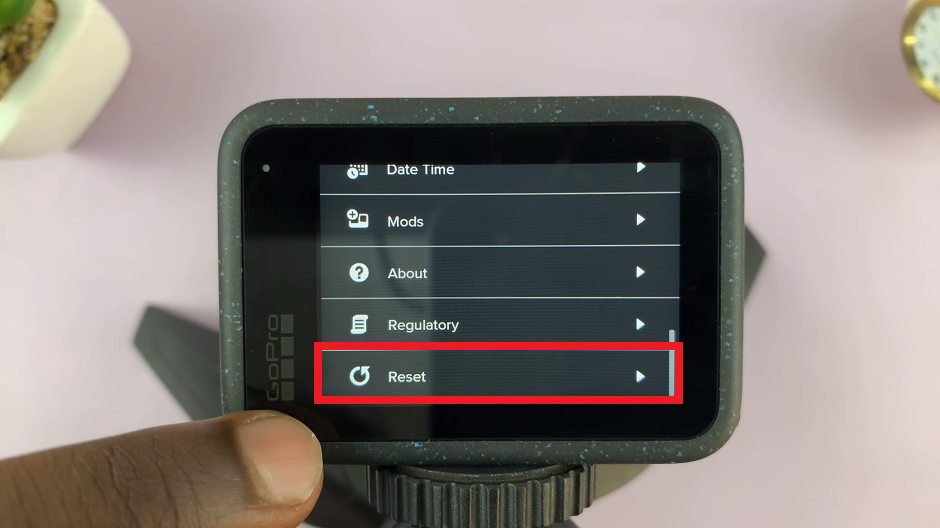
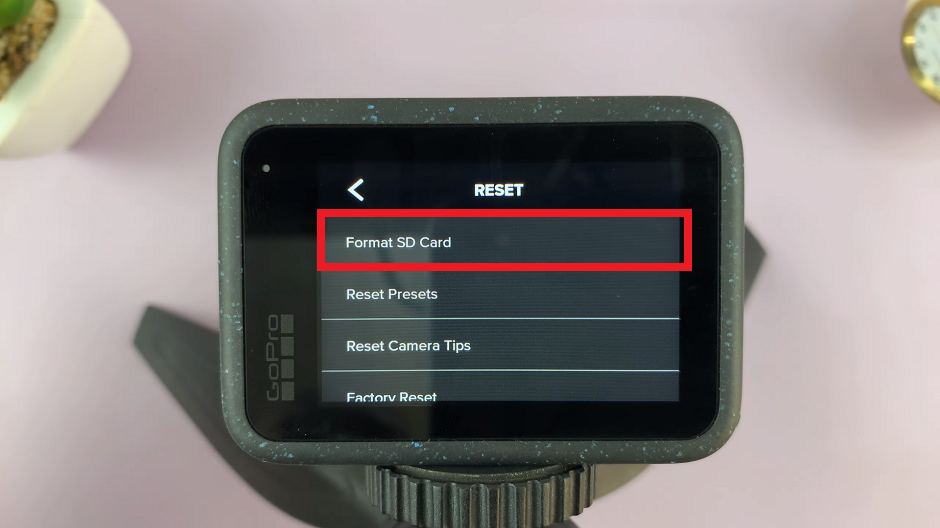
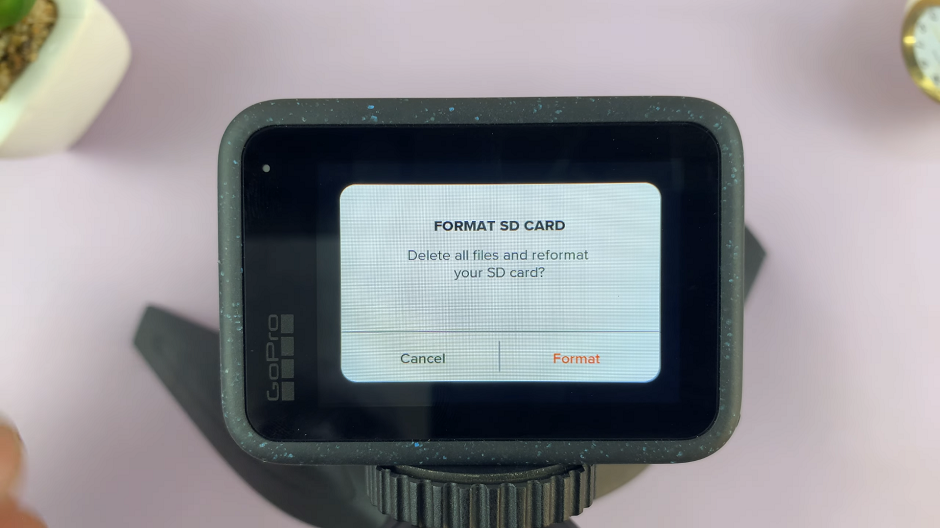
In the Reset menu, scroll down and select the Format SD Card option. The camera will prompt you to confirm your decision. You will be warned that this will delete all files and reformat your SD card.
Tap on Format to confirm your decision. The camera will then erase all data on the SD card and prepare it for use with the GoPro HERO12.
Tips for SD Card Maintenance
Regularly format your SD card: It’s good practice to format your SD card in the GoPro HERO 12 regularly to prevent potential issues and ensure optimal performance.
Use a high-quality SD card: Invest in a reputable and high-capacity SD card that meets the recommended specifications for the GoPro HERO12.
Keep backups: Before formatting, make sure to back up any important footage or files on the SD card to avoid data loss.
Properly formatting your SD card is a fundamental step in maintaining the performance and reliability of your GoPro HERO12. By following these step-by-step instructions, you can confidently format your SD card, ensuring that your camera is ready to capture all the action without any storage-related hiccups.
Read this: How To Connect AirPods To GoPro HERO12