Read: How To Perform Chip Shots In FC 27
Learning how to Change Opponent Radar Color in FC 27 allows you to customize the appearance of opposing players on the radar and make the on-screen information easier to understand. The radar can be particularly useful when you need to quickly check player positions, identify open spaces, or track opponents who are outside your immediate view.
Changing the opponent radar color can also help improve visibility if the default color is difficult for you to distinguish during fast-paced gameplay. FC 27 provides several visual customization options that can be adjusted to suit your preferences and improve your overall match experience.
Whether you want a brighter color, a more noticeable contrast, or simply prefer a different visual setup, adjusting the opponent radar color can make the radar easier to read. In this guide, we’ll show you where to find the setting and how to change it.
Change Opponent Radar Color In FC 27
First, launch FC 27 and open the Settings menu from the main screen.
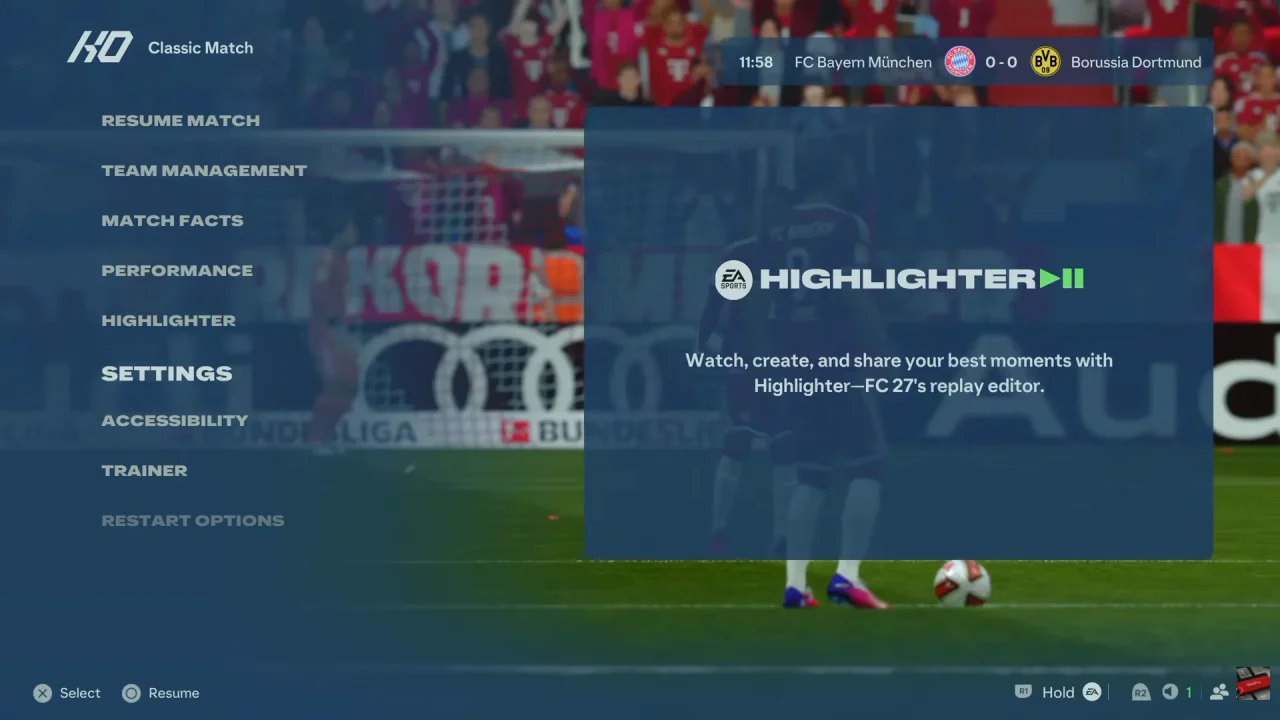
Next, select Game Settings and navigate to the Visual section. Look through the available radar and visual customization options.
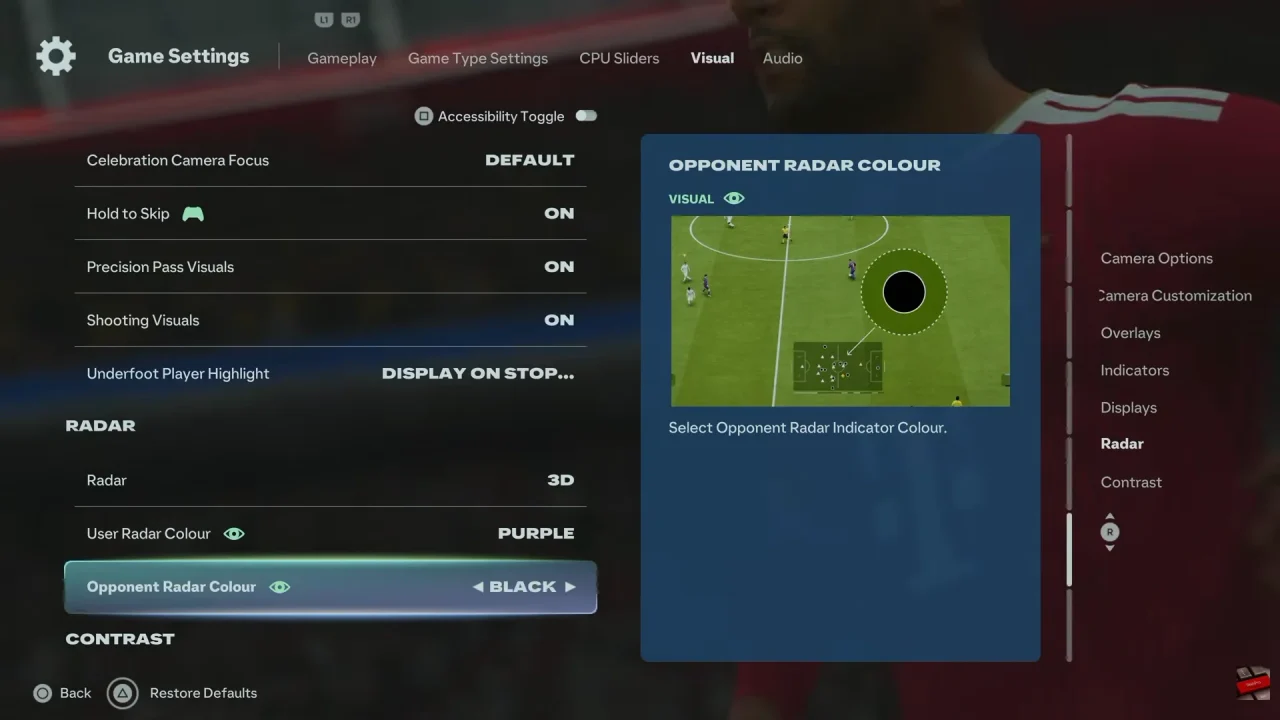
After that, find the Opponent Radar Color setting. Select the opponent color option to view the available choices.
Then, choose your preferred color from the available options. Pick a color that provides clear contrast against your own player’s radar indicator.
Finally, save or apply your changes if prompted, then enter a match to check the new radar color. If it is difficult to see, return to the settings and select another option.
Watch: How To Perform Chip Shots In FC 27