WebPro Education

Tech tips everyday
Menu
  • REVIEWS
  • HOW TO
  • TECH NEWS
  • About Us
Home
how to
Google
Chrome
How To Create Keyboard Shortcuts For Chrome Extensions and Apps
Chrome

How To Create Keyboard Shortcuts For Chrome Extensions and Apps

Chris Muniu April 5, 2017

Chrome extensions and apps are browser add-ons that add productivity to Chrome. Like the browser itself, sometimes you need keyboard shortcuts to get the most out of these add-ons.

For instance if you have have a screenshot or screen capture extension, keyboard shortcuts would work better than clicking the extension icon with your mouse. For Chrome apps like Google play music,  you need keyboard shortcuts to easily play, pause, jump next e.t.c.

Fortunately some excellent forward thinking extension developers have added keyboard shortcuts to their extensions. Nevertheless, Google Chrome allows you to create custom keyboard shortcuts for those add-ons that don’t have as well as changing the default keyboard shortcuts of the ones that already have.

How To Create Custom Keyboard Shortcuts For Chrome Extensions:

Launch Google Chrome. Click on the Chrome menu and select Tools then Extensions. Alternatively,  you can use chrome://extensions/ to open the extensions page.

On the extensions page, scroll down to the bottom until you see a blue ‘Keyboard Shortcuts‘ link.  Click on it. A small window will pop up with a list of all the extensions and apps installed in your browser.
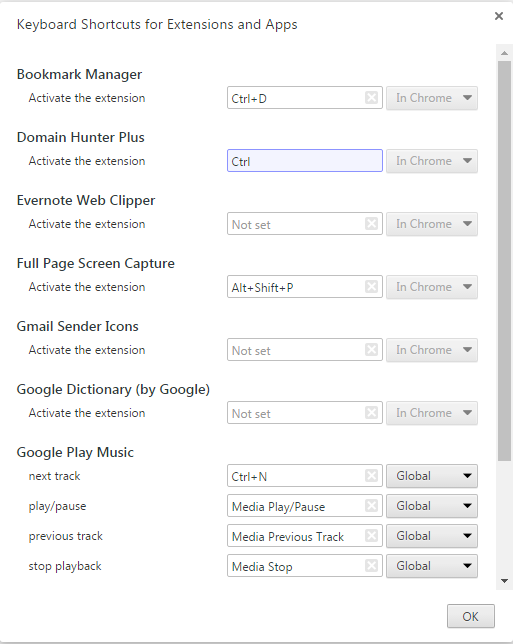
how to create custom keyboard shortcuts for Chrome Extensions

Some will have the shortcuts defined but they can be changed. Most will be empty. From most extensions,  the only function is to activate within Chrome. Other interactive extensions and apps have more options. You can define a custom keyboard shortcut for any available action.
Share
Tweet
Linkedin
Reddit
Tumblr
Stumble
Whatsapp
Telegram
Email
Prev Article
Next Article

Related Articles

How To Organize Google Chrome Bookmarks
If you have many bookmarks in Chrome the you need …

How To Organize Google Chrome Bookmarks

Three Extra Handy Uses Of Google Chrome Browser
Google Chrome is an exceptionally good browser already. Its speed, …

Three Extra Handy Uses Of Google Chrome Browser

  • How To Add Timestamps To Photos On Xiaomi Smart Camera C701
  • How To Turn ON Status Light Of Xiaomi Smart Camera C701
  • How To Turn ON Pet Detection On Xiaomi Smart Camera C701
  • How To Set Password On Xiaomi Smart Camera C701
  • How To Recover Deleted Voice Recordings On Samsung Galaxy S26 Ultra
DMCA.com Protection Status

Associates Disclosure

WebPro Education is a participant in the Amazon Services LLC Associates Program, an affiliate advertising program designed to provide a means for sites to earn advertising fees by advertising and linking to amazon.com.

WebPro Education

Tech tips everyday
Copyright © 2026 WebPro Education

Ad Blocker Detected

Our website is made possible by displaying online advertisements to our visitors. Please consider supporting us by disabling your ad blocker.

Refresh