Keeping your Samsung Galaxy A17 5G neat can make a big difference in how easily you use your phone each day. One option that often goes unnoticed is “Add New Apps To Home Screen,” which will put all the apps you install on your home screen. While this may be nice for quick access to new apps, it can cause a mess on your home screen if you are constantly installing apps.
In this tutorial, we will show you how to enable & disable add new apps to home screen on your Samsung Galaxy A17 5G. Whether you want a clean home screen or want every new install to appear automatically, these steps will put you in charge of how your device is organized.
By the end of this article, you will have every option to control your apps and to have a clean home screen that meets your needs.
Watch: How To Remove Google Account From Samsung Galaxy A17 5G
Enable & Disable ‘Add New Apps To Home Screen’ On Samsung Galaxy A17 5G
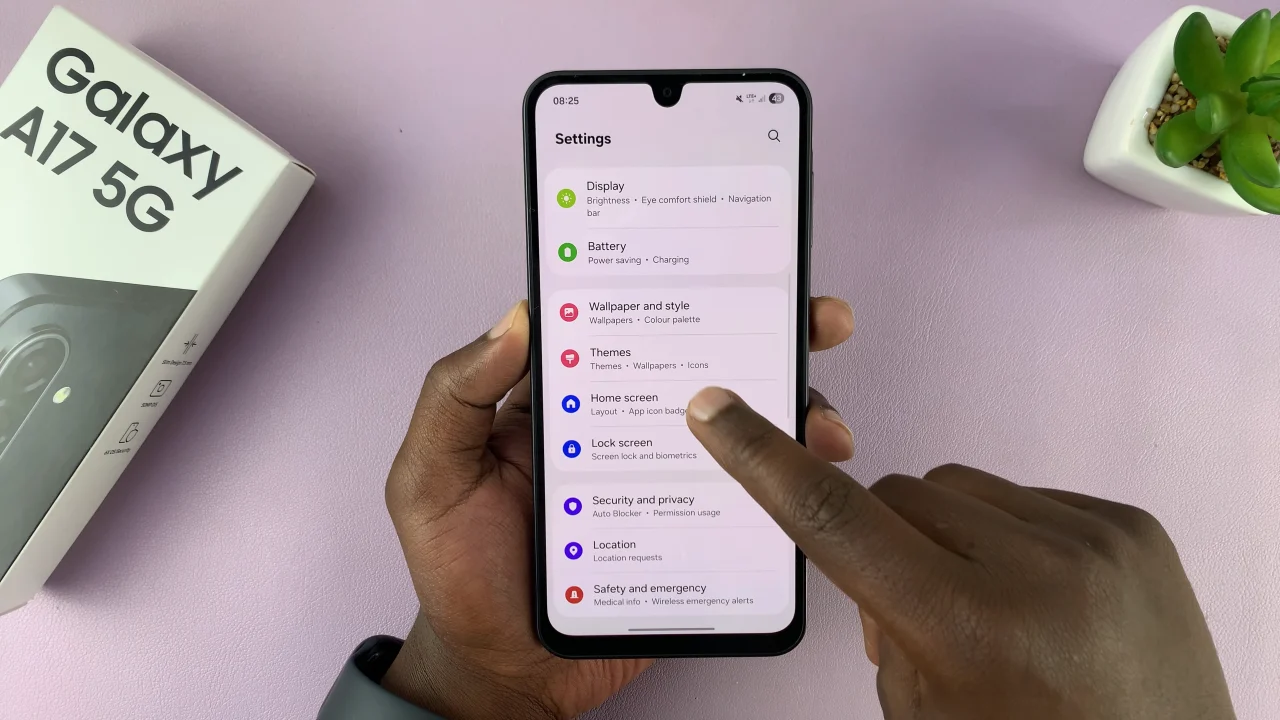
Begin by accessing the Settings app on your Galaxy A17 5G. Find the Settings app on the home screen or app drawer and tap on it to proceed. Then, scroll down and select ‘Home Screen‘.
Following this, scroll down and find the ‘Add new apps to home screen‘ option. Now, you’ll see a toggle switch next to it. If you’d like to see new apps to home screen, simply toggle on this switch. However, if you’d like to hide apps from home screen, toggle OFF switch.
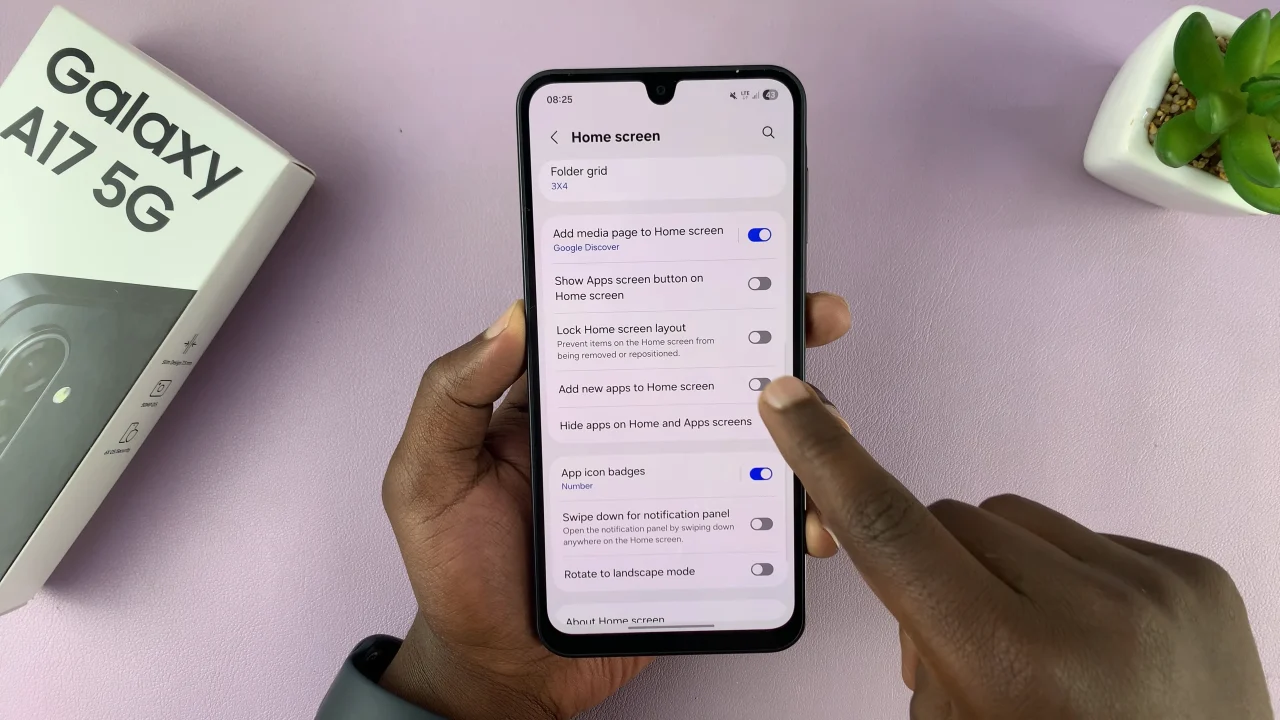
By following the steps to enable or disable Add New Apps To Home Screen, you can decide whether new apps appear automatically or only when you choose, giving you full control over your device’s layout. Take a few minutes to adjust it today and enjoy a cleaner, more personalized Samsung Galaxy A17 5G.
Read: How To Enable Keyboard Vibrations On Samsung Galaxy A17 5G