Read: How To Display Controller In FC 27
Learning How To Access All Game Settings In FC 27 can help you find the options needed to adjust controls, visuals, gameplay, audio, camera, and other features. FC 27 includes a wide range of settings, and knowing where these options are located makes it easier to personalize the game according to your preferences.
Whether you want to change the difficulty level, adjust controller settings, modify the radar, change camera options, or customize gameplay assistance, accessing the full settings menu is the first step. Some options may also be available only from specific menus or while you are inside a match.
In this guide, we’ll explain how to navigate the FC 27 menus and locate the different categories of game settings. Follow the steps below to quickly access the available settings and customize your FC 27 gameplay experience.
Access All Game Settings In FC 27
First, launch FC 27 and wait for the main menu to load.
Next, select the first option from the buttons to the left of the main menu.
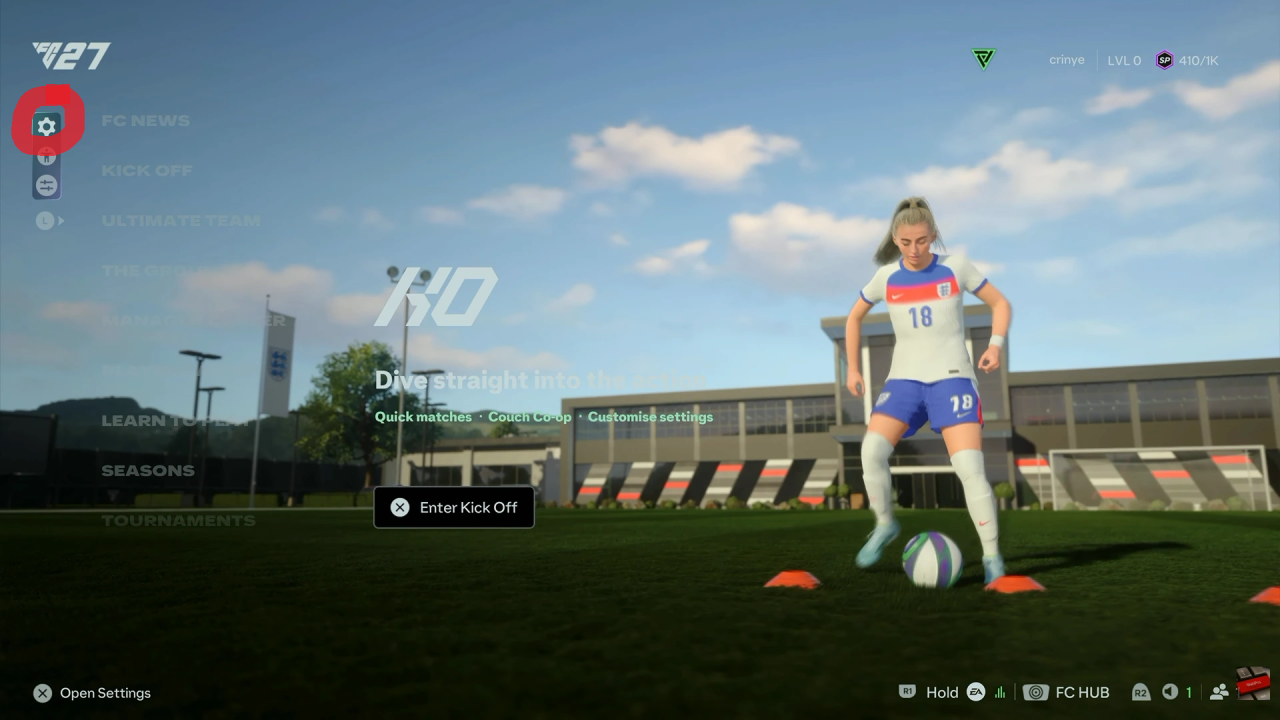
After that, choose Game Settings to access gameplay-related options. Use the available tabs to move between categories such as Gameplay, Visual, Audio, Camera, Rules, and other settings.
If you are already playing a match, press the Pause button and select Settings. From there, you can access the settings available during gameplay.
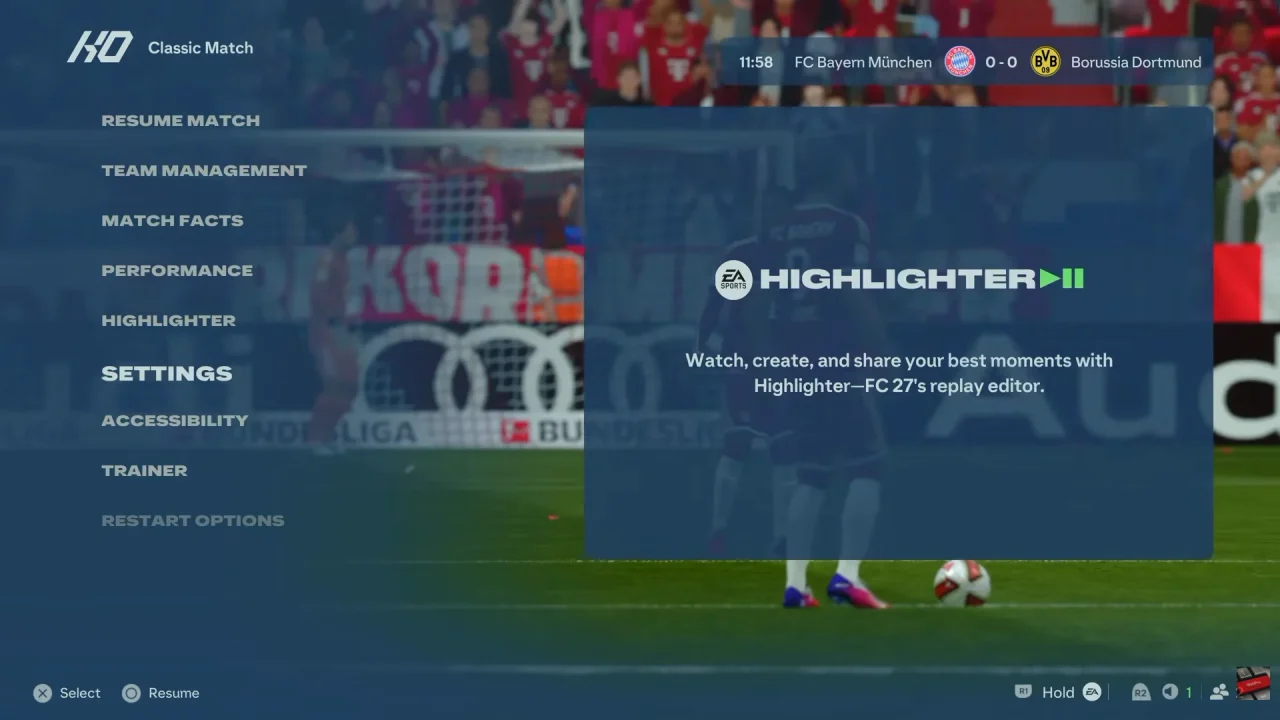
Finally, browse each category to find the specific option you want to change. Once finished, return to your match or exit the menu, with your selected settings applied where supported.