A step-by-step tutorial on how to adjust brightness and contrast in FC 27. If the game looks too dark, too bright, washed out, or lacks detail, changing these settings can improve the overall visual experience.
Adjusting the brightness and contrast settings in FC 27 can help you get a clearer and more comfortable picture while playing.
Whether you are playing during the day, at night, or on a different display, you can adjust the picture settings to better suit your screen.
Watch: Perform Ball Roll In FC 27
Adjust Brightness & Contrast In FC 27
To change the brightness and contrast settings, launch FC 27 and wait for the main menu to appear. From the main menu, open Settings.
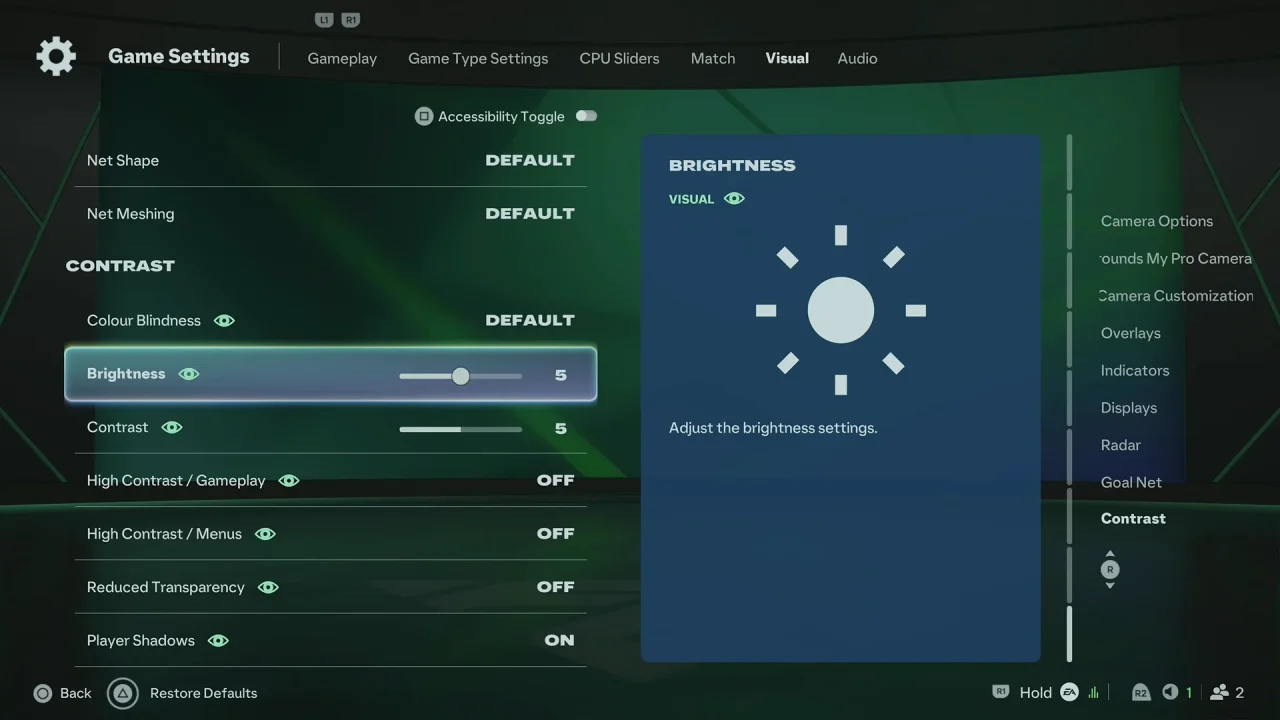
Select Game Settings and navigate to the Contrast section. Look for the Brightness and Contrast options.
Highlight Brightness and use the analog stick to adjust it to make the overall image lighter or darker.
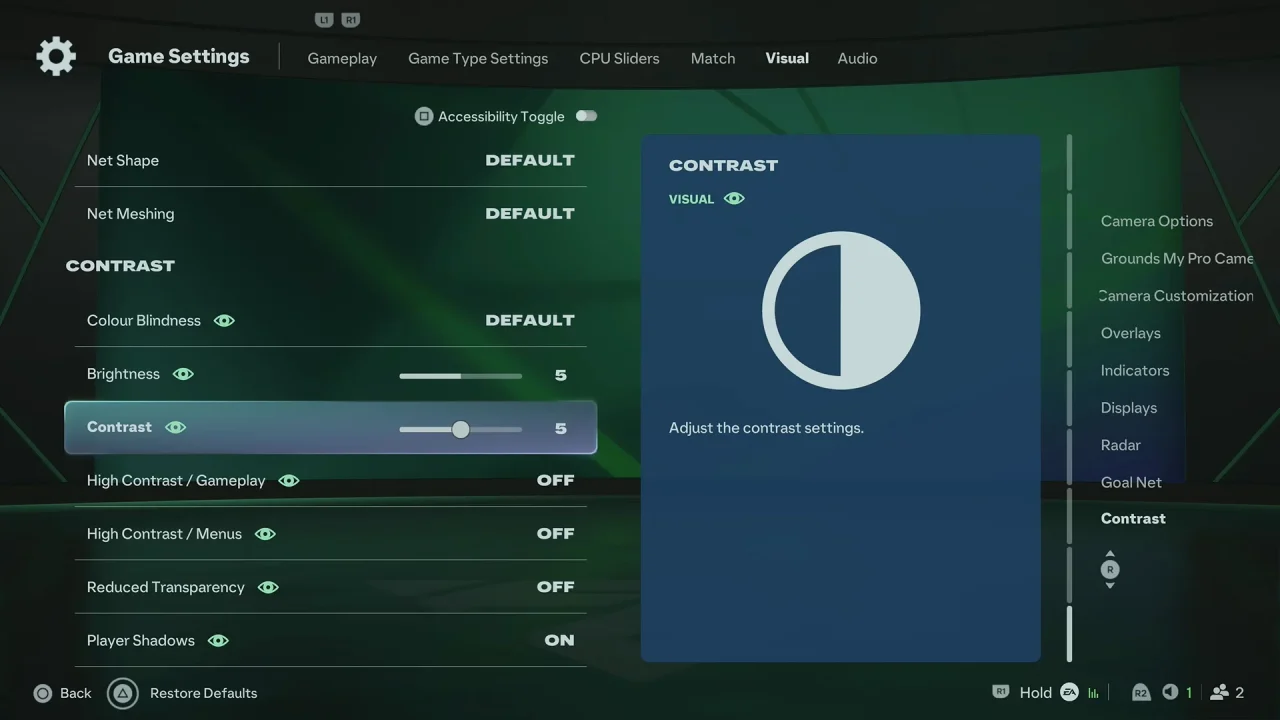
Do the same with Contrast to change the difference between darker and brighter areas.
Check the preview or gameplay image while making adjustments. Once you are satisfied with the settings, exit the menu. Your changes should be saved automatically or applied immediately.
What Does Brightness Do?
The Brightness setting controls how light or dark the overall picture appears.
If the game looks too dark and you are having difficulty seeing players, the pitch, or other details, try increasing the brightness slightly. If the image looks overly bright, lowering the setting can help restore detail.
What Does Contrast Do?
The Contrast setting controls the difference between light and dark parts of the image.
Increasing contrast can make the image appear more defined, while reducing it can produce a softer-looking picture. Extreme contrast settings may cause details to disappear in very dark or very bright areas.
Recommended Approach
There is no single brightness and contrast setting that works perfectly for every player or display. Your TV, monitor, HDR settings, room lighting, and personal preference can all affect how the game looks.
For the best results, make small adjustments and test them in actual gameplay. Try to keep enough detail visible in both bright stadium areas and darker parts of the screen.