If you are practicing your skills in FC 27, changing the camera angle in the Practice Arena can make it easier to work on dribbling, shooting, passing, and free kicks.
The game provides different camera options, allowing you to choose a view that suits your practice style.
In this guide, we’ll show you how to change the camera in the Practice Arena in FC 27.
Read: How To Enable / Disable Voice Chat In FC 27
Change Camera In Practice Arena In FC 27
First, launch FC 27 on your console or PC and wait for the main menu to load. Go to the Practice Arena from the available game modes or practice options. Once you are inside the arena, your player should appear on the training pitch.
While inside the Practice Arena, open the settings or pause menu using the appropriate button on your controller or keyboard.
Look for the options related to Camera. Here, you can select from the available camera views.
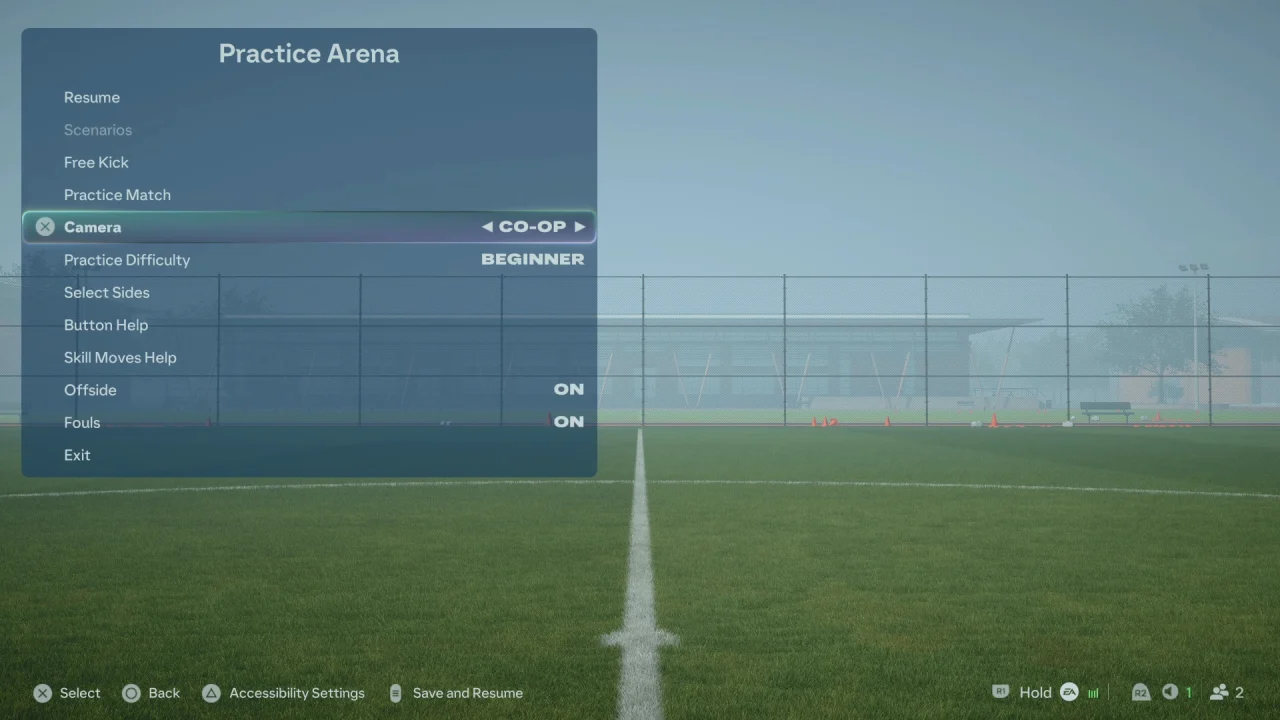
Select the camera angle you want to use. You can experiment with the different options to find the view that gives you the best visibility of your player and the pitch.
Some camera angles provide a wider view of the field, while others are positioned closer to your player.
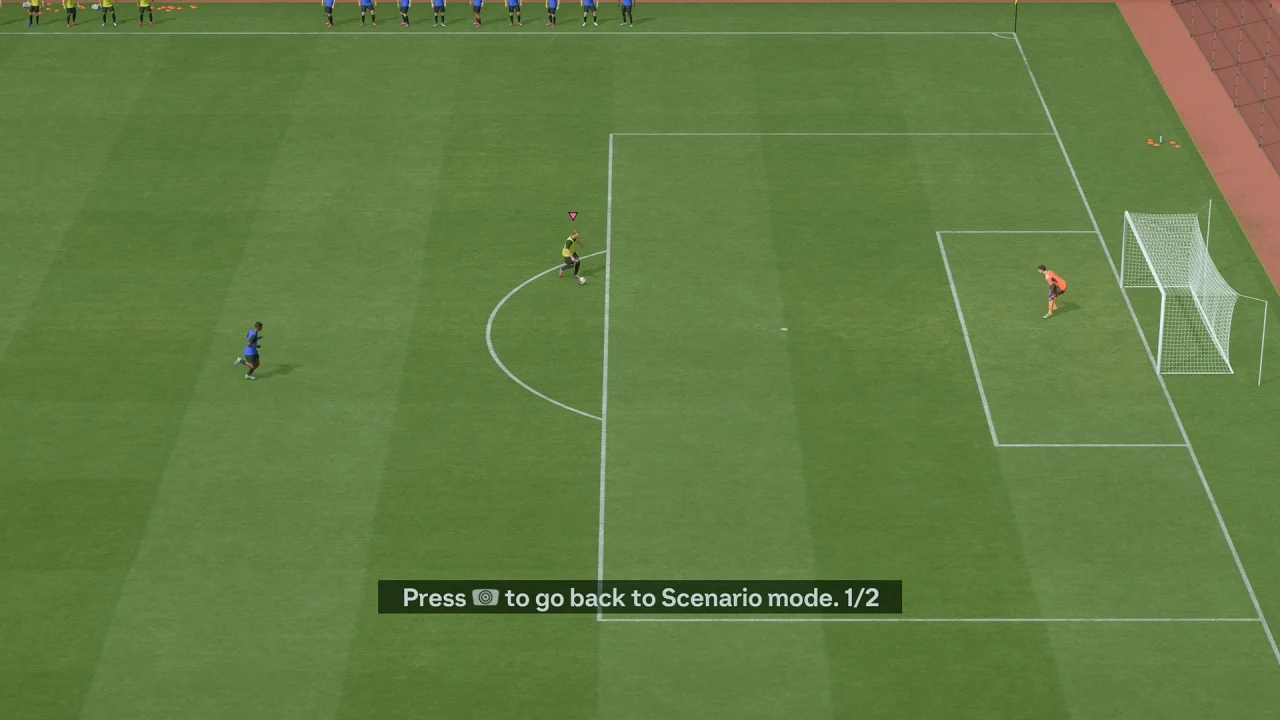
After selecting your preferred camera, return to the Practice Arena and test the new view. If the camera does not feel comfortable, simply return to the camera settings and choose another option.
Why Change The Camera In Practice Arena?
Changing the camera can be useful when practicing different skills. A wider camera view can help you see more of the pitch when practicing passing and movement, while a closer view may be useful when working on dribbling, shooting, or skill moves.
It is also a good idea to practice with the same camera configuration you normally use during matches. This can help you become more familiar with the positioning and movement of players on the screen.
Watch: Enable Voice Chat In FC 27