Keeping your MacBook Neo secure starts with having a strong and up-to-date password. This helps you to improve your overall device security.
In this guide, we’ll walk you through everything you need to know on how to change your login password on your MacBook Neo, to improve your security or you’ve simply forgotten your current password.
Regularly updating your password helps protect your personal files, accounts, and sensitive information. It’s especially important if you suspect someone else knows your password or if you’ve used the same password for a long time.
Watch: Right Click On MacBook Neo
Change Password On MacBook Neo
You can change your password if you do remember it or if you actually forgotten it. Follow these steps if you remember your current password:
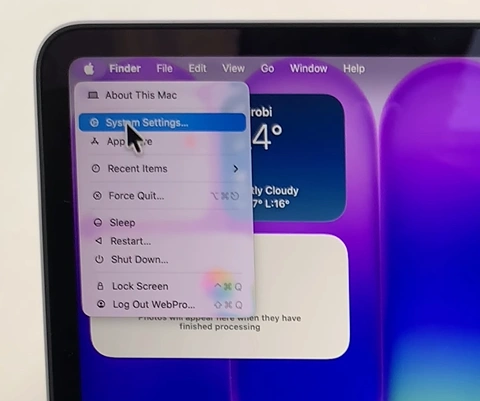
To start, click on the Apple menu in the top-left corner of your screen and select System Settings. Here, select Touch ID & Password.
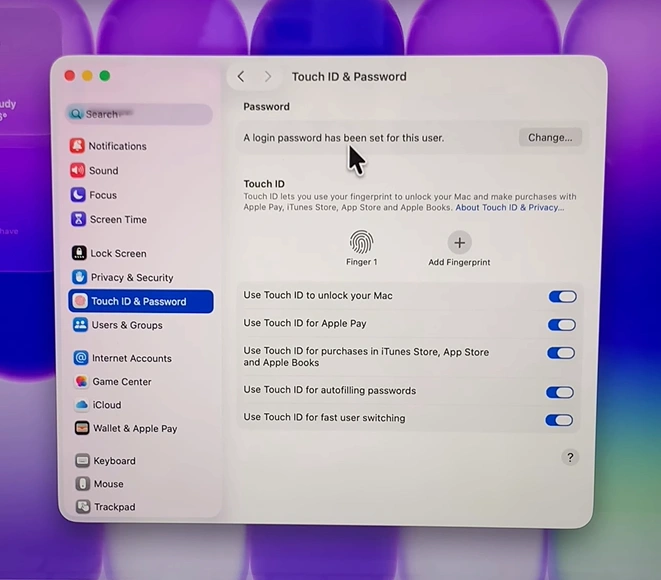
Next, click Change under the Password category.
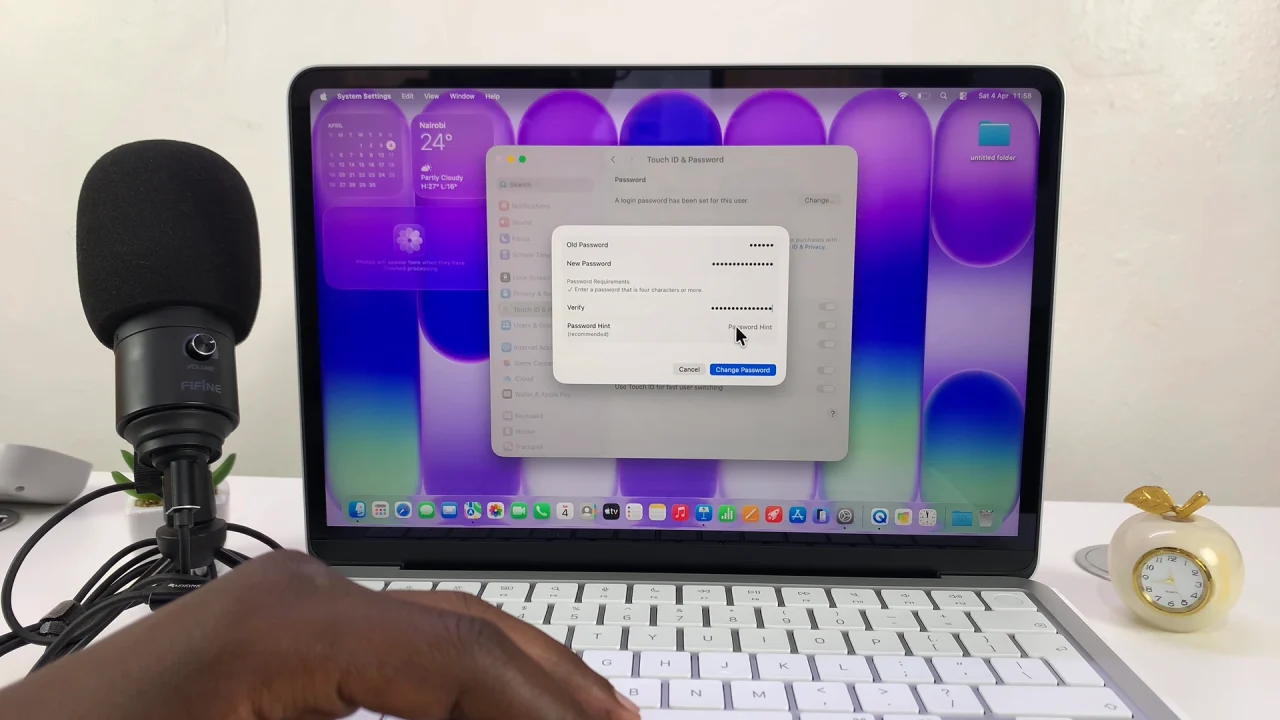
Enter your current password, under the old password category. Then, type your new password and confirm the new password, under the Verify section.
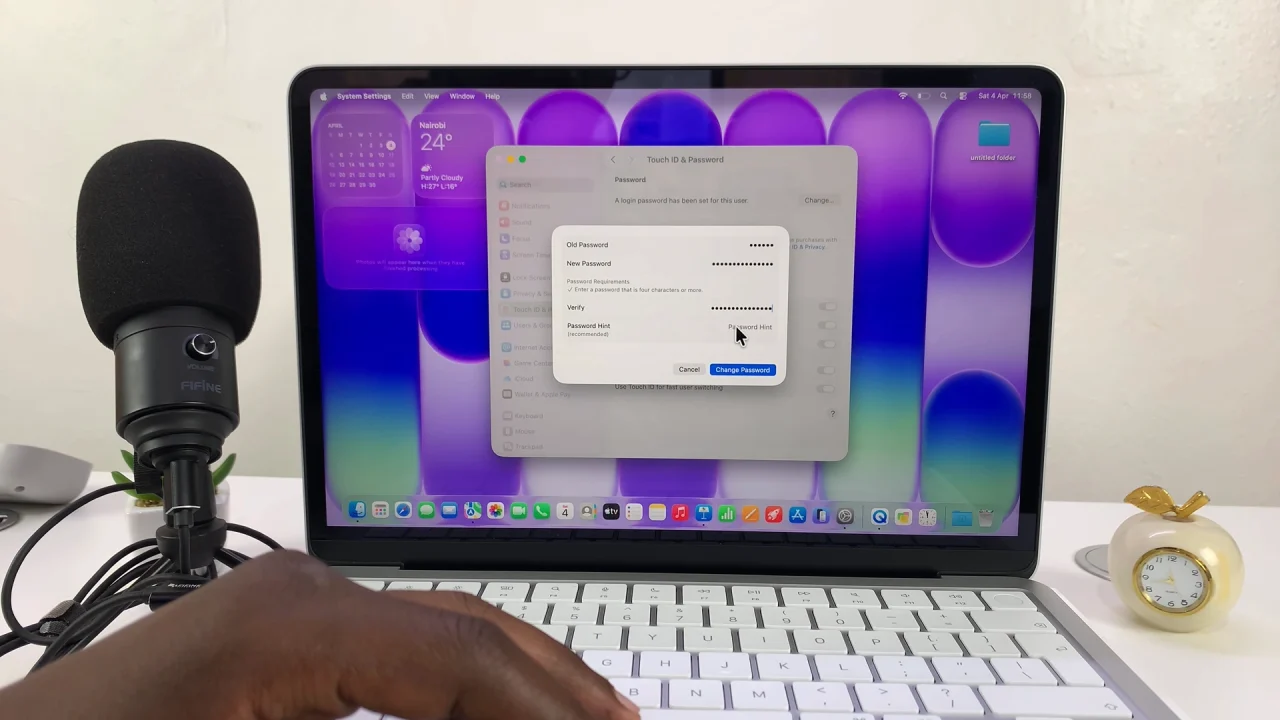
You can also add a password hint, although this is optional but helpful.
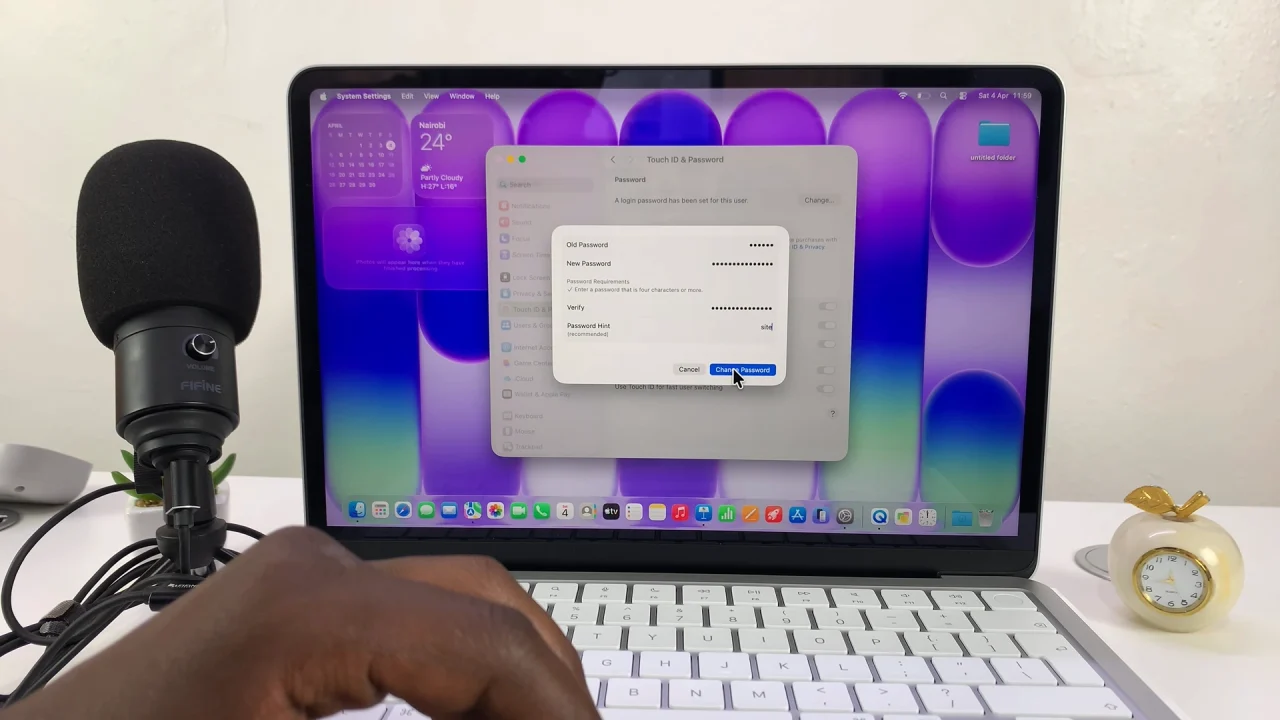
Finally, click Change Password to apply the new settings.
What To Do If You Forgot Your Password
If you can’t remember your current password, don’t worry—there are a few ways to reset it:
Use Your Apple ID
If your account is linked to your Apple ID, restart your MacBook Neo. Click the question mark on the login screen. Choose the option to reset using your Apple ID.
Use Recovery Mode
Turn off your MacBook Neo. Turn it back on and hold the power button to enter recovery options. Select Options —> Continue. Choose Terminal from the menu and type:
resetpassword
Follow the on-screen instructions
Tips for Creating a Strong Password
A strong password keeps your MacBook Neo safe from unauthorized access. Here are some tips:
- Use at least 8–12 characters.
- Combine uppercase and lowercase letters.
- Include numbers and special symbols.
- Avoid obvious words like your name or password123.
- Don’t reuse passwords from other accounts.