If you’ve just started using a MacBook Neo, you might wonder how to quickly open your favorite apps. Luckily, Apple makes it easy to launch apps in several ways.
In this guide, we’ll show you three simple methods to launch apps on your MacBook Neo, to get your apps up and running fast.
Read: How To Force Shutdown MacBook Neo
Launch Apps On MacBook Neo
Open Apps Using Finder
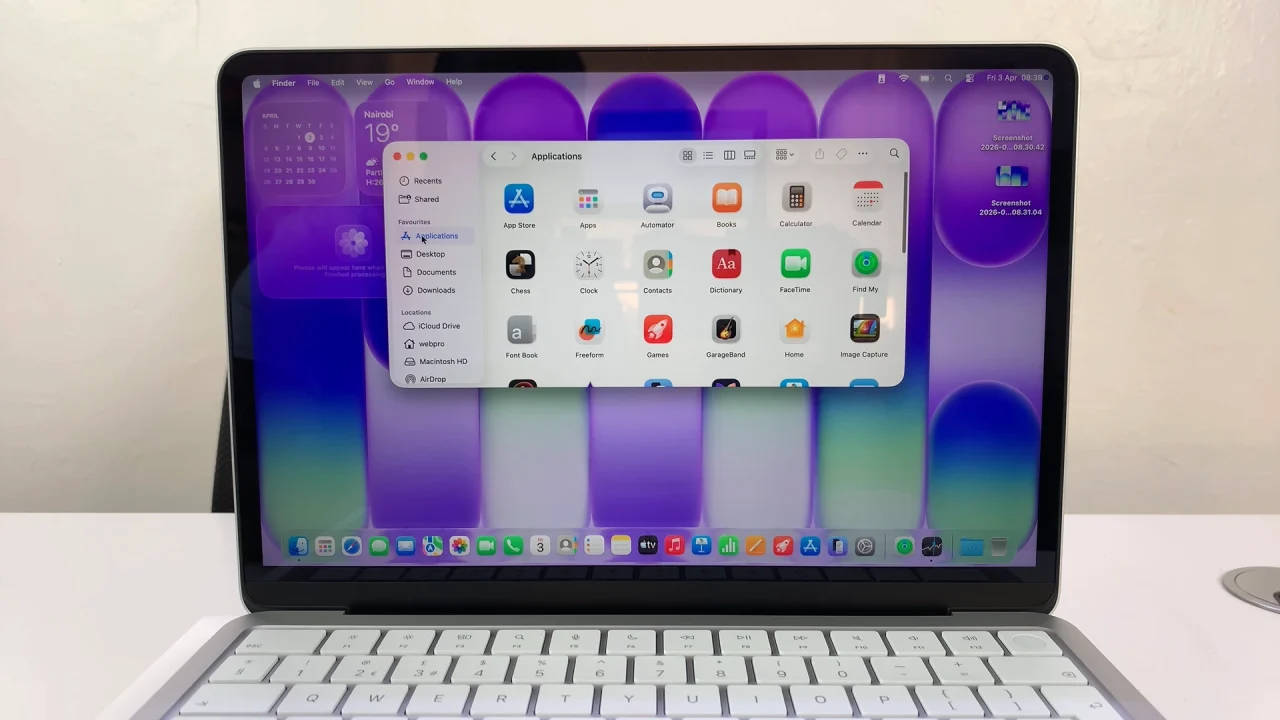
Simply launch the Finder app and select Applications in the left-hand side panel.
You should see all your apps listed there. Double-click on the app you want to launch.
Launch Apps Using the Dock
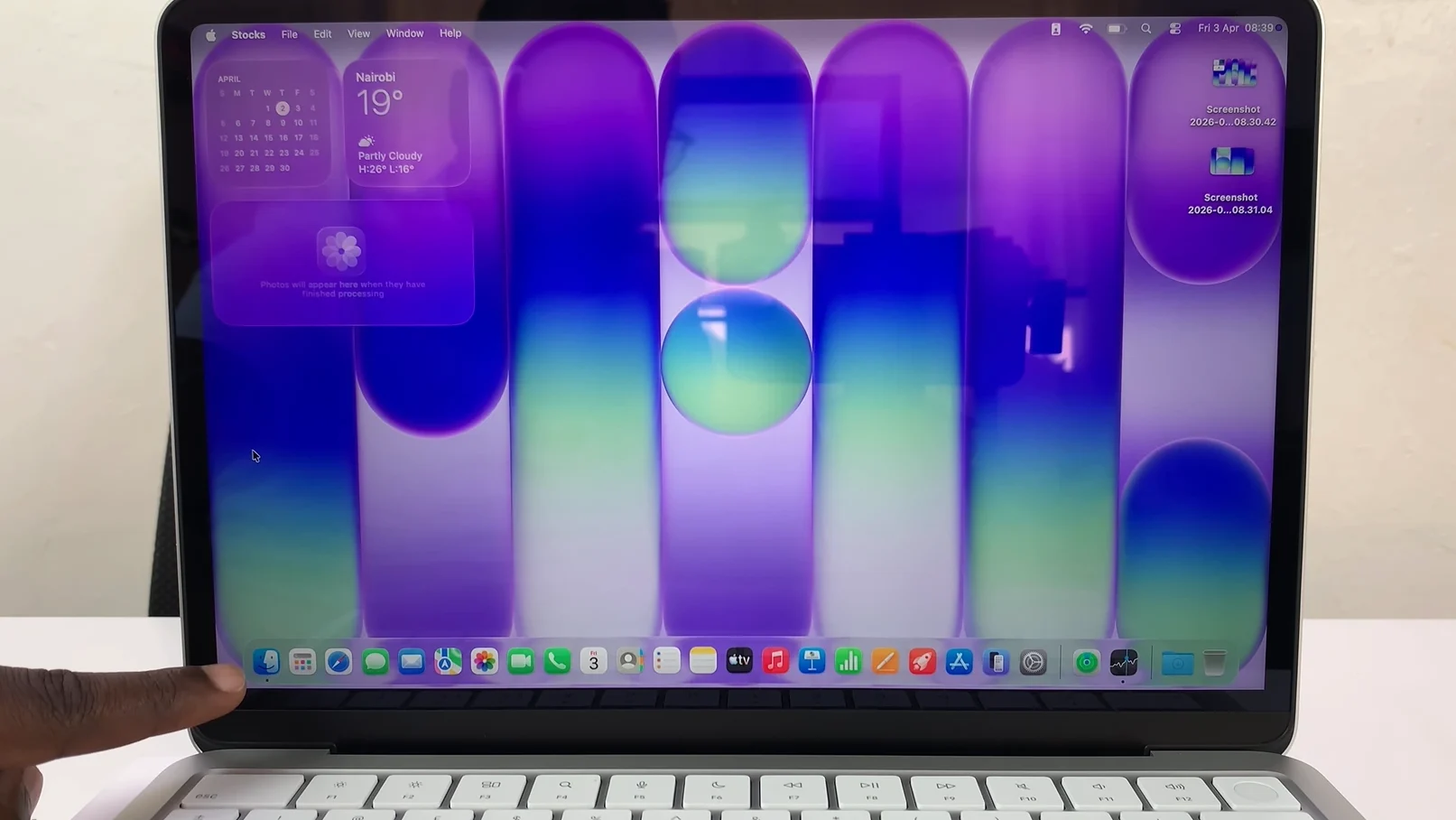
The Dock is the bar of icons usually located at the bottom of your MacBook Neo screen. It’s the quickest way to access frequently used apps.
Look at the Dock on your desktop to find the app you want to open. Click the app icon once.
You can also drag apps to the Dock for faster access later.
Launch Apps Using Spotlight Search
Spotlight Search is a powerful tool that lets you find and open apps without searching through folders.
Press Command (⌘) + Spacebar to open Spotlight. You can also launch Spotlight from the top-right corner. It’s icon is a magnifying glass.
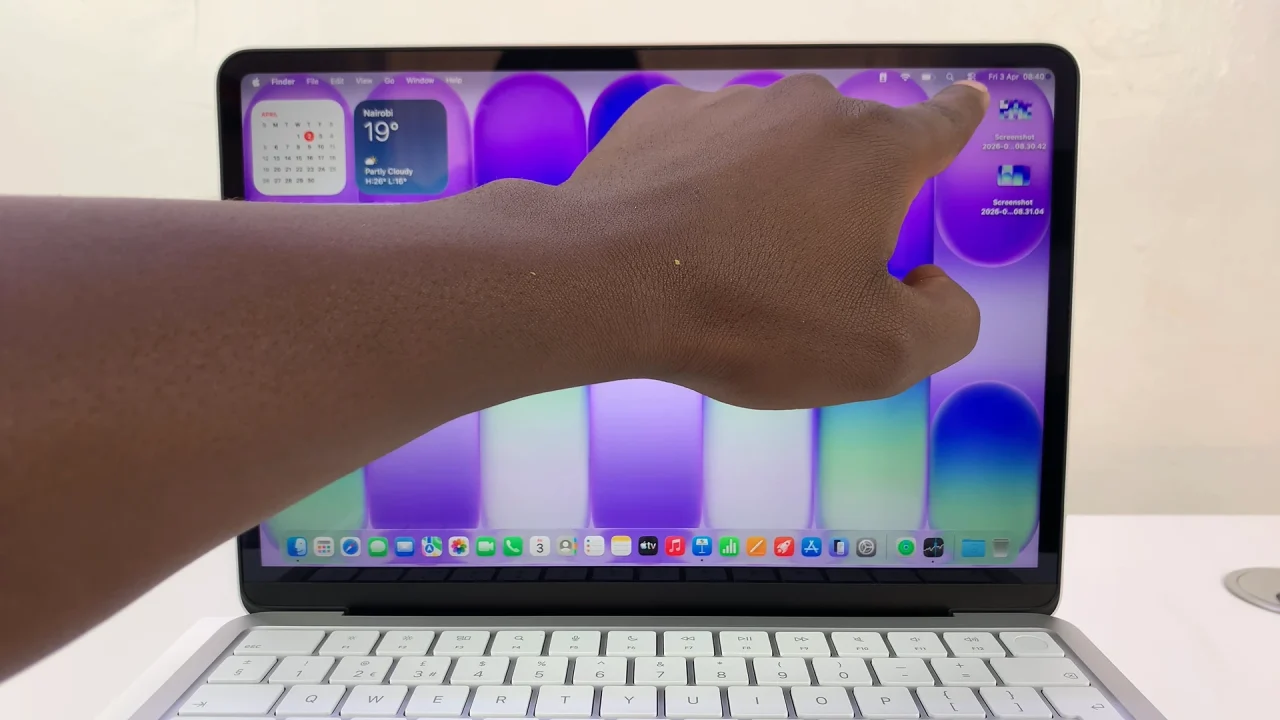
Then, type the name of the app you want to launch. Press Enter when the app appears in the results.
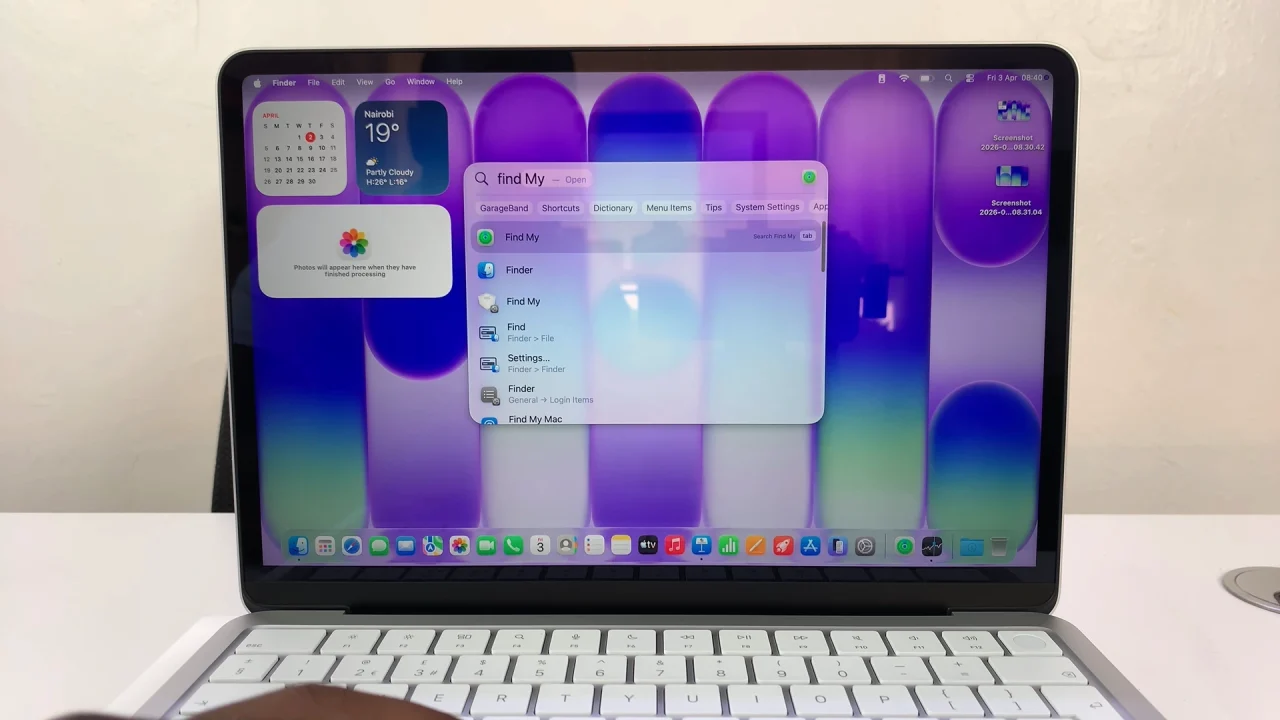
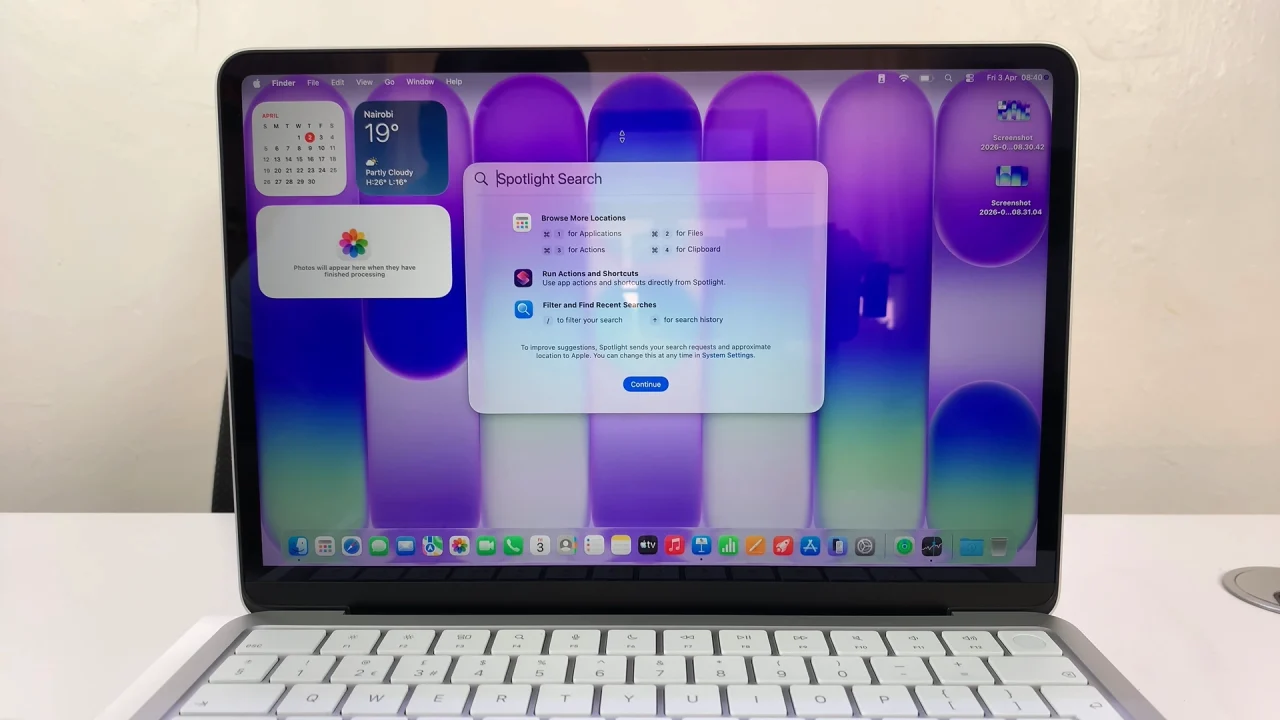
Spotlight can also search for files, emails, and system settings, making it a versatile shortcut.
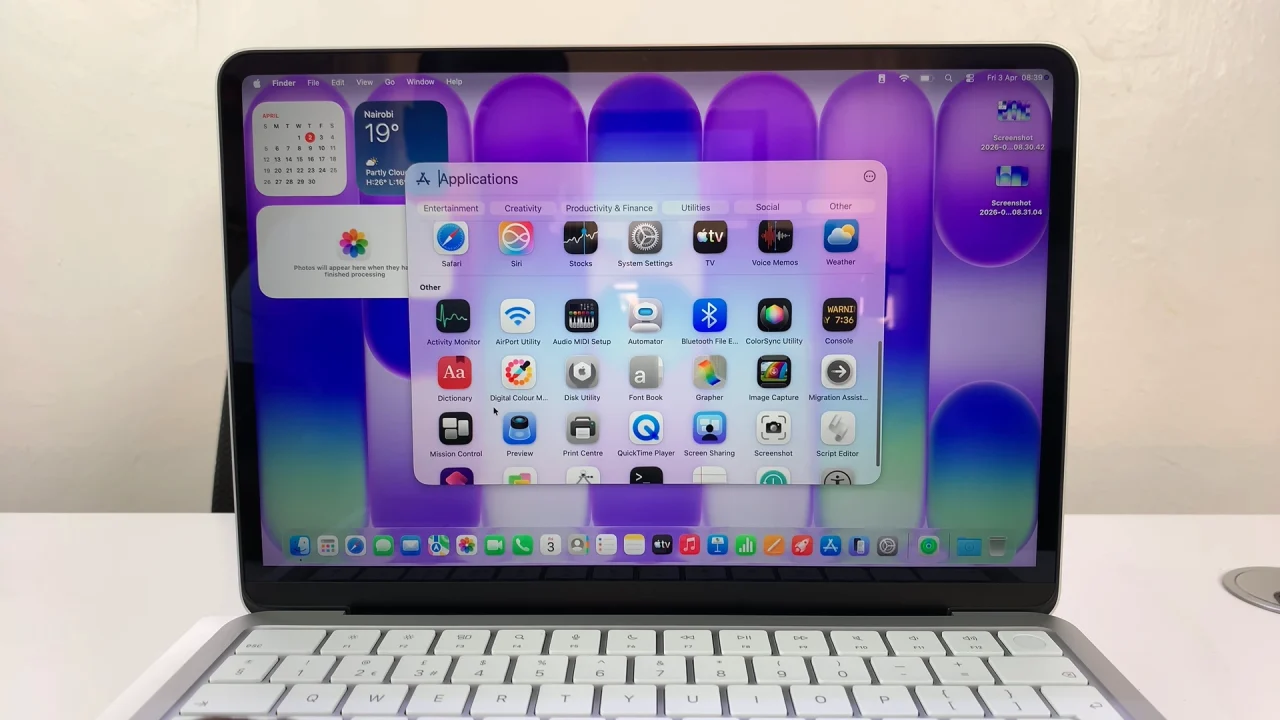
Launch Apps Using Apps Icon
The Apps icon shows all your apps in a grid layout, similar to an iPad, making it easy to locate the one you need.
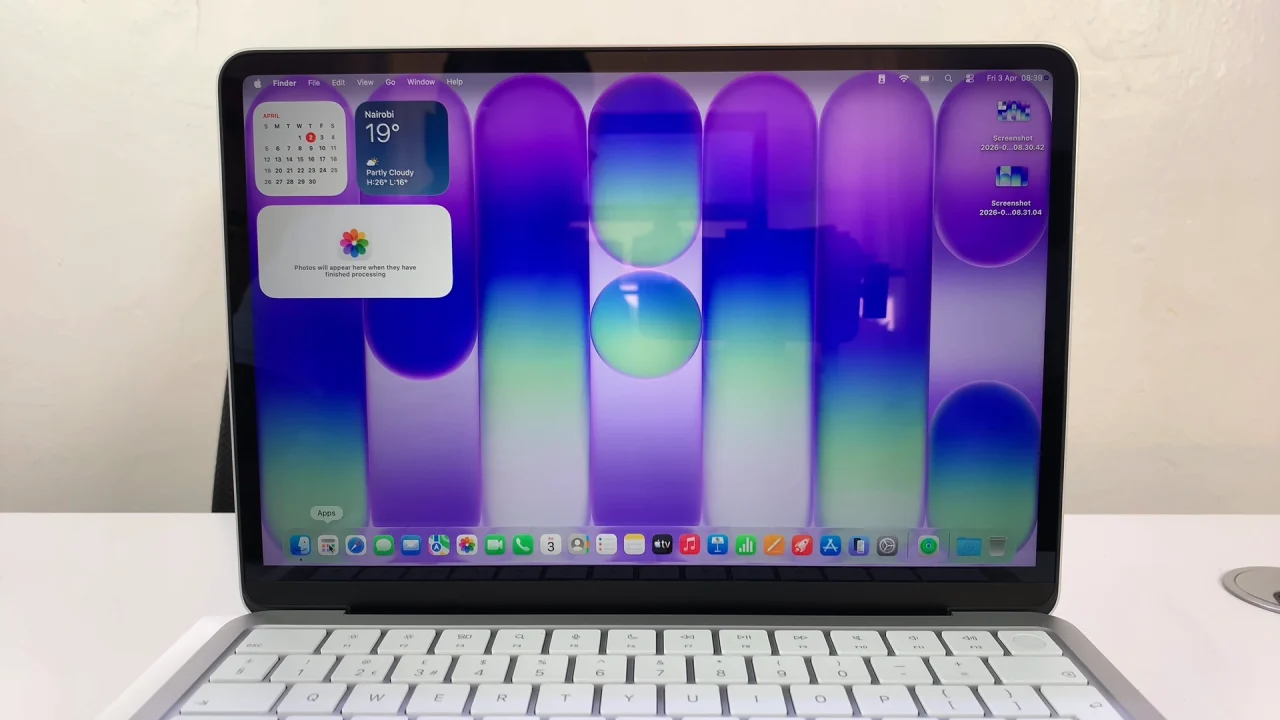
Simply click the Apps icon in the Dock. Scroll through your apps or use the search bar at the top. Click once on the app you want to open.
Watch: Force Shutdown MacBook Neo