In this article, you’ll learn how to disable eSIM on Samsung Galaxy S26 in a quick and simple way. The eSIM feature lets you use a digital SIM card without a physical SIM, but you may need to turn it off when switching networks or managing your mobile plans.
The Samsung Galaxy S26 allows you to manage your SIM settings easily through the settings menu. You can disable eSIM when you no longer need it or when troubleshooting network issues.
By following a few simple steps, you will know how to disable eSIM on Samsung Galaxy S26 and control your mobile connectivity with ease.
Watch: How To Disable Call Waiting On Samsung Galaxy S26 / S26 Ultra
Disable eSIM On Samsung Galaxy S26 Ultra:
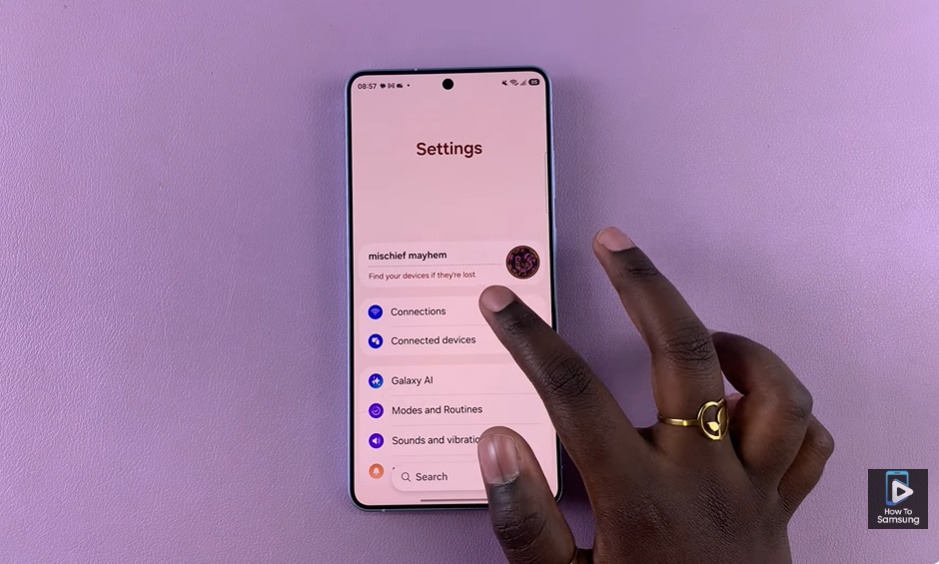
Open the Settings app on your Samsung Galaxy S26 Ultra to access all system and network controls. This is the main place where you manage connectivity options like Wi-Fi, Bluetooth, SIM cards and eSIM settings. Tap Connections from the settings menu. This section contains all network-related features, including mobile data, SIM settings, and SIM Manager, which is used to control your SIM profiles.
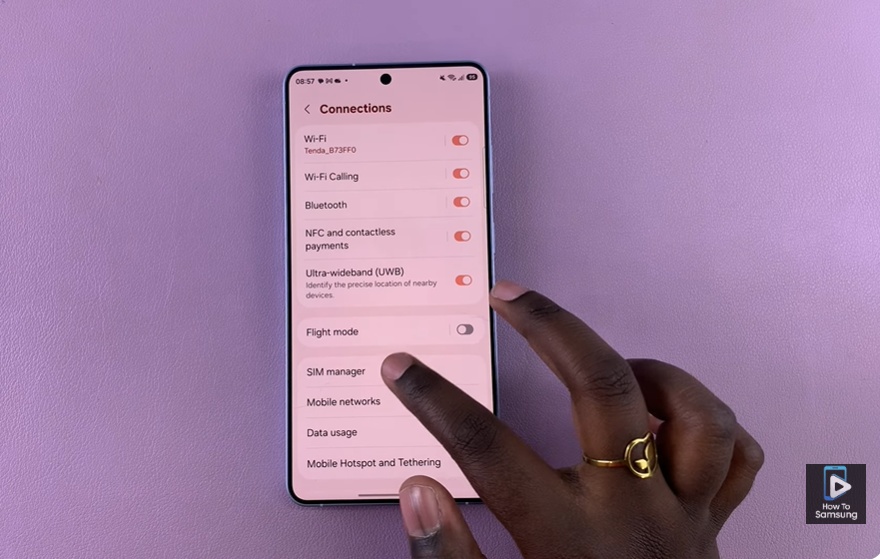
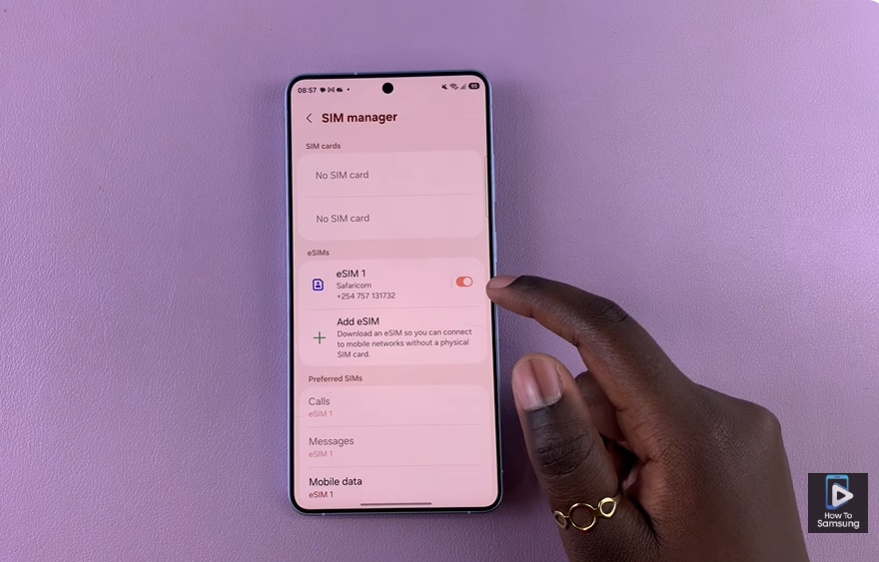
Select SIM Manager to view all active SIM cards and eSIM profiles on your device. Here, you will see your eSIM listed alongside any physical SIM cards you may be using.
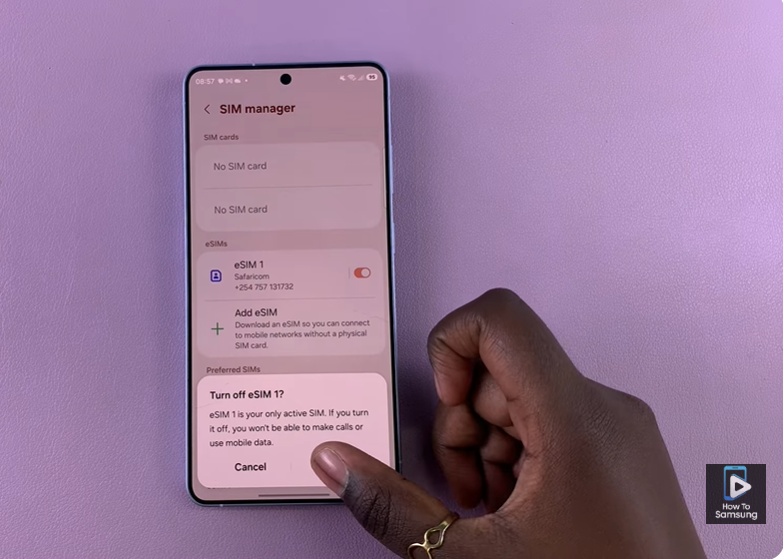
Tap your eSIM profile, then switch it off to disable it. Once turned off, your Samsung Galaxy S26 Ultra will stop using the eSIM for calls, messages, and mobile data until you enable it again.
Read: How To Auto Answer Incoming Calls On Samsung Galaxy S26 Ultra