WebPro Education

Tech tips everyday
Menu
  • REVIEWS
  • HOW TO
  • TECH NEWS
  • About Us
Home
how to
How To Auto Answer Incoming Calls On Samsung Galaxy S26 Ultra
how to

How To Auto Answer Incoming Calls On Samsung Galaxy S26 Ultra

Edwin Njenga March 27, 2026

In this article, you’ll learn how to auto answer incoming calls on Galaxy S26 Ultra. This feature helps you pick up calls automatically without touching your phone. It is useful when you are busy, driving, or using hands-free devices.

The Samsung Galaxy S26 Ultra allows you to control call settings easily. You can enable auto answer and set a delay time based on your preference. This makes it easier to stay connected without missing important calls.

By the end of this guide, you will know how to enable auto answer incoming calls on Samsung Galaxy S26 Ultra in a quick and simple way.

Watch: How To Change Voice Recording Quality On Samsung Galaxy S26 / S26 Ultra

Auto Answer Incoming Calls On Samsung Galaxy S26 Ultra:

Open the Phone app on your Samsung Galaxy S26 Ultra to access all calling features and settings in one place. This is where you can manage how incoming calls are handled, making it easier to customize your calling experience based on your needs.
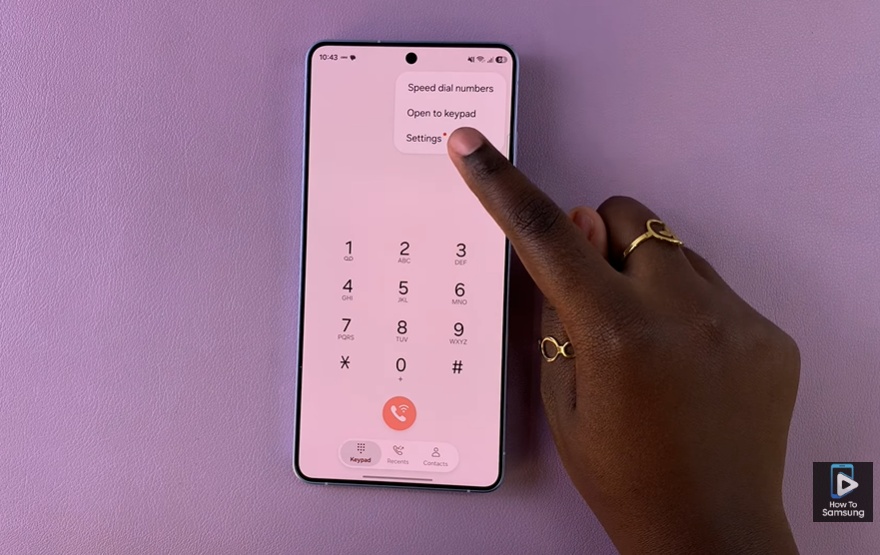
How To Auto Answer Incoming Calls On Samsung Galaxy S26 Ultra

Access Settings within the Phone app, then scroll to find “Answering and ending calls.” This section contains important call control options, including auto answer, which is useful when you want your phone to pick up calls automatically without manual input.
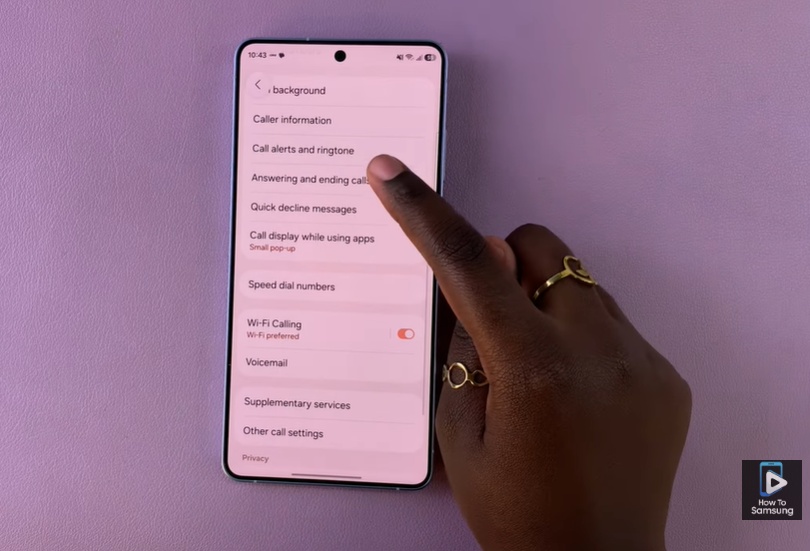
How To Auto Answer Incoming Calls On Samsung Galaxy S26 Ultra

Tap “Answering and ending calls,” then enable the auto answer feature and adjust any delay settings if available. Once activated, your Samsung Galaxy S26 Ultra will automatically answer incoming calls, helping you stay connected even when your hands are busy.
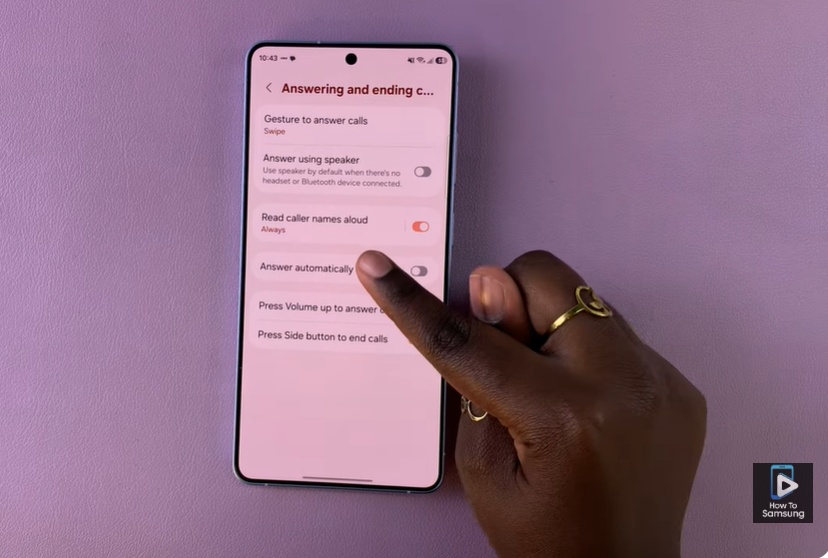
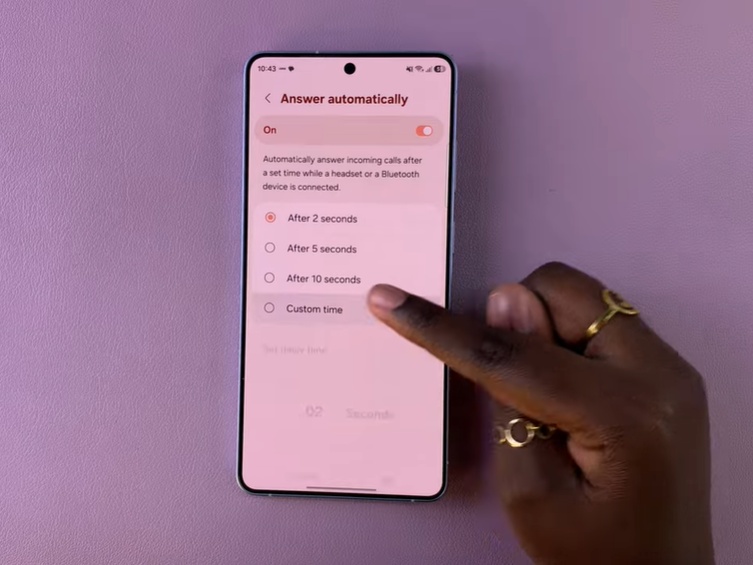
How To Auto Answer Incoming Calls On Samsung Galaxy S26 Ultra

Read: How To Add Lock Screen Widgets On Samsung Galaxy S26 Ultra
Share
Tweet
Linkedin
Reddit
Tumblr
Stumble
Whatsapp
Telegram
Email
Prev Article
Next Article

Related Articles

How To Allow Multiple Users On Google Pixel Tablet

How To Allow Multiple Users On Google Pixel Tablet

How To Download A Draft TikTok Video

How To Download A Draft TikTok Video

  • How To Add Timestamps To Photos On Xiaomi Smart Camera C701
  • How To Turn ON Status Light Of Xiaomi Smart Camera C701
  • How To Turn ON Pet Detection On Xiaomi Smart Camera C701
  • How To Set Password On Xiaomi Smart Camera C701
  • How To Recover Deleted Voice Recordings On Samsung Galaxy S26 Ultra
DMCA.com Protection Status

Associates Disclosure

WebPro Education is a participant in the Amazon Services LLC Associates Program, an affiliate advertising program designed to provide a means for sites to earn advertising fees by advertising and linking to amazon.com.

WebPro Education

Tech tips everyday
Copyright © 2026 WebPro Education

Ad Blocker Detected

Our website is made possible by displaying online advertisements to our visitors. Please consider supporting us by disabling your ad blocker.

Refresh