In this article, we’ll show you how to set up your Xiaomi Smart Camera C701. This is a straightforward process that allows you to monitor your home, office, or any space remotely.
You can use it for security, pet monitoring, or keeping an eye on loved ones, this guide will walk you through the entire setup from start to finish.
In addition to the Xiaomi Smart Camera C701, make sure you have the power adapter and cable, a smartphone (Android or iPhone), stable Wi-Fi connection and the Mi Home app installed.
Watch: Unboxing Xiaomi Smart Camera C701
Set Up Xiaomi Smart Camera C701
Start by plugging your camera into a power source using the provided adapter. Once connected, the camera will turn on automatically. You should see a steady amber light. It should also go through a brief calibration process as it powers on.
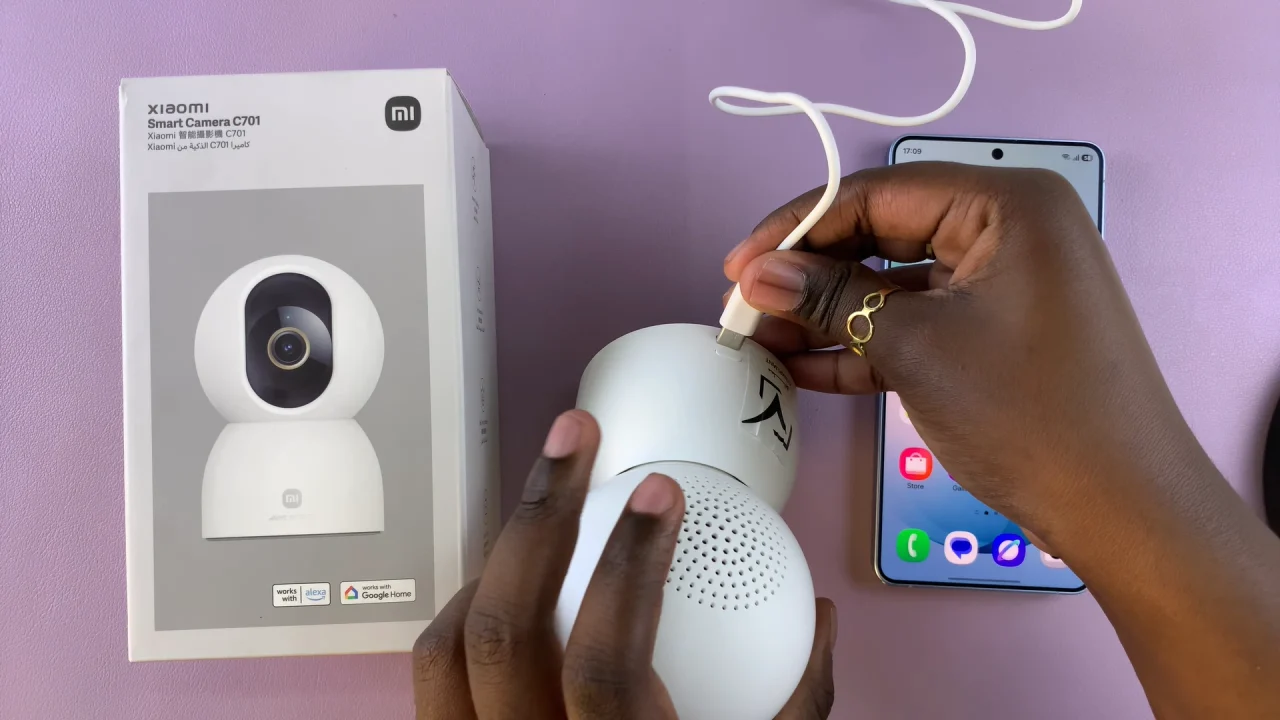
Wait for the amber indicator light to start blinking (this means it’s ready to pair). If the light doesn’t blink, press and hold the reset button for a few seconds.
The next thing to do is to make sure you download and install the Xiaomi Home app from Google Play Store (Android) or the Apple App Store (iOS).
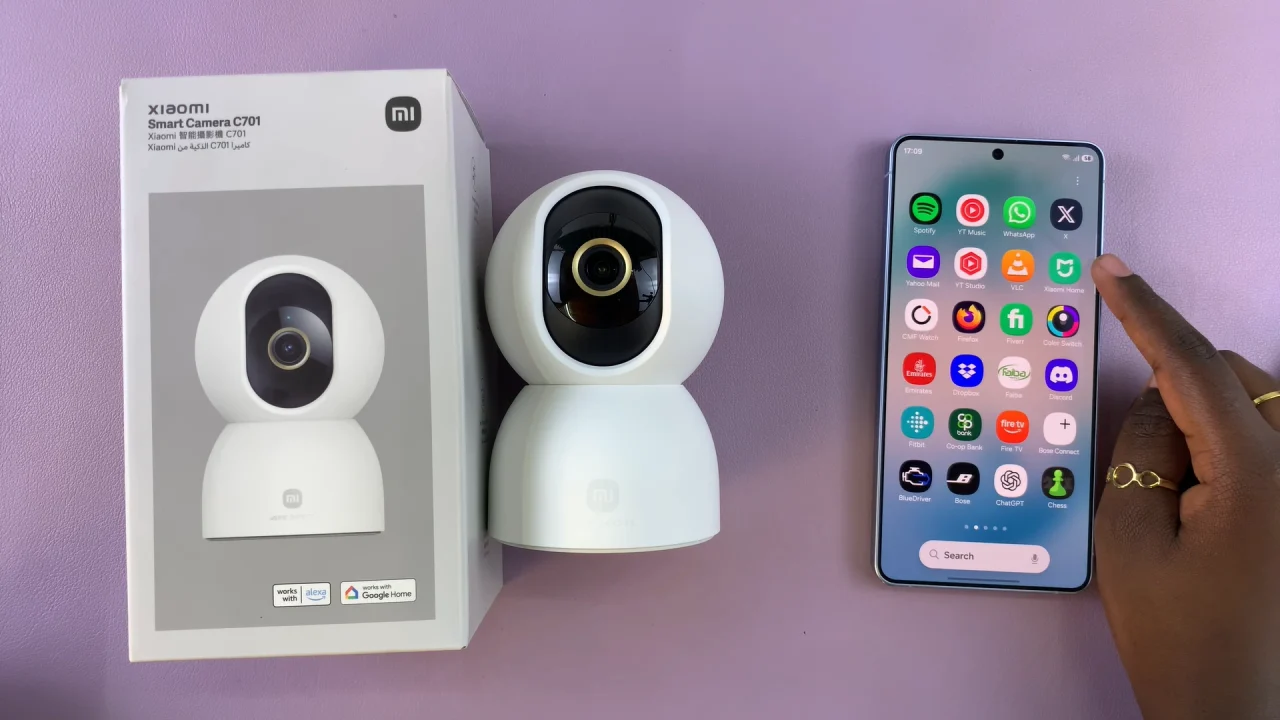
Once installed, launch the app and sign in or create a Xiaomi account. Inside the Xiaomi Home app, tap the “+” button and select Add Device.
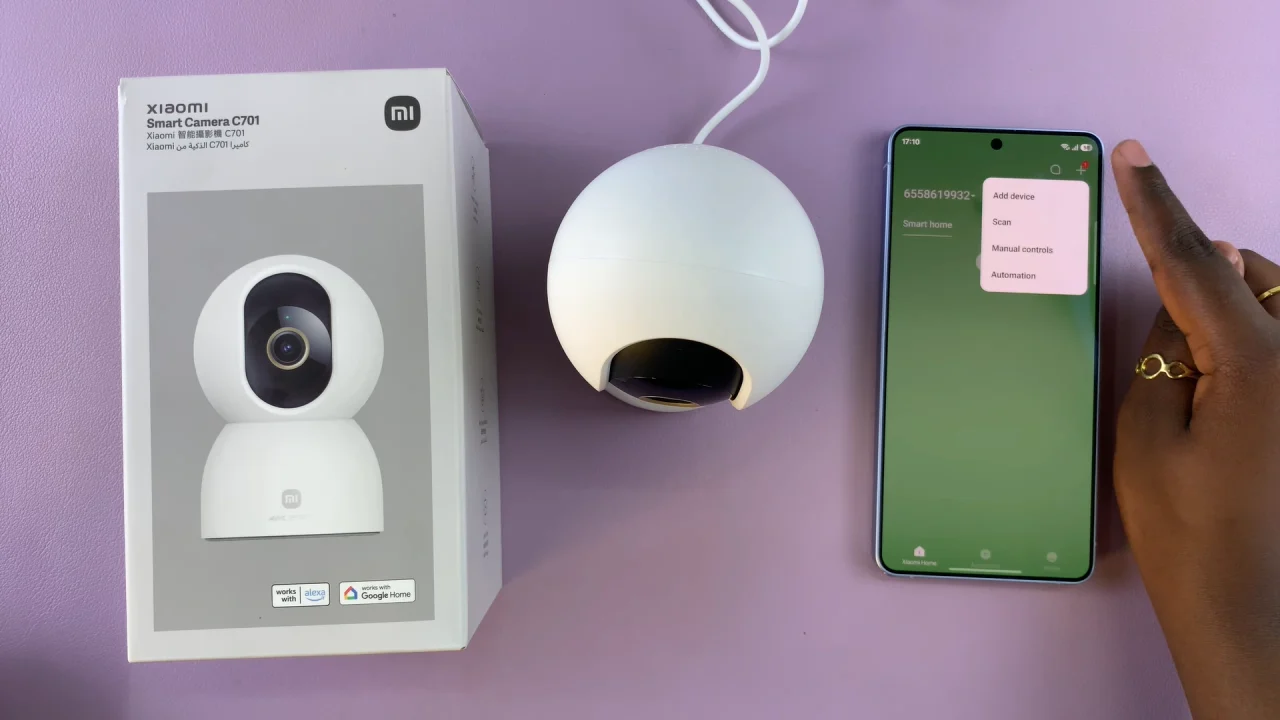
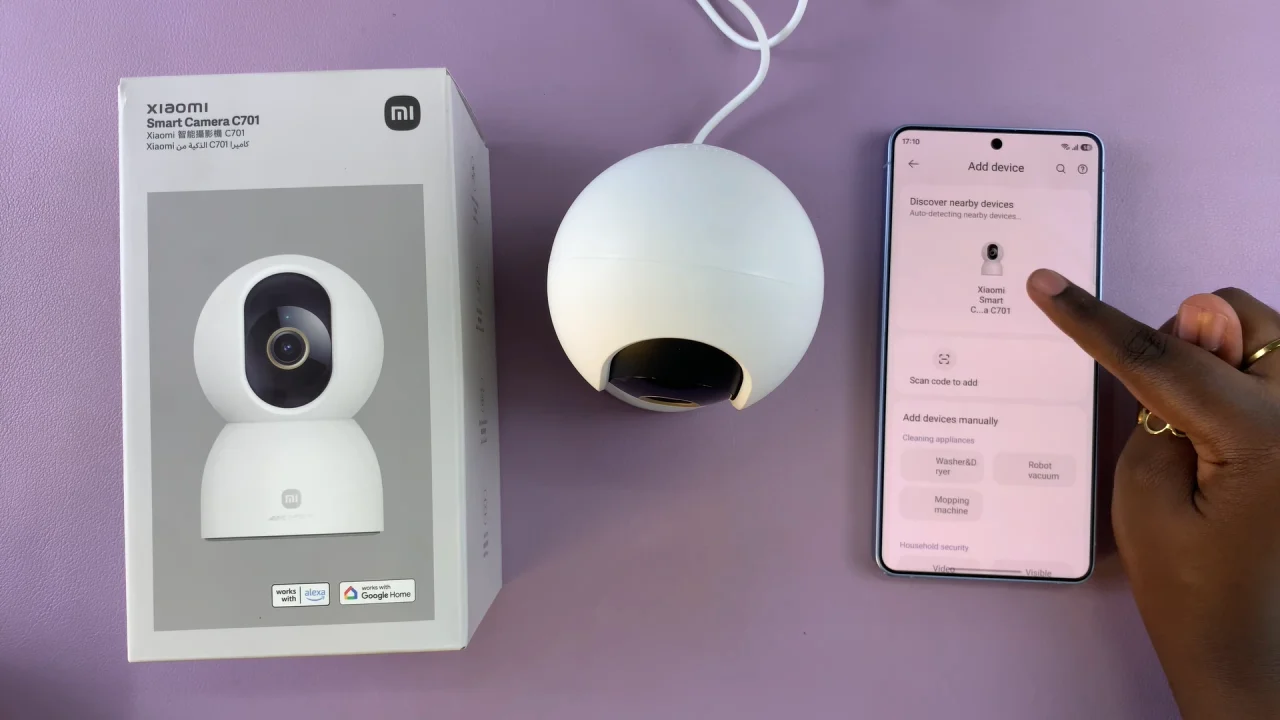
Allow necessary permissions (Bluetooth, location, etc.) and the Xiaomi Smart Camera C701 should be automatically detected. Once it is, simply elect it from the list.
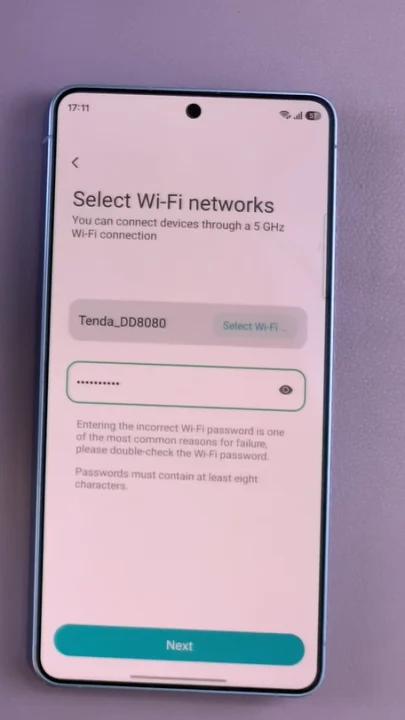
You will also be prompted to select your Wi-Fi network and consequently enter your Wi-Fi password. Wait for the camera to connect
You may need to scan a QR code at the bottom of your camera using the phone’s camera. Do this to proceed with the set up.
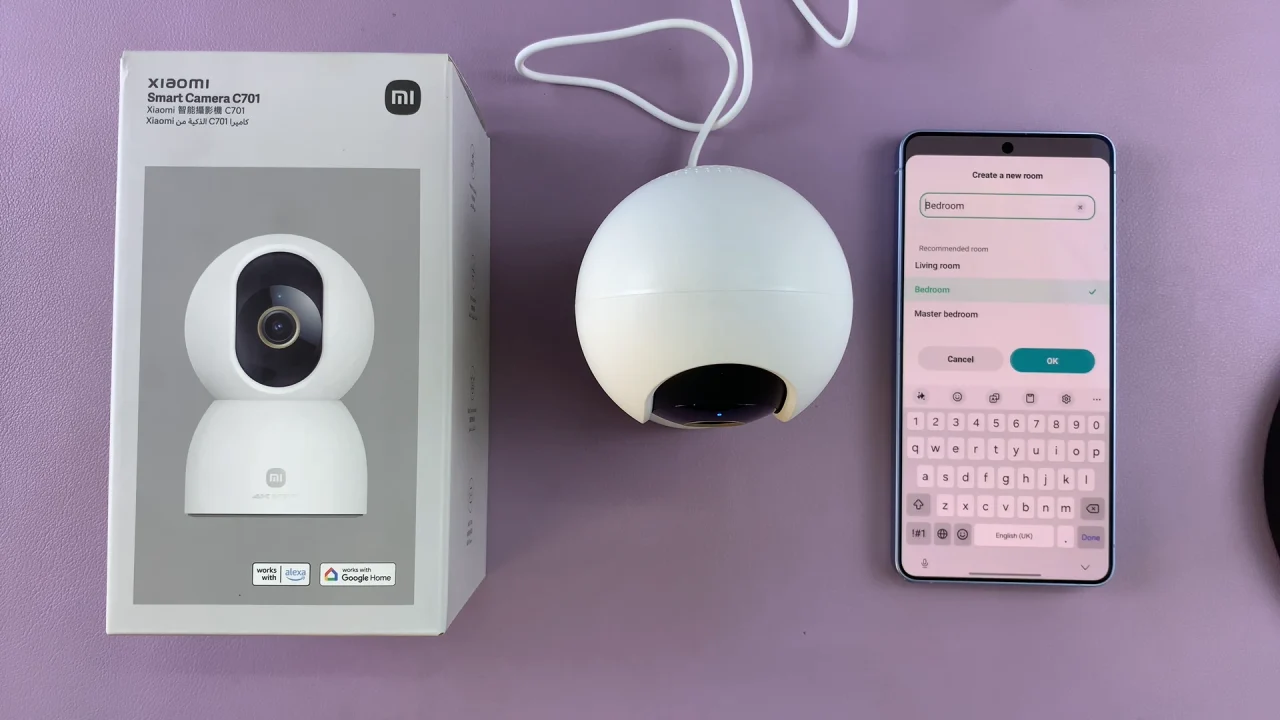
Once connected, name your camera (e.g., Living Room, Office). Assign it to a room/location in the app. Then, finish the setup process. You should now see a live video feed directly from your camera.
Adjust Settings
After setup, explore additional features such as motion detection alerts, night vision, two-way audio, video recording and storage options. You can customize these settings within the Xiaomi Home app for a better experience.
Troubleshooting Tips
If you run into issues, ensure your Wi-Fi is stable and not overloaded. Keep your phone close to the camera during setup. You can also reset the camera and try again if pairing fails. Always make sure the app is updated to the latest version.
Read: How To Enable / Disable Dark Mode On Samsung Galaxy A17 5G