For many of us, typing on a smartphone may be one of the most common things we do each day sending messages, writing emails, web browsing, etc. The keyboard that you use can have a great impact on speed, accuracy, and user experience. The keyboard that comes in built on Samsung devices is the Samsung Keyboard, but it is very common for users to download Gboard, the keyboard app from Google that is very versatile.
If you have downloaded Gboard to your Samsung Galaxy A17 5G phone, but it is not your default keyboard, don’t be concerned. Changing your default keyboard is very easy and can be done in a few taps.
In this tutorial, we will walk through the steps to make Gboard your default keyboard on Samsung Galaxy A17 5G.
Watch: How To Enable Add New Apps To Home Screen On Samsung Galaxy A17 5G
Make Gboard The Default Keyboard On Samsung Galaxy A17 5G
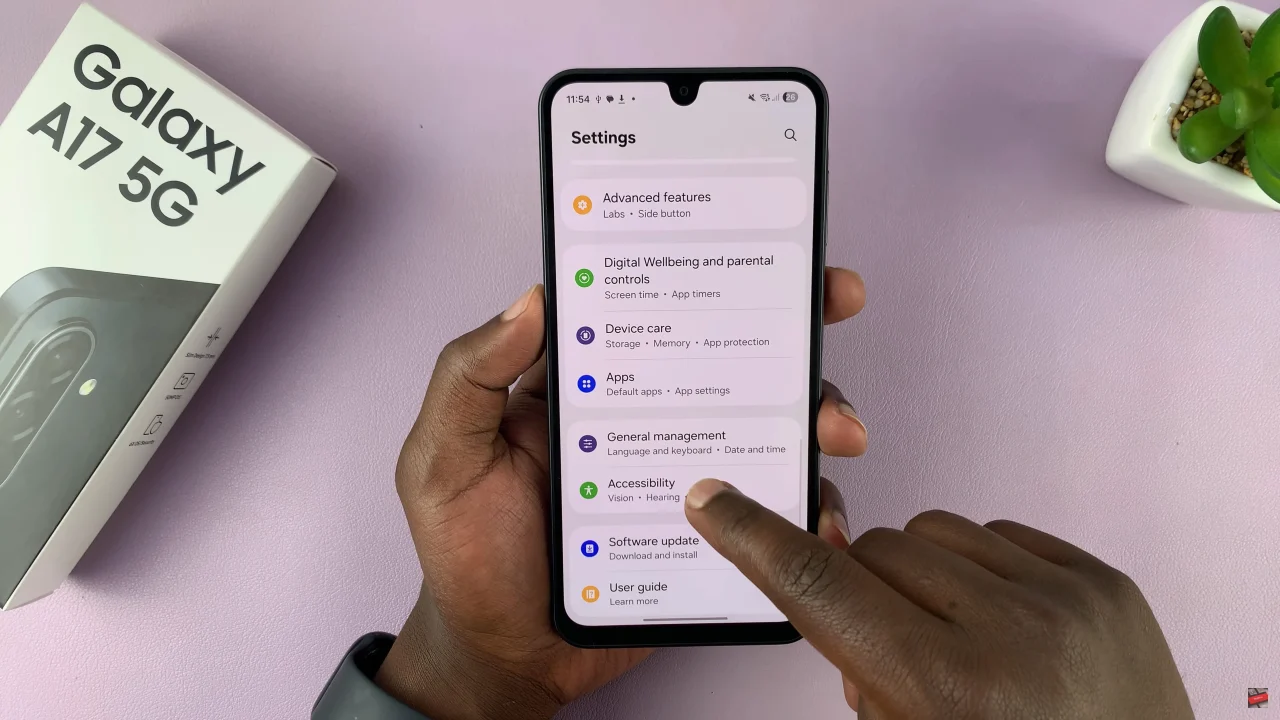
Begin by accessing the Settings app on your Galaxy A17 5G. Find the Settings app on the home screen or app drawer and tap on it to proceed. Then, scroll down and select ‘General Management‘.
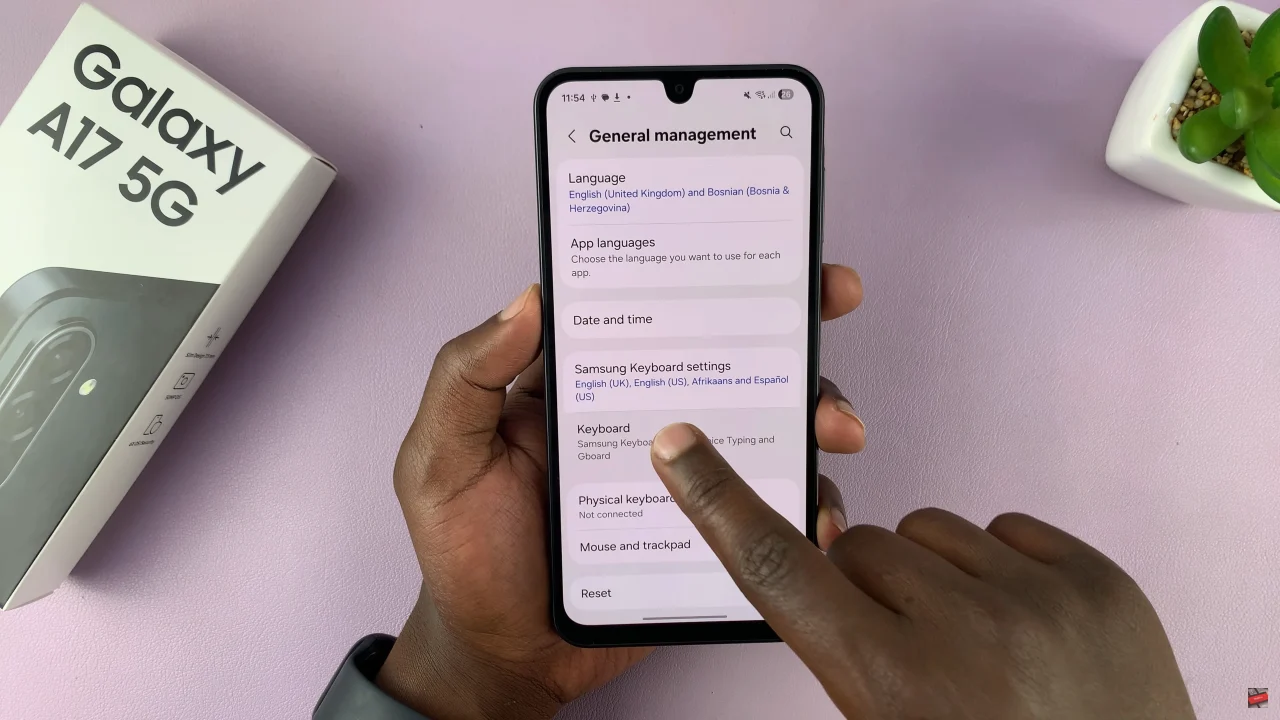
Within the General Management settings, scroll down to the bottom and select ‘Keyboard.’
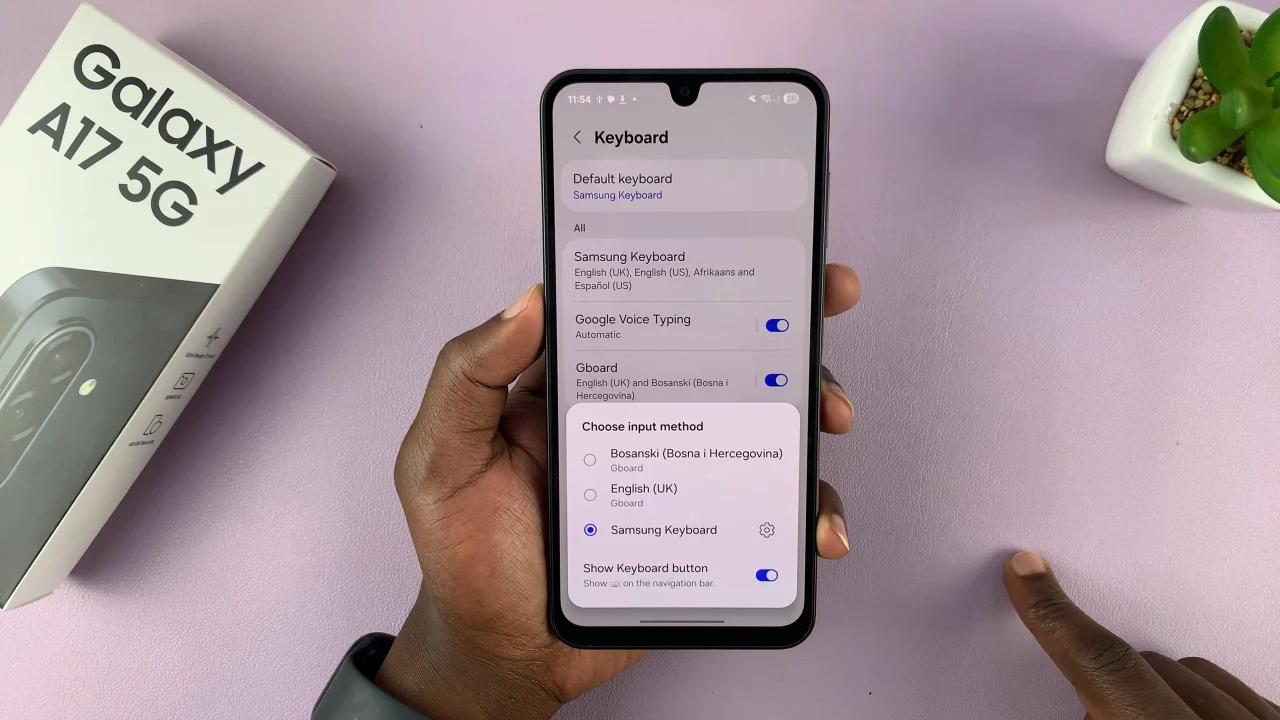
At this point, choose the ‘Default Keyboards‘ to proceed. From here, you’ll see all the keyboards that are available on your device. Find the Gboard option and tap on it to proceed.
By following the steps outlined in this guide, you can ensure that every message, email, or note you type is done with ease and efficiency. Take full advantage of your device by making Gboard your default keyboard today, and discover how a small change in settings can significantly improve your overall smartphone experience.