WebPro Education

Tech tips everyday
Menu
  • REVIEWS
  • HOW TO
  • TECH NEWS
  • About Us
Home
how to
How To Record Slow Mo Videos On Samsung Galaxy Z Fold 6
how to

How To Record Slow Mo Videos On Samsung Galaxy Z Fold 6

Dennis Gacheru August 26, 2024


Learn how to Record Slow Mo Videos On Samsung Galaxy Z Fold 6 and capture every moment in stunning detail. This guide will show you the simple steps to access the slow-motion feature and use it effectively. Whether you’re filming an action shot or just want to add a creative touch to your videos, knowing how to use slow-motion can make a big difference.

Additionally, we’ll explain how to adjust the settings for the best results and ensure your slow-motion videos look great. By following these steps, you’ll be able to create impressive slow-motion footage on your Galaxy Z Fold 6, making your videos more engaging and memorable.

Watch:How To Customize ‘Continue Apps On Cover Screen’ Of Samsung Galaxy Z Fold 6

Record Slow Mo Videos On Samsung Galaxy Z Fold 6

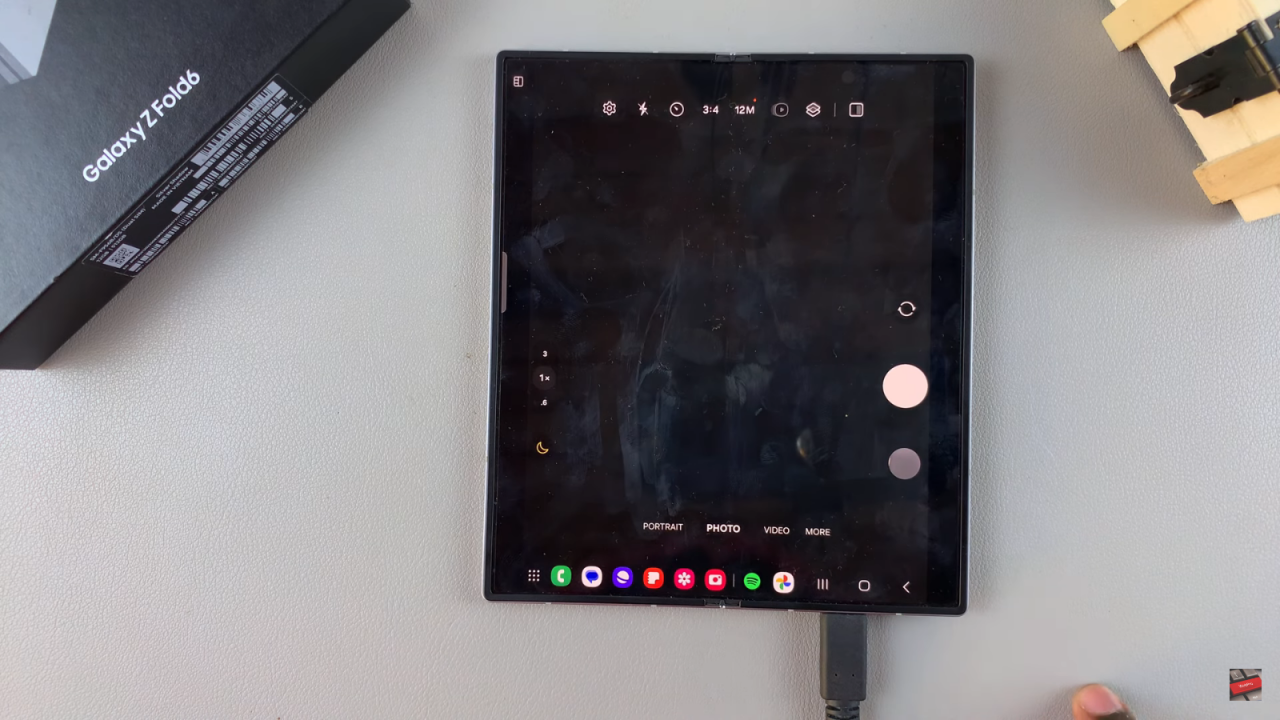
Open the Camera App: Launch the Camera app on your device.
Record Slow Mo Videos On Samsung Galaxy Z Fold 6

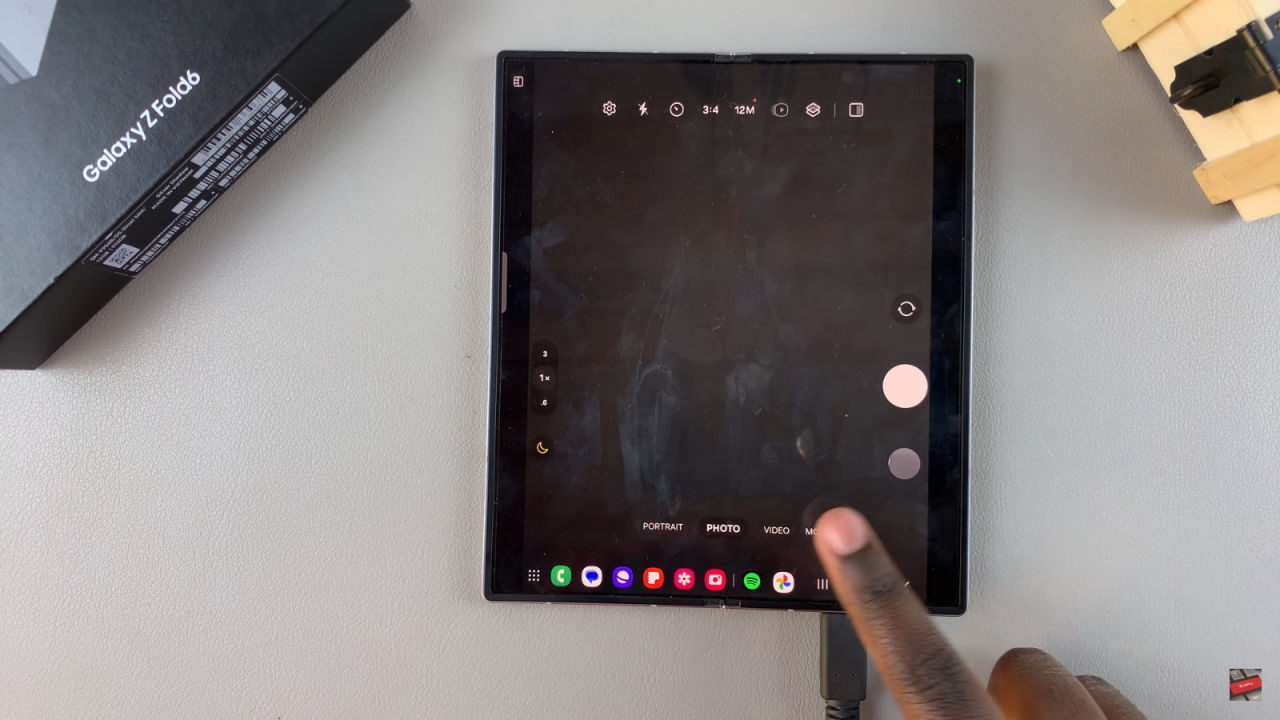
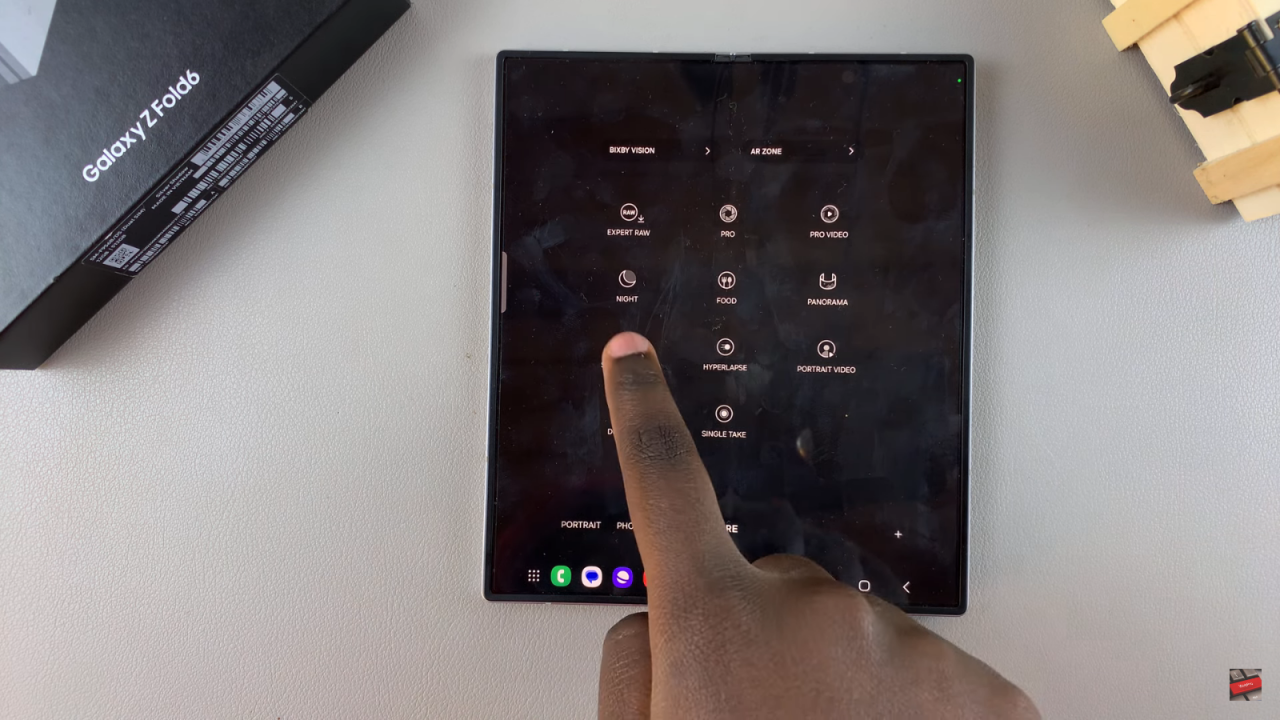
Select Slow Motion: At the bottom of the screen, you’ll see options for Portrait, Photo, Video, and More. Tap on More, then select Slow Motion.
Record Slow Mo Videos On Samsung Galaxy Z Fold 6

Start Recording: Tap the record button to begin capturing your slow-motion video. Perform your desired actions while recording.
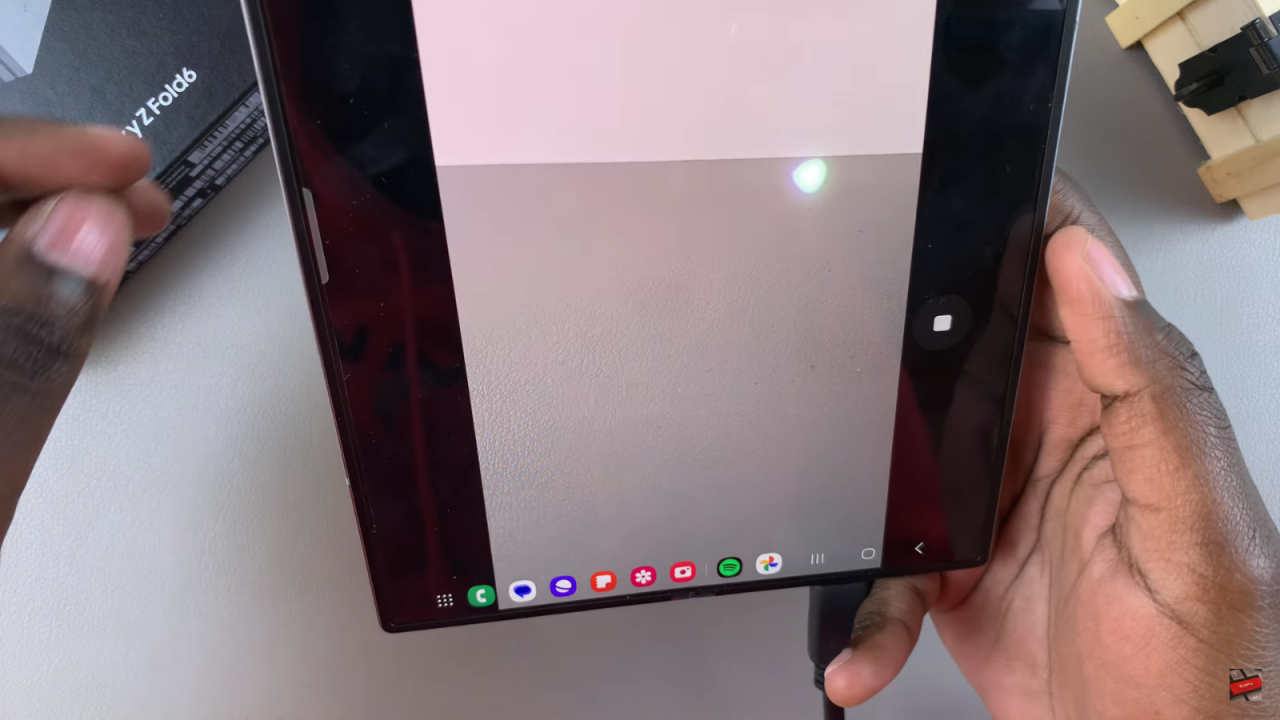
Record Slow Mo Videos On Samsung Galaxy Z Fold 6

Stop Recording: When you’re finished, tap the stop button.
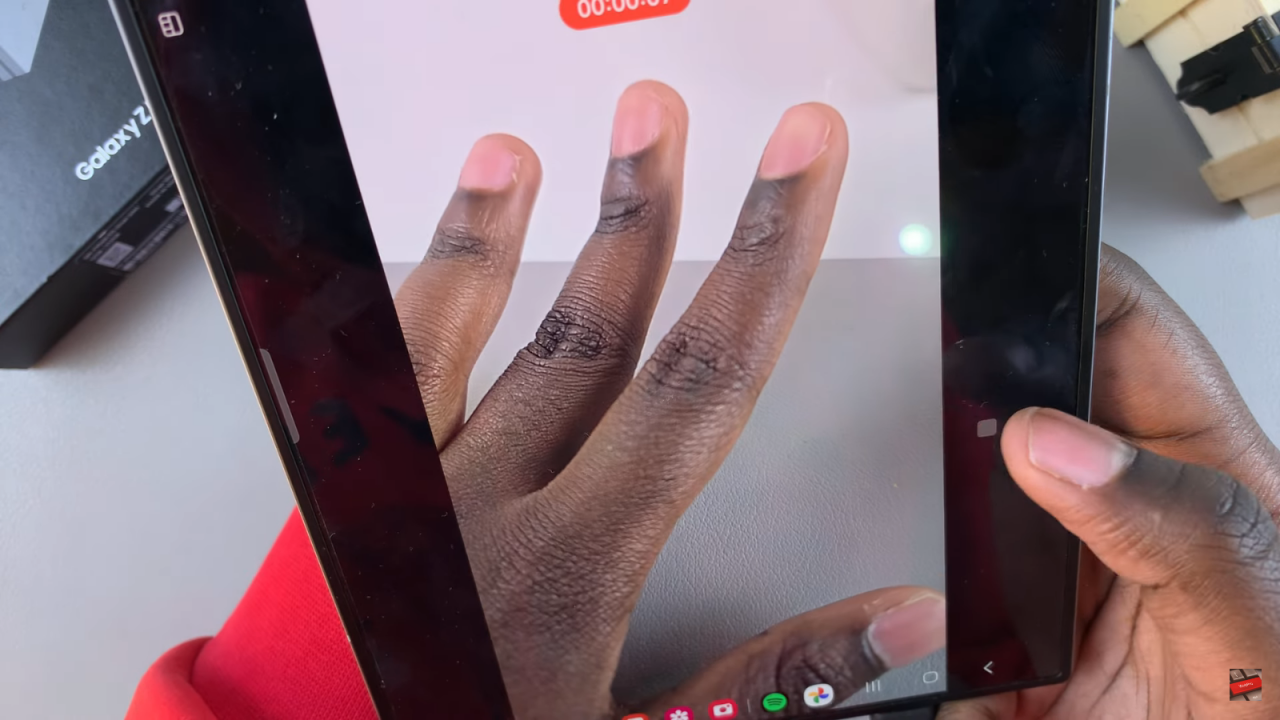
Record Slow Mo Videos On Samsung Galaxy Z Fold 6

View and Edit Your Video: Open the recorded video in the Camera Roll. It will play in slow motion. To adjust the speed, tap the Edit button. In the editing menu, you’ll see a video timeline where you can adjust the speed for different sections. Drag to select a part of the video and customize the speed as desired.
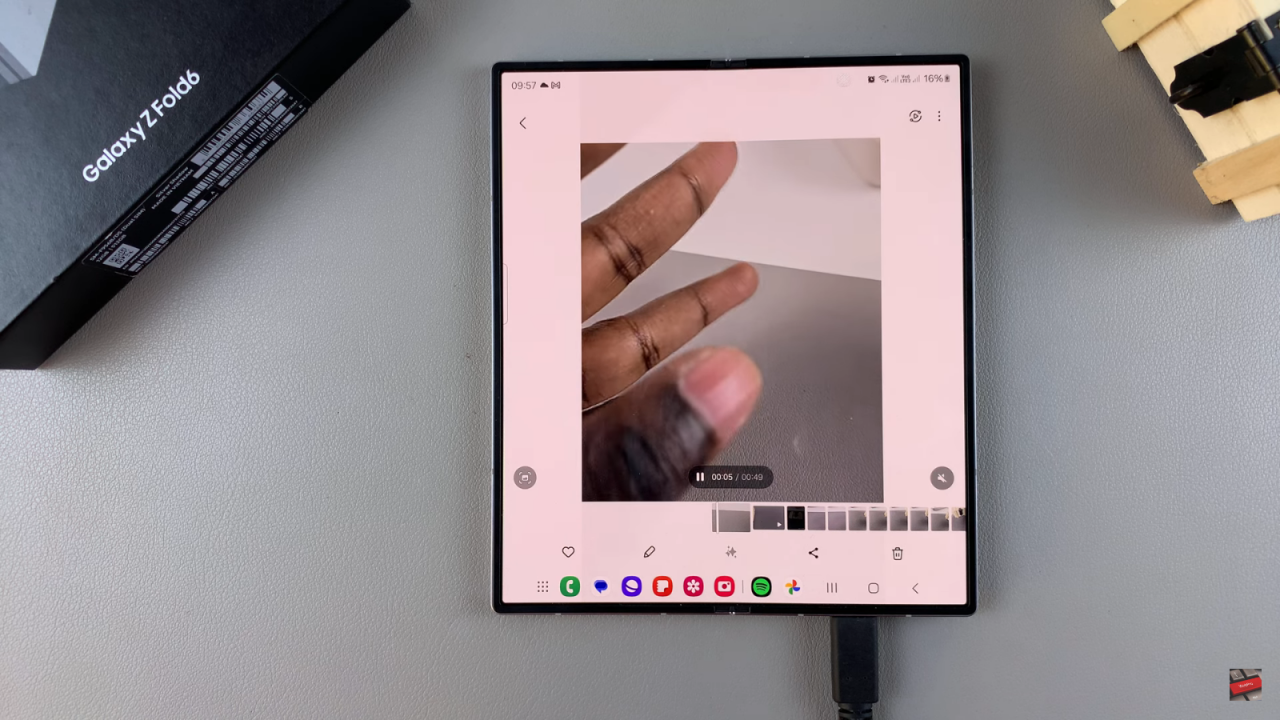
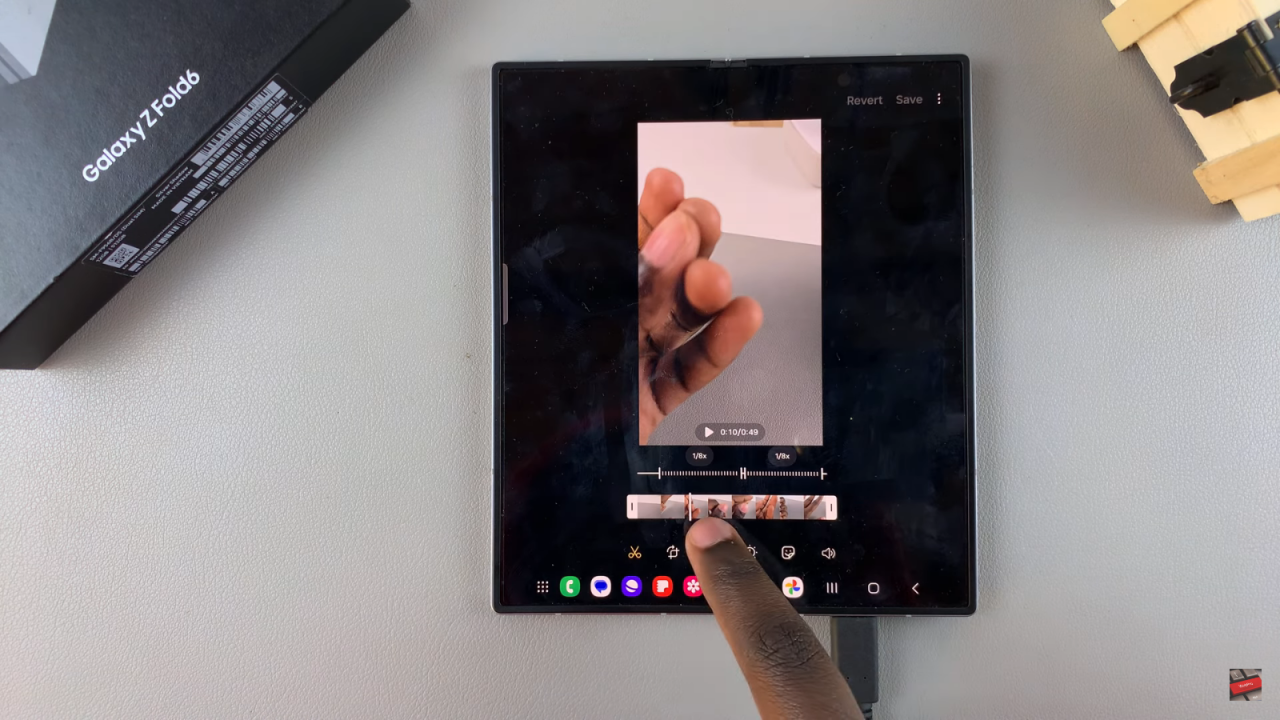
Record Slow Mo Videos On Samsung Galaxy Z Fold 6

Save Your Changes: Once you’re satisfied with the speed adjustments, play the video to review it.

Read:How To Customize ‘Continue Apps On Cover Screen’ Of Samsung Galaxy Z Fold 6
Share
Tweet
Linkedin
Reddit
Tumblr
Stumble
Whatsapp
Telegram
Email
Prev Article
Next Article

Related Articles

Things To Do Before You Sell Your Android Phone
There are plenty of reasons you might want to sell …

Things To Do Before You Sell Your Android Phone

How To Recover Messages On iPad

How To Recover Messages On iPad

  • How To Create Folder In MacBook Neo
  • How To Buy Agency On GTA Online
  • How To Purchase Facility On GTA V Online
  • How To Purchase Arcade On GTA V Online
  • How To Purchase Vehicle Warehouse On GTA Online
DMCA.com Protection Status

Associates Disclosure

WebPro Education is a participant in the Amazon Services LLC Associates Program, an affiliate advertising program designed to provide a means for sites to earn advertising fees by advertising and linking to amazon.com.

WebPro Education

Tech tips everyday
Copyright © 2026 WebPro Education

Ad Blocker Detected

Our website is made possible by displaying online advertisements to our visitors. Please consider supporting us by disabling your ad blocker.

Refresh