In this guide, we’ll walk you through the simple steps to unlink a Bluetooth speaker from your Samsung Galaxy A55 5G.
In today’s interconnected world, Bluetooth technology has become a staple for wireless audio streaming. Whether you’re listening to music, watching videos, or taking calls, the ability to pair your Samsung Galaxy A55 5G with a Bluetooth speaker offers convenience and versatility.
However, there may come a time when you need to unpair your device from a Bluetooth speaker, perhaps to connect to a different device or troubleshoot connectivity issues.
Watch: How To Enable App Notifications On Xiaomi Smart Band 8 Pro
Unpair Bluetooth Speaker On Samsung Galaxy A55 5G
First, ensure Bluetooth is enabled on your Samsung Galaxy A35 5G. Also, ensure that it is currently paired to your speaker.
Access the Settings menu either from the home screen or the app drawer. Scroll down and select Connections and then, tap on Bluetooth.
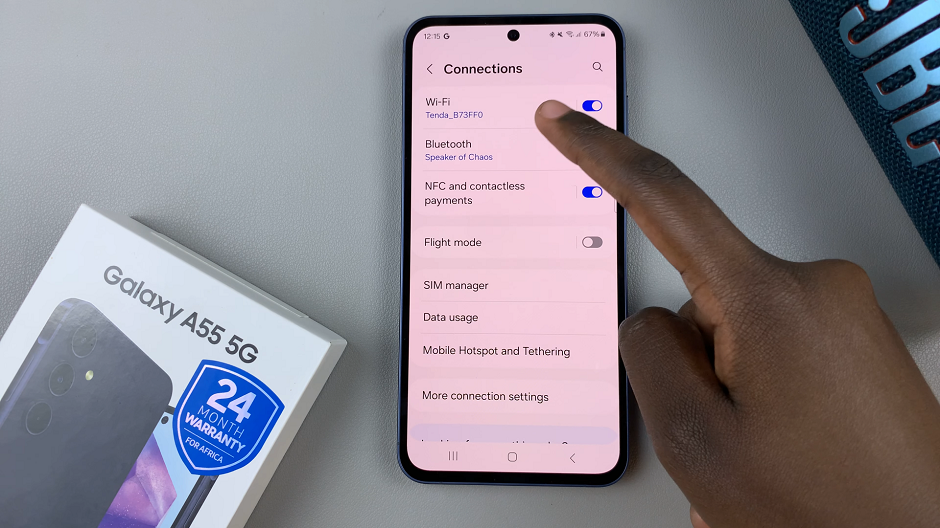
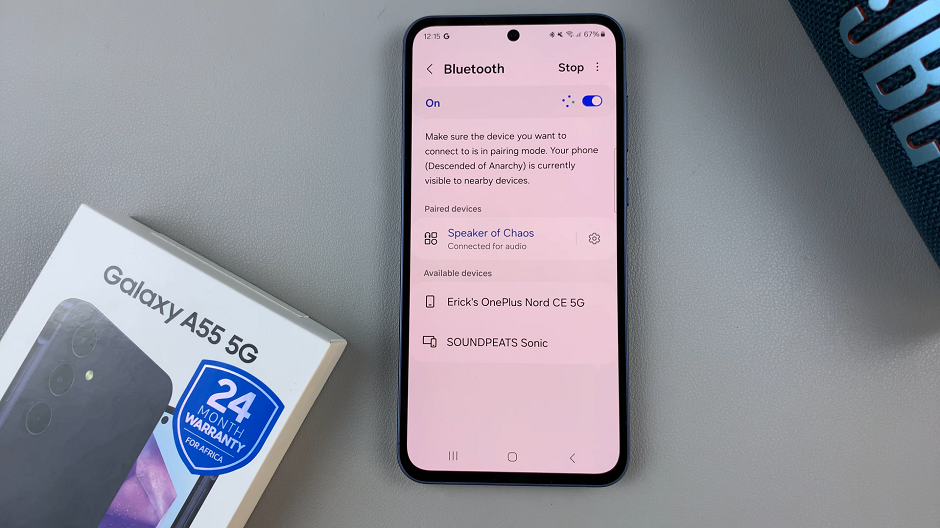
You should see your Bluetooth speaker in the list of paired devices. Tap on the speaker to disconnect it from the A55 5G.
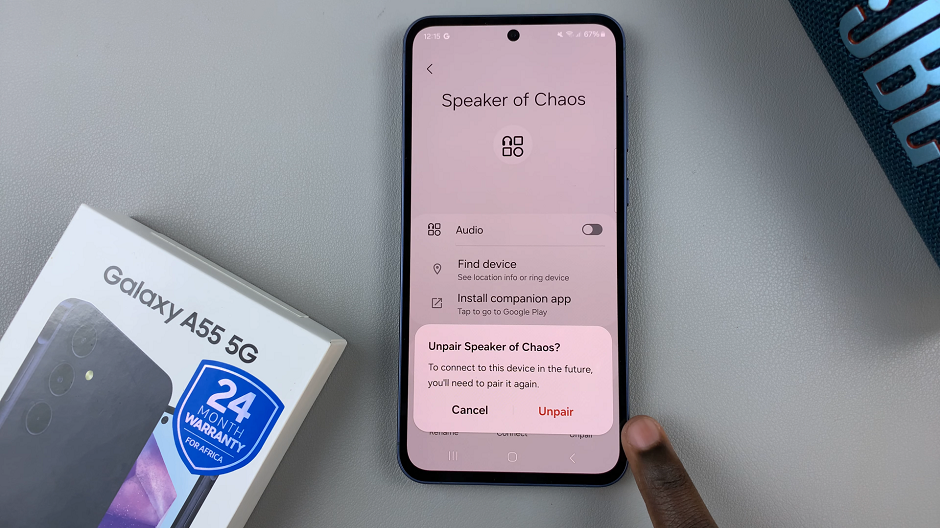
To unpair the speaker completely, tap on the Settings icon next to your Bluetooth speaker’s name. Here, select the Unpair option.
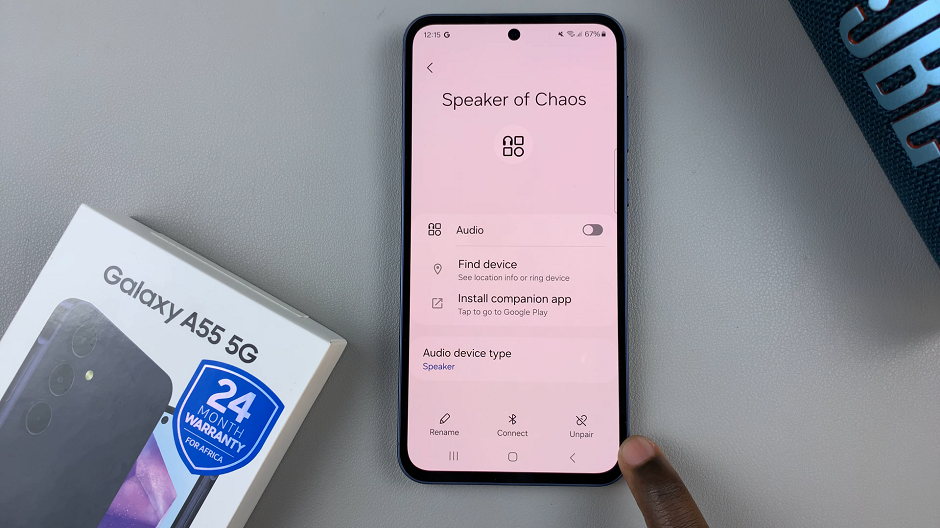
Confirm your decision by selecting Unpair from the op-up menu once again. Your Bluetooth speaker will now be completely unlinked from your device.
In conclusion, unpairing a Bluetooth speaker from your Samsung Galaxy A55 5G is a simple process that can be completed in just a few steps. Whether you’re switching to a different device or troubleshooting connectivity issues, following these steps will allow you to seamlessly disconnect your Bluetooth speaker from your smartphone.
Read: How To Set Side Key Double Press To Open Favorite App On Samsung Galaxy A35 5G