WebPro Education

Tech tips everyday
Menu
  • REVIEWS
  • HOW TO
  • TECH NEWS
  • About Us
Home
how to
How To Turn On Standby Mode On iPhone 17 & 17 Pro
how to

How To Turn On Standby Mode On iPhone 17 & 17 Pro

Wairimu October 24, 2025

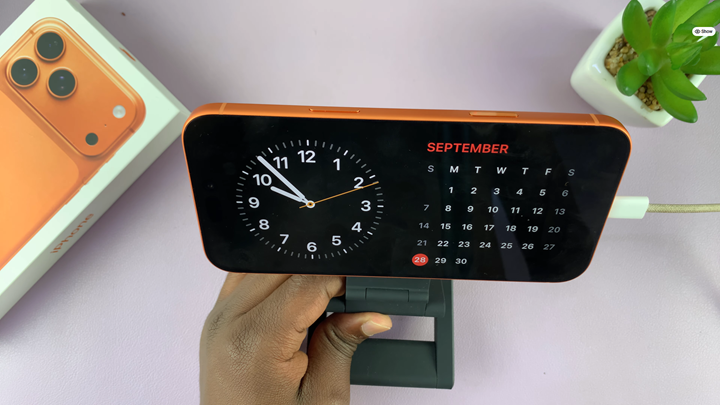
Standby Mode on iPhone 17 Pro is a powerful new feature that transforms your device into a smart display while charging in landscape orientation. Whether you want a quick way to check the time, view widgets, or enjoy full-screen live activities, Standby Mode makes your iPhone more useful even when it’s not in your hands.

This feature is perfect for your bedside table, office desk, or anywhere you usually place your iPhone while charging. It offers customizable screens such as photos, clocks, calendars, and more giving you a more interactive experience.

If you’re ready to take advantage of Standby Mode on your iPhone 17 this guide will show you how to enable the feature in seconds and personalize it to fit your daily routine.

Read: How To Unhide Hidden Photos & Videos On iPhone 17 Pro

How To Turn On Standby Mode On iPhone 17 & 17 Pro

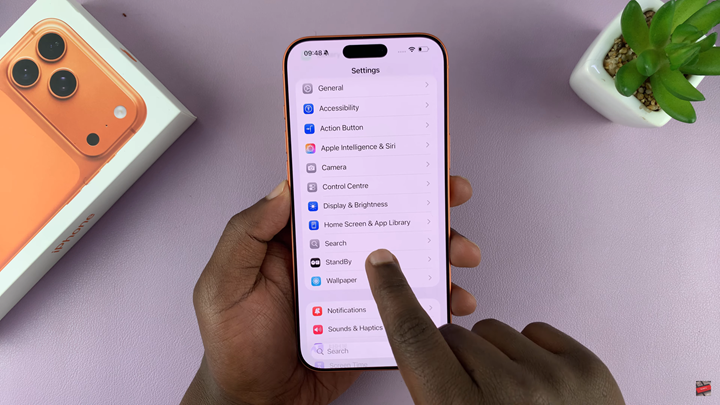
Launch the Settings app on your iPhone.

Scroll down and select Standby.
How To Turn On Standby Mode On iPhone 17 & 17 Pro

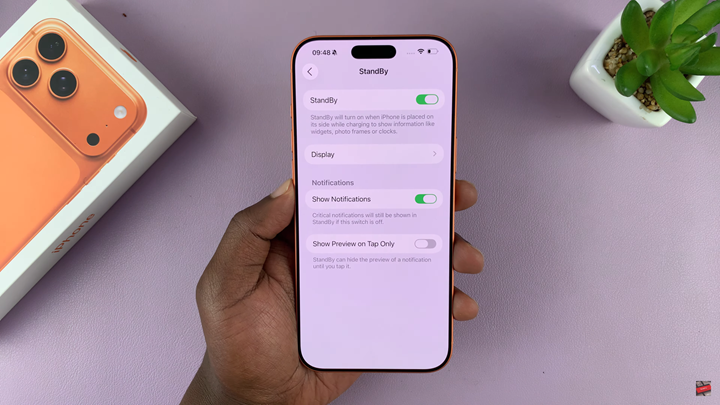
Tap the toggle to switch Standby Mode ON.
How To Turn On Standby Mode On iPhone 17 & 17 Pro

Customize your Standby experience by selecting display styles and preferences.
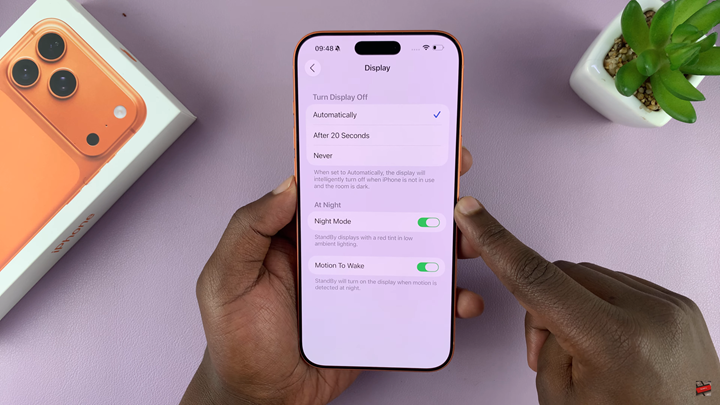
How To Turn On Standby Mode On iPhone 17 & 17 Pro

Make sure Auto Rotate is enabled so the feature works when the phone is placed horizontally.
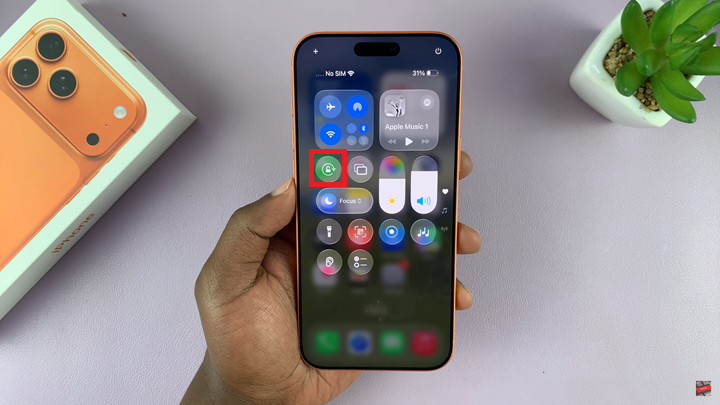
How To Turn On Standby Mode On iPhone 17 & 17 Pro

Watch: How To Add Stickers To Photos On iPhone 17 Pro

Share
Tweet
Linkedin
Reddit
Tumblr
Stumble
Whatsapp
Telegram
Email
Prev Article
Next Article

Related Articles

How To Capture HDR Screenshots On iOS 26

How To Capture HDR Screenshots On iOS 26

How To Change Music On Instagram Reel After Posting

How To Change Music On Instagram Reel After Posting

  • How To Update Samsung Galaxy Tab A11
  • How To Open Keyboard Settings On Samsung Galaxy Tab A11
  • How To Factory Reset Samsung Galaxy Tab A11
  • How To Enable & Disable Picture In Picture Mode On Samsung Galaxy Tab A11
  • How To Clear Cache Partition On Samsung Galaxy Tab A11
DMCA.com Protection Status

Associates Disclosure

WebPro Education is a participant in the Amazon Services LLC Associates Program, an affiliate advertising program designed to provide a means for sites to earn advertising fees by advertising and linking to amazon.com.

WebPro Education

Tech tips everyday
Copyright © 2025 WebPro Education

Ad Blocker Detected

Our website is made possible by displaying online advertisements to our visitors. Please consider supporting us by disabling your ad blocker.

Refresh