WebPro Education

Tech tips everyday
Menu
  • REVIEWS
  • HOW TO
  • TECH NEWS
  • About Us
Home
how to
How To Turn On iTracking On iPhone 17 / 17 Pro
how to

How To Turn On iTracking On iPhone 17 / 17 Pro

Wairimu October 28, 2025

In this guide, you’ll learn step-by-step how to enable iTracking on your iPhone 17 or 17 Pro. Follow the instructions below to activate this feature and gain a more accessible and effortless iPhone experience.

The iPhone 17 and iPhone 17 Pro come with advanced accessibility features, which allows users to control their device using eye movements. This powerful feature enhances usability for individuals with mobility challenges and creates a more hands-free iPhone experience. Enabling iTracking gives you a smart and intuitive way to interact with apps, menus, and system controls.

With iTracking turned on, your iPhone 17 / 17 Pro uses its front camera to follow your eye direction, allowing smoother navigation without touching the screen. Whether you’re multitasking, experiencing limited hand movement, or simply exploring new accessibility technologies, iTracking offers a convenient and innovative solution.

Read: How To Change Alarm Tone On iPhone 17 / 17 Pro

How To Turn On iTracking On iPhone 17 / 17 Pro

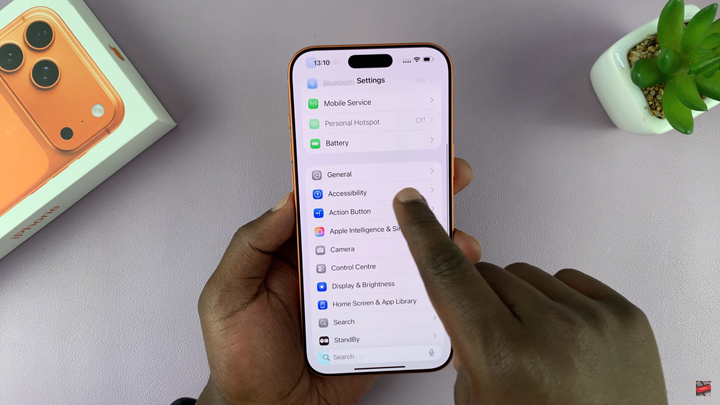
Open the Settings app on your iPhone 17 / 17 Pro.

Scroll down and tap on Accessibility.
How To Turn On iTracking On iPhone 17 / 17 Pro

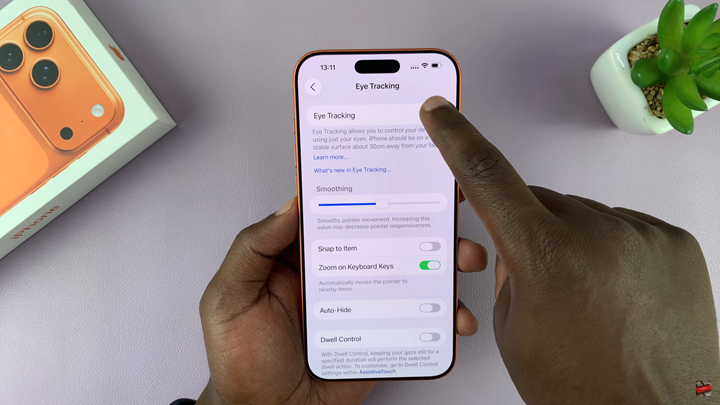
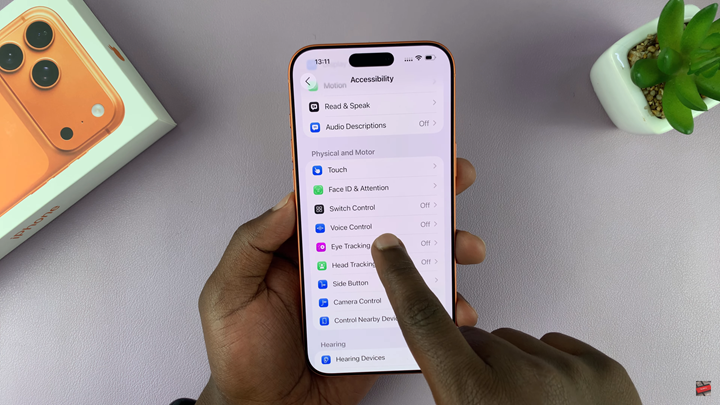
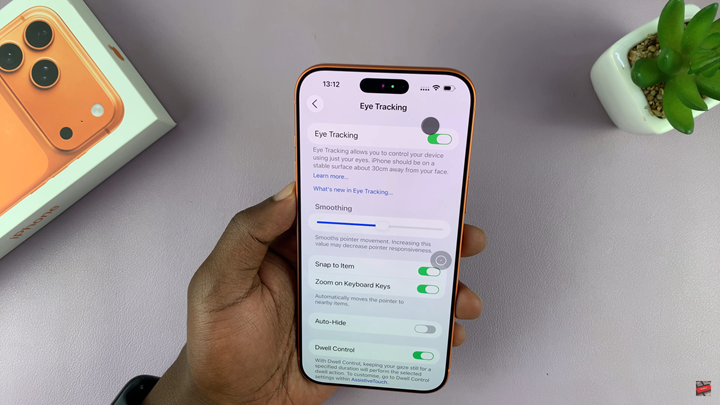
Select Eye Tracking and toggle it ON.
How To Turn On iTracking On iPhone 17 / 17 Pro

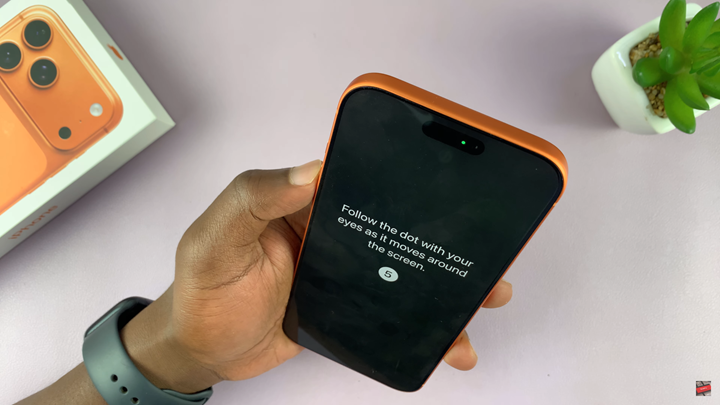
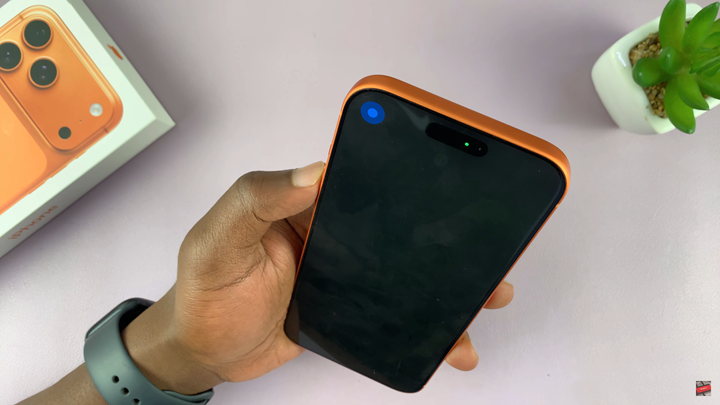
Follow the on-screen calibration setup by keeping your face centered and moving your eyes to follow the dot on the screen.
How To Turn On iTracking On iPhone 17 / 17 Pro

Keep both your head and device steady while your iPhone maps your eye movement.

Once calibration finishes, start navigating your iPhone using just your eyes.
Watch: How To See Wi-Fi Password On iPhone 17 Pro

Share
Tweet
Linkedin
Reddit
Tumblr
Stumble
Whatsapp
Telegram
Email
Prev Article
Next Article

Related Articles

How To Take Photos & Videos With Your Galaxy Watch 8 / 8 Classic

How To Take Photos & Videos With Your Galaxy Watch 8 / 8 Classic

How To Temporarily Deactivate Your Pinterest Account

How To Temporarily Deactivate Your Pinterest Account

  • How To Update Samsung Galaxy Tab A11
  • How To Open Keyboard Settings On Samsung Galaxy Tab A11
  • How To Factory Reset Samsung Galaxy Tab A11
  • How To Enable & Disable Picture In Picture Mode On Samsung Galaxy Tab A11
  • How To Clear Cache Partition On Samsung Galaxy Tab A11
DMCA.com Protection Status

Associates Disclosure

WebPro Education is a participant in the Amazon Services LLC Associates Program, an affiliate advertising program designed to provide a means for sites to earn advertising fees by advertising and linking to amazon.com.

WebPro Education

Tech tips everyday
Copyright © 2025 WebPro Education

Ad Blocker Detected

Our website is made possible by displaying online advertisements to our visitors. Please consider supporting us by disabling your ad blocker.

Refresh