WebPro Education

Tech tips everyday
Menu
  • REVIEWS
  • HOW TO
  • TECH NEWS
  • About Us
Home
how to
How To Turn OFF Weather Alerts On iPhone
how to

How To Turn OFF Weather Alerts On iPhone

Dennis Gacheru August 28, 2024

Learn how to turn off weather alerts on your iPhone to keep your notifications under control. Managing these alerts can help minimize interruptions and ensure you only get the updates that matter most to you.

By adjusting your settings, you can decide which weather notifications to receive and which to silence. This allows for a more customized experience and helps keep your focus where it needs to be.

Watch:How To Install ChatGPT 4o On iPhone

Turn OFF Weather Alerts On iPhone

Open Settings: Go to the Settings app.

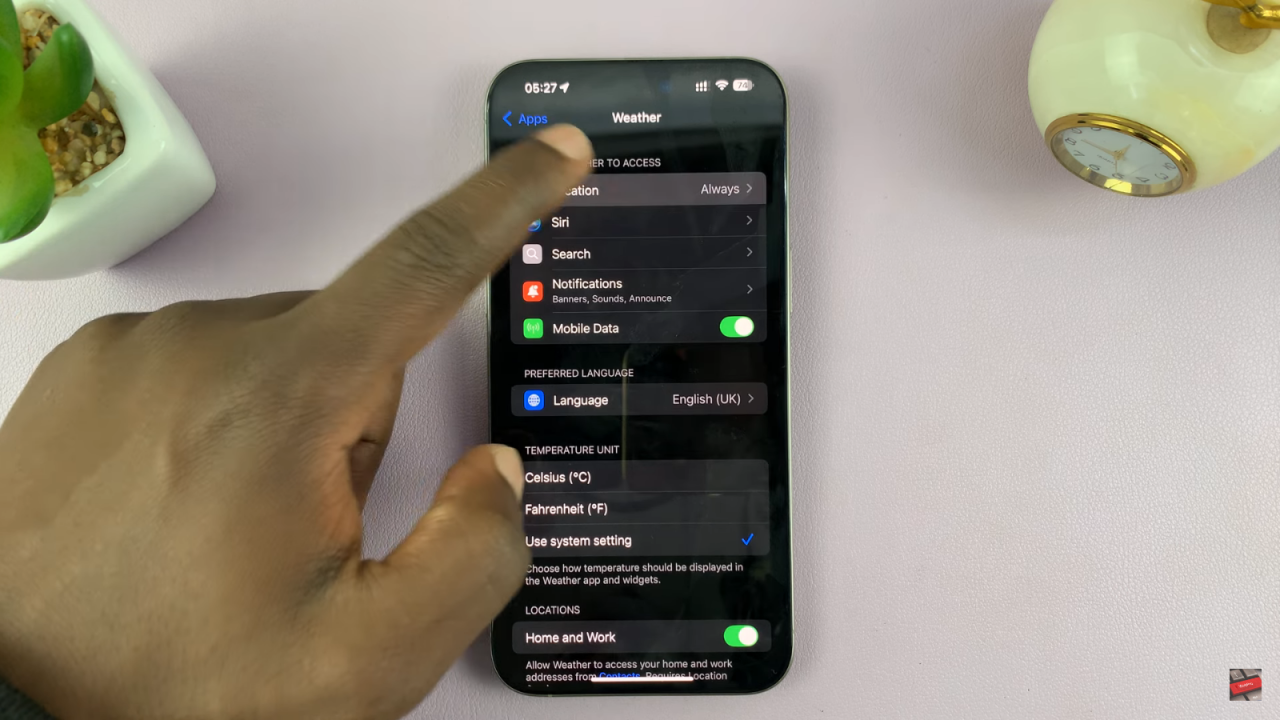
Find the Weather App: Scroll down and tap on “Weather.”
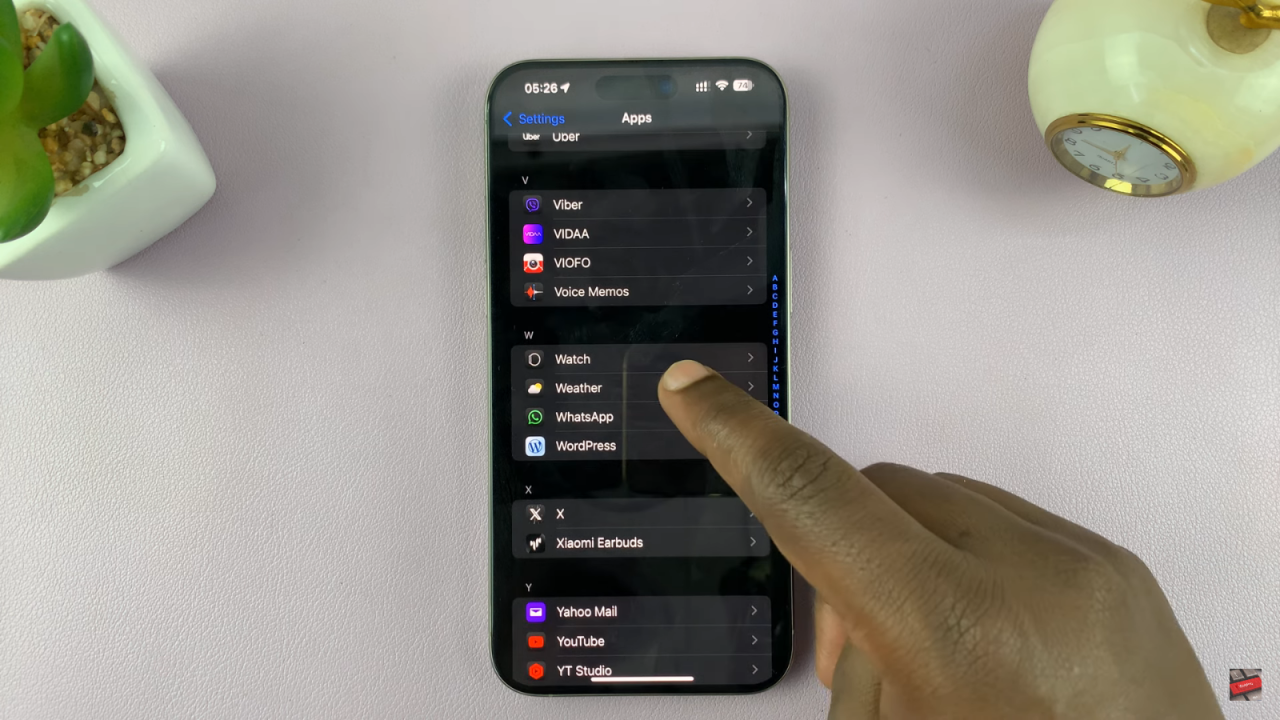
Turn OFF Weather Alerts On iPhone

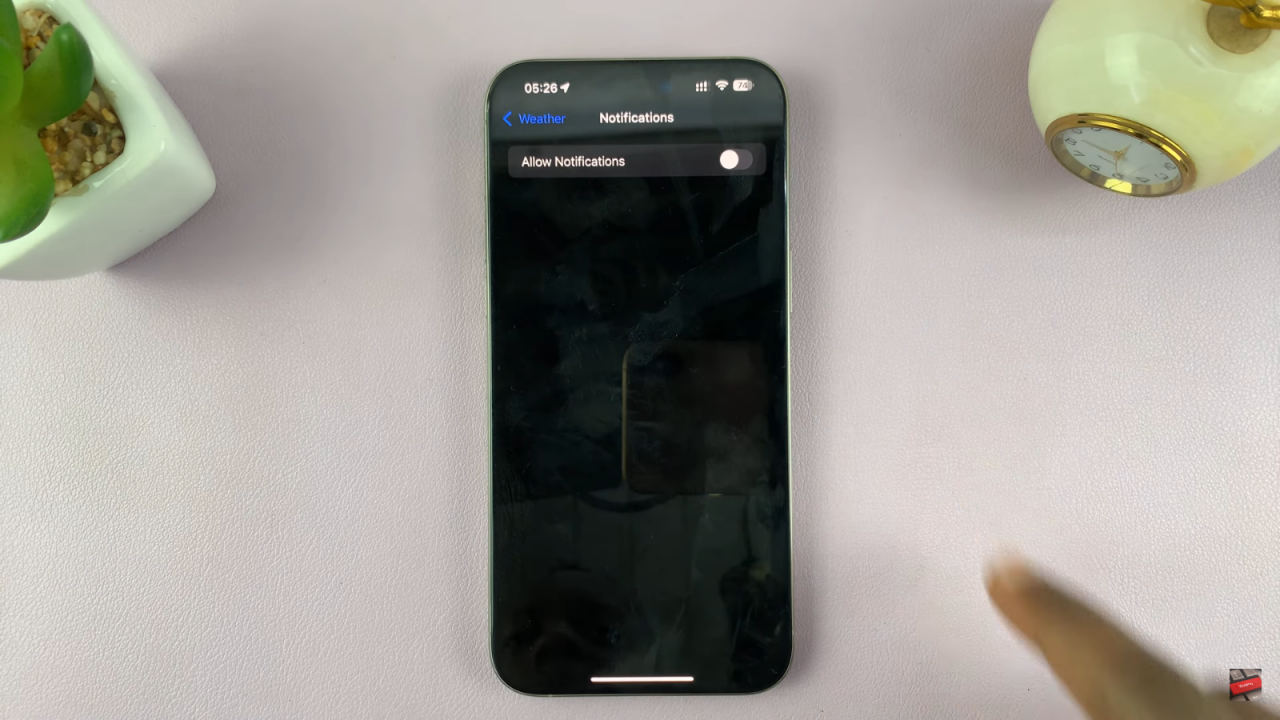
Turn Off Notifications: Tap “Notifications” and then switch off the notifications.
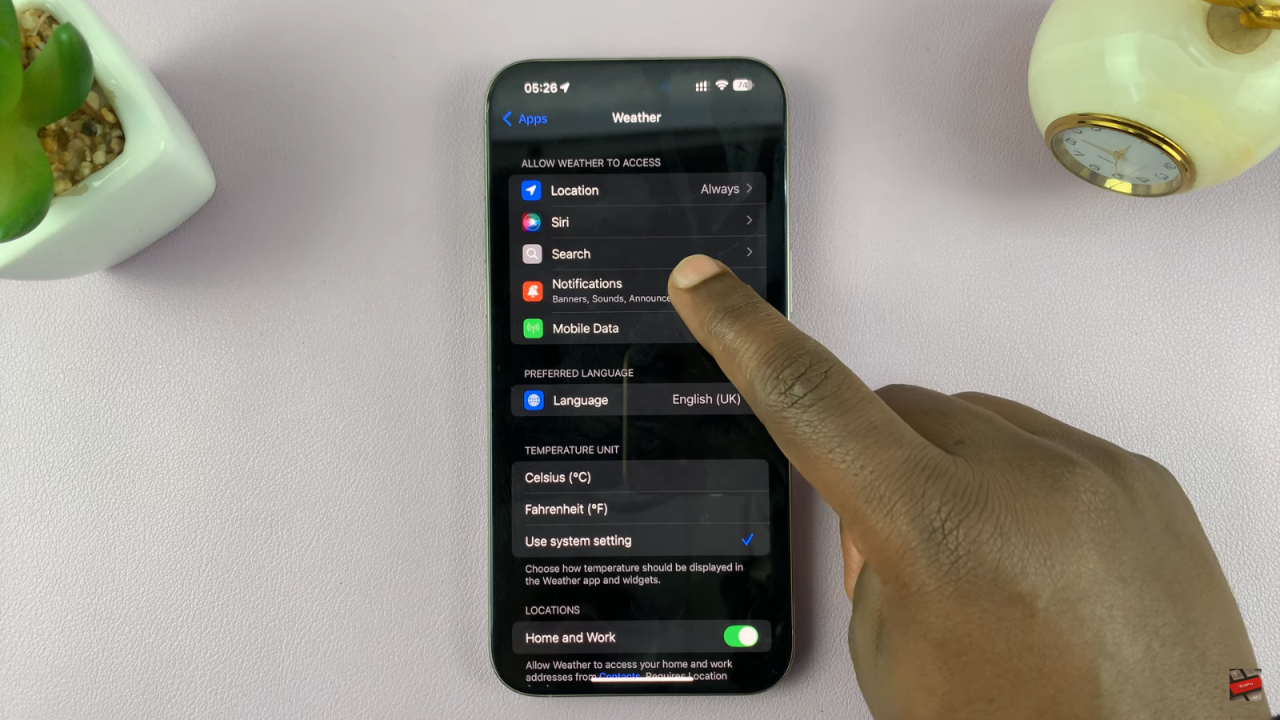
Turn OFF Weather Alerts On iPhone

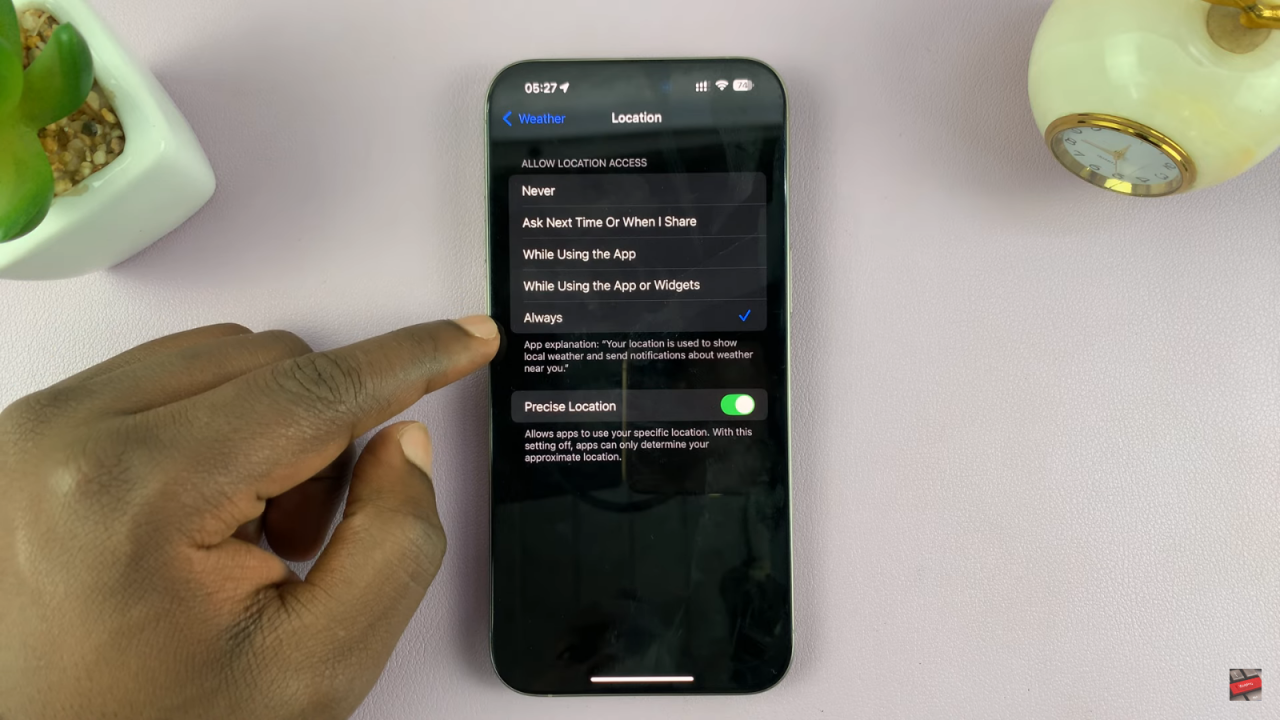
Adjust Location Access (If Needed): For severe weather alerts, make sure the Weather app can access your location all the time. Go to “Location” and set it to “Always.”
Turn OFF Weather Alerts On iPhone

Read:How To Install Chat GPT 4o On iPhone

Share
Tweet
Linkedin
Reddit
Tumblr
Stumble
Whatsapp
Telegram
Email
Prev Article
Next Article

Related Articles

How To Turn WIFI Assist ON & OFF On iPhone 15 & iPhone 15 Pro

How To Turn WIFI Assist ON & OFF On iPhone 15 & iPhone 15 Pro

How To Turn ON & OFF Sleep Mode On Samsung Galaxy A25 5G

How To Turn ON & OFF Sleep Mode On Samsung Galaxy A25 5G

  • How To Create Folder In MacBook Neo
  • How To Buy Agency On GTA Online
  • How To Purchase Facility On GTA V Online
  • How To Purchase Arcade On GTA V Online
  • How To Purchase Vehicle Warehouse On GTA Online
DMCA.com Protection Status

Associates Disclosure

WebPro Education is a participant in the Amazon Services LLC Associates Program, an affiliate advertising program designed to provide a means for sites to earn advertising fees by advertising and linking to amazon.com.

WebPro Education

Tech tips everyday
Copyright © 2026 WebPro Education

Ad Blocker Detected

Our website is made possible by displaying online advertisements to our visitors. Please consider supporting us by disabling your ad blocker.

Refresh