WebPro Education

Tech tips everyday
Menu
  • REVIEWS
  • HOW TO
  • TECH NEWS
  • About Us
Home
how to
How To Rotate Video On Android Phone (Google Pixel)
how to

How To Rotate Video On Android Phone (Google Pixel)

Camerone January 9, 2024

In the era of smartphones, capturing precious moments through videos has become an integral part of our lives.

However, there might be instances where you find yourself with a video that was accidentally recorded in the wrong orientation. Worry not – rotating a video on your Android phone is a straightforward process.

In this guide, we’ll walk you through the comprehensive step-by-step process on how to rotate a video on your Android phone (Google Pixel).

Also Read: How To Unmount USB Accessories On Android (Google Pixel)

How To Rotate Video On Android Phone (Google Pixel)

The first step is to open the Gallery app and navigate to the video you wish to rotate. Look for the “Edit” icon. This icon indicates that you’re about to enter the editing mode for the selected video. Tap on the “Edit” icon to access the video editing tools.
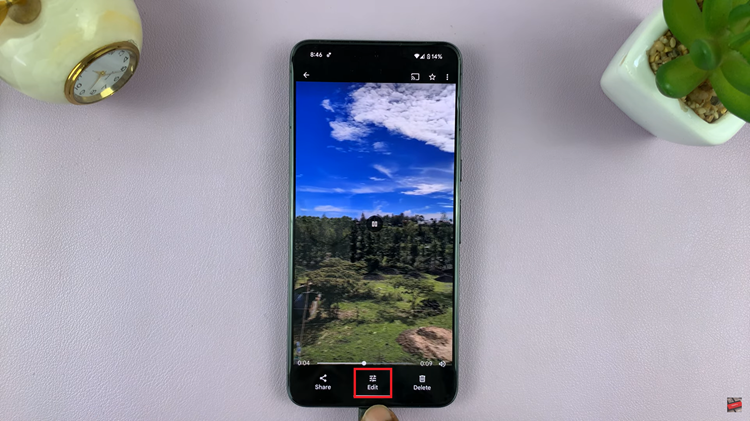
Rotate Video On Android Phone (Google Pixel)

Within the editing mode, you’ll need to find the crop option. Once you’ve located the crop option, tap on it to access the rotation options. After tapping the crop icon, you should see options to rotate your video. Look for an icon with an arrow that represents the direction of rotation. Tap on this icon to rotate your video to the desired orientation.
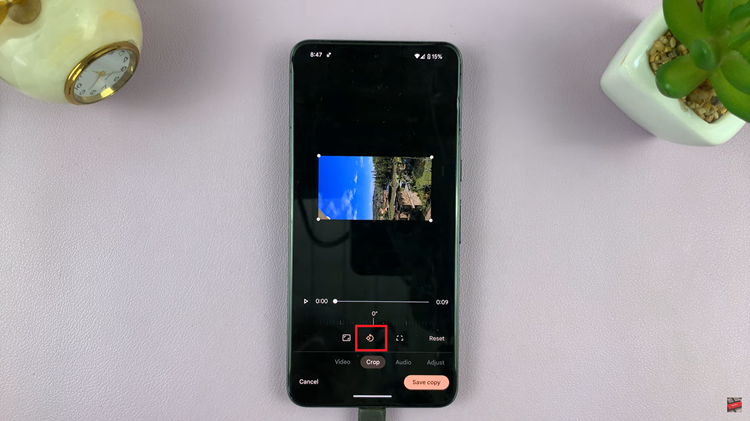
Rotate Video On Android Phone (Google Pixel)

Once you’ve successfully rotated the video to your liking, it’s time to save the changes. Look for a “Save” or “Done” button, typically located in the top or bottom corners of the screen. Tapping this button will apply the rotation and save the edited version of the video.

Watch: How To Set 12HR / 24HR Clock System On Android (Google Pixel)
Share
Tweet
Linkedin
Reddit
Tumblr
Stumble
Whatsapp
Telegram
Email
Prev Article
Next Article

Related Articles

You Can Request and Pay For an Uber From Google Maps
If you have the latest version of Google maps, there …

You Can Request and Pay For an Uber From Google Maps

How To Install Signal Messaging App On Mac
Just like Whatsapp, you can use the Signal messaging app …

How To Install Signal Messaging App On Mac

  • How To Add Timestamps To Photos On Xiaomi Smart Camera C701
  • How To Turn ON Status Light Of Xiaomi Smart Camera C701
  • How To Turn ON Pet Detection On Xiaomi Smart Camera C701
  • How To Set Password On Xiaomi Smart Camera C701
  • How To Recover Deleted Voice Recordings On Samsung Galaxy S26 Ultra
DMCA.com Protection Status

Associates Disclosure

WebPro Education is a participant in the Amazon Services LLC Associates Program, an affiliate advertising program designed to provide a means for sites to earn advertising fees by advertising and linking to amazon.com.

WebPro Education

Tech tips everyday
Copyright © 2026 WebPro Education

Ad Blocker Detected

Our website is made possible by displaying online advertisements to our visitors. Please consider supporting us by disabling your ad blocker.

Refresh