If your iPhone 18 Pro or iPhone 18 Pro Max is running slowly, an app is not responding, or you are experiencing a minor software issue, a soft reset can often help. Fortunately, restarting your iPhone is quick and simple, and it does not erase your personal data.
In this guide, we’ll walk you through the step-by-step process on how to go about resetting your iPhone 18 Pro.
Also Read: How To Transfer Data From Old iPhone To iPhone 18 Pro
How To Reset iPhone 18 Pro
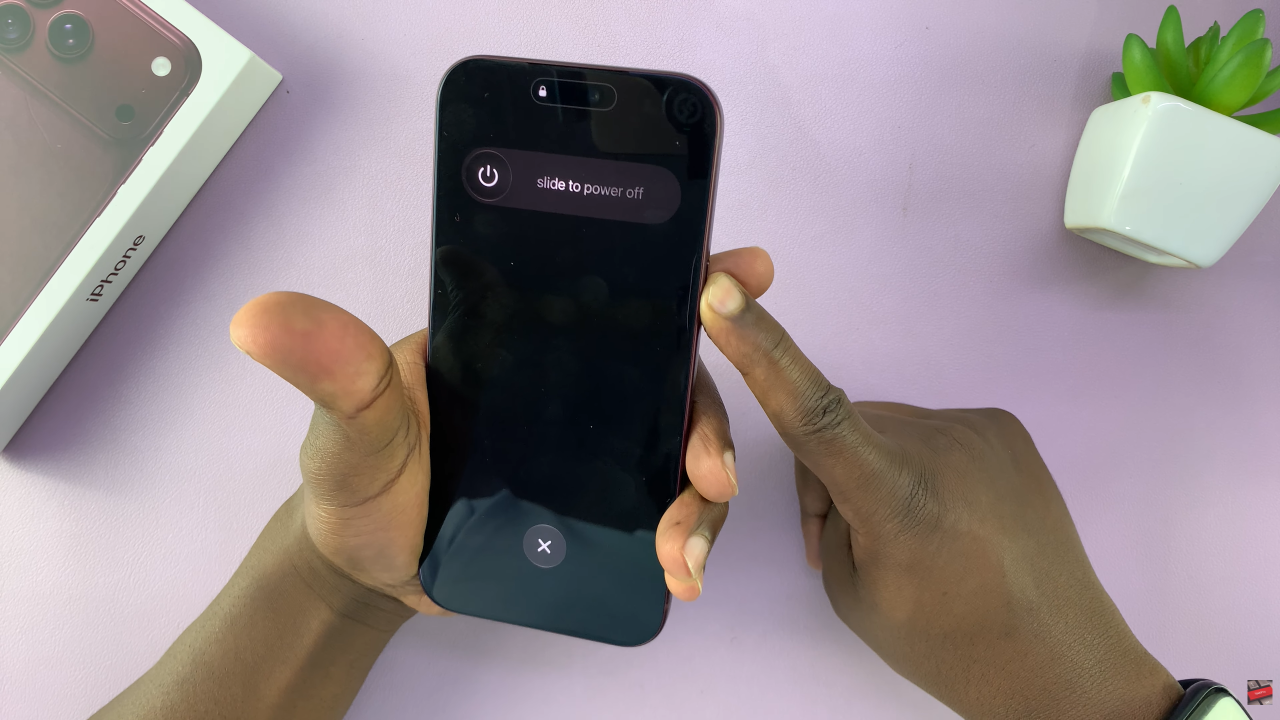
First, locate the Side button and Volume button on the right side of your iPhone 18 Pro. Next, press and hold the Side button and either Volume button at the same time. Continue holding both buttons until the power-off slider appears on the screen.
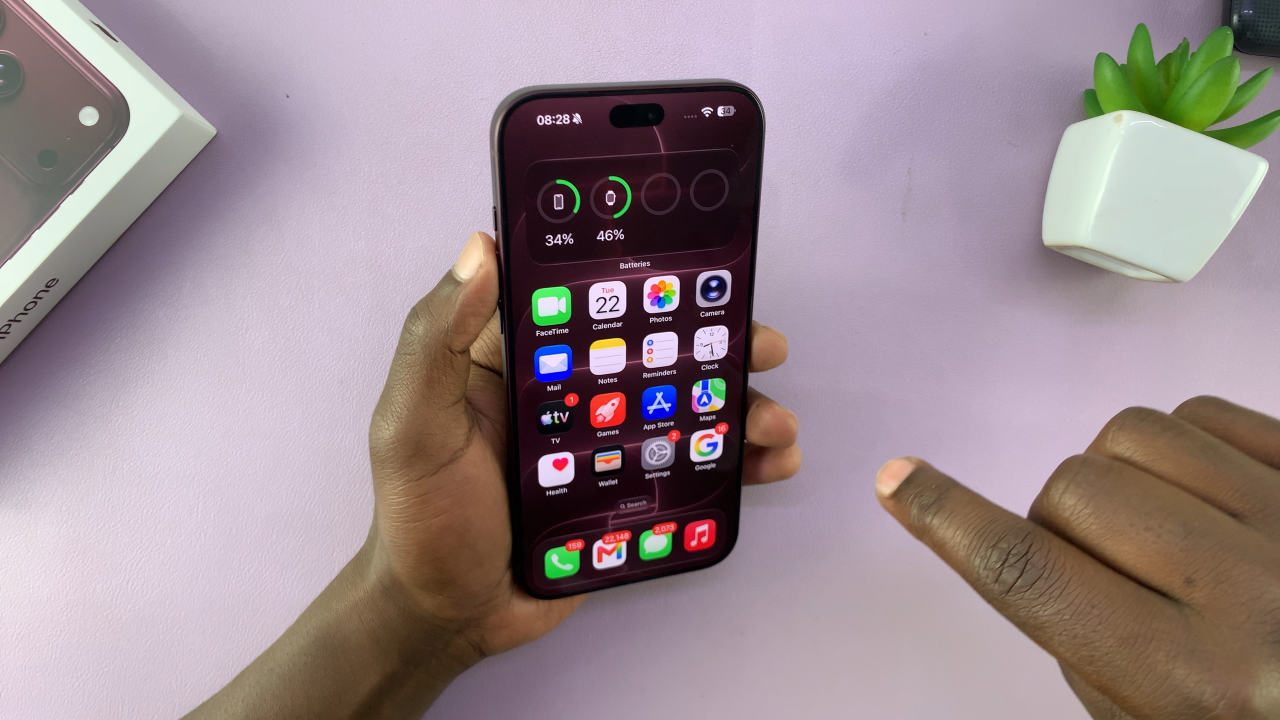
Once the slide to power off option appears, drag the slider from left to right. Your iPhone will then begin shutting down. After that, wait a few seconds while the device completely powers off. This short pause allows the system to finish the shutdown process.
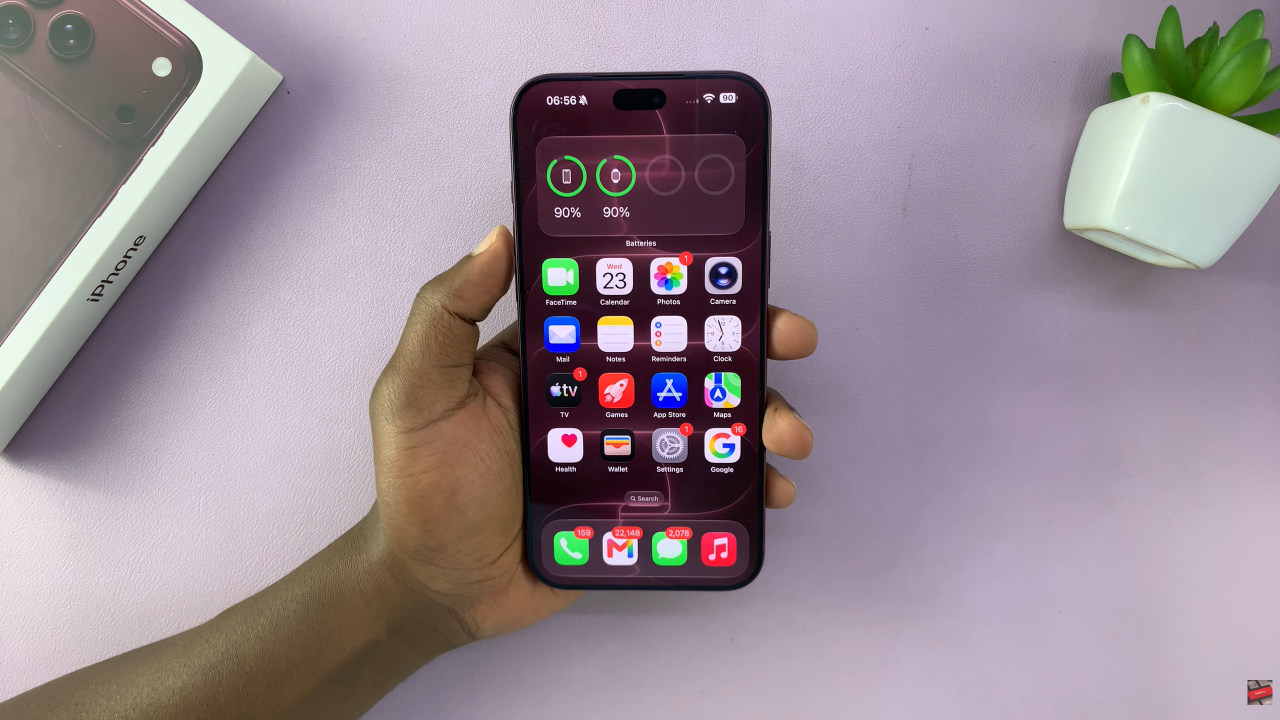
Finally, press and hold the Side button again. Keep holding it until the Apple logo appears on the display. Your iPhone will then start up normally.
Once the lock screen appears, enter your passcode if required. Your iPhone 18 Pro is now ready to use again.
In conclusion, learning how to soft reset the iPhone 18 Pro and iPhone 18 Pro Max is useful for everyday troubleshooting.
Most importantly, a soft reset does not erase your personal data. Therefore, if your iPhone is experiencing a minor temporary problem, restarting it can be a quick first step toward getting everything working normally again.