WebPro Education

Tech tips everyday
Menu
  • REVIEWS
  • HOW TO
  • TECH NEWS
  • About Us
Home
how to
How To Remove Edits From a Photo On iPhone 17 Pro
how to

How To Remove Edits From a Photo On iPhone 17 Pro

Wairimu October 24, 2025

Editing photos on the iPhone 17 Pro is a powerful way to enhance your images, but sometimes you may want to undo those edits and return to the original shot. Whether you over-edited a picture or simply prefer the natural version. IOS makes it easy to remove adjustments with just a few taps. This feature is especially useful for content creators, social media users, and anyone who wants full control over their photos.

In this guide, you’ll learn how to quickly remove edits from any photo using the built-in Photos app on your iPhone 17 Pro. Apple gives you a full non-destructive editing workflow, so you can always restore your original photo at any time. Your edited version never replaces the original, meaning your photo stays safe in the background without needing any third-party apps.

Follow this simple step-by-step tutorial to restore your photos back to their untouched state in seconds. Perfect for beginners and advanced users alike, this method ensures your images look exactly the way you want them.

Read: How To Change Language Back To English On iPhone 17 

How To Remove Edits From a Photo On iPhone 17 Pro

Launch your Photos gallery.

Select the photo that has been edited.
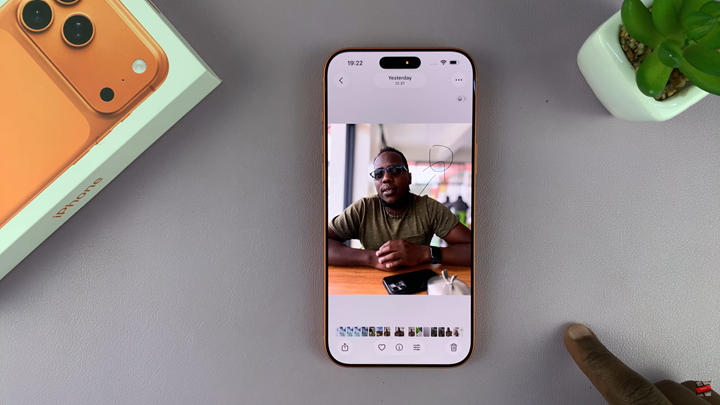
How To Remove Edits From a Photo On iPhone 17 Pro

Tap on the three dots in the top-right corner.
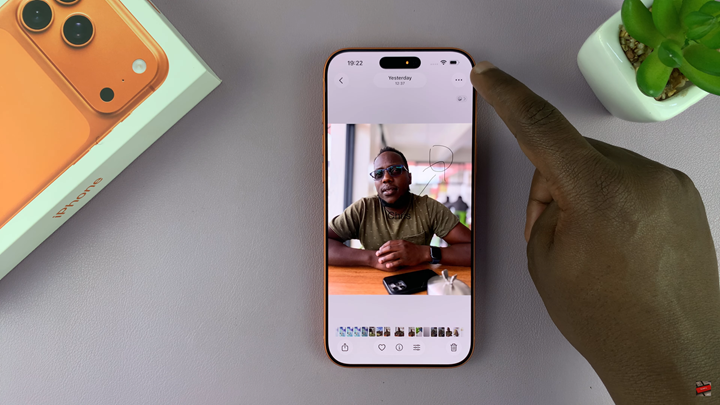
How To Remove Edits From a Photo On iPhone 17 Pro

Choose Revert to Original to remove all edits.
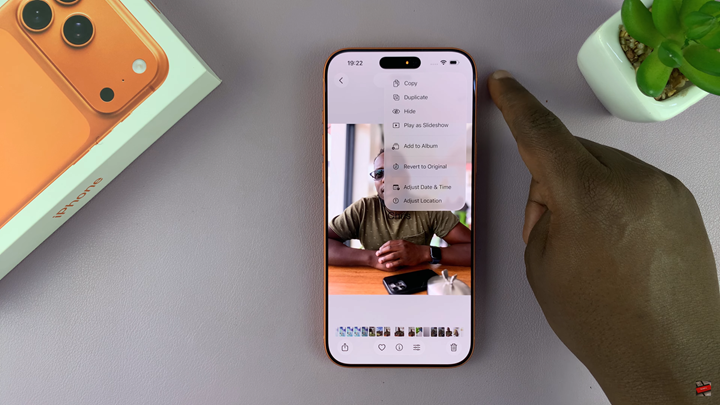
How To Remove Edits From a Photo On iPhone 17 Pro

Watch: How To Check If iPhone 17 Pro Battery Is New / Replaced

Share
Tweet
Linkedin
Reddit
Tumblr
Stumble
Whatsapp
Telegram
Email
Prev Article
Next Article

Related Articles

How To Create A ChatGPT Account

How To Create A ChatGPT Account

How To Make The Most Of Your Hotel Room TV
Most hotels today have hospitality television sets in the rooms. The …

How To Make The Most Of Your Hotel Room TV

  • How To Update Samsung Galaxy Tab A11
  • How To Open Keyboard Settings On Samsung Galaxy Tab A11
  • How To Factory Reset Samsung Galaxy Tab A11
  • How To Enable & Disable Picture In Picture Mode On Samsung Galaxy Tab A11
  • How To Clear Cache Partition On Samsung Galaxy Tab A11
DMCA.com Protection Status

Associates Disclosure

WebPro Education is a participant in the Amazon Services LLC Associates Program, an affiliate advertising program designed to provide a means for sites to earn advertising fees by advertising and linking to amazon.com.

WebPro Education

Tech tips everyday
Copyright © 2025 WebPro Education

Ad Blocker Detected

Our website is made possible by displaying online advertisements to our visitors. Please consider supporting us by disabling your ad blocker.

Refresh