WebPro Education

Tech tips everyday
Menu
  • REVIEWS
  • HOW TO
  • TECH NEWS
  • About Us
Home
how to
How To Customize Keyboard Layout On Samsung Galaxy Z Fold 6
how to

How To Customize Keyboard Layout On Samsung Galaxy Z Fold 6

Dennis Gacheru August 21, 2024

Learn how to customize the keyboard layout on your Samsung Galaxy Z Fold 6 for a more personalized typing experience. With a few simple tweaks, you can adjust the layout to make typing easier and more efficient.

First, we’ll cover how to change the keyboard layout and access different settings. Then, we’ll guide you through applying these changes so your keyboard fits your needs perfectly.

Watch:How To Change SIM PIN On Samsung Galaxy Z Fold 6

Customize Keyboard Layout On Samsung Galaxy Z Fold 6

Open Settings: Start by opening the Settings app on your Samsung Galaxy Z Fold 6.
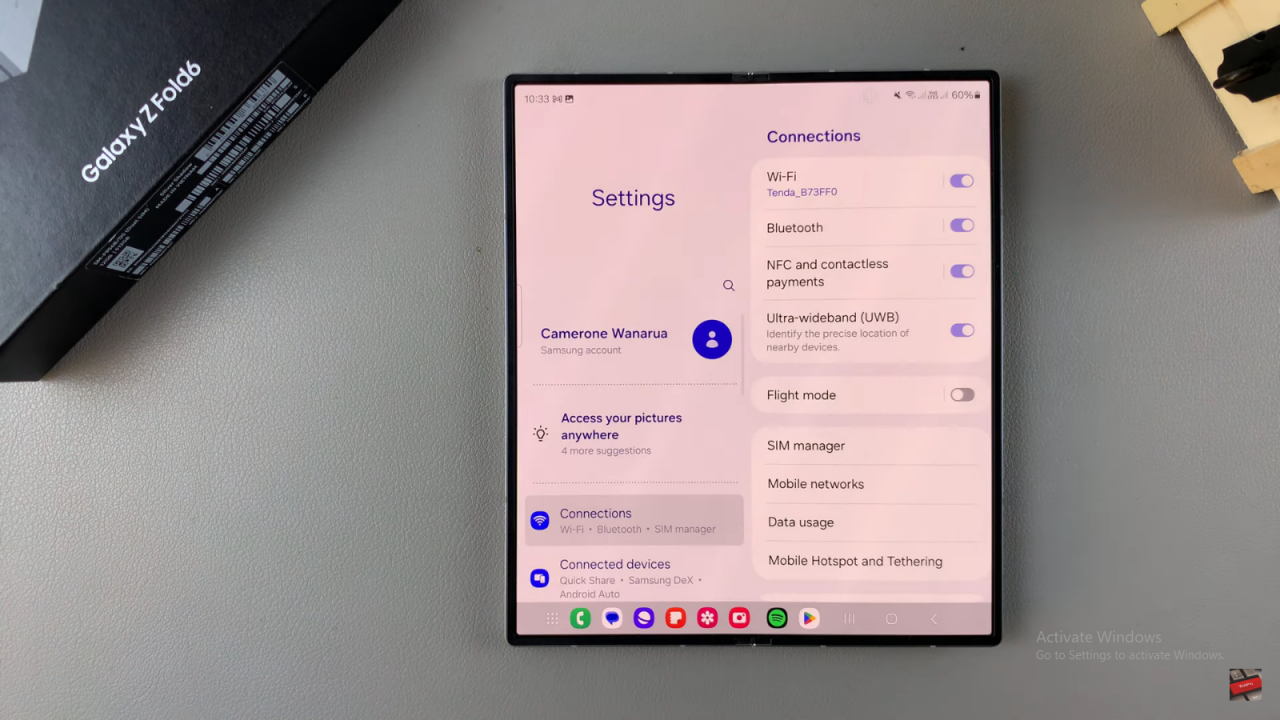
Customize Keyboard Layout On Samsung Galaxy Z Fold 6

Access General Management: Scroll down and select “General management.”
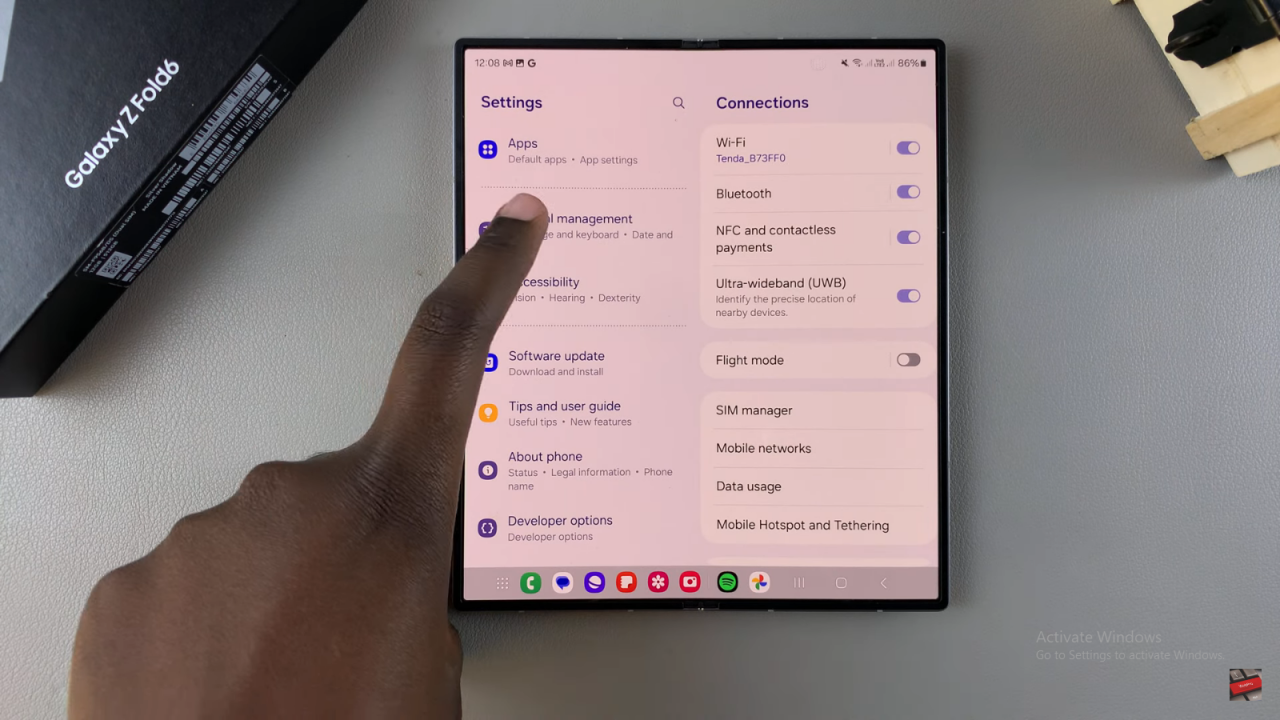
Customize Keyboard Layout On Samsung Galaxy Z Fold 6

Select Samsung Keyboard Settings: Tap on “Samsung keyboard settings.”
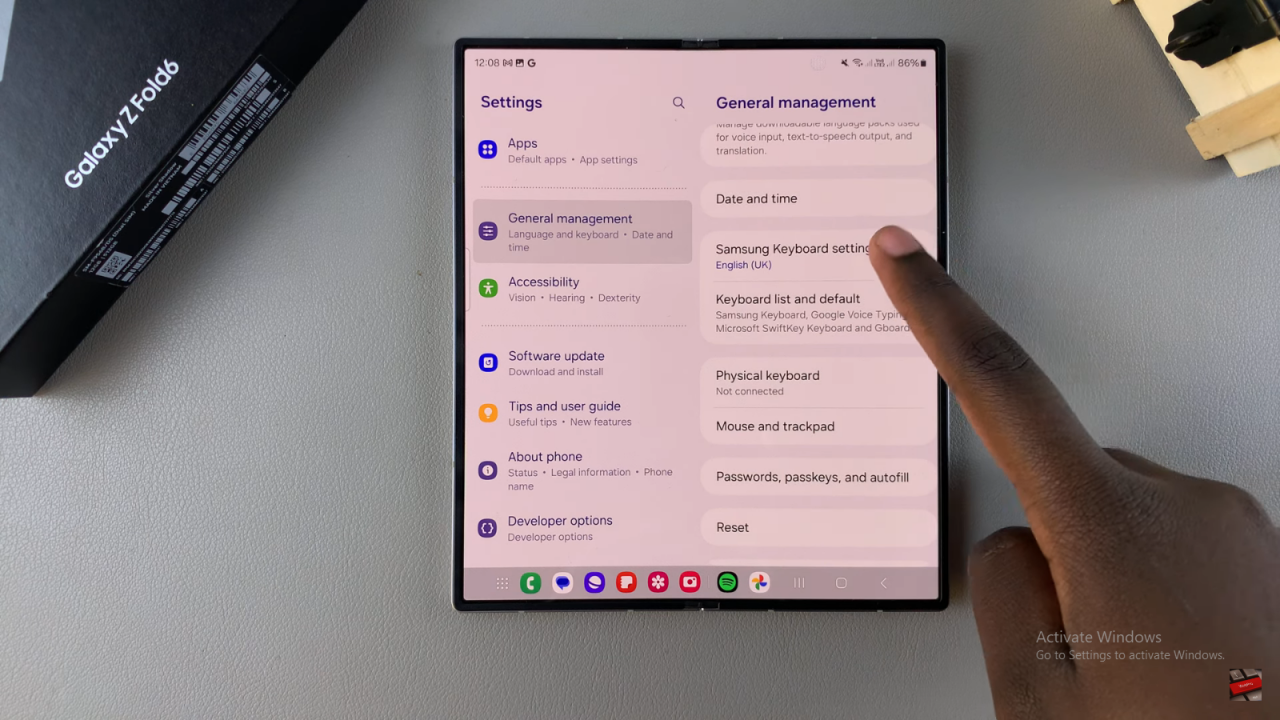
Customize Keyboard Layout On Samsung Galaxy Z Fold 6

Go to Layout Options: Scroll down and tap on “Layout.”
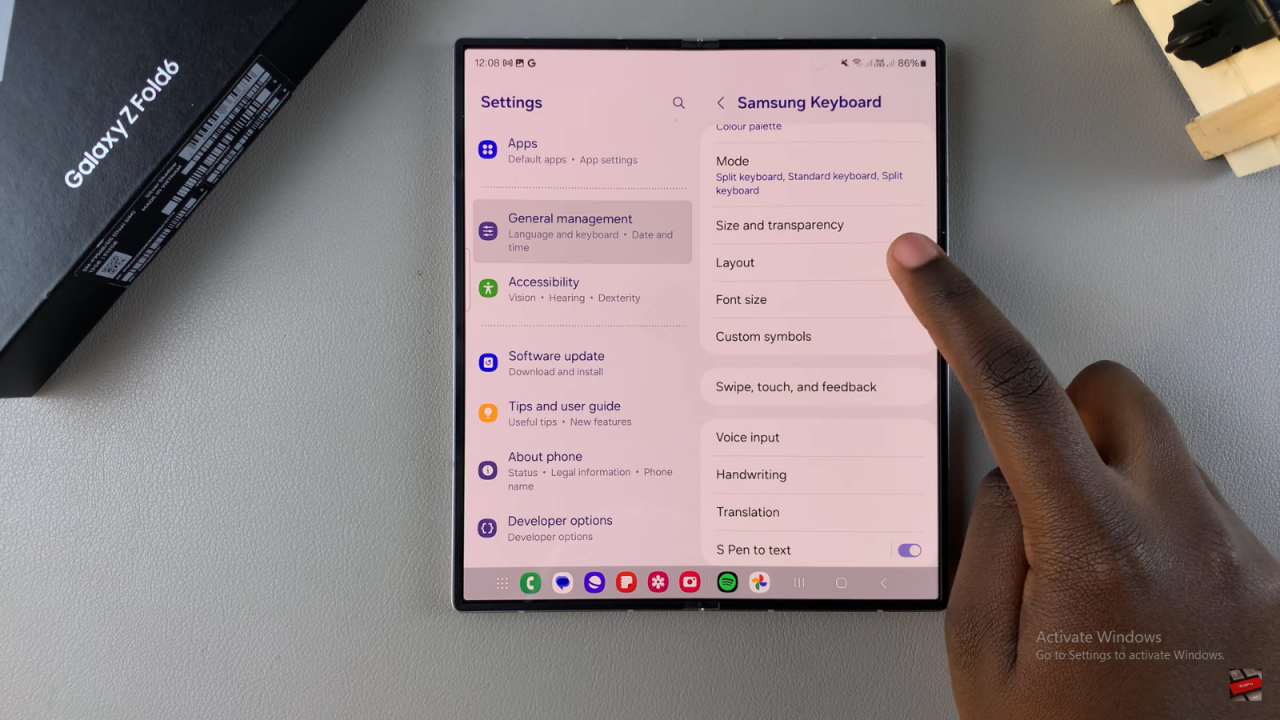
Customize Keyboard Layout On Samsung Galaxy Z Fold 6

Choose Button and Symbol Layout: Here, you can select between the default and alternative layouts. Tap “Apply” to see the changes.
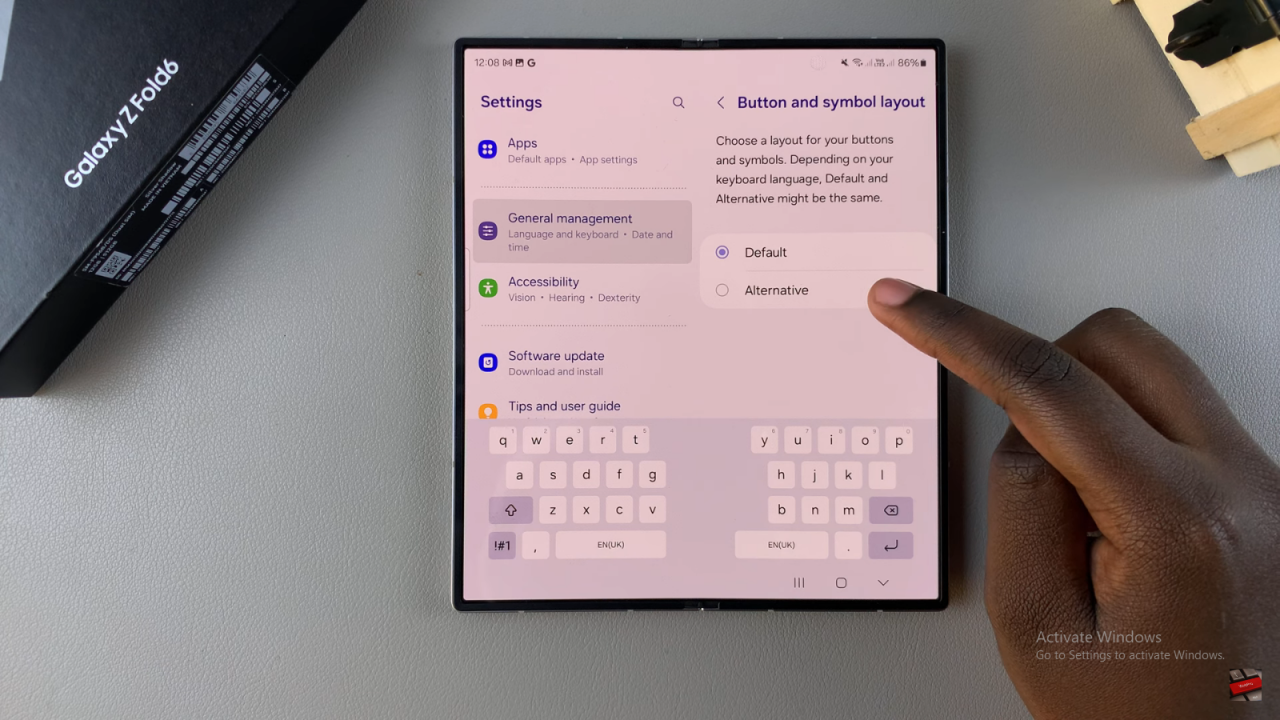
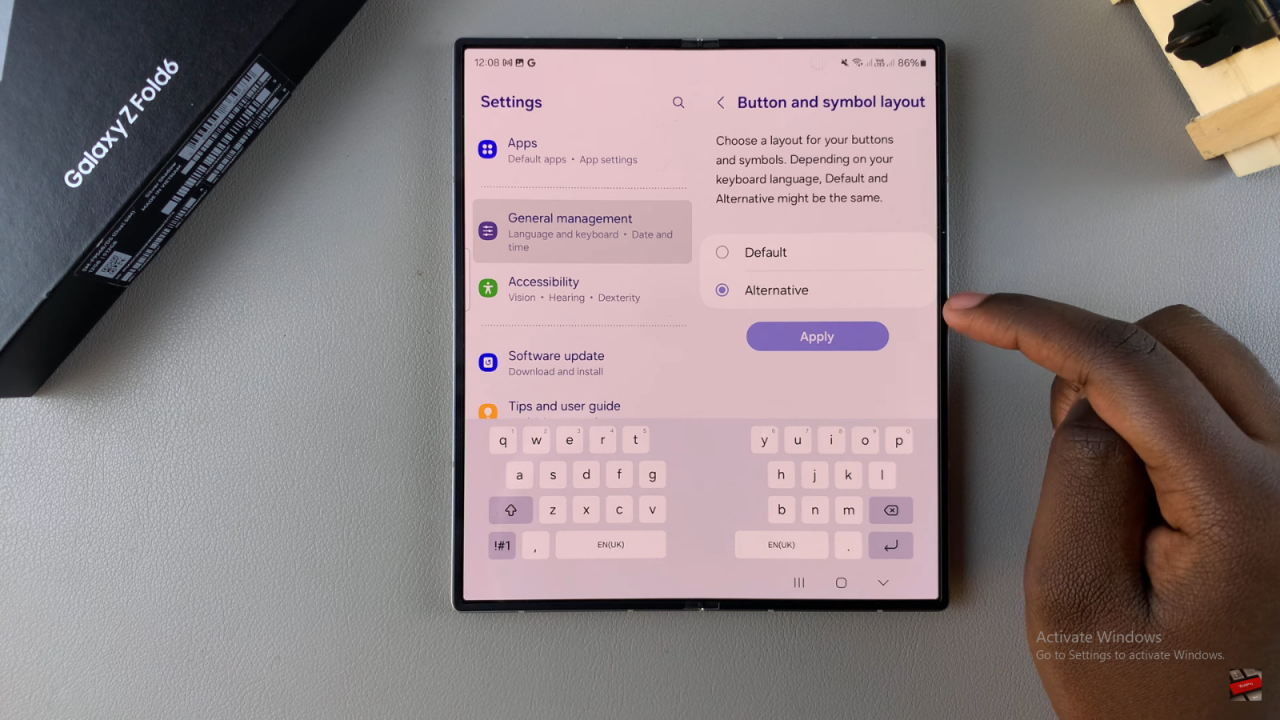
Customize Keyboard Layout On Samsung Galaxy Z Fold 6

Add Number Keys: Enable number keys by toggling the option to see them appear on your keyboard.
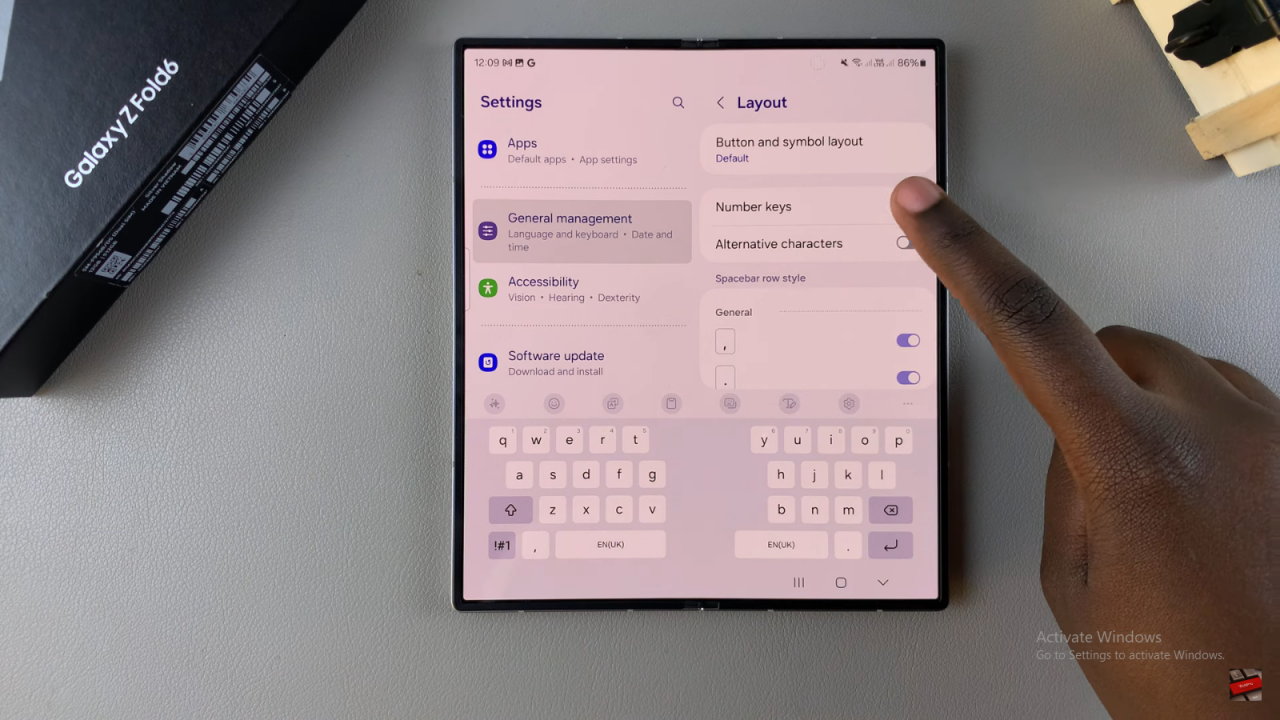
Customize Keyboard Layout On Samsung Galaxy Z Fold 6

Enable Alternative Characters: Choose to add alternative characters and select the language for these characters.
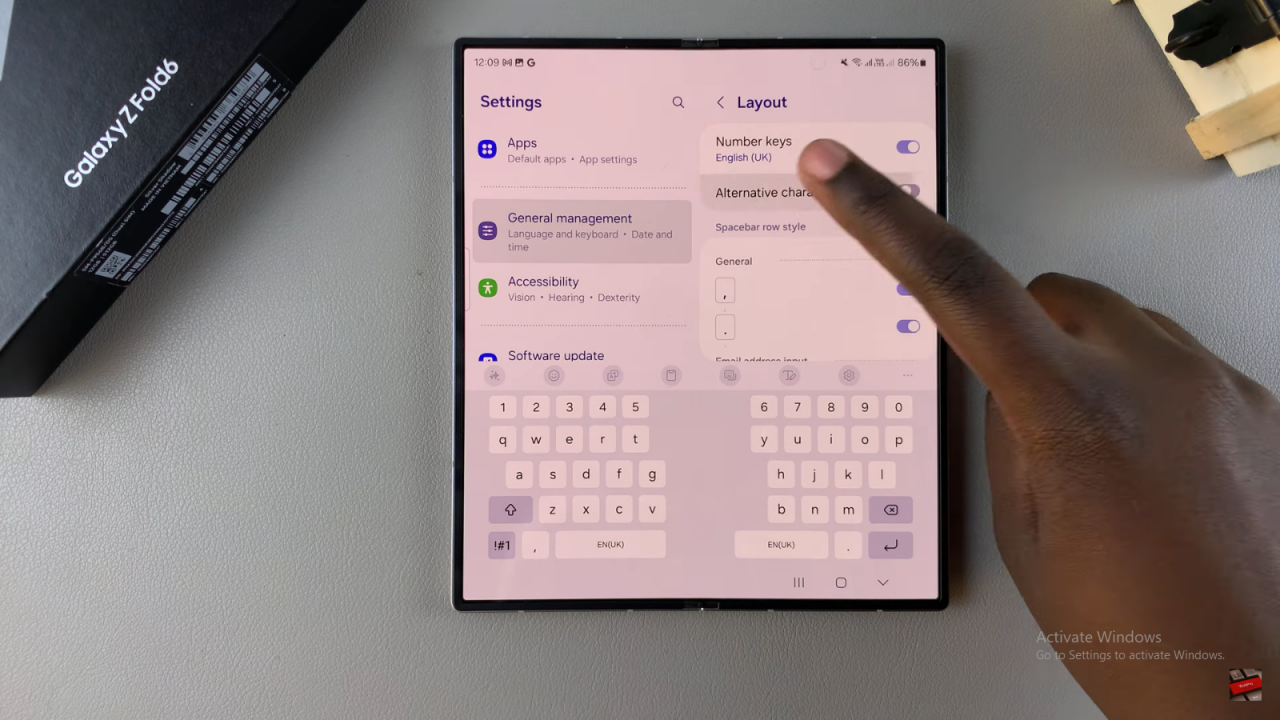
Customize Keyboard Layout On Samsung Galaxy Z Fold 6

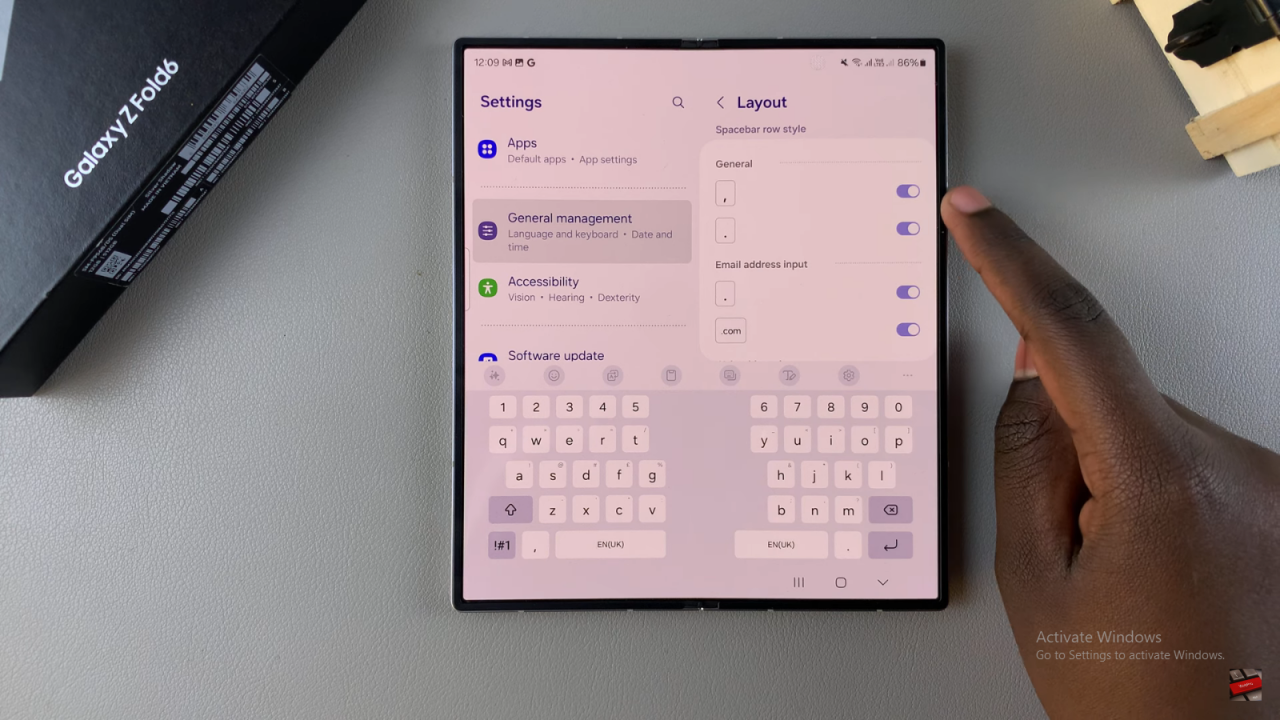
Adjust Space Bar Styles: Scroll down to customize space bar styles such as comma, full stop, and “.com.” Enable or disable these options as desired.
Customize Keyboard Layout On Samsung Galaxy Z Fold 6

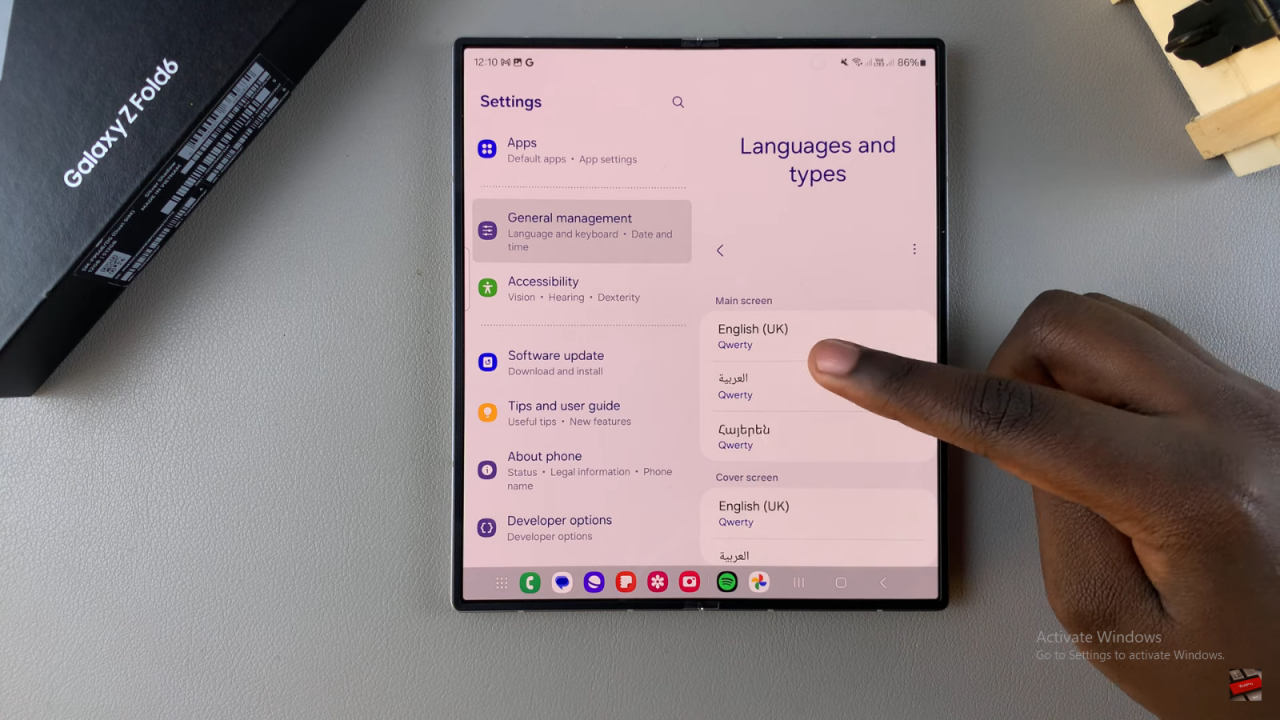
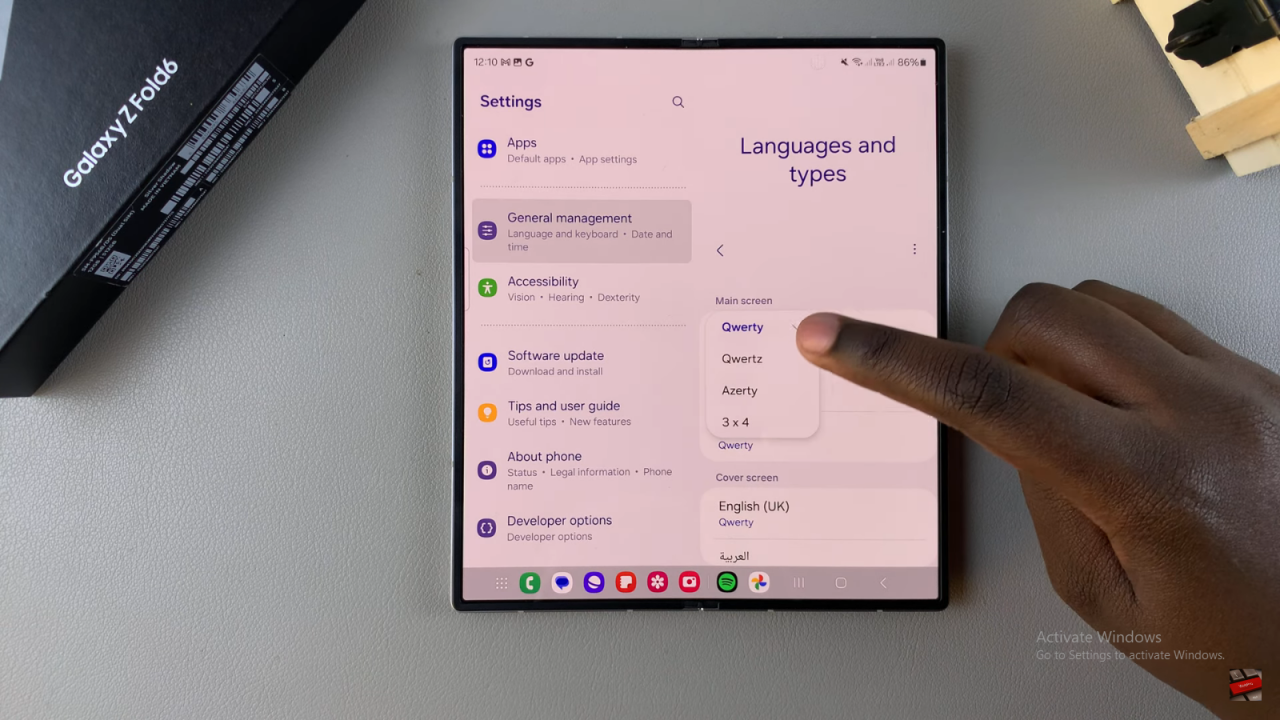
Customize Language-Specific Layouts: If using multiple languages, go back to “Languages and types” in Samsung keyboard settings. Tap on the language you want to adjust and choose from different styles like QWERTY or AZERTY.
Customize Keyboard Layout On Samsung Galaxy Z Fold 6

Review and Apply Changes: Check the changes to ensure your keyboard layout is customized to your liking.
Read:How To Change SIM PIN On Samsung Galaxy Z Fold 6

Share
Tweet
Linkedin
Reddit
Tumblr
Stumble
Whatsapp
Telegram
Email
Prev Article
Next Article

Related Articles

How To Wirelessly Screen Mirror Samsung Galaxy S24s To LG Smart TV

How To Wirelessly Screen Mirror Samsung Galaxy S24s To LG Smart TV

How To Enable Call Waiting On Samsung Galaxy A35 5G

How To Enable Call Waiting On Samsung Galaxy A35 5G

  • How To Add Timestamps To Photos On Xiaomi Smart Camera C701
  • How To Turn ON Status Light Of Xiaomi Smart Camera C701
  • How To Turn ON Pet Detection On Xiaomi Smart Camera C701
  • How To Set Password On Xiaomi Smart Camera C701
  • How To Recover Deleted Voice Recordings On Samsung Galaxy S26 Ultra
DMCA.com Protection Status

Associates Disclosure

WebPro Education is a participant in the Amazon Services LLC Associates Program, an affiliate advertising program designed to provide a means for sites to earn advertising fees by advertising and linking to amazon.com.

WebPro Education

Tech tips everyday
Copyright © 2026 WebPro Education

Ad Blocker Detected

Our website is made possible by displaying online advertisements to our visitors. Please consider supporting us by disabling your ad blocker.

Refresh