WebPro Education

Tech tips everyday
Menu
  • REVIEWS
  • HOW TO
  • TECH NEWS
  • About Us
Home
how to
How To Enable Message Notifications On Samsung Galaxy A06
how to

How To Enable Message Notifications On Samsung Galaxy A06

Dennis Gacheru September 19, 2024
https://www.youtube.com/watch?v=4IUVkbN5D2E

Enabling message notifications on the Samsung Galaxy A06 is a straightforward process that enhances your communication experience. With notifications activated, you will never miss an important message from friends, family, or colleagues. This feature ensures that you stay connected and informed, allowing you to respond promptly to messages as they arrive.

Furthermore, customizing notification settings can help tailor your device to suit your preferences. You can adjust sound alerts, vibration patterns, and visual cues to make sure notifications stand out. By taking a few simple steps, you can optimize your messaging experience on the Galaxy A06, ensuring you remain engaged without being overwhelmed.

Watch:How To Rename iPad

Enable Message Notifications On Samsung Galaxy A06

Open the Settings App: Start by launching the Settings app on your Samsung Galaxy A06.
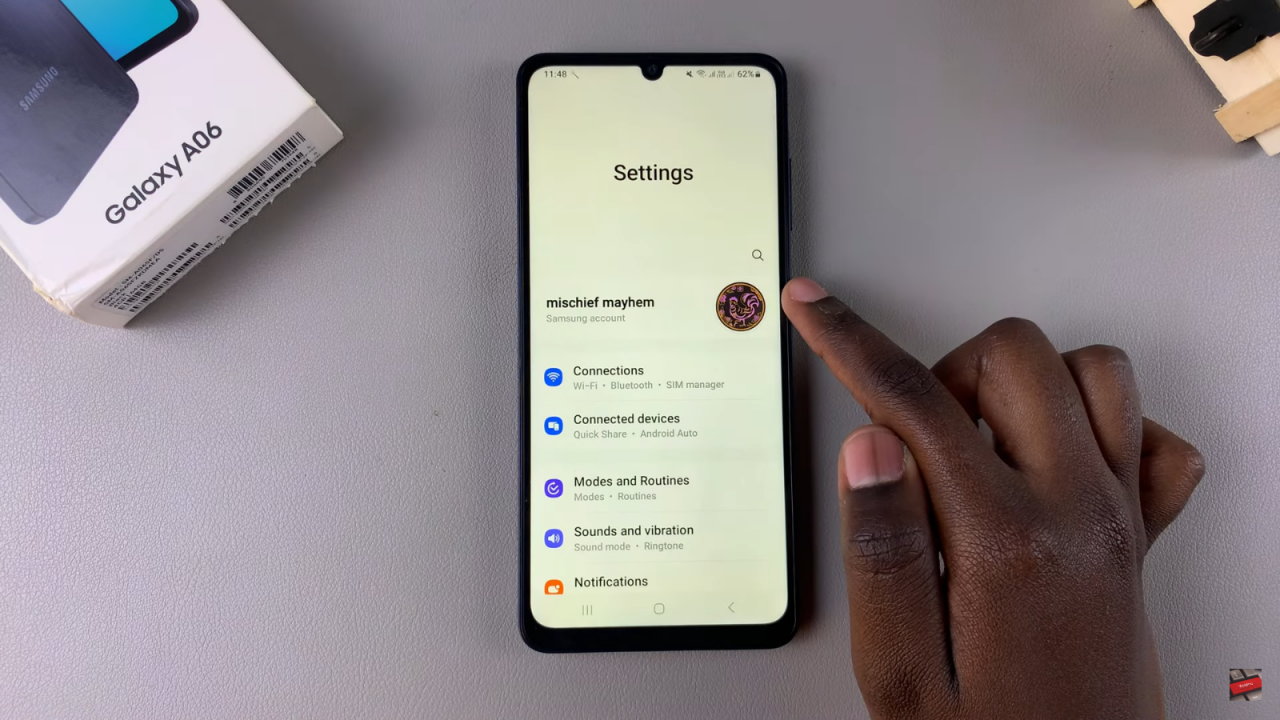
Enable Message Notifications On Samsung Galaxy A06

Navigate to Notifications: Scroll down and select the “Notifications” option.
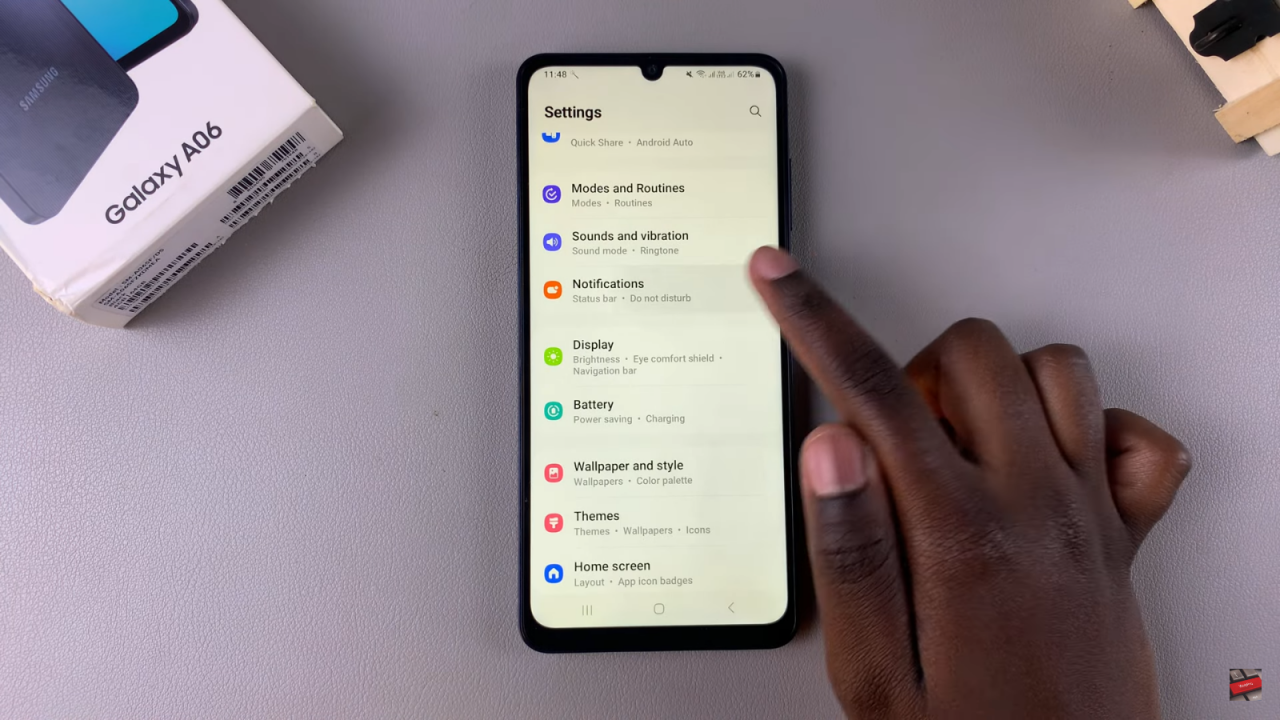
Access App Notifications: Tap on “App notifications” to view your installed apps.
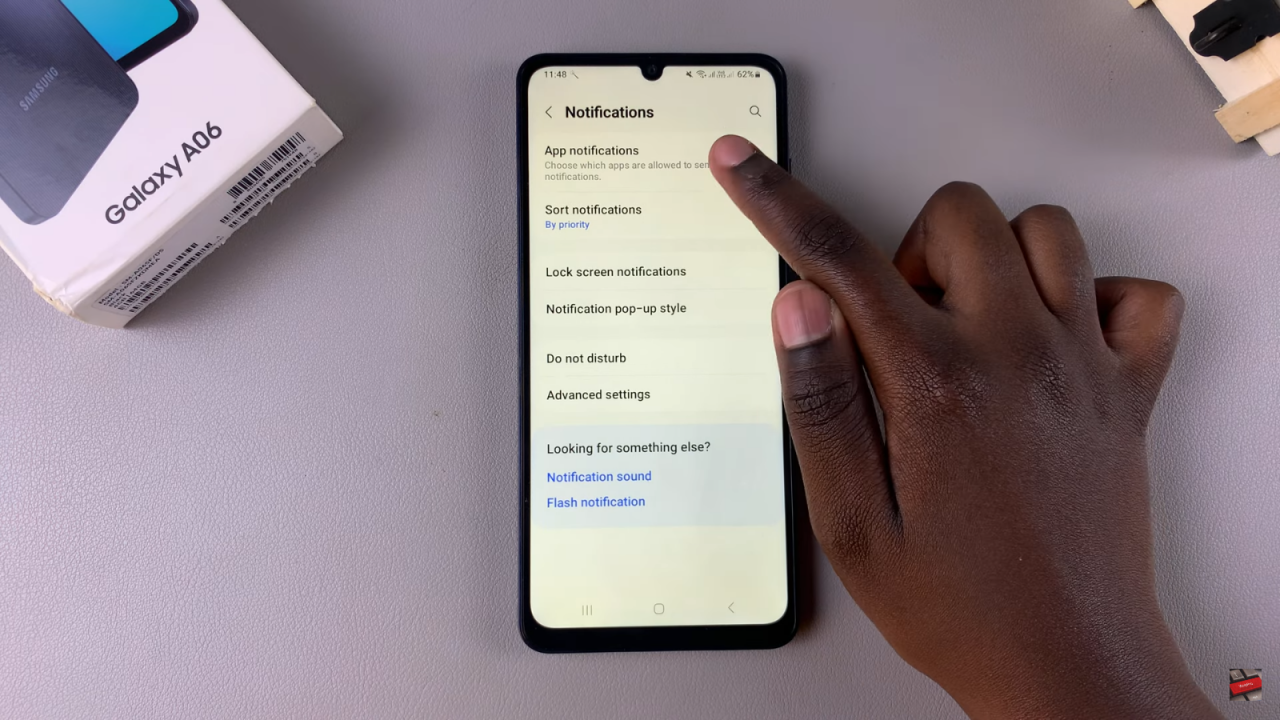
Enable Message Notifications On Samsung Galaxy A06

Find Your Messaging App: Wait for the apps list to load, then scroll through to locate your messaging app.Enable Notifications: To enable notifications, simply tap on the toggle next to the messaging app.
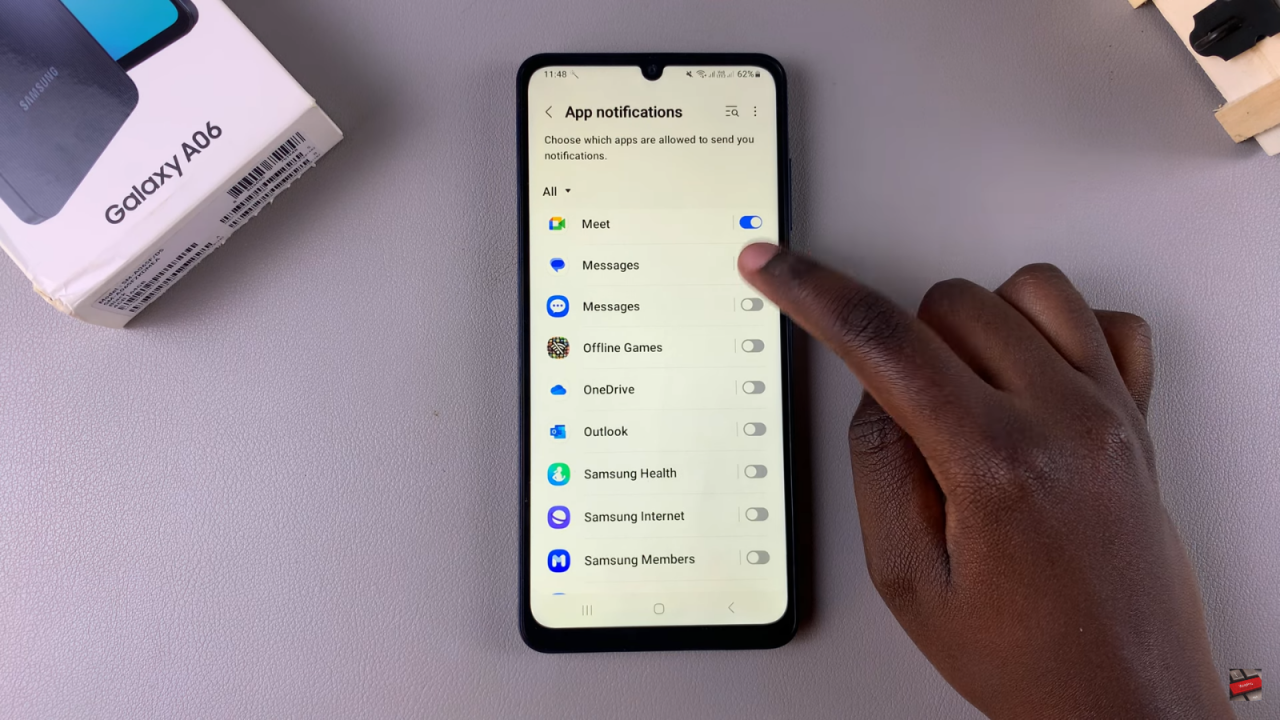
Enable Message Notifications On Samsung Galaxy A06

Read:How To Rename iPad

Share
Tweet
Linkedin
Reddit
Tumblr
Stumble
Whatsapp
Telegram
Email
Prev Article
Next Article

Related Articles

Galaxy Z Flip 5: Forgot Password, PIN Or Pattern? How To Hard Reset /Wipe Data

Galaxy Z Flip 5: Forgot Password, PIN Or Pattern? How To Hard Reset /Wipe Data

How To Add Languages To Keyboard On Samsung Galaxy A24

How To Add Languages To Keyboard On Samsung Galaxy A24

  • How To Adjust Brightness & Contrast In FC 27
  • How To Change Commentary Team In FC 27
  • How To Add Friends In FC 27
  • How To Update Squads In FC 27
  • How To Remove SIM Card From iPhone 18 Pro
DMCA.com Protection Status

Associates Disclosure

WebPro Education is a participant in the Amazon Services LLC Associates Program, an affiliate advertising program designed to provide a means for sites to earn advertising fees by advertising and linking to amazon.com.

WebPro Education

Tech tips everyday
Copyright © 2026 WebPro Education

Ad Blocker Detected

Our website is made possible by displaying online advertisements to our visitors. Please consider supporting us by disabling your ad blocker.

Refresh