In this guide, we will show you how to customize controls in FC 27. Customizing your controls in FC 27 allows you to change how your controller responds to different actions during matches.
If you are more comfortable with a different button layout or want to adjust specific controls to suit your playing style, you can change them from the game’s settings.
Read: How To Change Camera Settings In FC 27
Customize Controls In FC 27
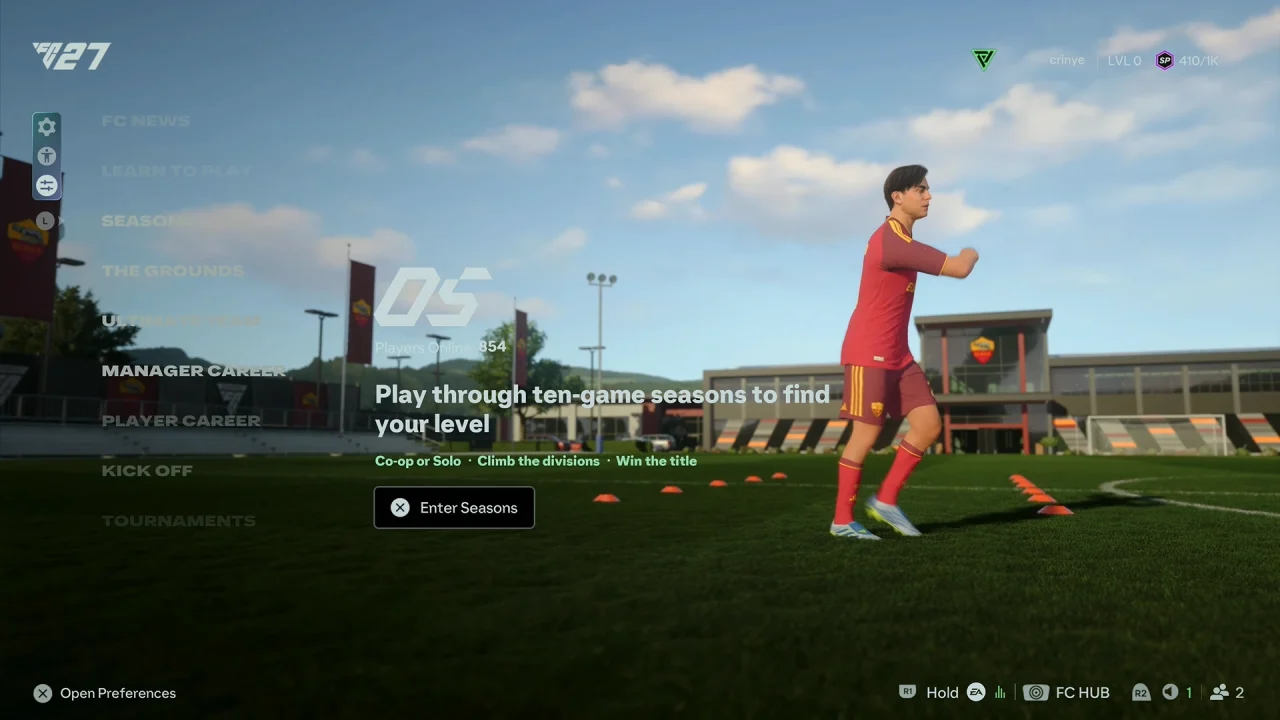
Start FC 27 and go to the main menu. Here, choose the Preferences icon.
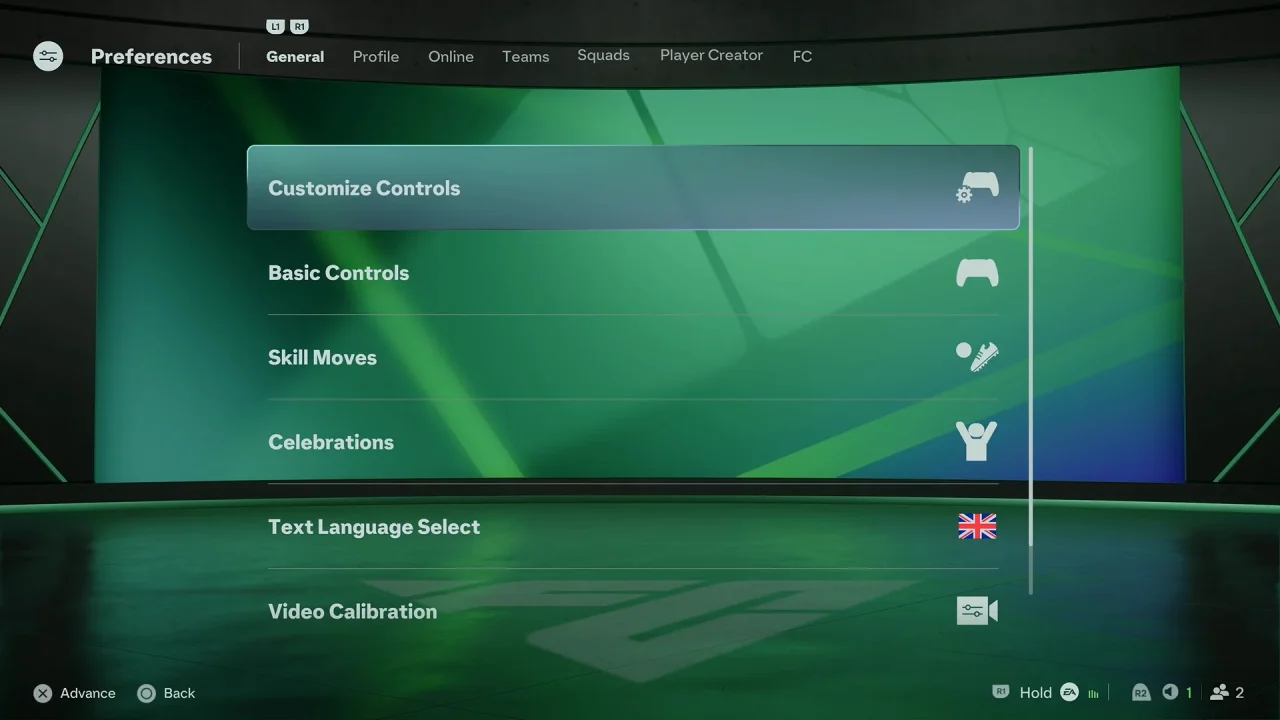
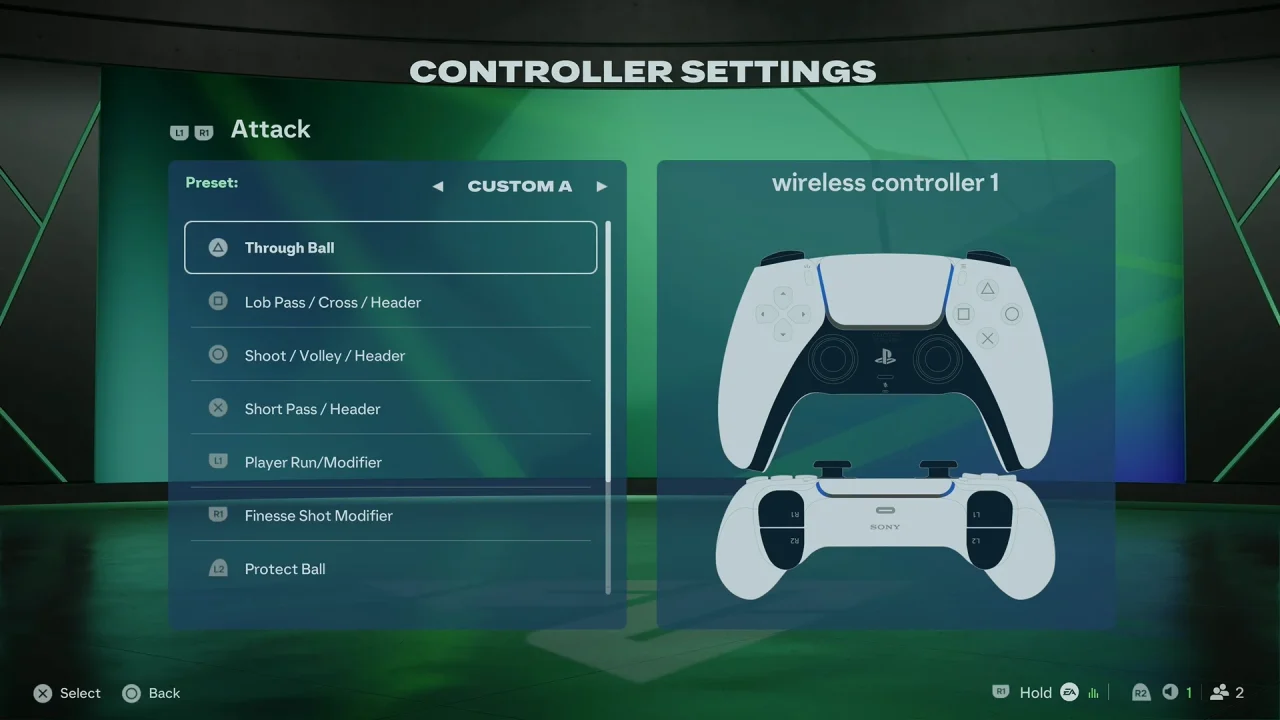
Next, select Customize Controls and choose the controller configuration you want to edit.
Select the action you want to change. Choose the button you want to assign to that action. Continue changing other controls as needed.
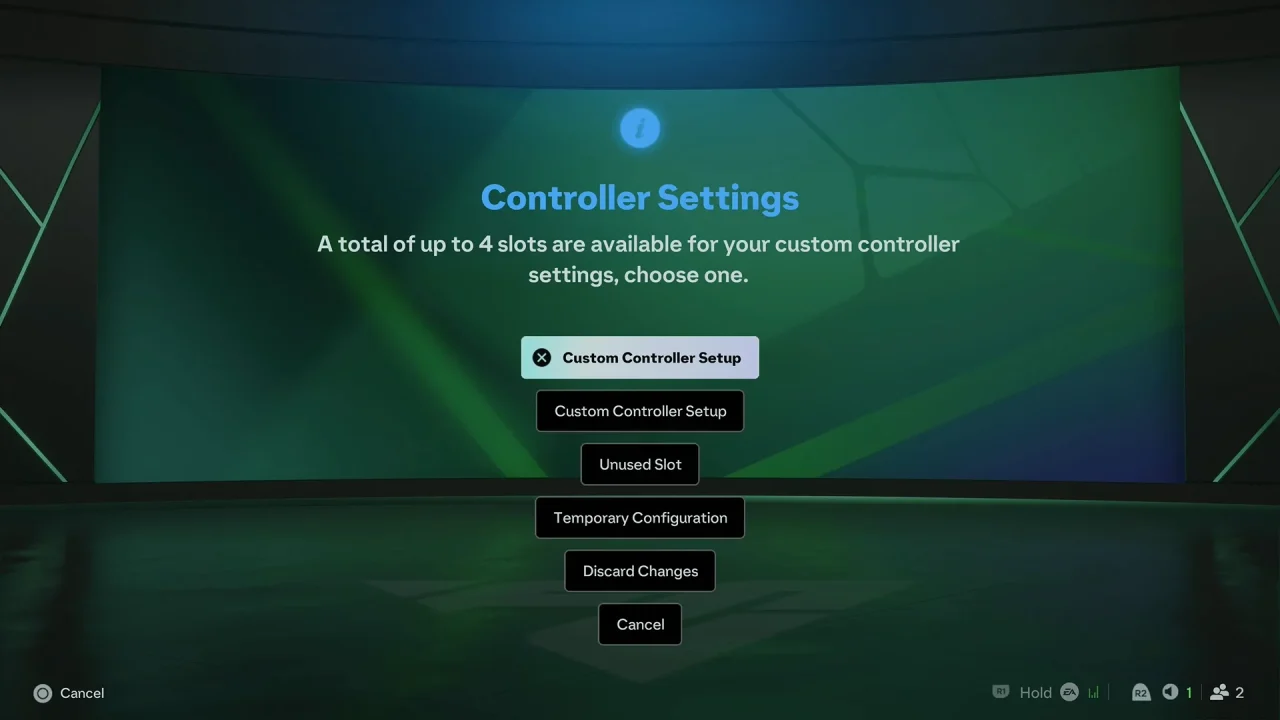
Once you are finished, press the back button and select Unused Slot to save your custom controls.
Customize Your Controller Layout
The controls menu lets you adjust different gameplay actions, such as passing, shooting, sprinting, defending, player switching, and skill moves.
You can change the controls to make frequently used actions easier to access. This can be particularly useful if you are switching from another football game or already have a preferred controller layout.
Test Your New Controls
After customizing your controls, it is a good idea to enter a match or the Practice Arena and test them.
Try passing, shooting, sprinting, defending, and switching players to make sure every button works the way you expect. If something feels uncomfortable, return to the controls menu and adjust it again.
Reset Controls To Default
If you make changes and later want to return to the original button layout, open the controller settings and look for the option to Restore Default Controls.
Select it to return the controls to the game’s default configuration.