Read: How To Change Referee Strictness In FC 27
Change Player Indicator Size in FC 27 to customize the appearance of the indicator above your controlled player. Adjusting its size can make it easier to identify which player you are controlling, especially during fast-paced gameplay when several players are close together.
A larger indicator may provide better visibility, while a smaller one can create a cleaner and less distracting screen. FC 27 includes several customization options that allow you to personalize your on-screen display and gameplay experience.
If you are having difficulty identifying your selected player or simply prefer a different indicator size, changing this setting can help. In this guide, we’ll show you where to find the Player Indicator Size option and explain how to adjust it. Follow the steps below to customize the player indicator and make it more comfortable for your preferred FC 27 gameplay setup.
Change Player Indicator Size On FC 27
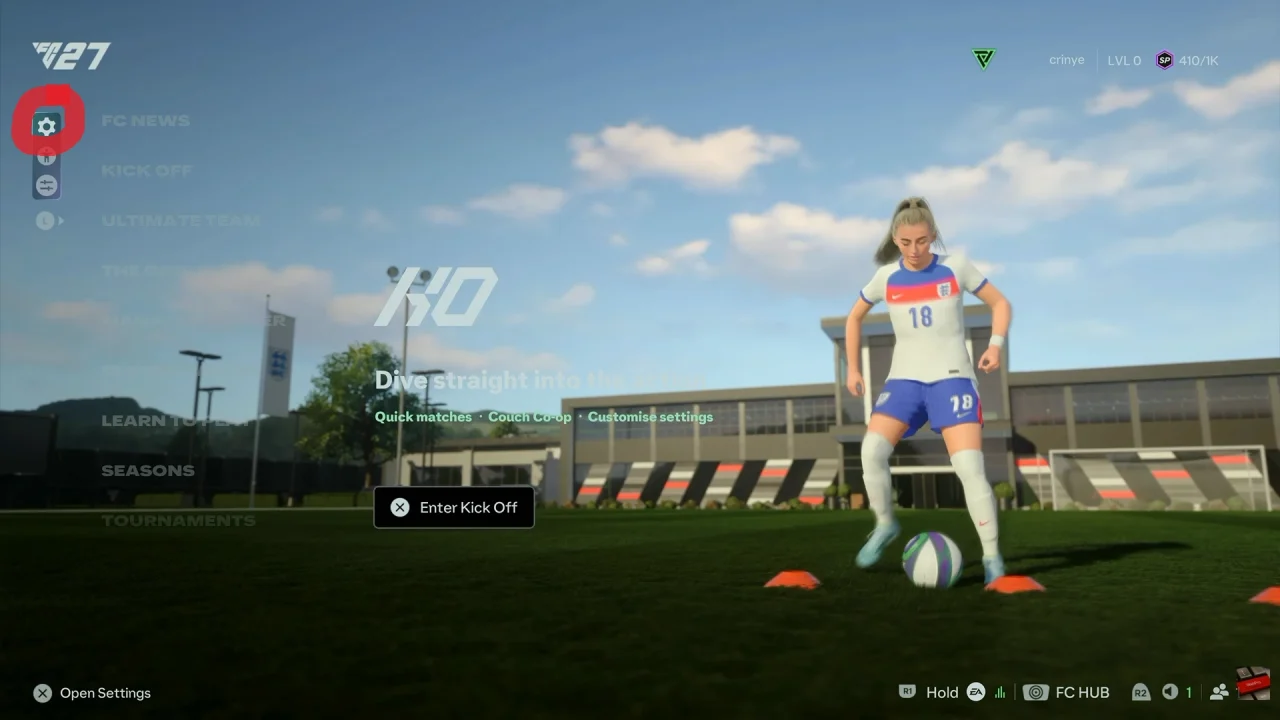
First, launch FC 27 and open the Main Menu. Then, select Game Settings by selecting the first option on the left side of the menu.
Next, navigate to the Visual tab and scroll down to the Indicators section.
After that, locate the Player Indicator Size option. Select it to view the available size choices.
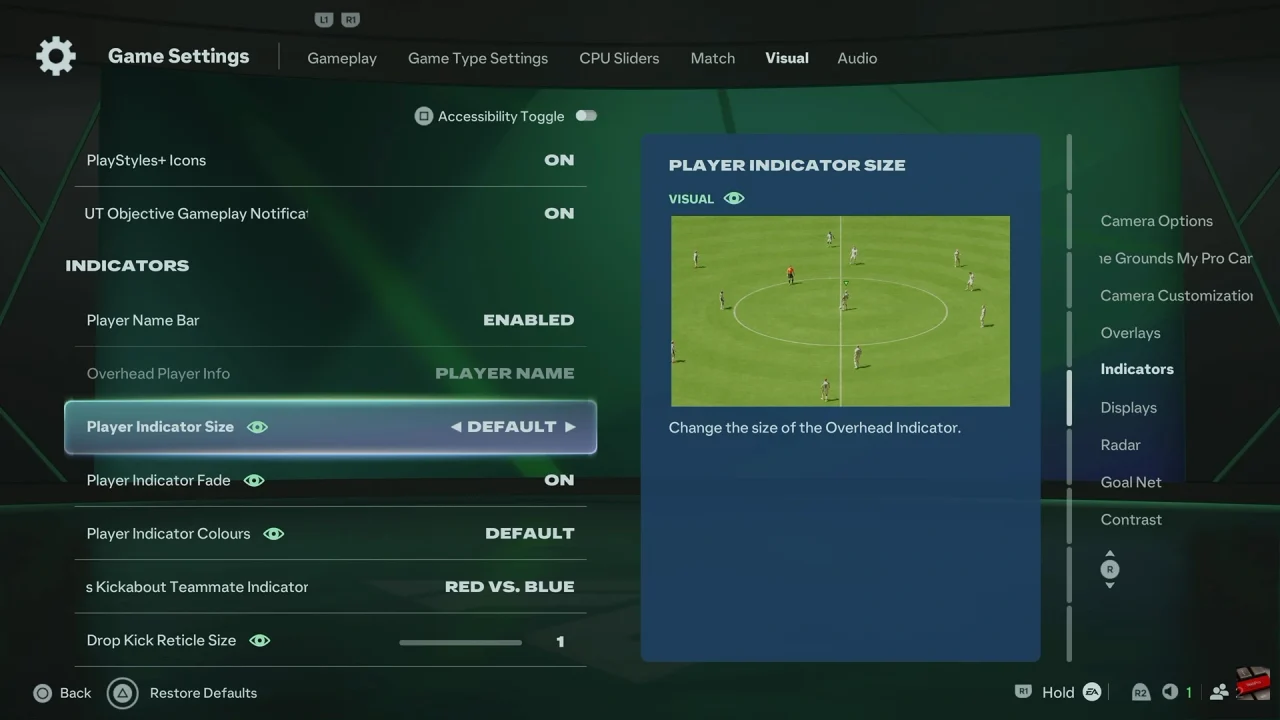
Then, choose your preferred indicator size. Select a larger option if you want the indicator to be more visible, or choose a smaller option for a less noticeable display.
Finally, exit the settings menu and enter a match to check the new indicator size. If necessary, return to the same settings and adjust it again until you find your preferred display.