Transferring your data from an old iPhone to the iPhone 18 Pro is a simple way to move your photos, contacts, apps, messages, and settings to your new device.
Apple’s setup process makes the transition straightforward, allowing you to transfer your important information while keeping your new iPhone ready to use.
In this guide, we’ll walk you through the step-by-step process on how to transfer data from an old iPhone to your iPhone 18 Pro.
Also Read: How To Change Passcode On iPhone 18 Pro
Transfer Data From Old iPhone To iPhone 18 Pro
Before transferring anything, create a fresh backup of your old iPhone. You can use iCloud or another backup method supported by Apple. On your old iPhone, open Settings, tap your Apple Account, select iCloud, and choose iCloud Backup. From there, start a new backup and wait for it to finish.
Next, turn on your new iPhone 18 Pro and begin the setup process. You will eventually reach the stage where the new iPhone is ready to be paired with your existing iPhone. Keep your old iPhone nearby and make sure Bluetooth is enabled.
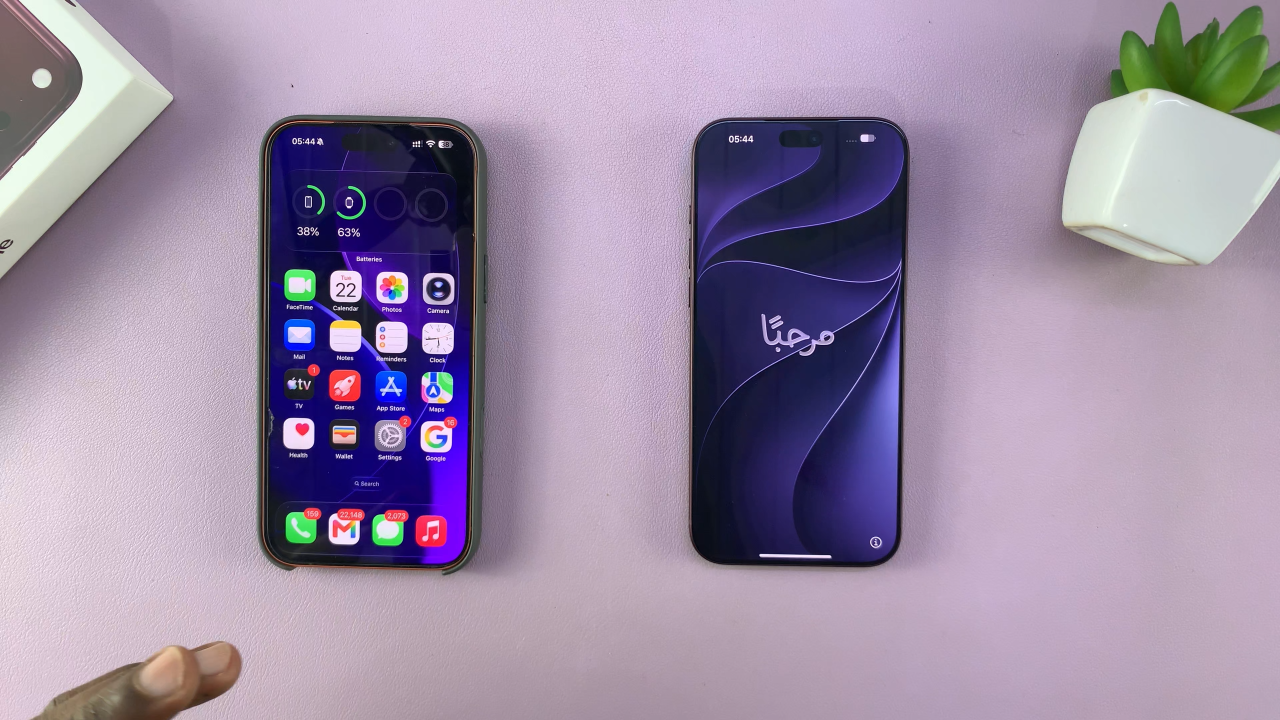
The two devices need to be close to each other during the setup process. Once the iPhone 18 Pro begins its setup, your old iPhone should recognize that a new iPhone is being configured. A setup prompt will appear on the old iPhone asking whether you want to use it to set up the new device. Tap Continue to proceed.
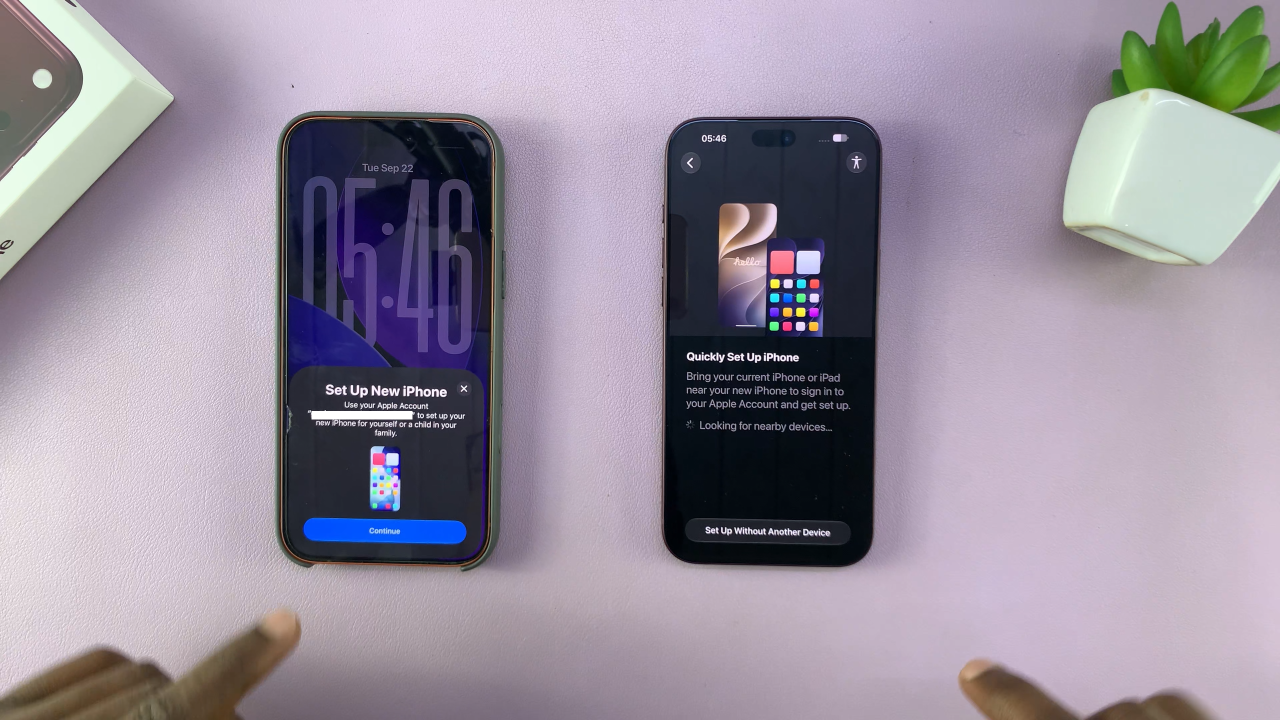
After selecting Continue, a special animation or setup prompt will appear on the iPhone 18 Pro. Use the camera on your old iPhone to scan the setup animation displayed on the new iPhone. This pairs the two devices and allows the transfer process to continue.
You may also be asked to enter your old iPhone’s passcode on the iPhone 18 Pro as part of the security and setup process.
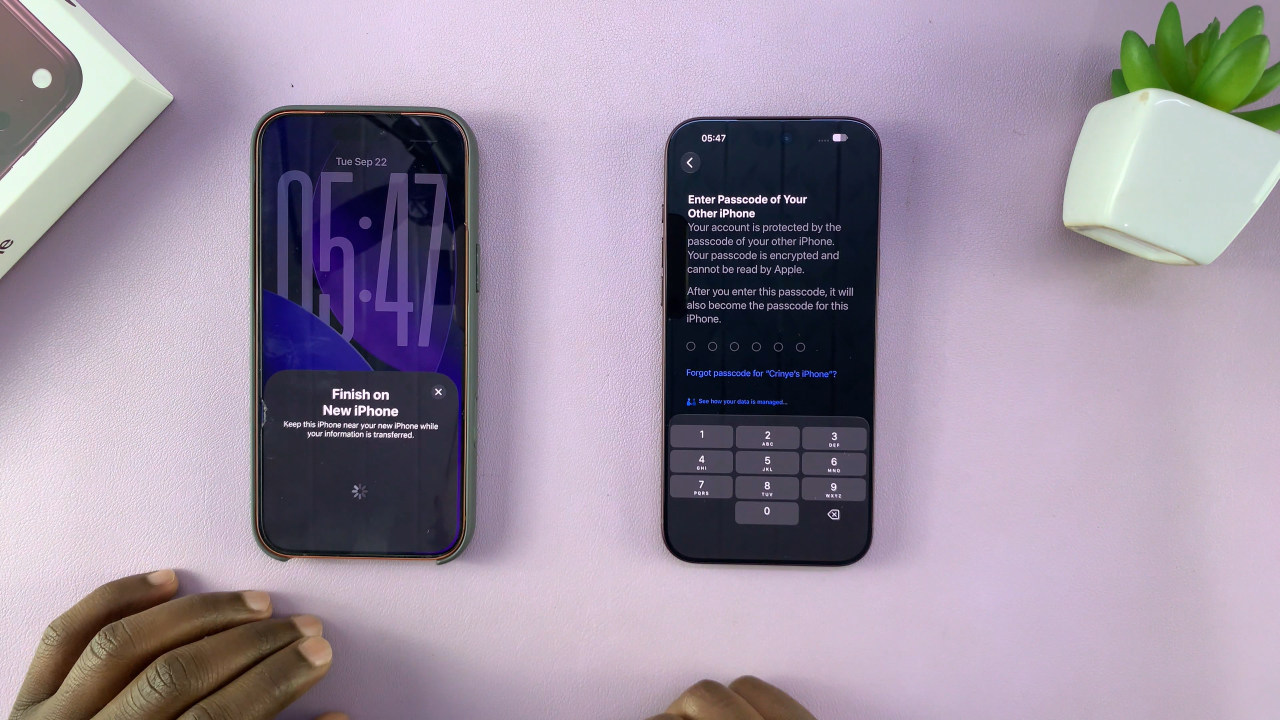
After the two iPhones are paired, follow the onscreen instructions on the iPhone 18 Pro. You will be given options for transferring your information from the old iPhone. Follow the prompts and keep both devices close together while the transfer takes place.
The amount of time required will depend on how much data is stored on your old iPhone. Large photo libraries, videos, and numerous apps can make the process take longer.
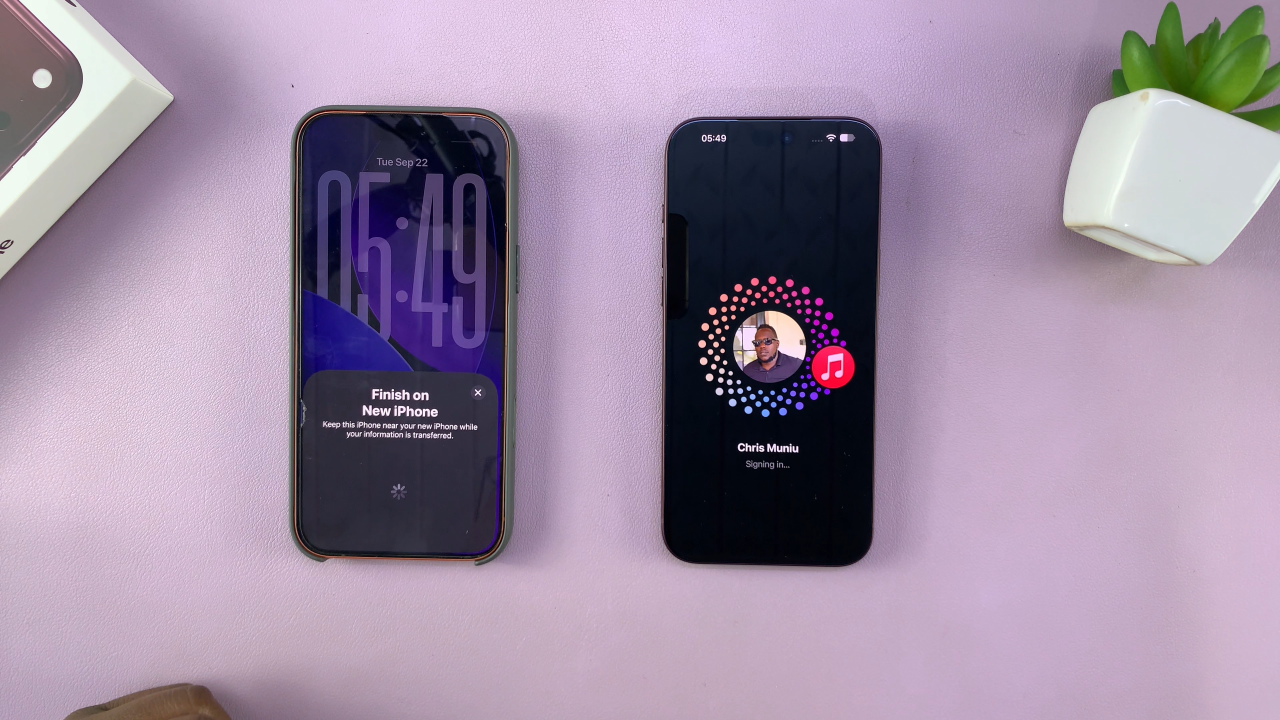
Once the transfer has finished, continue following the remaining setup instructions on the iPhone 18 Pro. Some apps or content may continue downloading after the initial transfer is complete, so keep the new iPhone connected to Wi-Fi and power if necessary.
After everything has finished, check your photos, contacts, messages, apps, and other important information to make sure your data has transferred correctly.
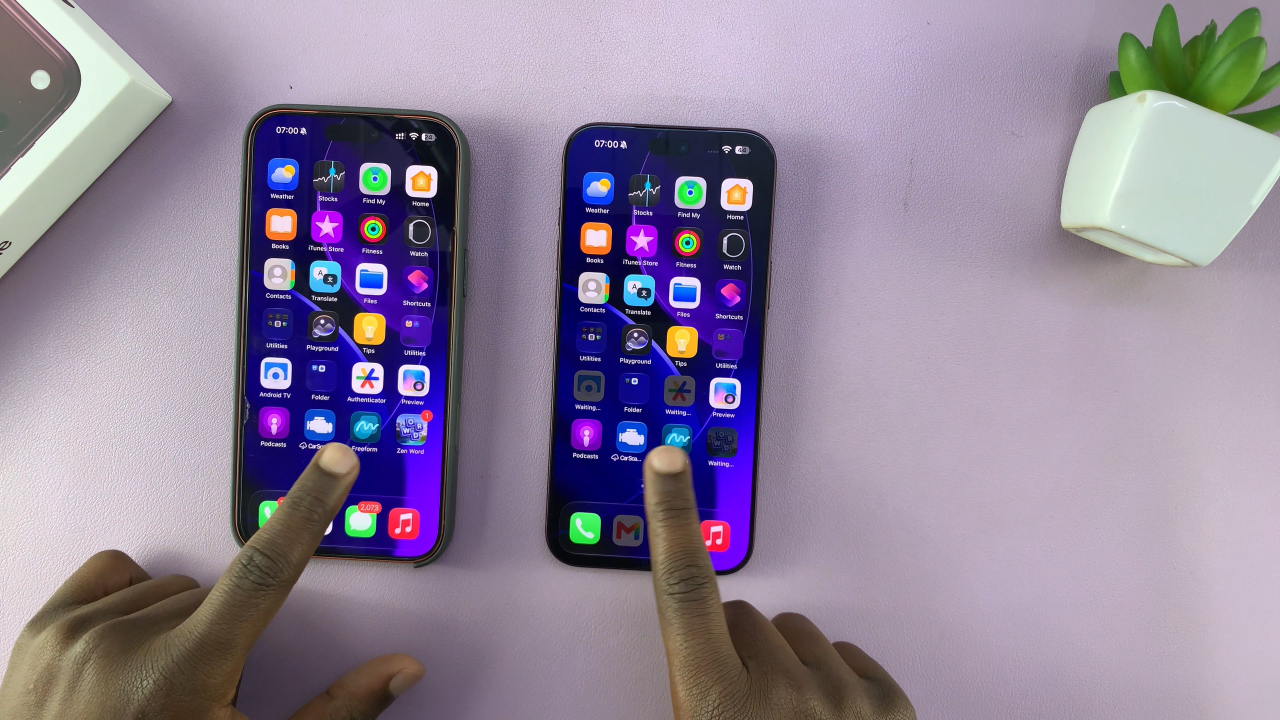
Transferring data from an old iPhone to the iPhone 18 Pro is therefore a relatively simple process. By creating a backup first and keeping both devices nearby during the transfer, you can make the move to your new iPhone much easier.
Also Watch: How To Reset iPhone 18 Pro / Pro Max