Changing the passcode on your iPhone 18 Pro is a simple way to keep your device and personal information secure. Whether you want to replace an old passcode or create a new one that is easier to remember.
In this guide, we’ll walk you through the step-by-step process on how to change the passcode on your iPhone 18 Pro.
Also Read: How To Take Screenshots On iPhone 18 Pro
How To Change Passcode On iPhone 18 Pro
he first step is to open the Settings app on your iPhone 18 Pro. nce Settings is open, scroll down and tap Face ID & Passcode. Your iPhone will ask you to enter your current passcode before allowing access to these security settings. Enter the passcode you currently use to unlock the phone.
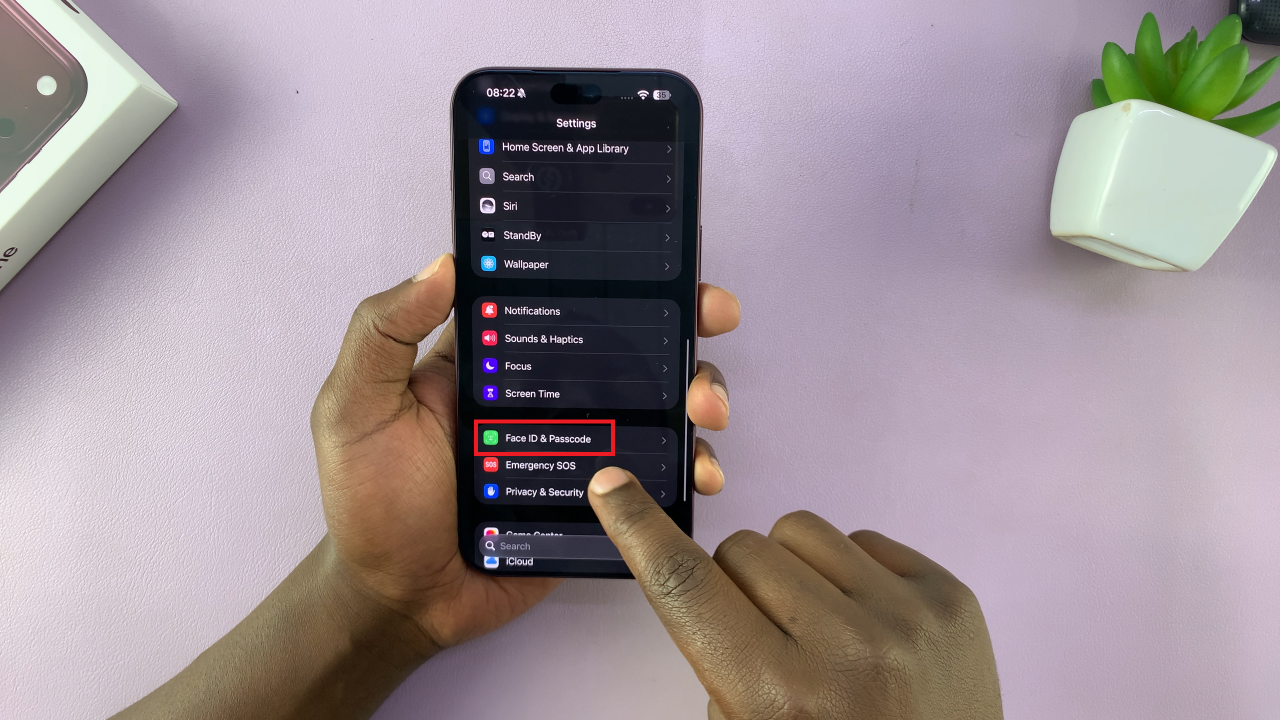
Scroll down and select Change Passcode. Your iPhone may ask you to enter your current passcode again. Enter the existing passcode to confirm that you are authorized to make the change.
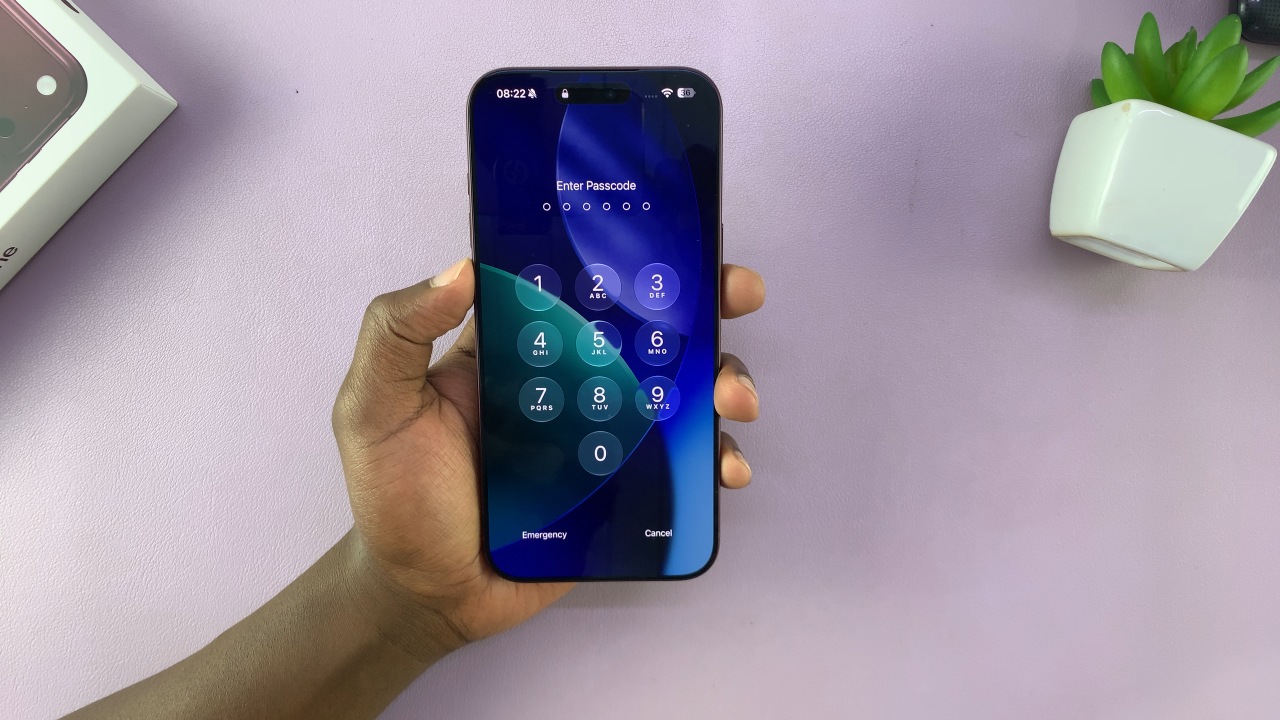
From here, enter your new passcode. Type the new code you want to use. After entering the new passcode, you will need to enter it again to confirm that it was typed correctly. Make sure both entries match.
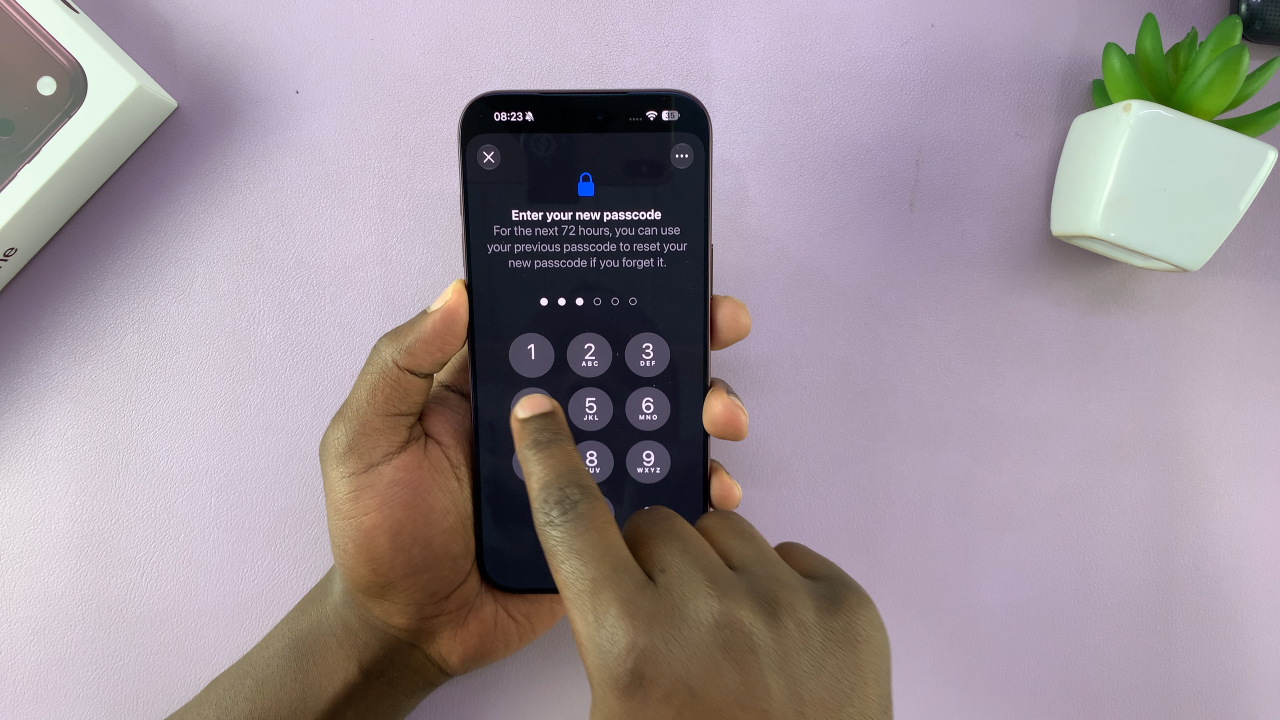
Once the new passcode has been confirmed, the change is saved automatically. From this point forward, your iPhone 18 Pro will use the new passcode whenever a passcode is required.
Changing your passcode does not remove your photos, apps, messages, or other personal information from the iPhone. It simply changes the code used to protect access to the device. This will only take a few moments, making it a convenient way to update the security settings on your iPhone 18 Pro whenever necessary.
Also Watch: How To Transfer Data From Old iPhone To iPhone 18 Pro