Taking a screenshot on the iPhone 18 Pro is a quick and useful way to capture anything displayed on your screen. Whether you want to save an important message, share information, or keep a record of something useful, the iPhone makes the process simple.
In this guide, we’ll walk you through the step-by-step process on how to go about taking a screenshot on your iPhone 18 Pro.
Also Read: How To Screen Record On iPhone 18 Pro
How To Take Screenshots On iPhone 18 Pro
First, open the app, webpage, photo, message, or other content you want to capture. Make sure everything you want included in the screenshot is visible on the display. At the same time, quickly press and release the Side button and the Volume Up button.
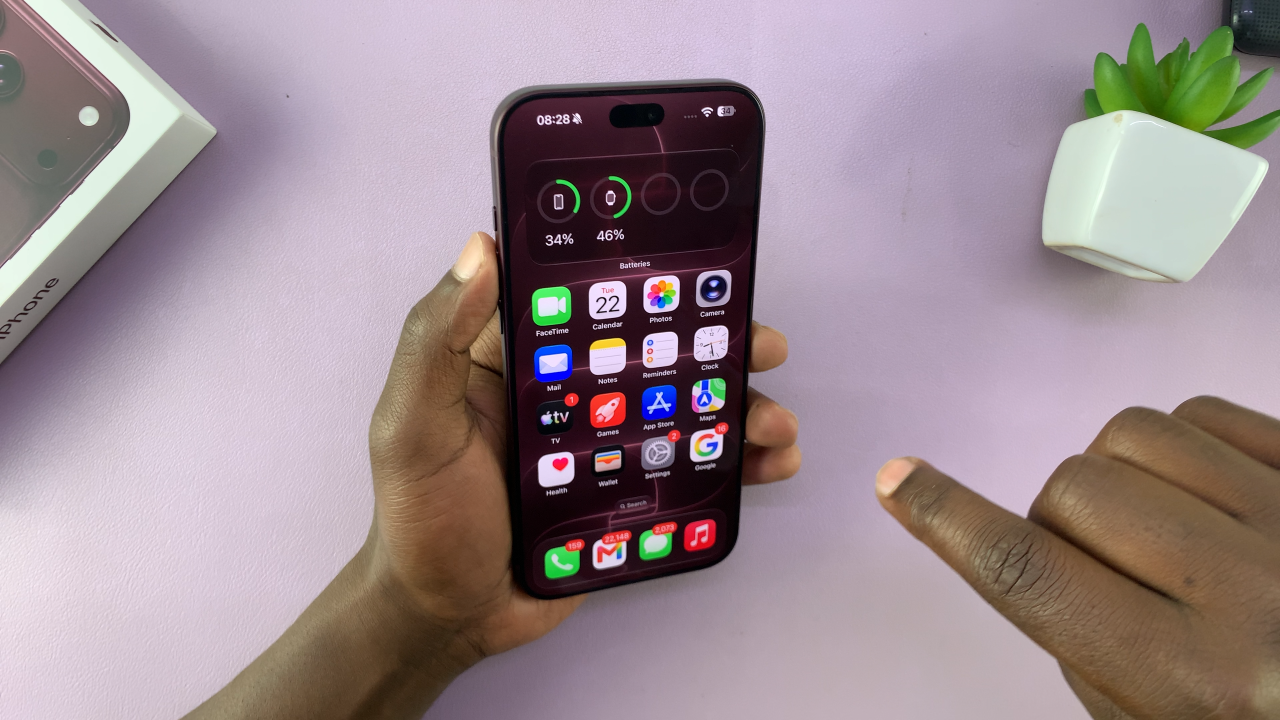
You do not need to hold the buttons down. Simply press both buttons together and release them quickly. After taking the screenshot, a small preview will appear in the lower-left corner of the screen.
You can leave the preview alone if you simply want to save the screenshot. It will automatically be saved to your Photos library. If you tap the preview, however, you can open the screenshot editing tools.
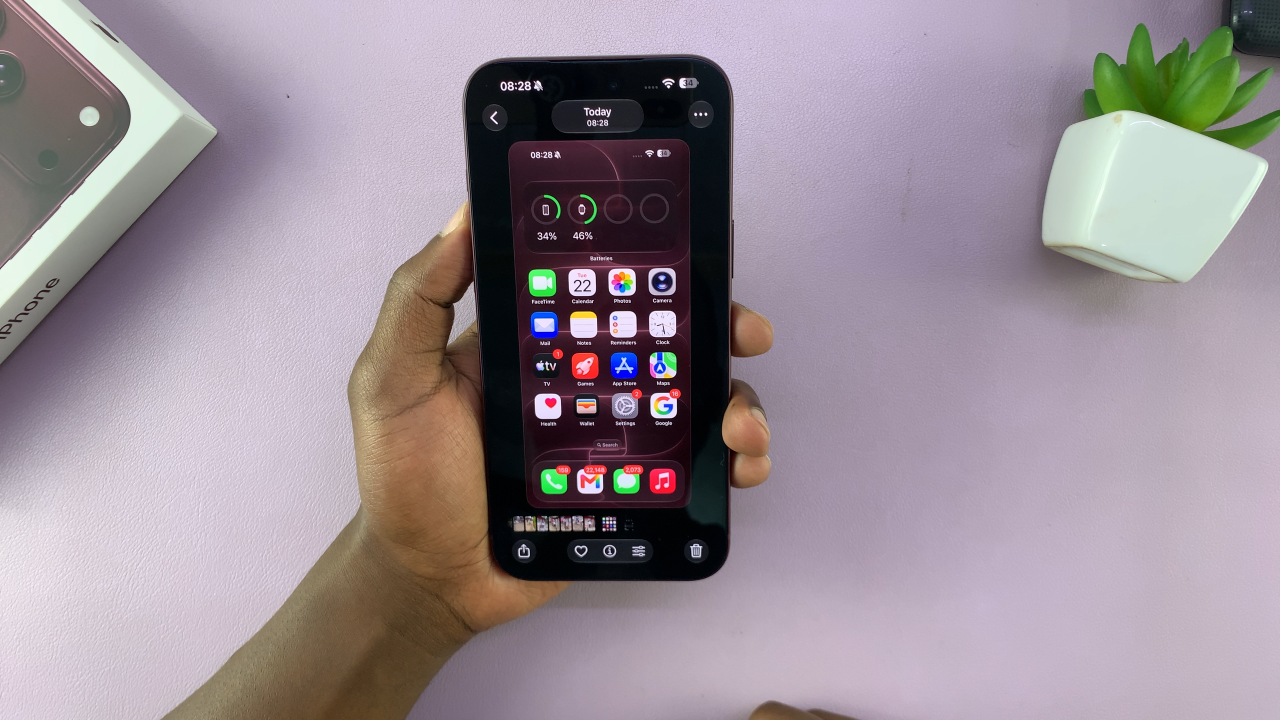
When you finish editing, you can save the screenshot to your Photos library. You can also use the sharing options to send it through a supported app or service. If you do not need to make any changes, simply dismiss the preview and the screenshot will remain saved.
Taking a screenshot on the iPhone 18 Pro is a simple process. Once you become familiar with the button combination, you can capture screenshots almost instantly. The built-in editing tools also make it easy to crop, annotate, save, and share your screenshots without needing another app.