Changing the screen timeout period on your iPhone 18 Pro can help you control how quickly the display turns off when the phone is not being used. Whether you want to keep the screen active longer or save battery by reducing the timeout, adjusting this setting takes only a few simple steps.
In this guide, we’ll walk you through the step-by-step process on how to go about changing the screen timeout period on the iPhone 18 Pro.
Also Read: How To Set Up Face Unlock On iPhone 18 Pro
How To Change Screen Timeout Period On iPhone 18 Pro
To change the screen timeout period, start by opening the Settings app on your iPhone 18 Pro. Once Settings is open, scroll down and tap Display & Brightness.
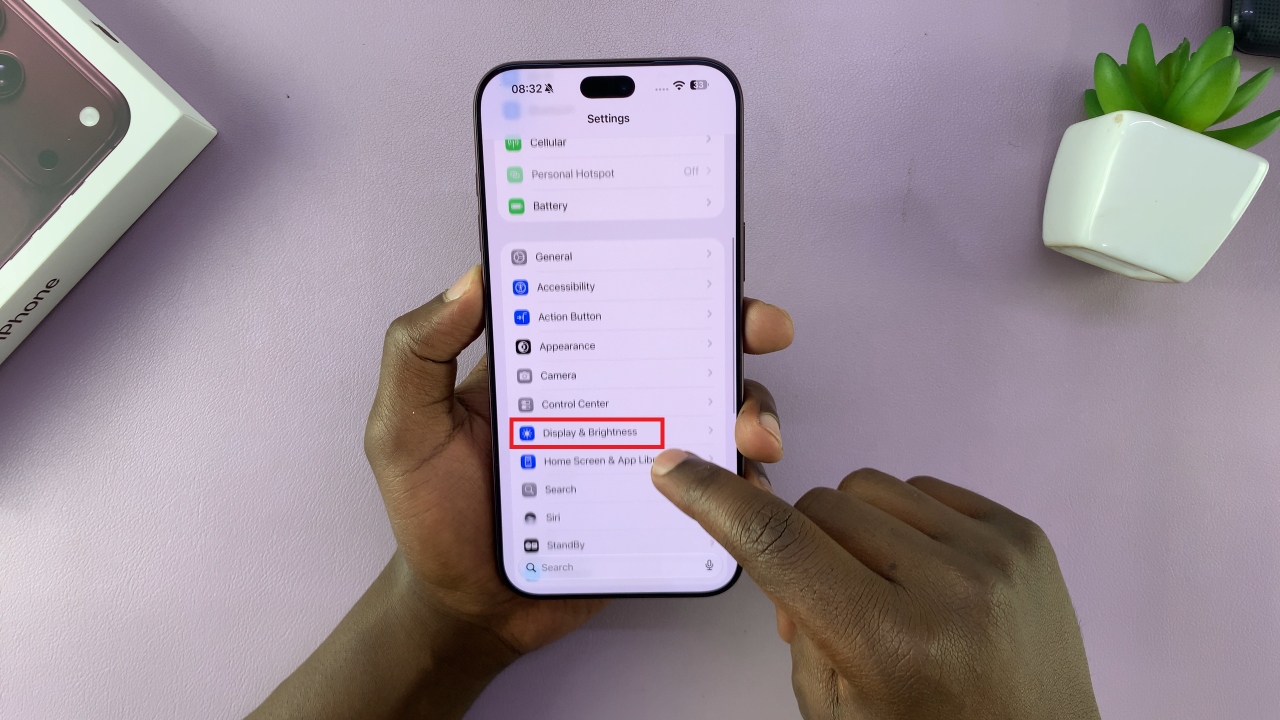
Next, look for the Auto-Lock option and tap it. Auto-Lock controls how long your iPhone waits before automatically turning off the display and locking the device after a period of inactivity. You will now see a list of available timeout periods.
Choose the amount of time you want your iPhone 18 Pro to wait before automatically locking. For example, you can select 2 minutes or 3 minutes if you want the screen to remain on longer than the default setting.
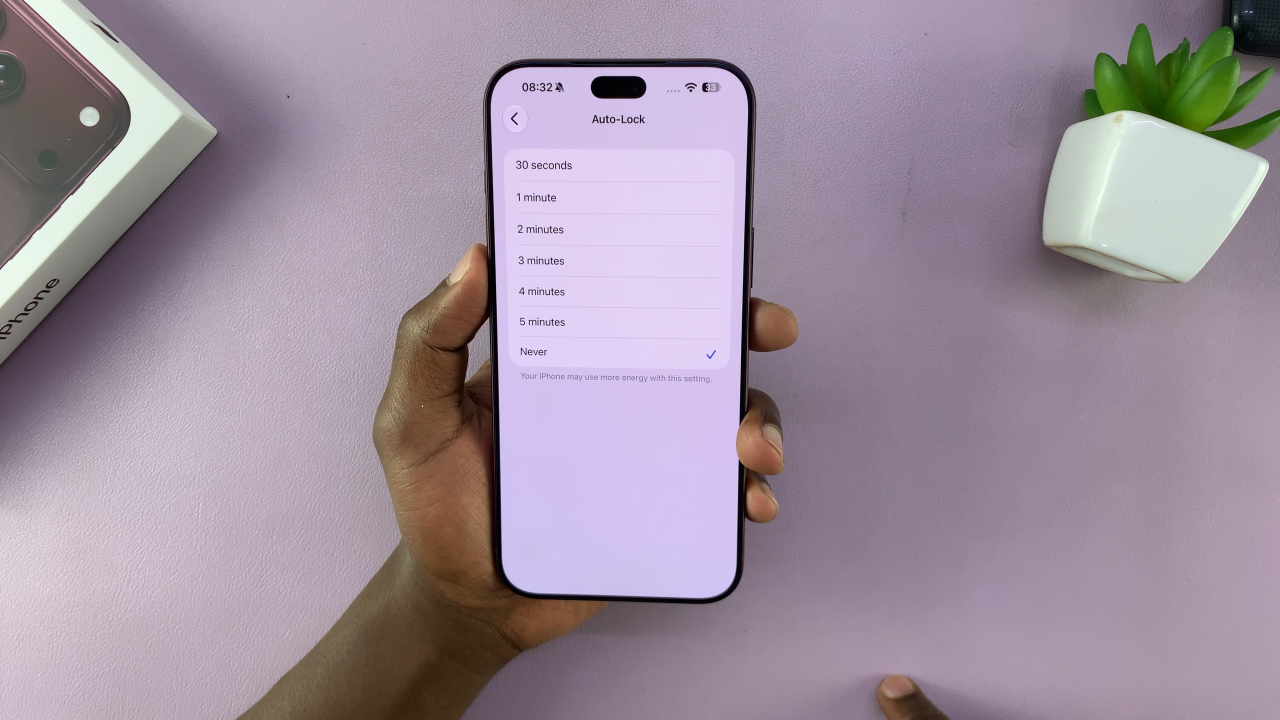
After selecting your preferred option, the new Auto-Lock period is applied automatically. There is no separate Save button that you need to press. Once you have finished, tap the Back button to return to the previous screen. You can then close the Settings app and return to the Home Screen.
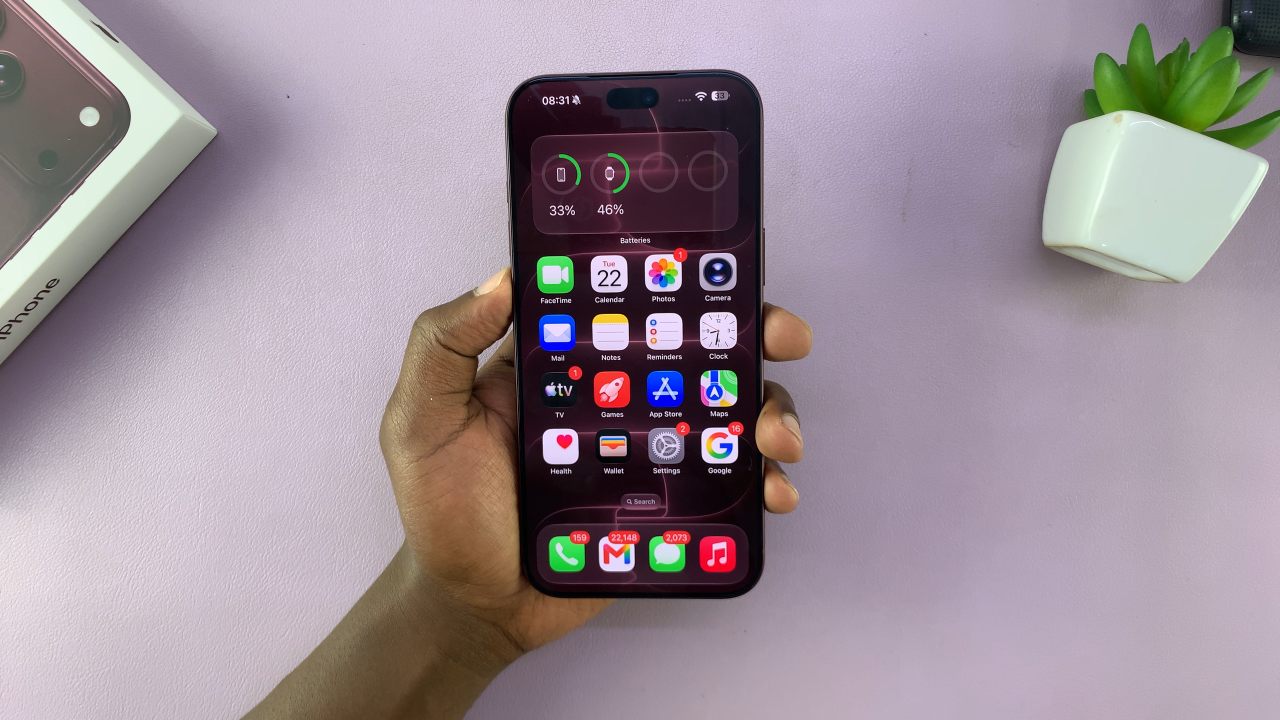
Changing the screen timeout period is a simple way to customize how your iPhone 18 Pro behaves. Whether you want the display to remain on longer while reading or want it to lock more quickly when you put the phone down, the Auto-Lock setting gives you control over the timing.