In this guide, you’ll learn step-by-step how to connect your AirPods to your MacBook Neo. Connecting your AirPods to any device is quick and easy.
Pairing your AirPods gives you a seamless wireless experience. You can listen to music, join video calls, or watch movies.
All you need to do before connecting is to make sure your AirPods are charged and inside their case. Bluetooth also needs to be enabled on your MacBook Neo and your AirPods need to be nearby (within a few meters).
Watch: Set Up External Display On MacBook Neo
Connect AirPods To MacBook Neo
If you’re pairing your AirPods for the first time, follow these steps:
Start by placing your AirPods in their charging case, then open the lid. Press and hold the setup button on the back or the touch activated button until the light flashes white.
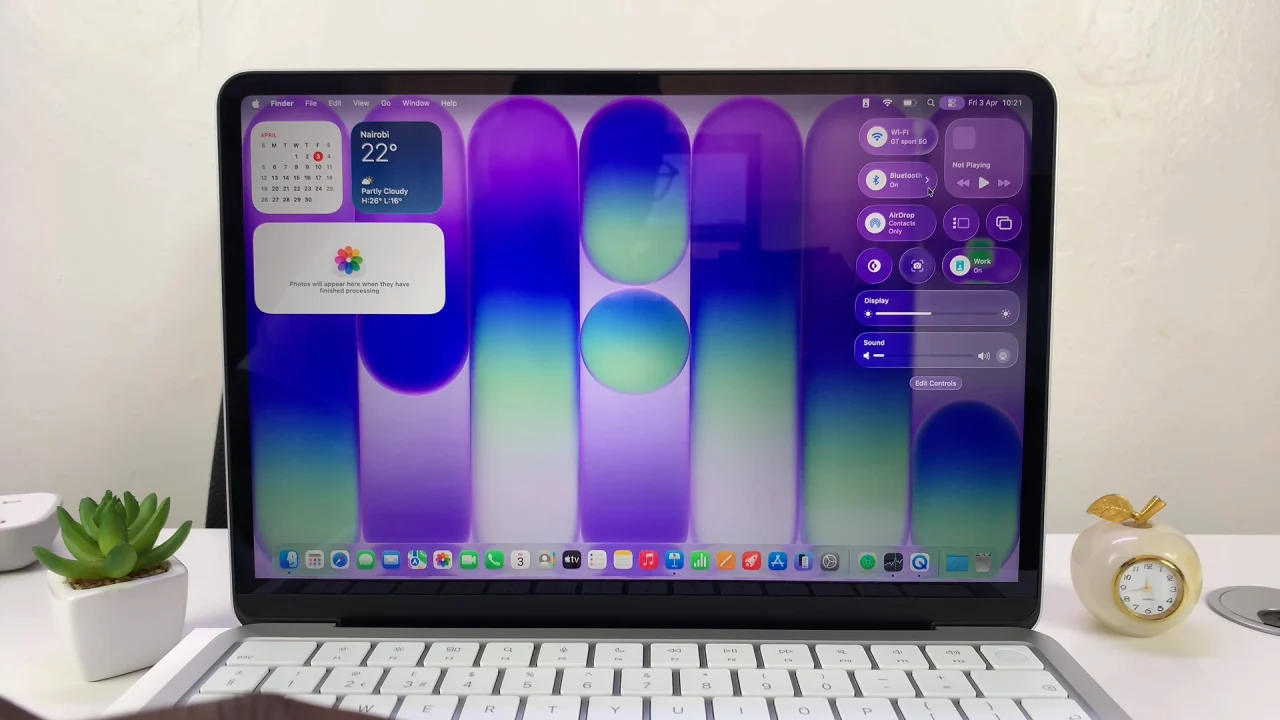
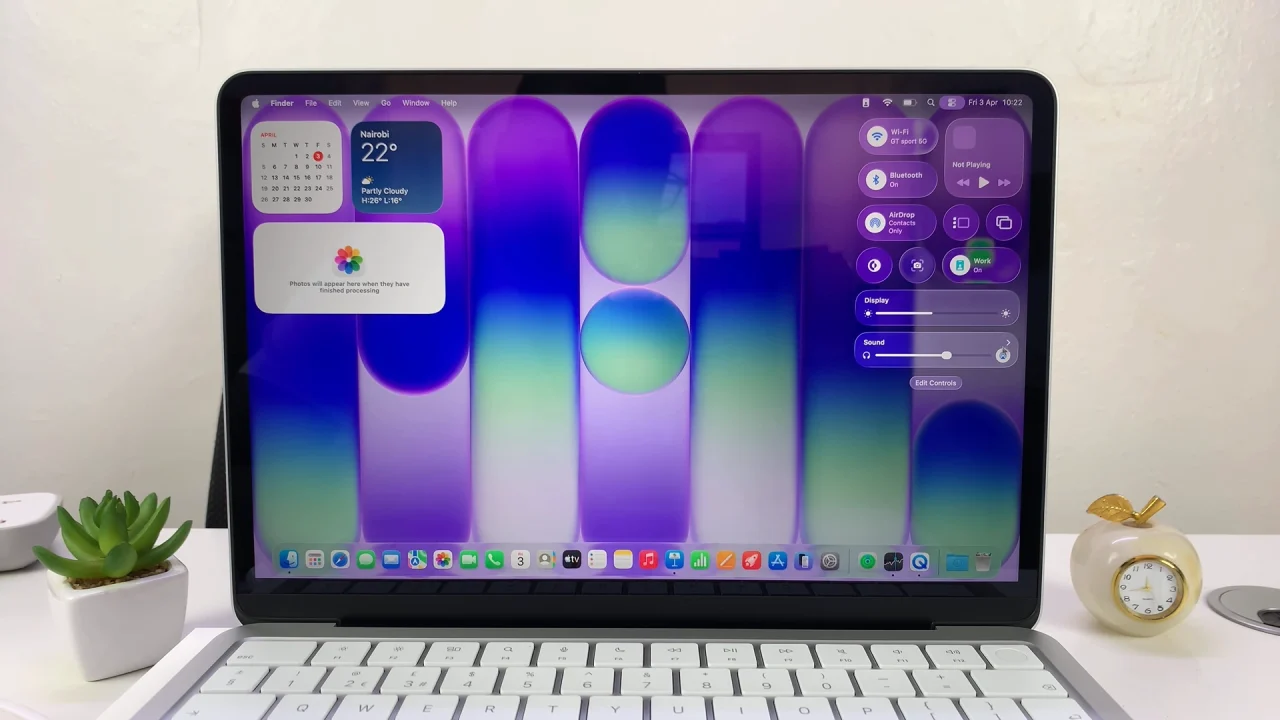
Next, click the Control Center icon in the top-right corner. Here, click the arrow next to Bluetooth and select Bluetooth Settings. Ensure the Bluetooth toggle is ON.
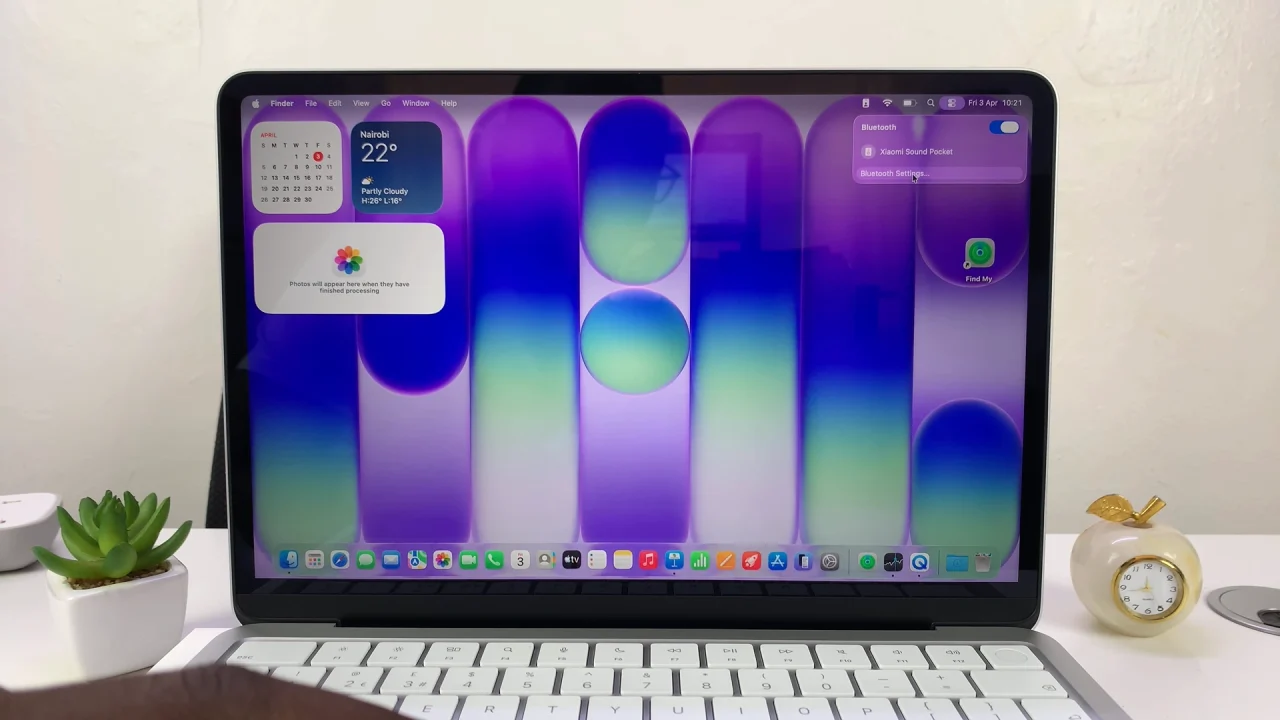
On your MacBook Neo, find your AirPods in the Bluetooth list. Click Connect.
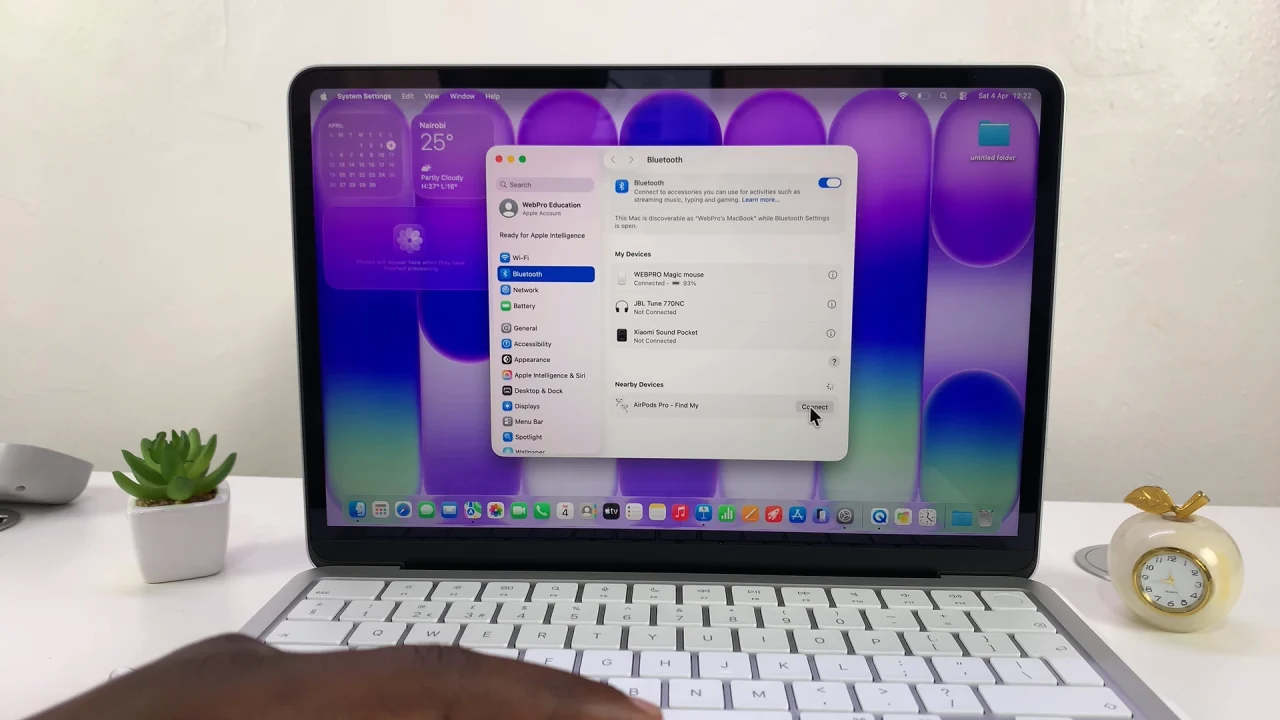
Once connected, you’ll hear a sound confirming the connection.
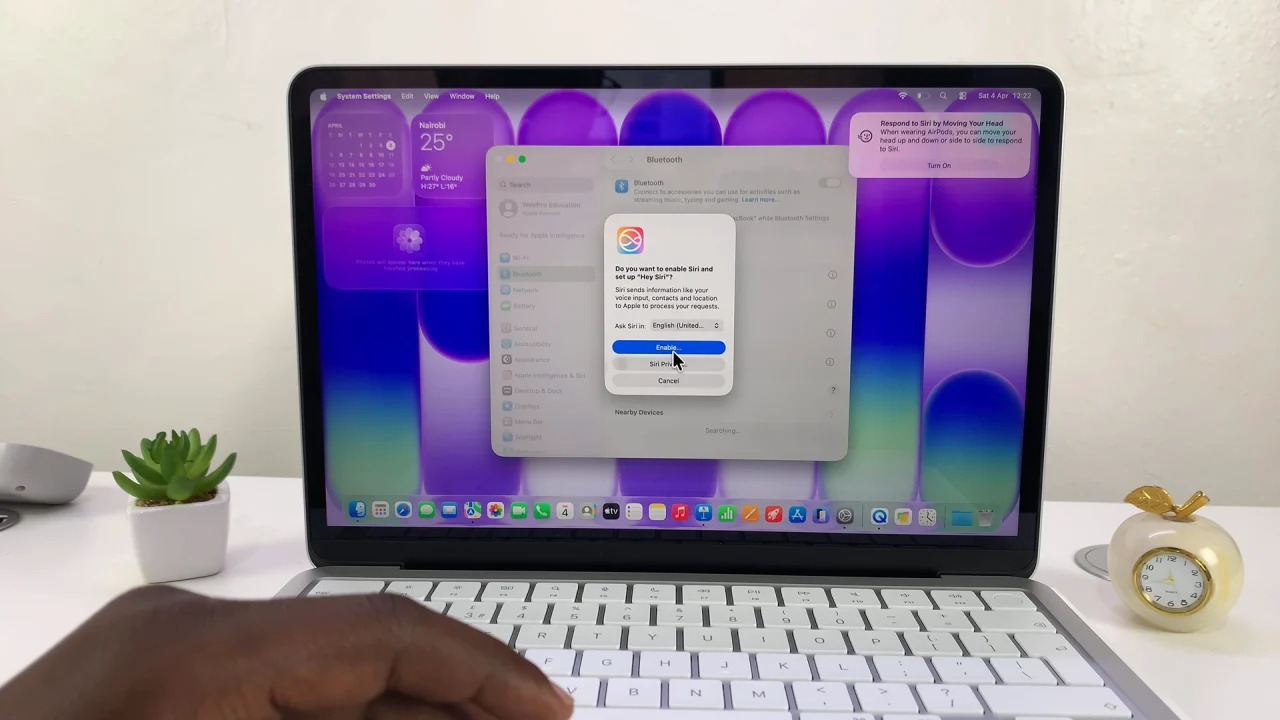
Switch Audio to AirPods
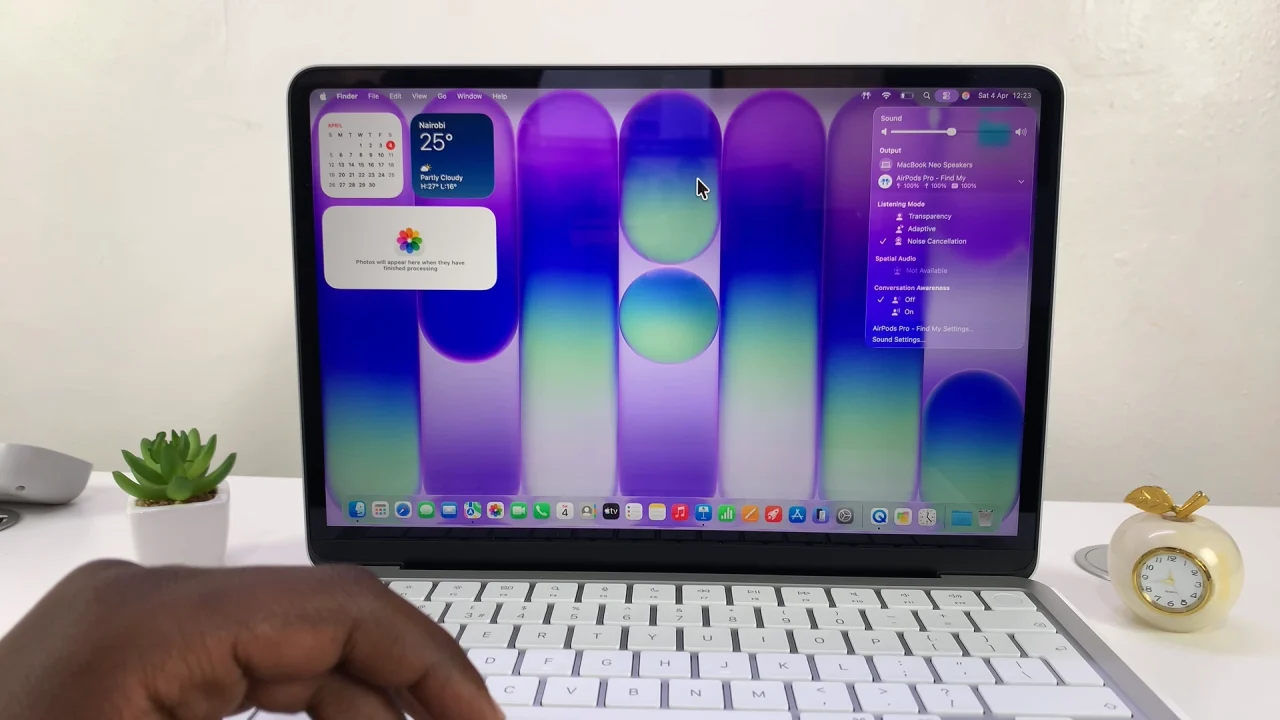
If your AirPods are connected but not playing sound, click the Control Center icon. Then click the arrow next to Sound.
Select your AirPods as the output device.
Connect AirPods Automatically (Apple ID Sync)
If your AirPods are already connected to another device signed in with your Apple ID (like an iPhone), they may connect automatically.
Simply open your MacBook Neo. Click the Bluetooth icon in the Control Center. Look for your AirPods in the device list and click Connect.
Your AirPods should be ready to use instantly.
How To Disconnect AirPods
To disconnect your AirPods, go to Bluetooth settings and click your AirPods. Select Disconnect. They’ll remain paired for future use. To prevent this, you can simply forget the AirPods altogether.
Troubleshooting Tips
If your AirPods won’t connect, try these fixes:
- Turn Bluetooth Off and On: Restart Bluetooth on your MacBook Neo
- Reset Your AirPods: Put them in the case, hold the setup button for ~15 seconds until the light flashes amber, then white.
- Restart Your MacBook Neo: A quick restart often fixes connection issues
- Forget and Reconnect: Go to Bluetooth settings, click Forget Device. Pair your AirPods again.
Read: How To Connect & Set Up External Display On MacBook Neo