Learning how to play missions in GTA V Online can feel overwhelming at first. However, missions are one of the core ways to earn money, gain experience (RP), and progress your character efficiently.
Understanding how to play missions in GTA V Online is essential to building your reputation in Los Santos. In GTA Online, missions are structured tasks that range from simple objectives to more complex, multi-stage operations that require strategy and coordination.
This article will walk you through the steps on how to find, access, and play mission on GTA V Online.
Watch: How To Join Friend’s Session In GTA V Online
Play Missions On GTA V Online
Via Pause Menu
Open the pause menu while in-game and navigate to the “Online” tab. Then, choose “Play Job” to view different categories of missions and activities available to you.
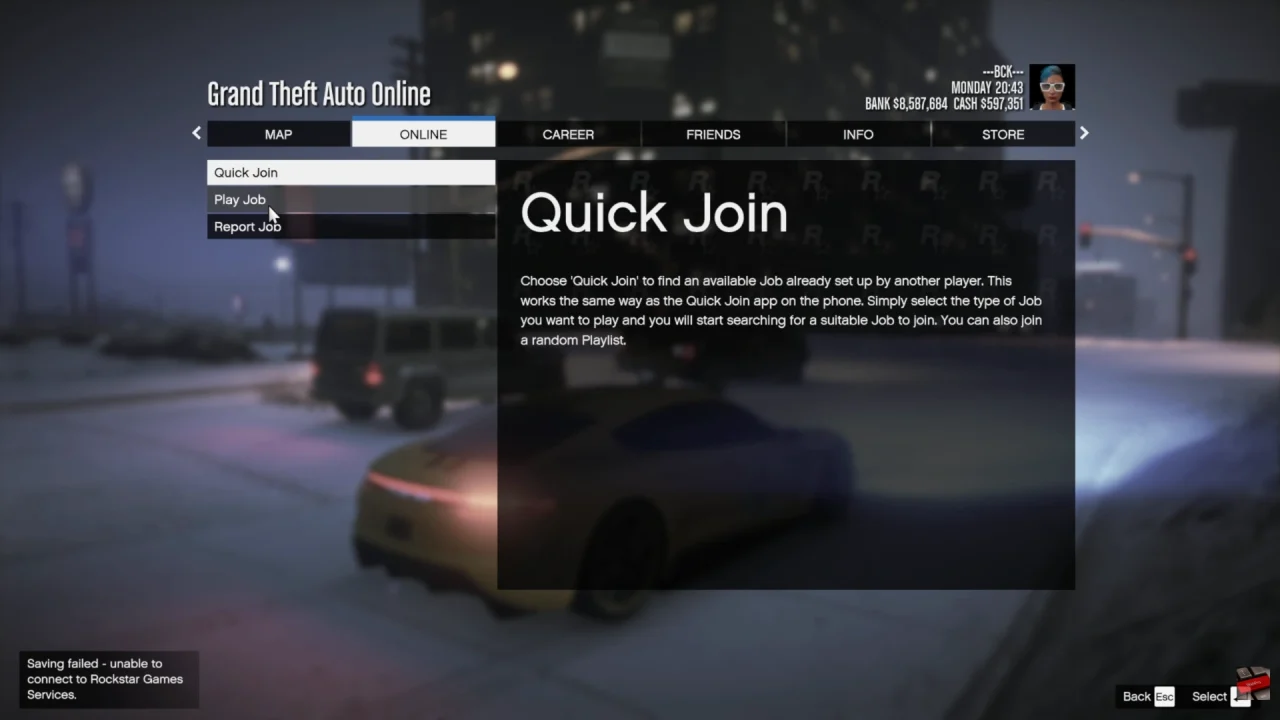
Select “Rockstar Created” to access official missions developed by the game creators. Next, browse through the list of job types and click on “Missions” to see a full list. At this point, you’ll see all available tasks you can participate in.
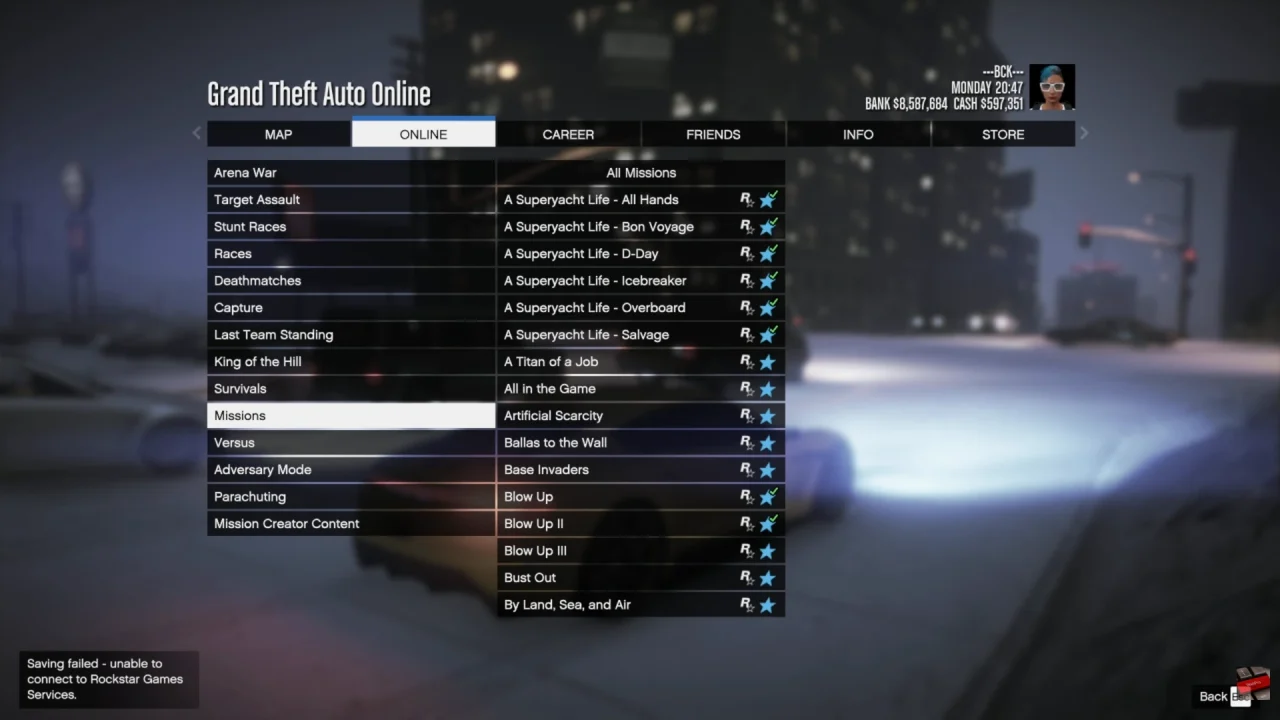
Finally, pick a mission from the list, review its details if needed, and confirm your selection to enter the mission lobby and begin playing.
Via In-Game Map
First, open the map to get a full overview of all available activities and mission locations in the game world. Secondly, look for yellow markers or icons, which usually indicate mission start points or contact jobs available in your current session.
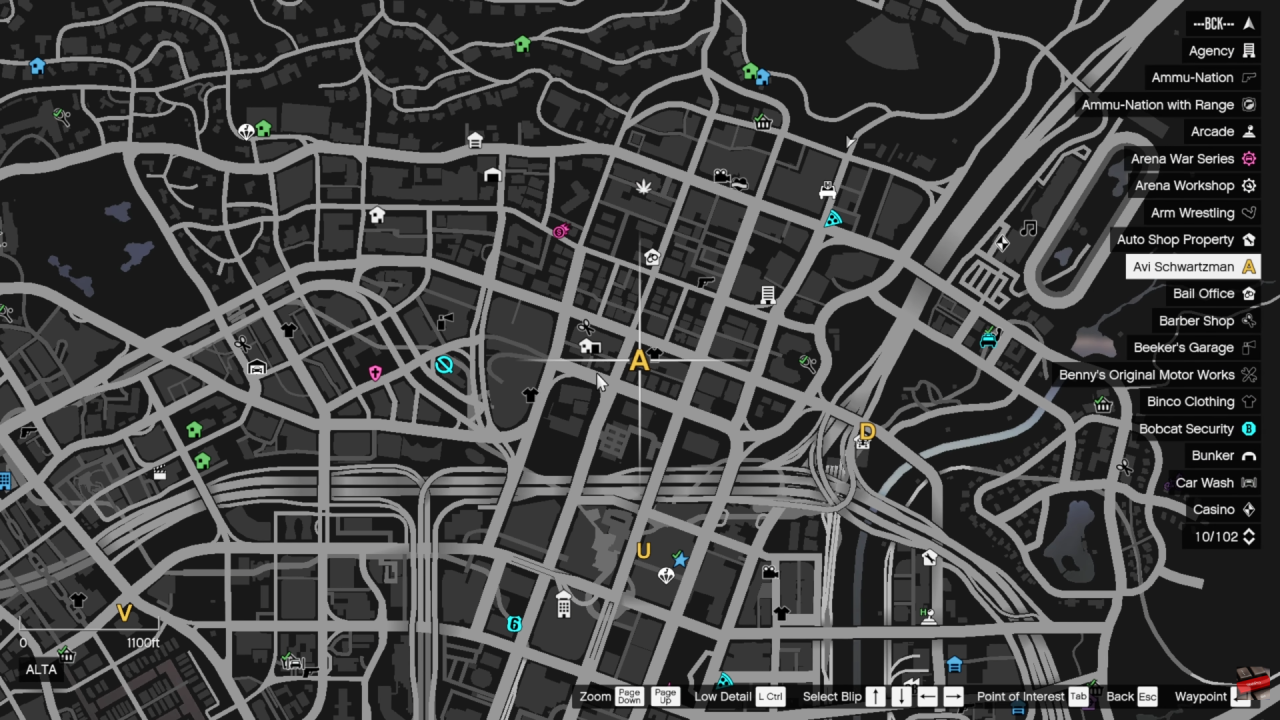
Set a waypoint and travel to the marked location on the map. Finally, interact with the marker to trigger and begin the mission.