The dock on your MacBook Neo is a convenient way to access your favorite apps quickly. But over time, it can get cluttered with apps you rarely use.
In this guide, we’ll show you the easiest ways to remove apps from the Dock on your MacBook Neo.
This does not delete the app from your MacBook Neo. It only removes the shortcut from the dock.
Why Remove apps from the Dock?
Declutter your workspace: A clean dock makes it easier to find the apps you use most.
Improve productivity: Less visual clutter can help you focus on your tasks.
Customize your MacBook Neo: Personalize the dock to match your workflow and preferences.
Watch: Connect Bluetooth Speaker To MacBook Neo
Remove Apps From Dock On MacBook Neo
To start, right-click (or Control + click) the app icon in the dock. you can also use two fingers to click on the app.
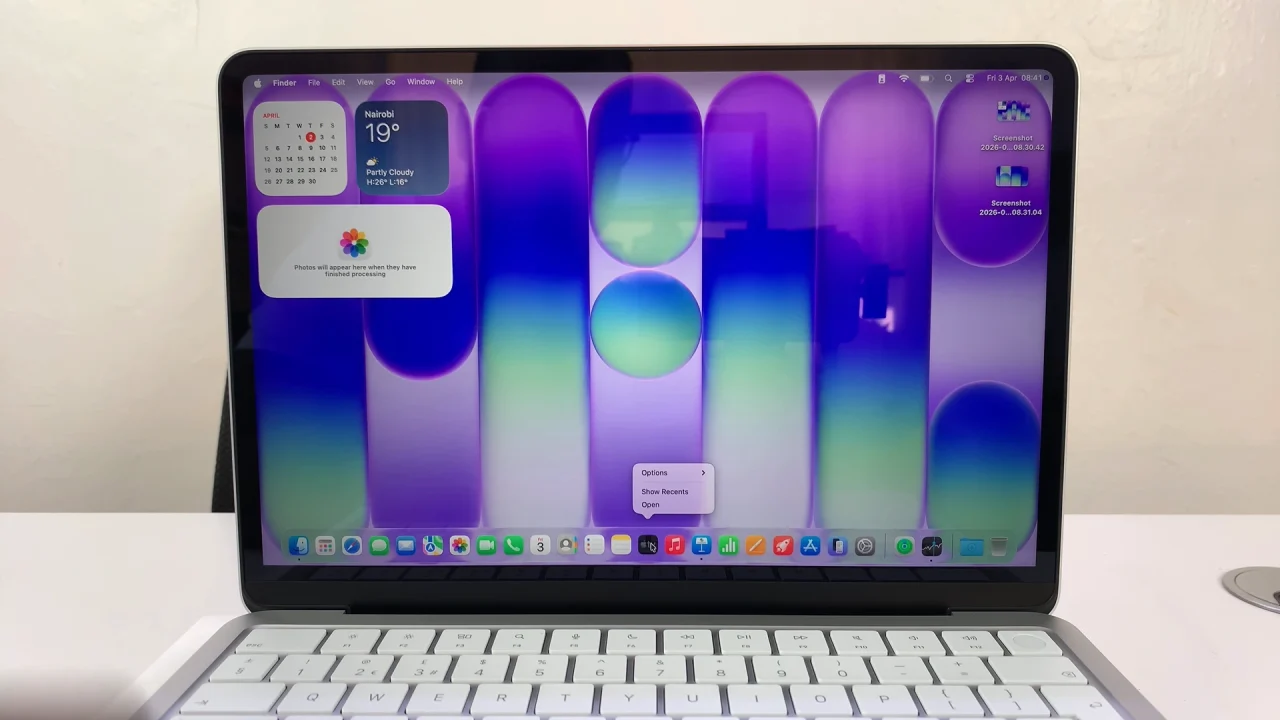
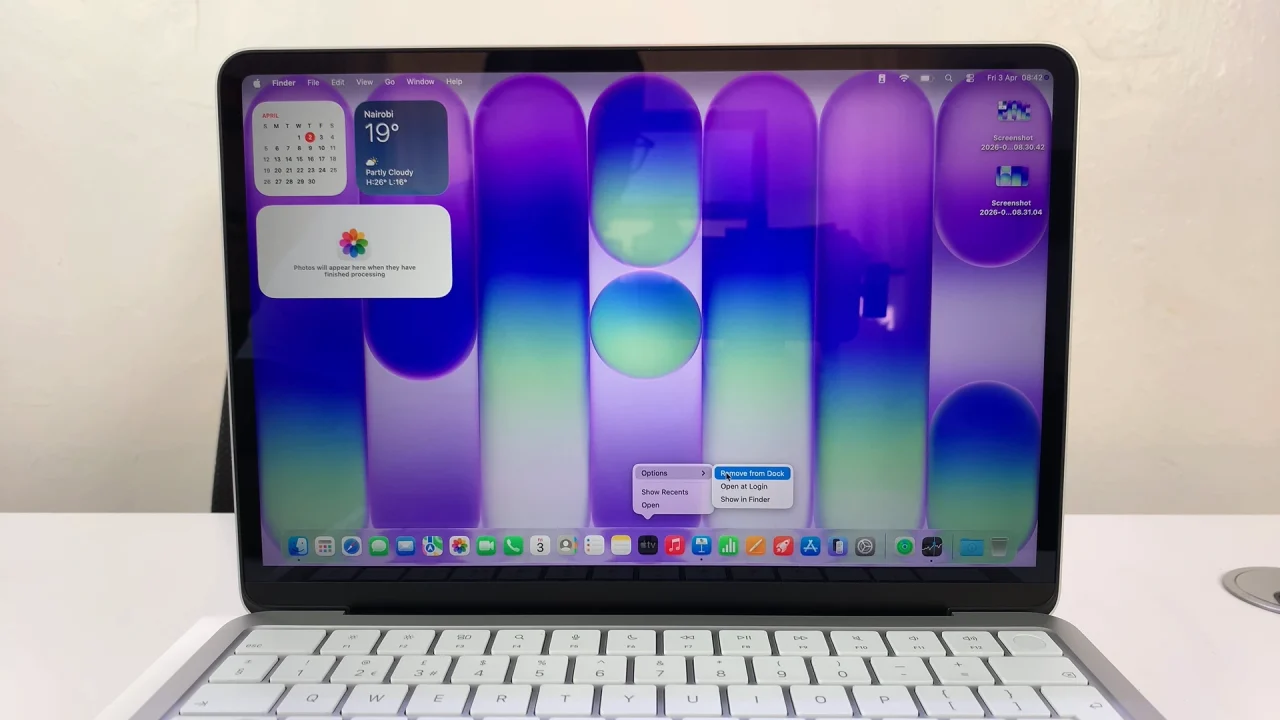
Then, hover over Options in the menu. Select Remove from Dock. This method is quick and works for all apps, including default system apps.
Organize Your Dock
Rearrange icons by dragging them left or right to your preferred order.
Add new apps by dragging them from the Applications folder to the dock.
Consider grouping frequently used apps together for easier access.
Tips for a Cleaner Dock
Keep only essential apps in the dock.
Use folders in Launchpad for apps you rarely use.
Periodically review your dock to remove apps you no longer need.
Read: How To Pair & Connect Bluetooth Speaker To MacBook Neo