For those who are privacy-conscious, security-focused, or just want to avoid any surprises, learning how to switch off AirDrop on your MacBook Neo becomes a necessity. The AirDrop functionality is one of the built-in features of macOS that lets users transfer files wirelessly between two Apple devices located near each other.
It is very handy when you need to quickly exchange information with another user without using external drives or connecting your MacBook to a computer network. It is easy to change AirDrop settings on your MacBook Neo, although there are many people who might not know about this possibility or have no clue where to look for it.
Turning off this function can be a great idea if you want to get rid of unnecessary notifications, save some battery power, or protect your MacBook from potential threats. Here are some instructions on how to switch off AirDrop on your MacBook Neo.
Watch: How To Change Mouse Pointer Size On MacBook Neo
Turn OFF AirDrop On MacBook Neo
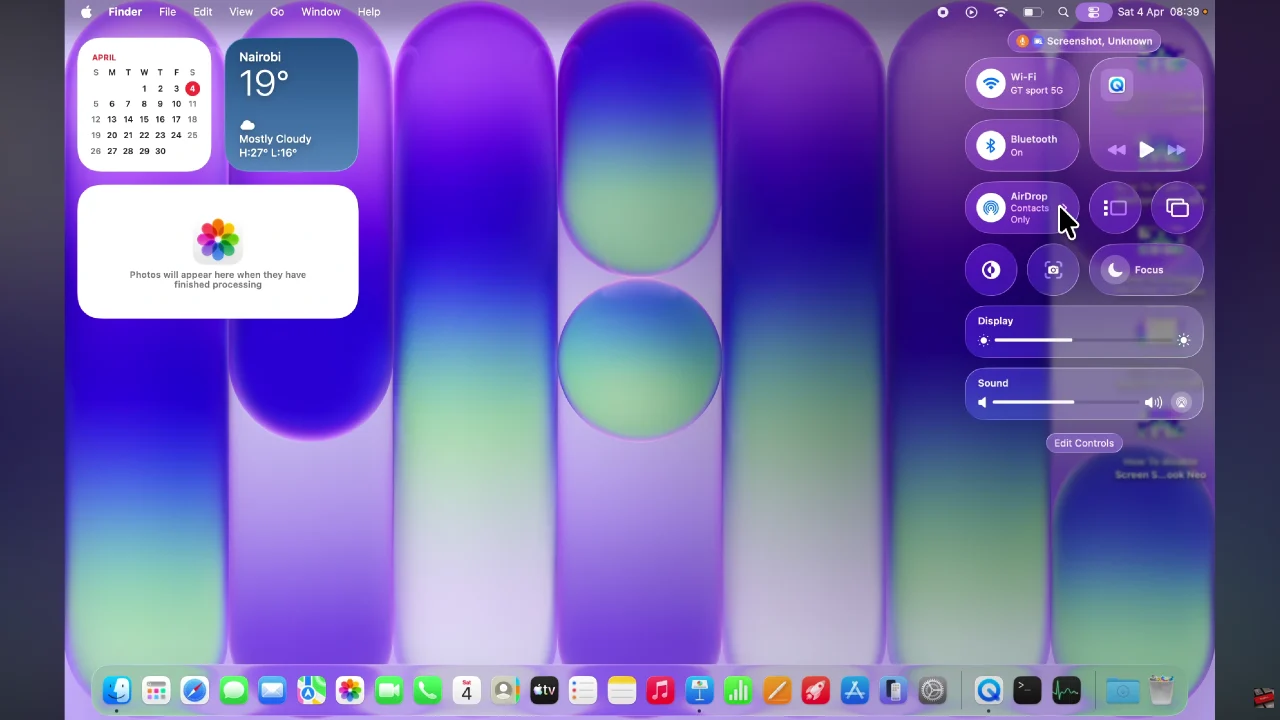
Begin by clicking on the Control Centre located in the top right corner of the screen. Then, click on ‘AirDrop‘ from the menu that appears.
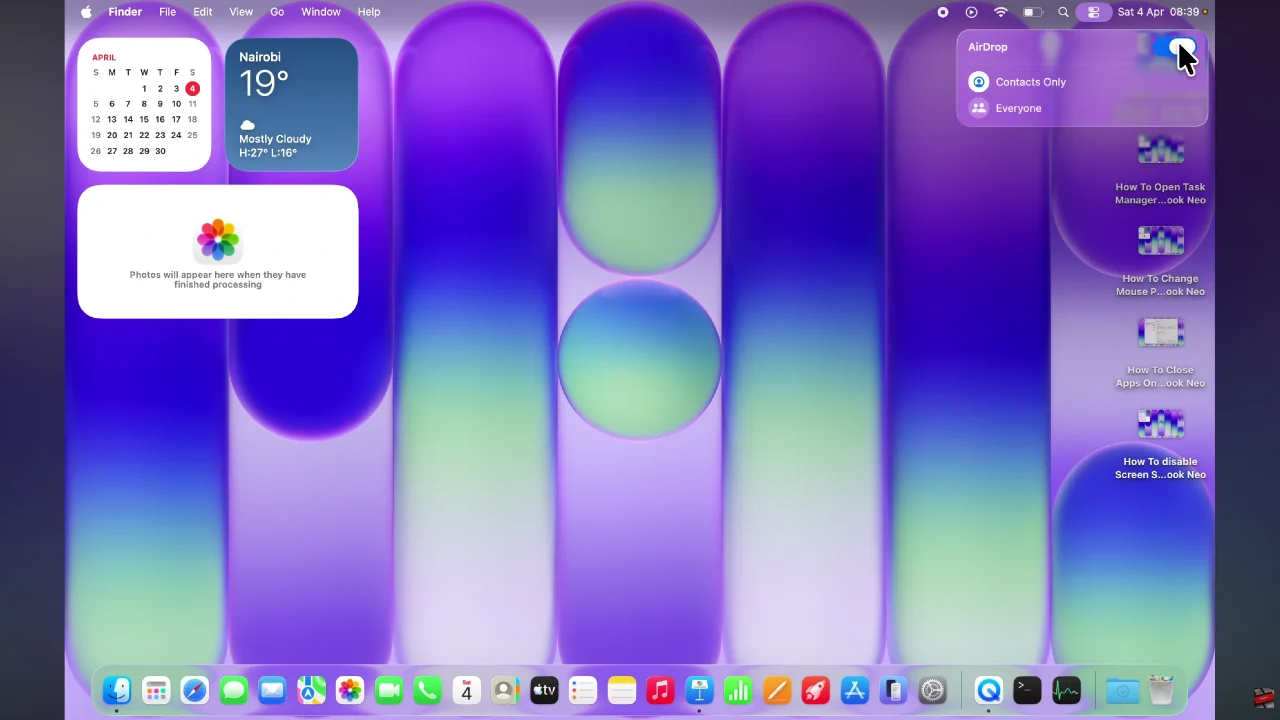
Following this, you’ll notice a toggle switch that you can use to disable AirDrop. Toggle the switch to the OFF position and this will turn off this feature on your MacBook.
By following the steps outlined in this guide, you can quickly manage your AirDrop settings anytime you need. Remember, you can always turn it back on whenever you want to share files conveniently with other Apple devices. Taking a few moments to adjust these settings can make a big difference in how you use and protect your MacBook Neo every day.
Read: How To Enable & Disable Automatic Power Saving Mode On Sony WF-1000XM6