In this guide, you’ll learn how to connect your Xiaomi Smart Camera C701 to Google Home. Doing this allows you to control your camera using voice commands and view live footage directly from your smart devices.
This integration makes your home security system more convenient and hands-free. You should make sure you have a working Xiaomi Smart Camera C701, a stable Wi-Fi connection and the Xiaomi Home app installed.
Your camera should already be set up, in addition to the Google Home app being installed.
Watch: Insert MicroSD Card In Xiaomi Smart Camera C701
Connect Xiaomi Smart Camera C701 To Google Home
First, ensure your camera is properly configured in the Xiaomi Home app. This means that it should be added successfully, and you should be able to view the live feed inside the app, as well as the camera menus.
Now, launch to the Google Home app and make sure you’re signed in with your Google account.
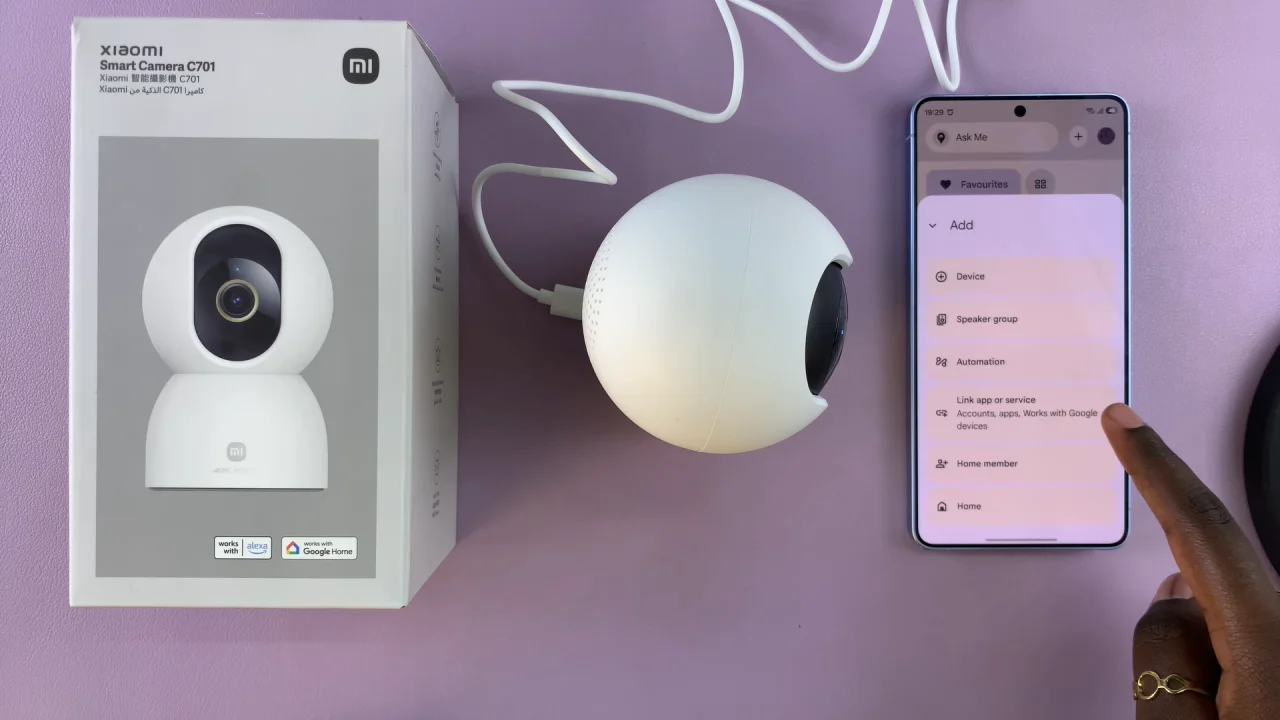
Tap the “+” (add) button on the home screen and choose Link App or Service. Select Works with Google.
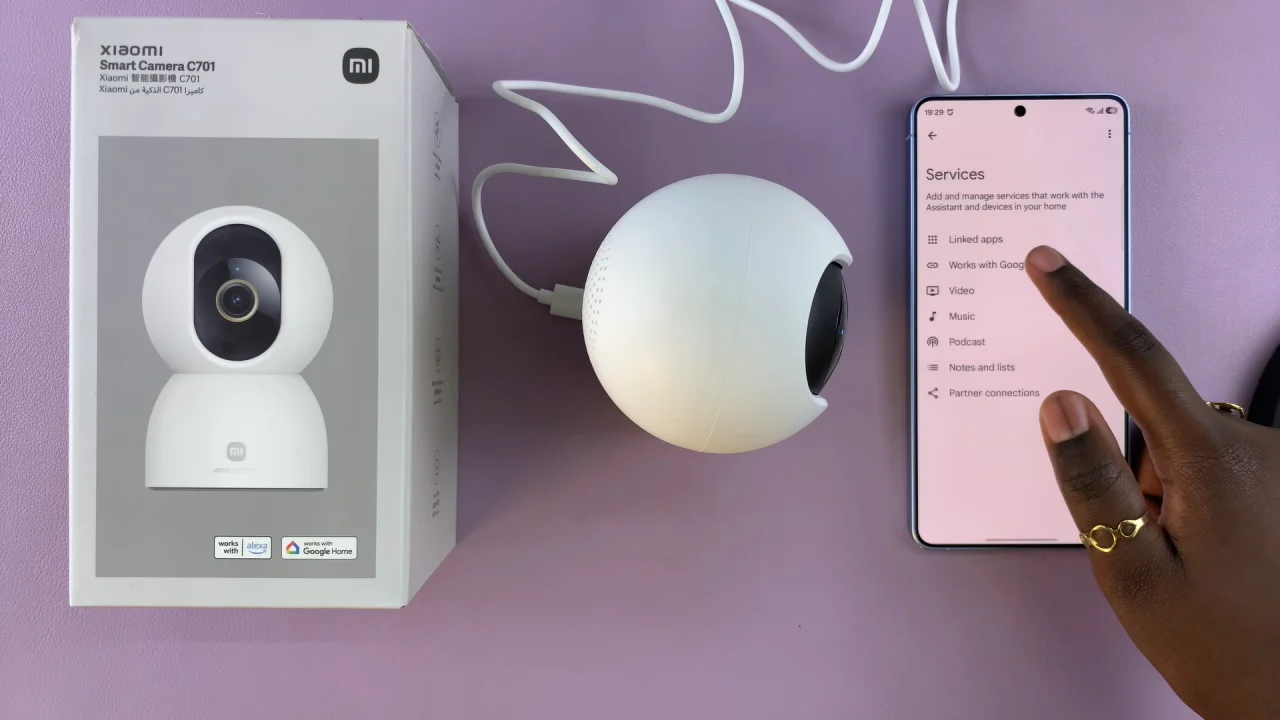
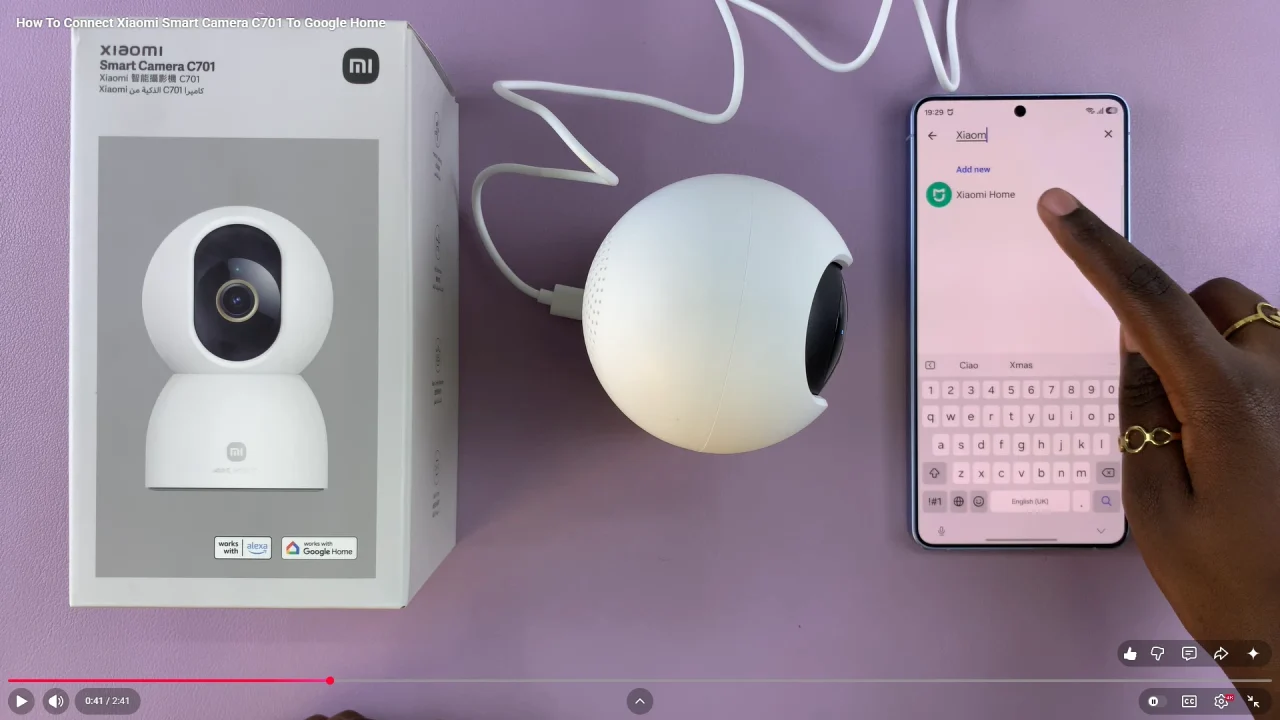
In the search bar, type Xiaomi Home and select it from the list. Tap on Continue to proceed. Ensure the Xiaomi Home app is running in the background, for successful linking.
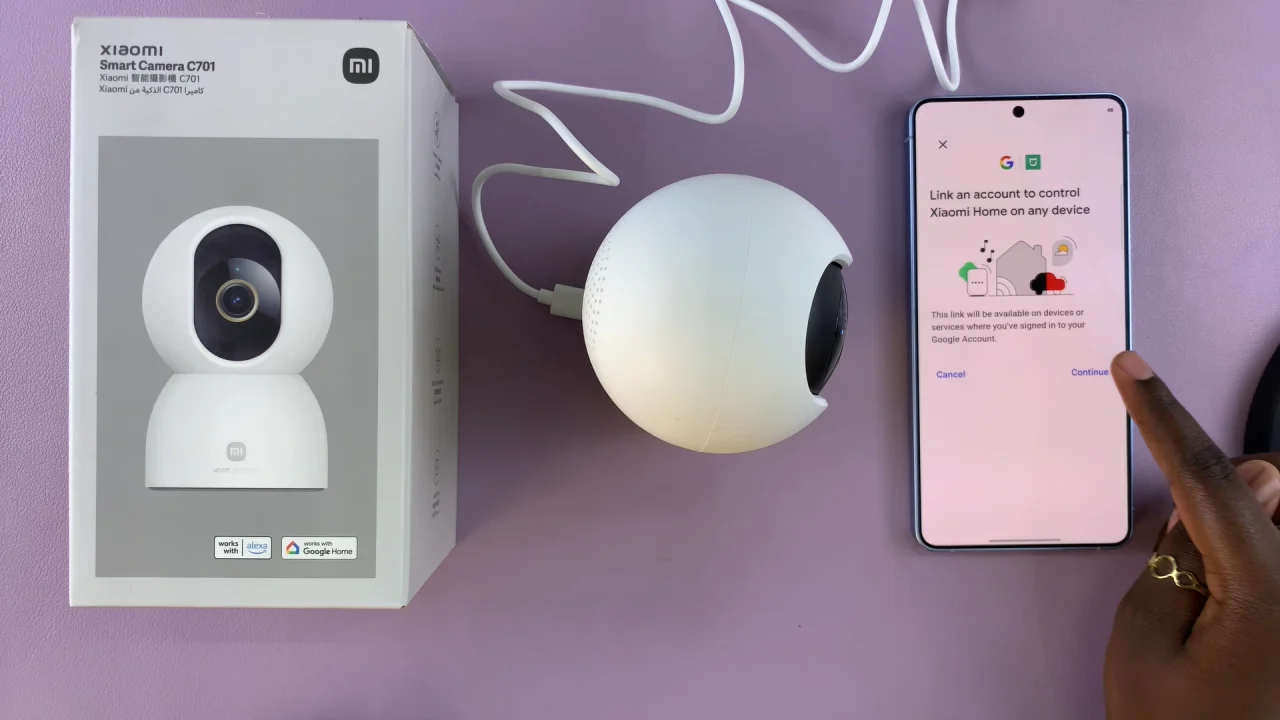
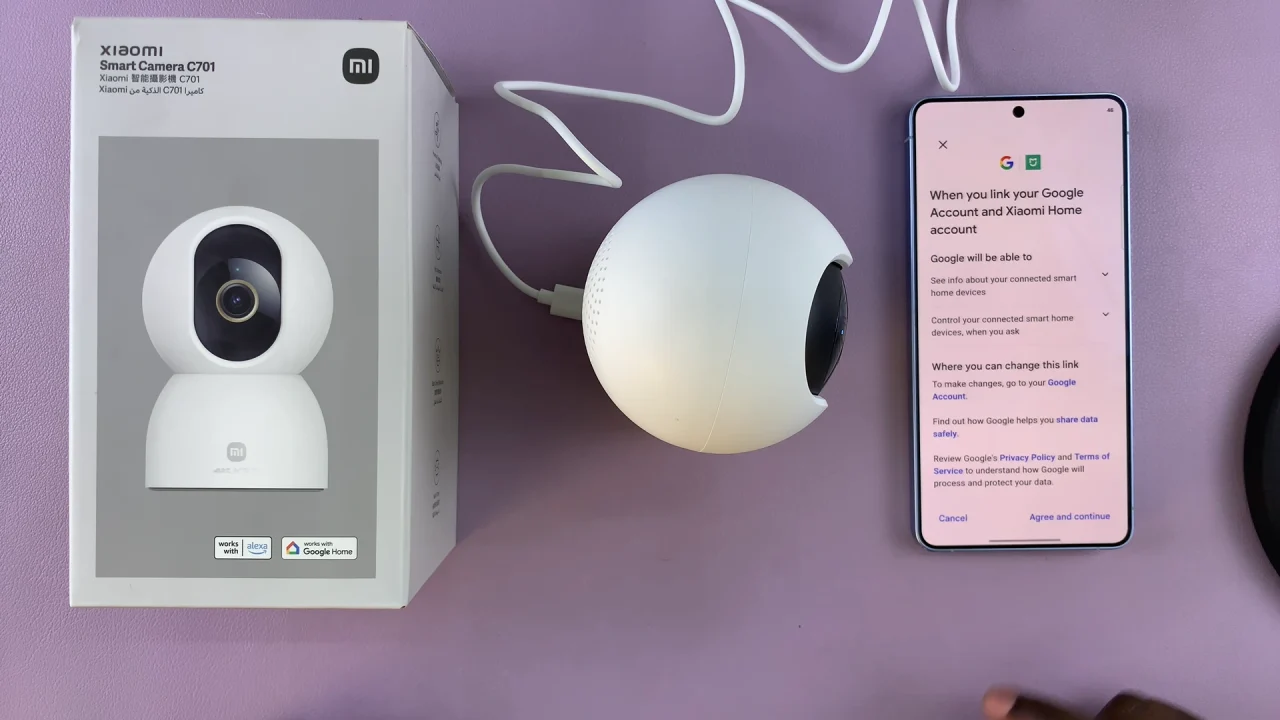
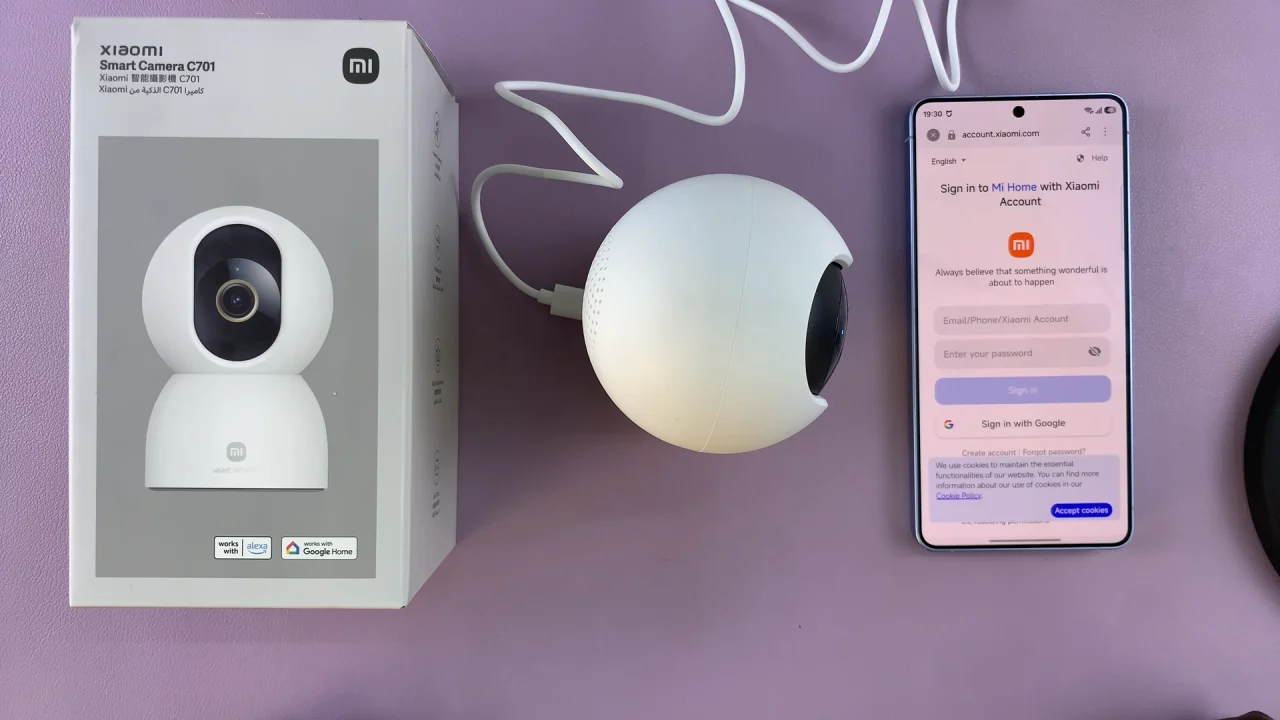
Authorize access by selecting Agree and Continue. Log in to your Xiaomi account to verify yourself.
Once linked, your Xiaomi devices—including the camera—will sync automatically. Your Xiaomi Smart Camera C701 should appear in the device list. Tap on it.
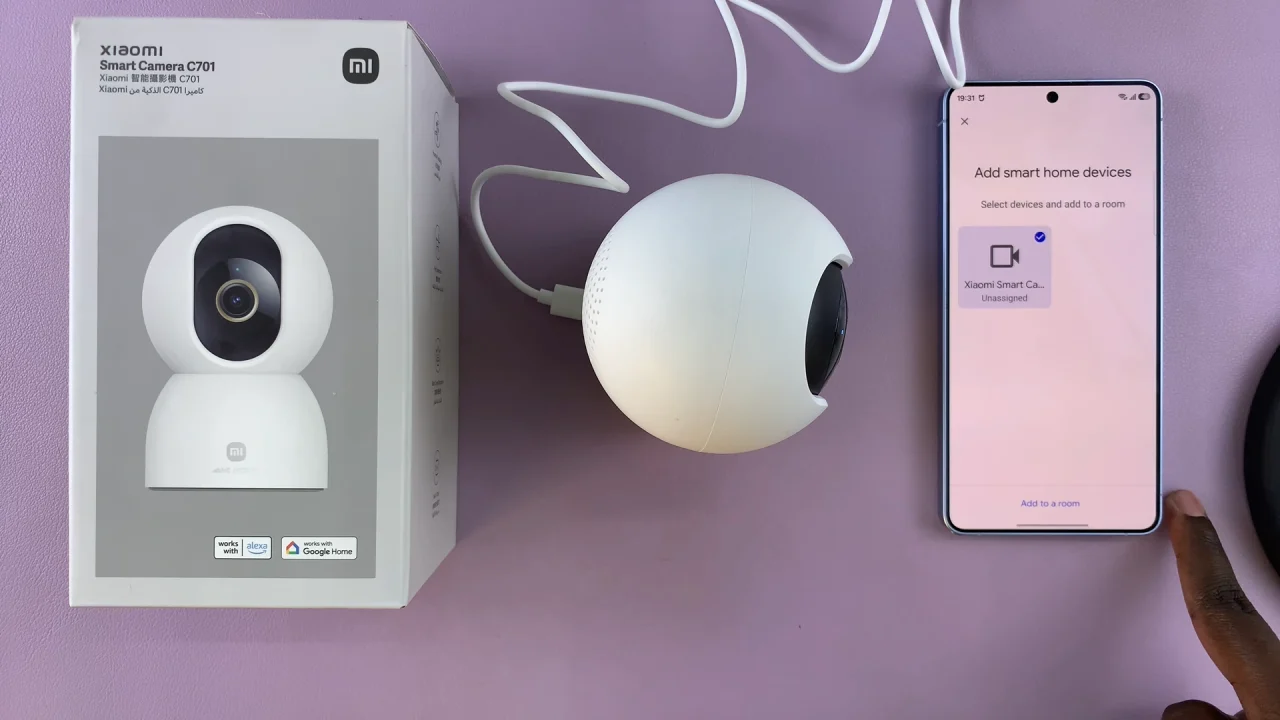
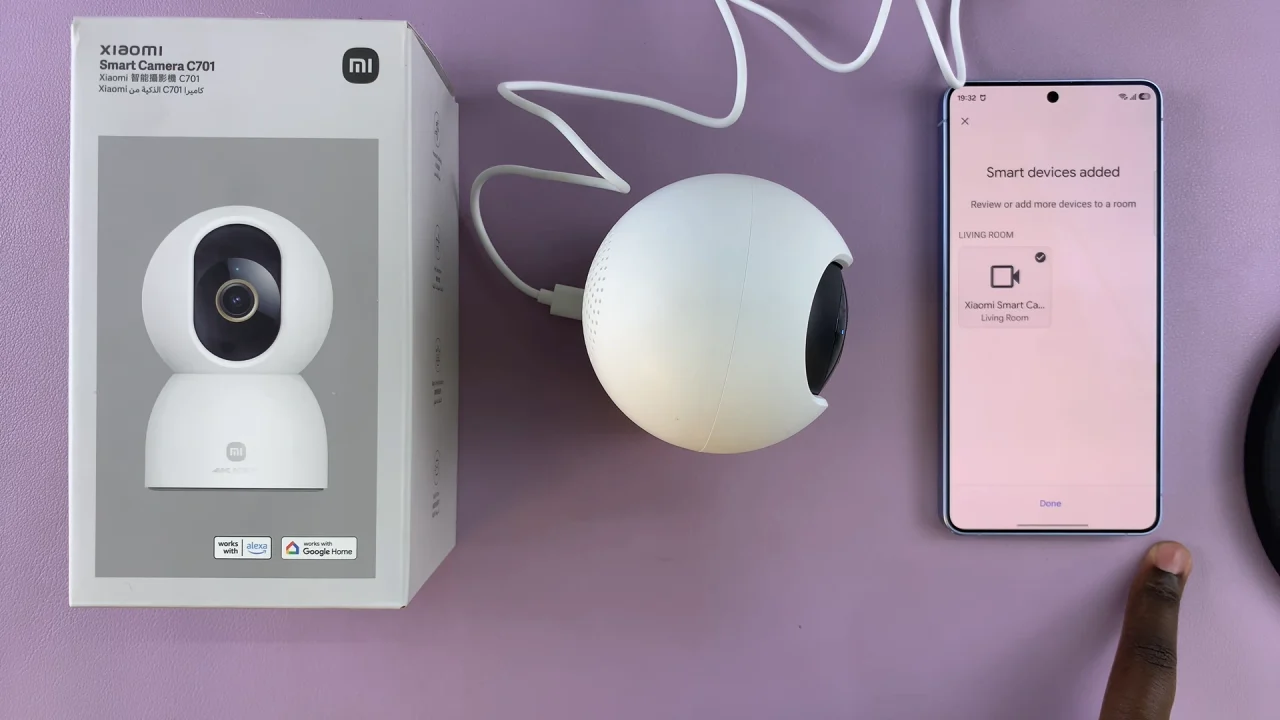
Select Add to Room and assign it to a room (e.g., Living Room, Bedroom). This helps you control it more easily with voice commands. Select Done to complete the process.
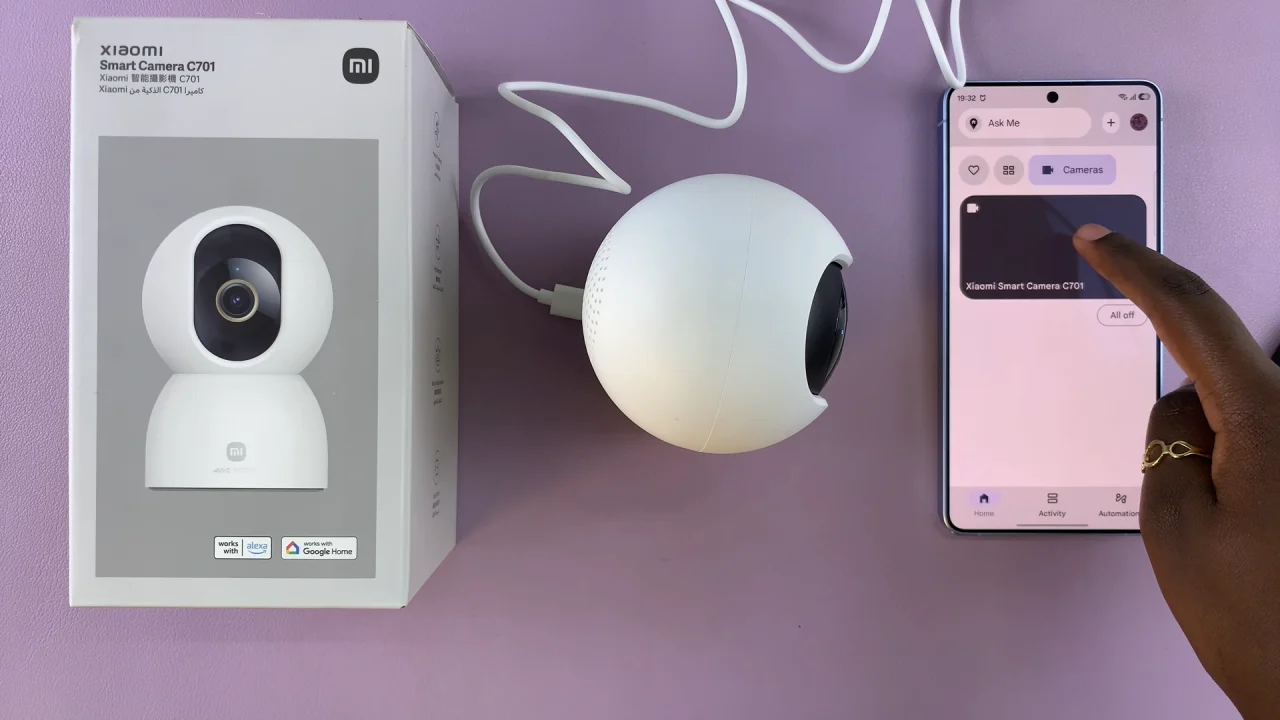
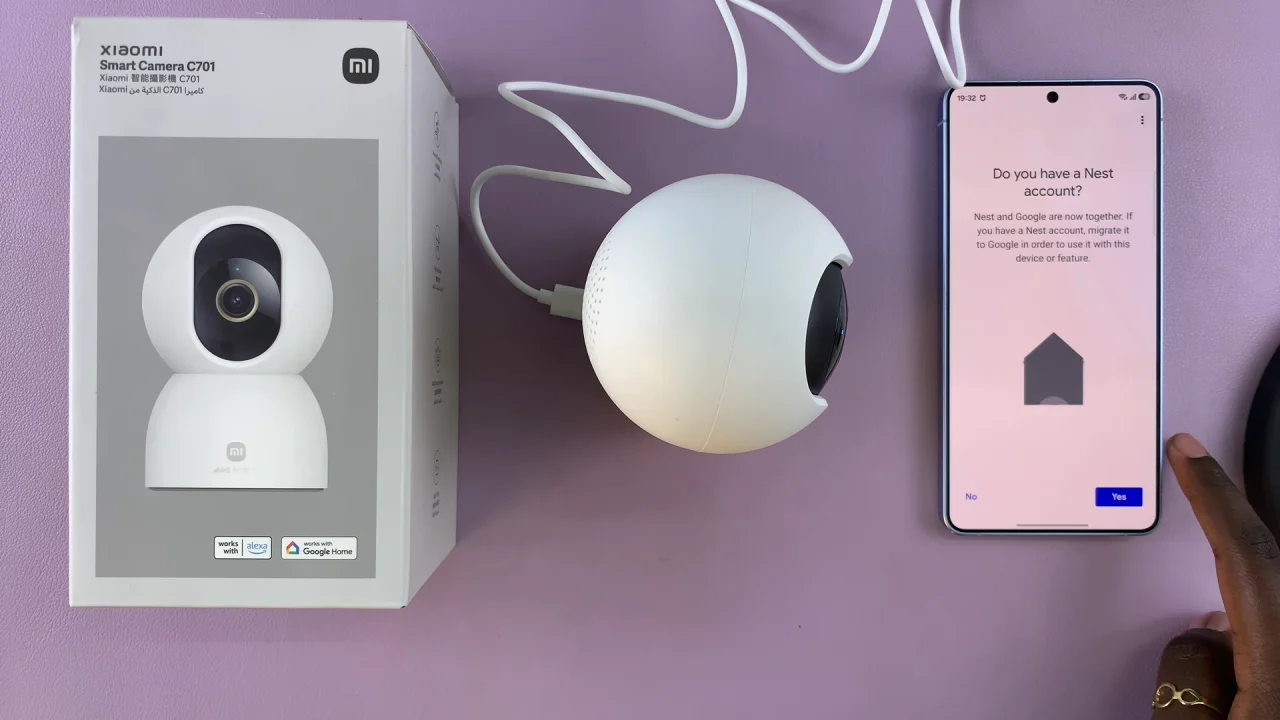
Your camera should now be available on the Google Home page. Select it and then set up a Nest account for you to be able to access your recordings.
You can now control your camera using Google Assistant. Try commands like:
Hey Google, show me the living room camera.
Hey Google, display my Xiaomi camera on TV.
If you have a smart display (like Nest Hub), the live feed will appear instantly.
Troubleshooting Tips
If your camera doesn’t connect, ensure both apps are updated. Confirm your camera is online in Xiaomi Home.
Use the same Wi-Fi network for all devices or re-link Mi Home in Google Home. Restart your phone and camera.
Read: How To Insert MicroSD Card In Xiaomi Smart Camera C701