WebPro Education

Tech tips everyday
Menu
  • REVIEWS
  • HOW TO
  • TECH NEWS
  • About Us
Home
how to
How To Change Screen Timeout Period On Samsung Galaxy Watch 6
how to

How To Change Screen Timeout Period On Samsung Galaxy Watch 6

David Frank September 4, 2023

The Samsung Galaxy Watch 6 and Galaxy Watch 6 Classic are powerful smartwatches that offer a wide range of features to help you stay connected and track your fitness. One of the customizable settings on these watches is the screen timeout period, which determines how long the watch display remains active before it turns off to conserve battery life.

Whether you prioritize battery life, privacy, or convenience, adjusting the screen timeout can help you make the most of your smartwatch experience.

In this article, we’ll guide you through the steps to change the screen timeout period on your Samsung Galaxy Watch 6 or 6 Classic.

Watch: How To Enable Always ON Display On Samsung Galaxy Watch 6

To Change Screen Timeout Period On Samsung Galaxy Watch 6

Firstly, wake up your Samsung Galaxy Watch 6 or 6 Classic by pressing the home button or raising your wrist. Swipe up from the bottom of the screen to access the quick settings menu.

Next, in the quick settings menu, look for the gear-shaped Settings icon and tap on it to access the Settings menu. At this point, scroll through the settings menu and select the “Display” option.
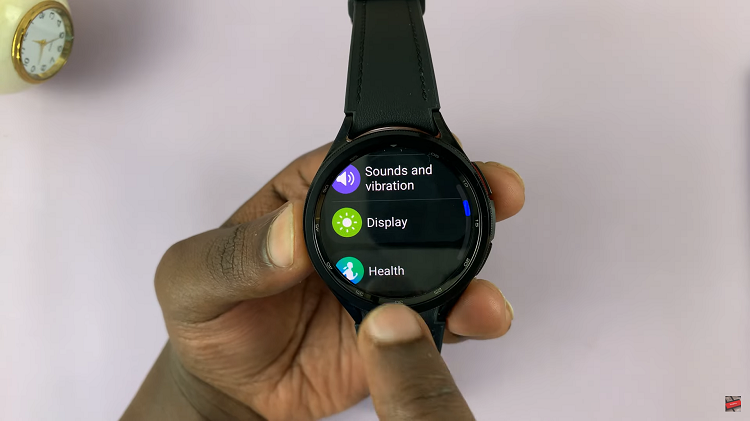
How To Change Screen Timeout Period On Samsung Galaxy Watch 6

At this point, find and tap on the “Screen timeout” option. Now, choose your desired timeout period from the options that appear then exit Settings to save the changes.
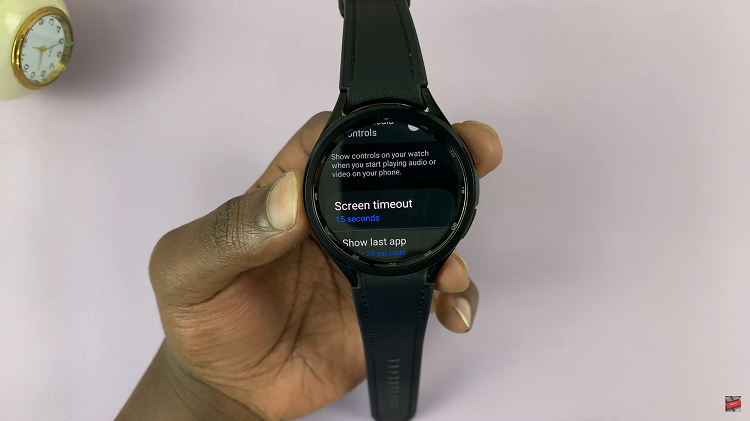
How To Change Screen Timeout Period On Samsung Galaxy Watch 6

By following the steps outlined in this guide, you can easily set the screen timeout to suit your preferences and needs, enhancing your overall user experience with your Samsung Galaxy Watch 6 or 6 Classic.

Read: How To Set Up Samsung Galaxy Watch 6

Share
Tweet
Linkedin
Reddit
Tumblr
Stumble
Whatsapp
Telegram
Email
Prev Article
Next Article

Related Articles

How To Add Contact Widget To Home Screen On Samsung Galaxy A05s

How To Add Contact Widget To Home Screen On Samsung Galaxy A05s

How To Add a Facebook Messenger Button To Your Website
For a long time,  email have been the main mode …

How To Add a Facebook Messenger Button To Your Website

  • How To Hard Reset Samsung Phone
  • How To Turn OFF Samsung Phone Without Touching Screen
  • How To Create Samsung Account On Mobile Phone
  • How To Reset Samsung Phone Without Password
  • How To Connect AirPods To Samsung Phone
DMCA.com Protection Status

Associates Disclosure

WebPro Education is a participant in the Amazon Services LLC Associates Program, an affiliate advertising program designed to provide a means for sites to earn advertising fees by advertising and linking to amazon.com.

WebPro Education

Tech tips everyday
Copyright © 2026 WebPro Education

Ad Blocker Detected

Our website is made possible by displaying online advertisements to our visitors. Please consider supporting us by disabling your ad blocker.

Refresh