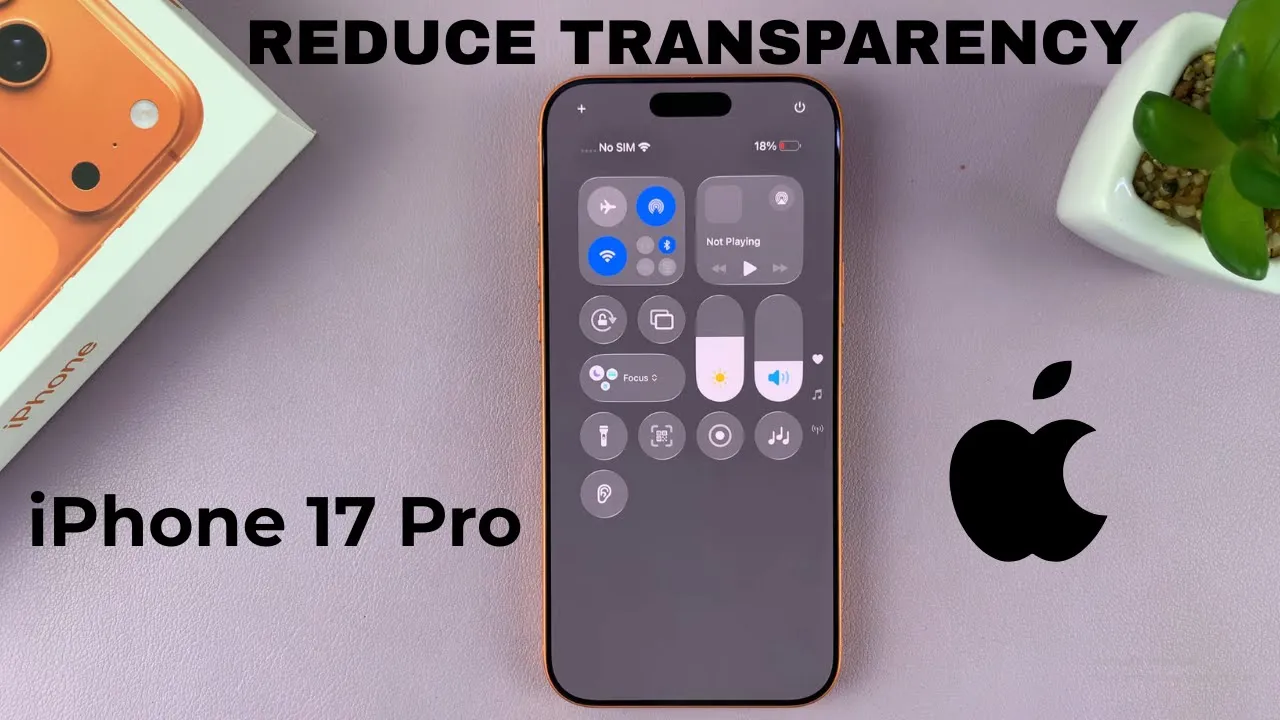
Video:How To Reduce Transparency On iPhone 17 / 17 Pro
Reducing transparency on the iPhone 17 and iPhone 17 Pro allows users to create a cleaner and more focused visual experience across the interface. This subtle adjustment helps make menus, notifications, and backgrounds easier to read by minimizing visual distractions. As Apple continues to enhance accessibility and performance, the ability to reduce transparency has become an essential feature for users who value clarity and simplicity in their display settings.
Furthermore, adjusting transparency not only improves legibility but also enhances battery efficiency and system performance. With smoother visuals and sharper contrasts, your iPhone interface feels more responsive and polished. Whether you prefer a minimal look or need better screen visibility, reducing transparency brings a refined balance between aesthetics and usability on the iPhone 17 and 17 Pro.
Watch:How To Enable 3D Lock Screen Wallpaper On iPhone 17 / 17 Pro
Reduce Transparency On iPhone 17 / 17 Pro
Open Settings
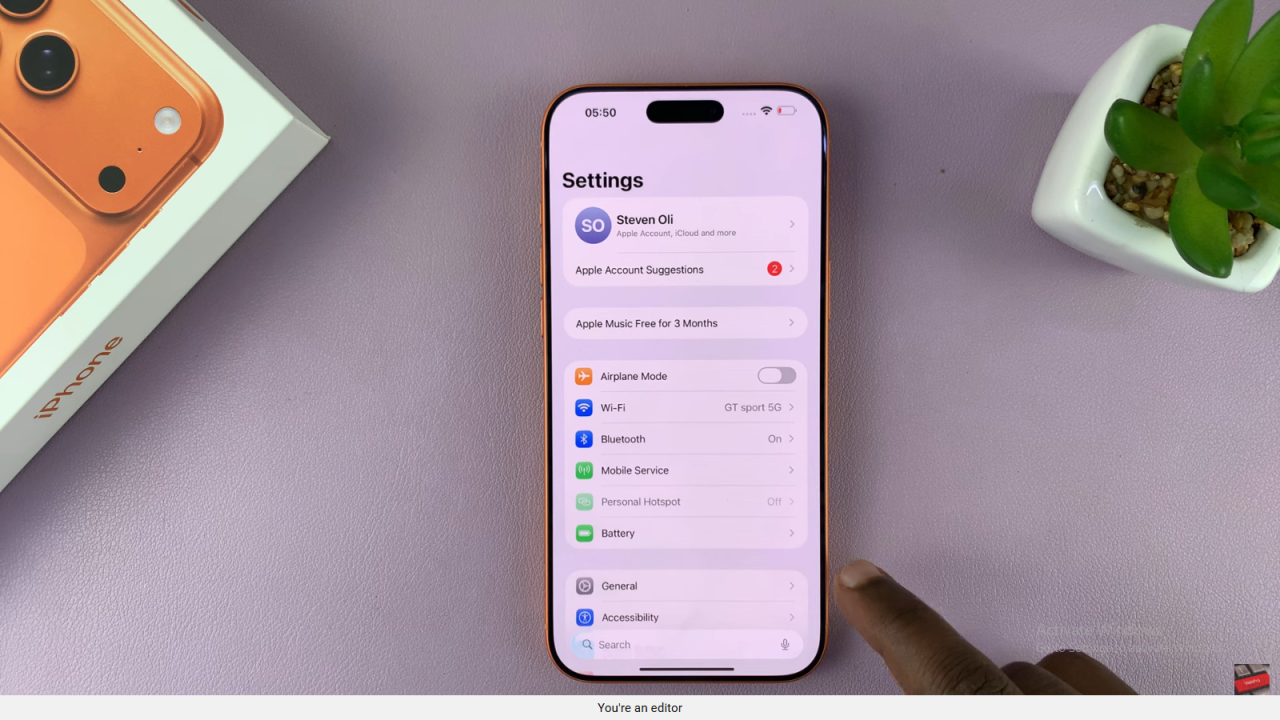
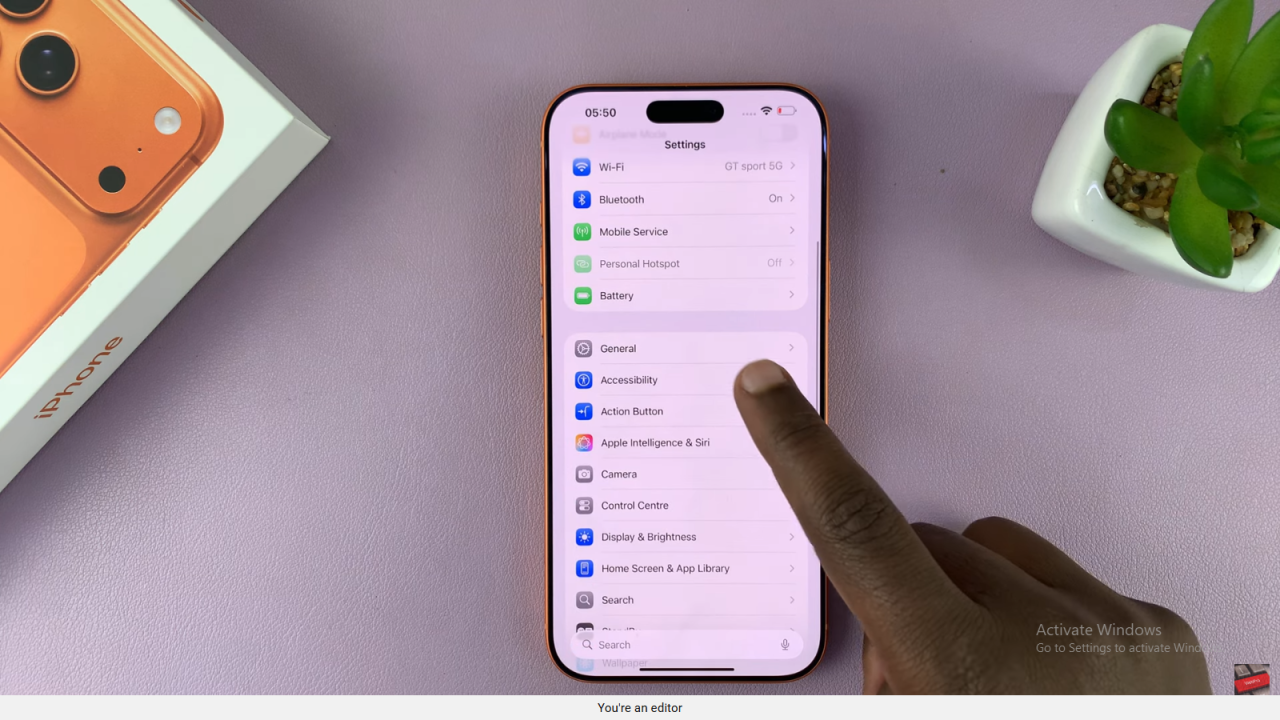
First, unlock your iPhone and open the Settings app from your home screen.
Access Accessibility Options
Next, scroll down and tap Accessibility to explore display and vision customization settings.
Go to Display & Text Size
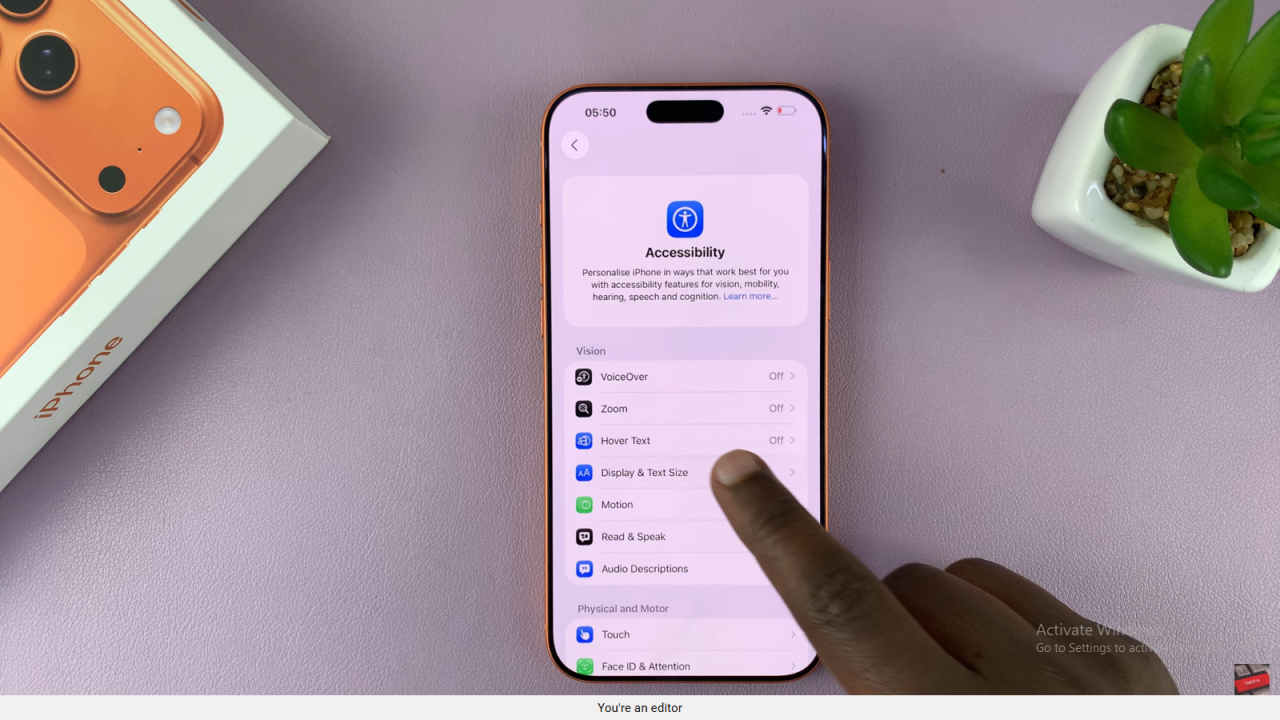
Then, under the Vision section, tap Display & Text Size to adjust your display appearance.
Reduce Transparency
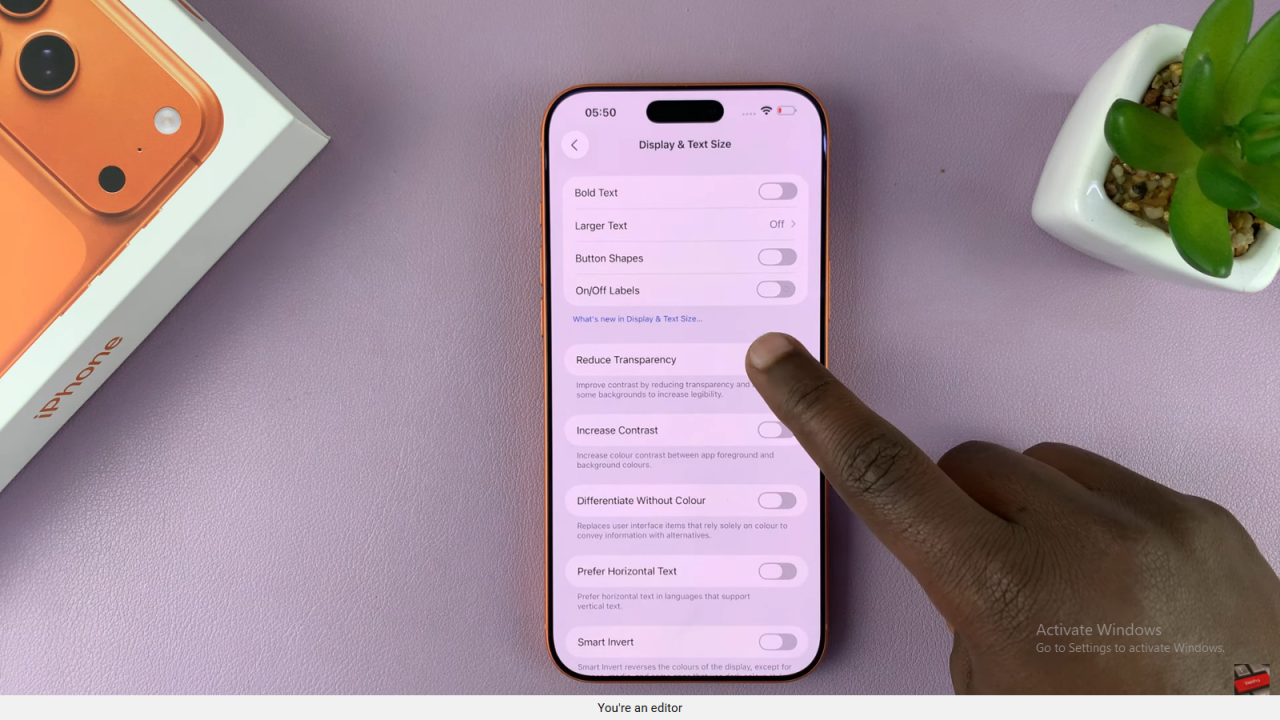
After that, find and toggle Reduce Transparency to create menus and backgrounds with more solid colors.
Confirm the Change
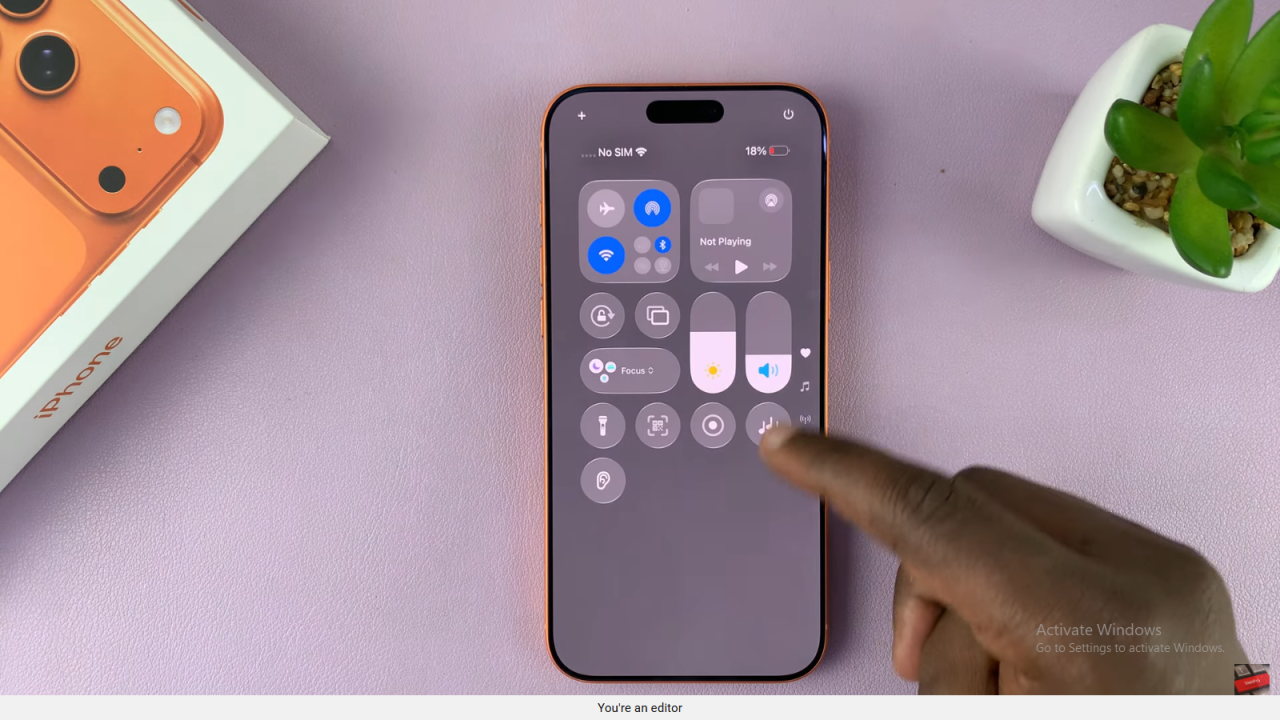
Finally, you’ll notice the difference right away, menus look clearer, and the screen feels less distracting on your iPhone 17 or 17 Pro.
Read:How To Enable 3D Lock Screen Wallpaper On iPhone 17 / 17 Pro