Samsung Galaxy phones have become synonymous with cutting-edge technology, sleek designs, and powerful features. However, there are times when users may encounter issues that require a more drastic solution than simple troubleshooting.
A hard reset is a process that restores your Samsung Galaxy phone to its original factory settings. This means that all data, including apps, settings, and personal files, will be erased from the device. Performing a hard reset can be the key to resolving persistent problems or preparing your device for a fresh start.
In this guide, we’ll show you how to hard reset the Samsung Galaxy S24, S24+, or S24 Ultra.
Watch: How To Enter Recovery Mode On Samsung Galaxy S24
To Hard Reset Samsung Galaxy S24
Firstly, power off your Samsung S24 and connect it to a computer using the required USB cable. At this point, access the recovery mode by pressing and holding the Volume Up and Power buttons simultaneously until you see the Samsung logo. Then, release the power button but continue pressing the volume button until you see the recovery menu.
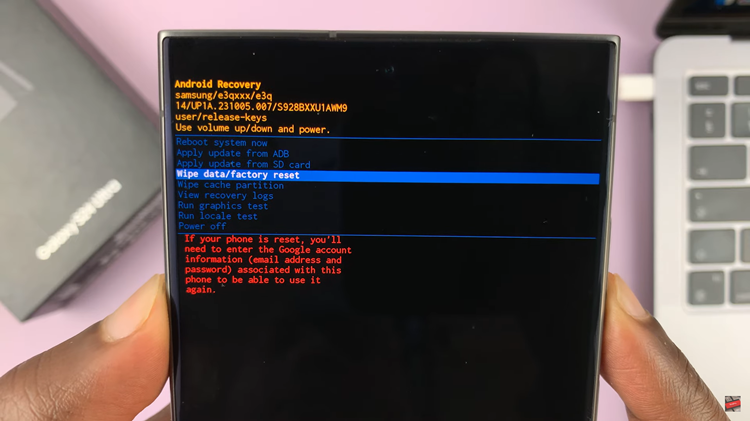
At this point, use the volume buttons to get to the “Wipe data/factory reset” option and press the Power button to select it. Then, use the buttons to highlight “Yes” and press the Power button to confirm.
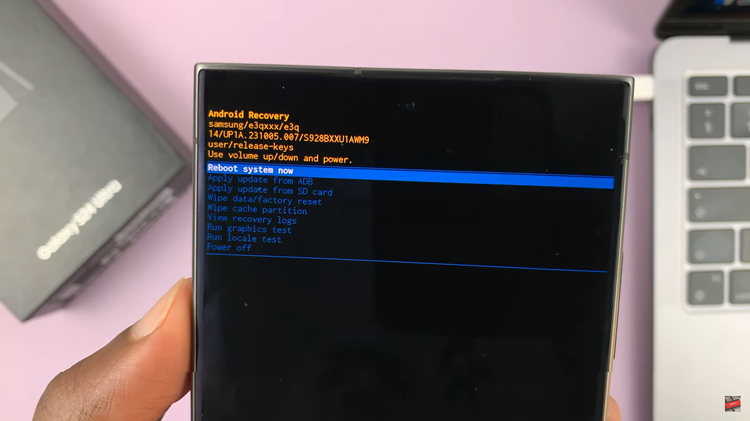
After the process is complete select the “Reboot System Now” option and press the Power button to restart your Samsung Galaxy S24.
By following these steps, you can confidently perform a hard reset on your Samsung Galaxy S24, addressing persistent issues or preparing your device for a new chapter.
Read: How To Disable 120Hz Refresh Rate On Samsung Galaxy S24