WebPro Education

Tech tips everyday
Menu
  • REVIEWS
  • HOW TO
  • TECH NEWS
  • About Us
Home
how to
How To Disable Automatic Picture in Picture On iPhone 17 / 17 Pro
how to

How To Disable Automatic Picture in Picture On iPhone 17 / 17 Pro

Wairimu October 29, 2025

In this guide, we’ll show you the simple steps to disable automatic PiP mode on your iPhone 17 / 17 Pro. Follow along to customize your viewing experience and keep videos exactly where you want them.

Picture in Picture (PiP) is a useful feature on the iPhone 17 and iPhone 17 Pro that allows videos to continue playing in a small floating window while you use other apps. However, not everyone wants videos to shrink automatically when they swipe home or switch tasks. Luckily, Apple gives you full control over this feature.

With the enhanced iOS experience on the iPhone 17 series, you can easily turn off automatic Picture in Picture to prevent distractions and interruptions while multitasking. This ensures video playback stays full screen until you choose otherwise.

Read: How To Change Date & Time On iPhone 17 Pro

How To Disable Automatic Picture in Picture On iPhone 17 / 17 Pro

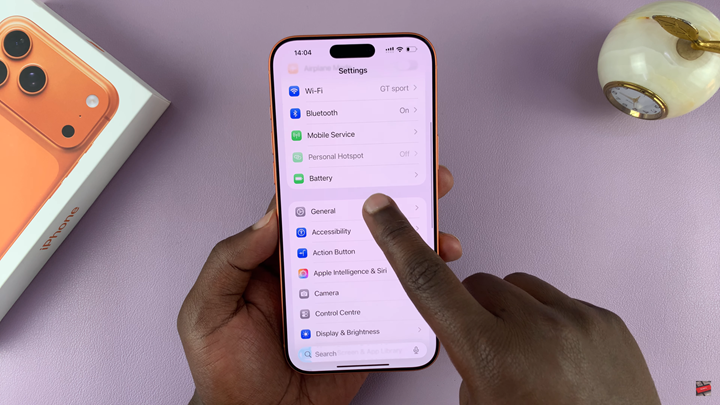
Start by unlocking your phone then navigate to the Settings app. Scroll down and select General.
How To Disable Automatic Picture in Picture On iPhone 17 / 17 Pro

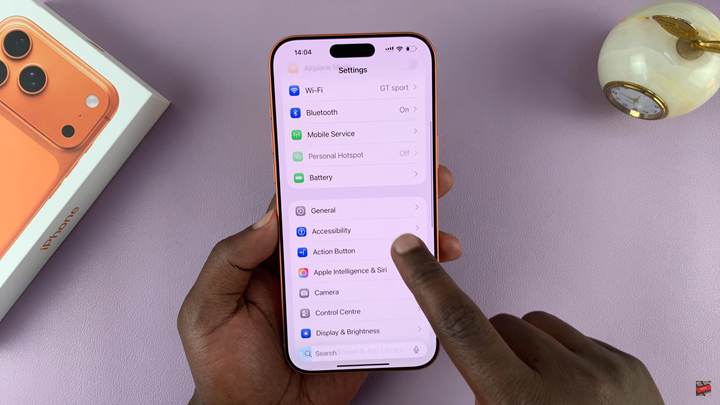
Tap on Picture in Picture from the menu options.
How To Disable Automatic Picture in Picture On iPhone 17 / 17 Pro

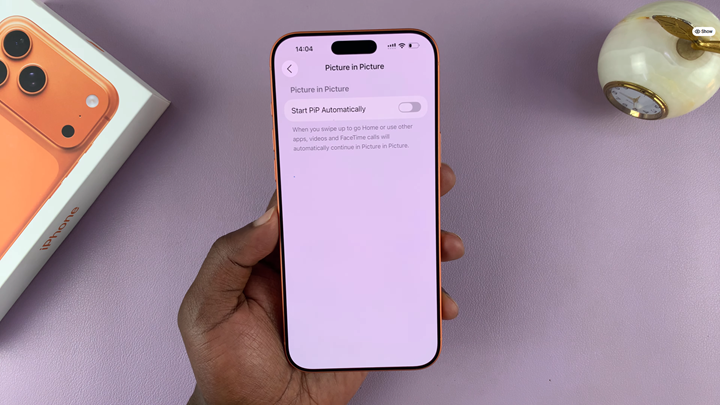
Disable Start PiP Automatically by turning off the toggle switch.
How To Disable Automatic Picture in Picture On iPhone 17 / 17 Pro

Once this option is turned off, videos will remain in full screen unless you manually activate Picture in Picture mode.

Watch: How To Connect Bluetooth Speaker To iPhone 17

Share
Tweet
Linkedin
Reddit
Tumblr
Stumble
Whatsapp
Telegram
Email
Prev Article
Next Article

Related Articles

How To Allow ‘Embeds To Websites’ On Instagram

How To Allow ‘Embeds To Websites’ On Instagram

How To Enable & Disable Voice Dial On iPhone

How To Enable & Disable Voice Dial On iPhone

  • How To Update Samsung Galaxy Tab A11
  • How To Open Keyboard Settings On Samsung Galaxy Tab A11
  • How To Factory Reset Samsung Galaxy Tab A11
  • How To Enable & Disable Picture In Picture Mode On Samsung Galaxy Tab A11
  • How To Clear Cache Partition On Samsung Galaxy Tab A11
DMCA.com Protection Status

Associates Disclosure

WebPro Education is a participant in the Amazon Services LLC Associates Program, an affiliate advertising program designed to provide a means for sites to earn advertising fees by advertising and linking to amazon.com.

WebPro Education

Tech tips everyday
Copyright © 2025 WebPro Education

Ad Blocker Detected

Our website is made possible by displaying online advertisements to our visitors. Please consider supporting us by disabling your ad blocker.

Refresh