In this article, you’ll learn how to add lock screen widgets on Galaxy S26 Ultra and how this feature helps you access important information faster without unlocking your phone. Lock screen widgets make it easier to view updates like weather, calendar events, and notifications at a glance, improving both convenience and daily productivity.
The S26 Ultra offers a smooth and customizable lock screen experience, allowing you to choose which widgets appear based on your needs. Whether you want quick access to reminders or real-time updates, these widgets help you stay informed without extra steps.
By following a few simple settings, you can enable and arrange lock screen widgets on Samsung Galaxy S26 Ultra to match your personal preferences, making your device more efficient and user-friendly every day.
Watch: How To Disable Wi-Fi Calling On Samsung Galaxy S26 / S26 Ultra
Add Lock Screen Widgets On Samsung Galaxy S26 Ultra:
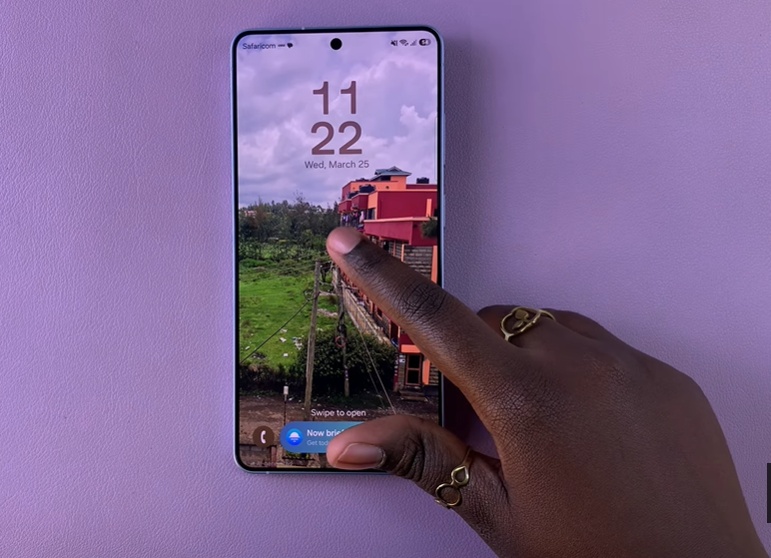
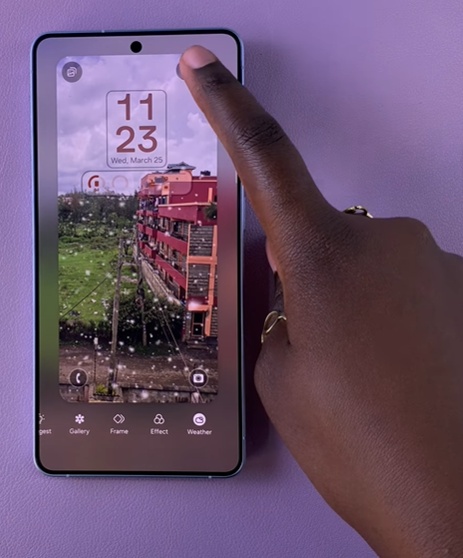
Long press on the lock screen of your Samsung Galaxy S26 Ultra to enter the customization mode, where you can easily personalize how your lock screen looks and functions. This step is useful because it gives you direct access to editing options without needing to open full settings menus.
Tap Widgets to open the list of available lock screen widgets. From here, you can choose the widgets you want, such as weather, calendar, or battery information, depending on what is most useful for your daily needs. This helps you quickly access important information at a glance without unlocking your phone.
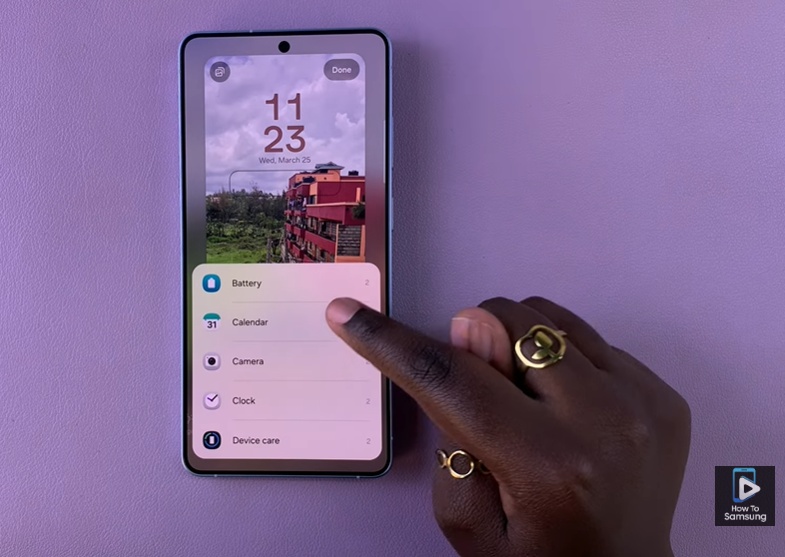
Select your preferred widget and arrange it according to your preference, then tap Done to save the changes. This ensures your lock screen is fully customized and ready to display the information that matters most to you on your Samsung Galaxy S26 Ultra.
Read: How To Turn ON Live Captions On Samsung Galaxy S26 / S26 Ultra