In this guide, we’ll show you how to enable or disable Player Shadows in FC 27. Easily change how player shadows appear during matches in EA SPORTS FC 27.
The game includes visual settings that allow you to adjust shadow effects, which can change the overall look of the pitch and players.
Watch: Create Folder In MacBook Neo
Enable & Disable Player Shadows In FC 27
To start, launch the EA FC 27 game and wait for the main menu to load. If you’re already in a game, pause the game.
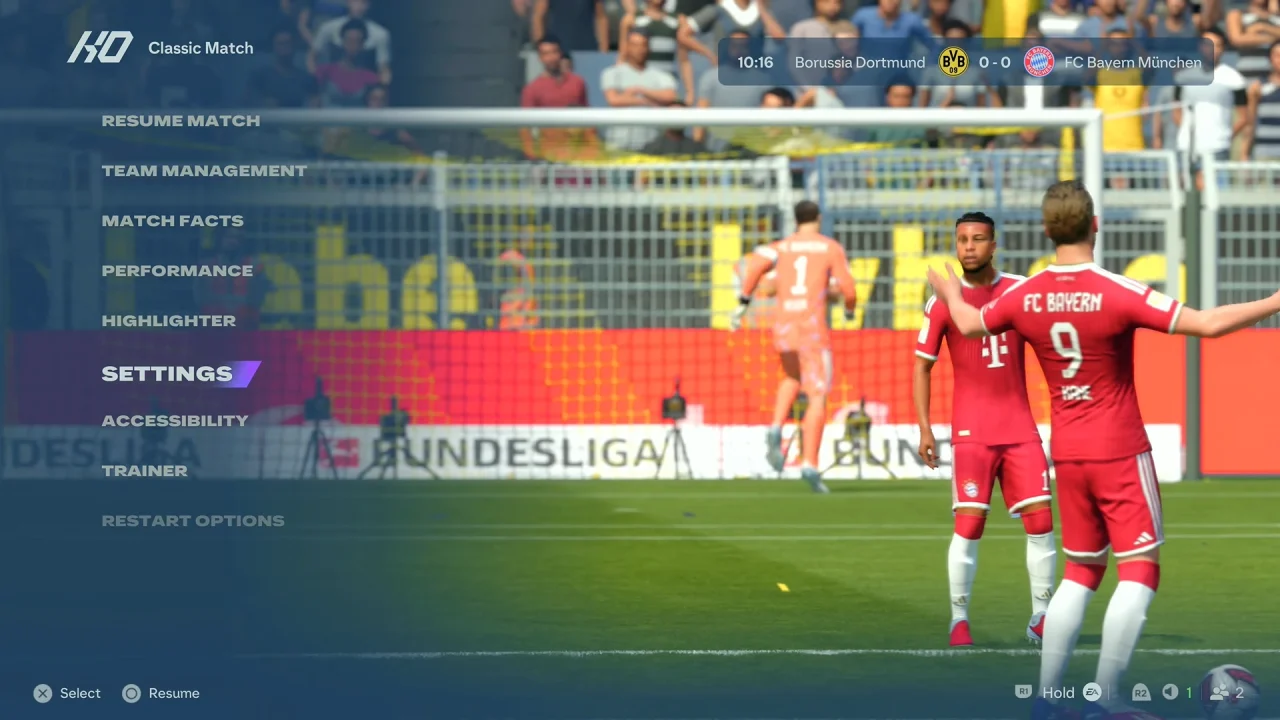
From the main menu, open Settings and select Game Settings.
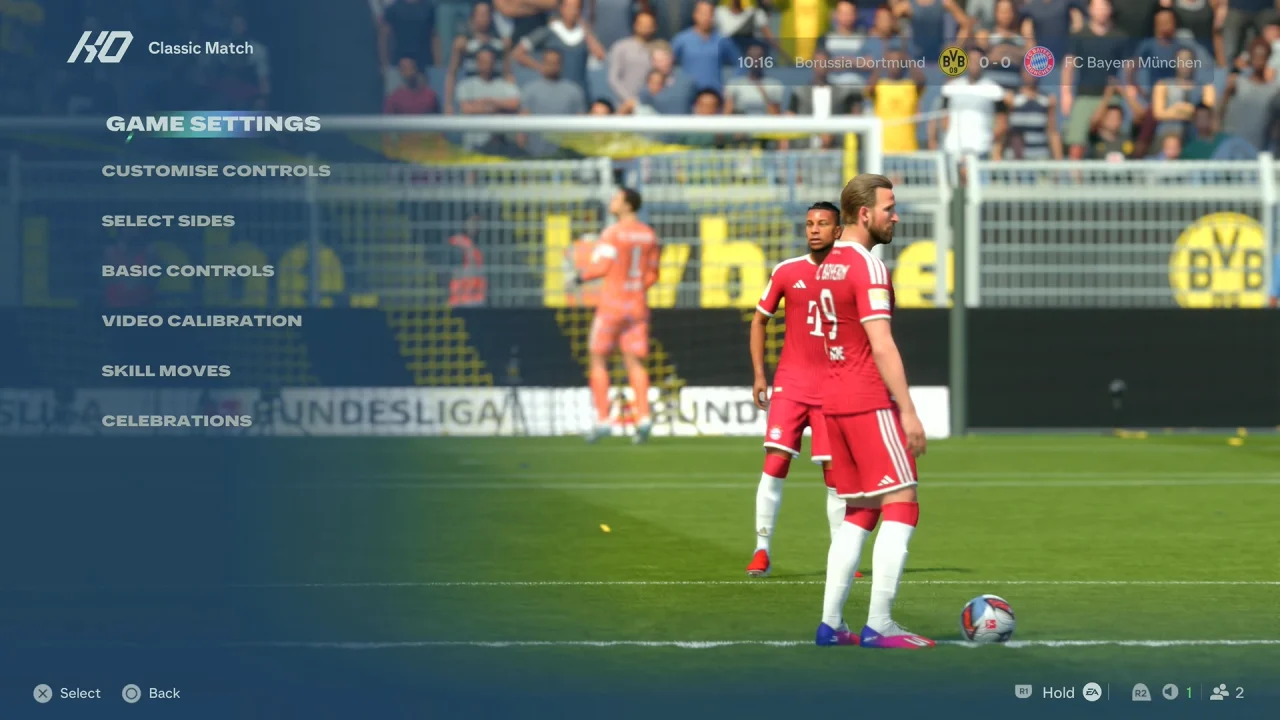
Navigate to the Visual tab using the R1 or L1 button. Look for the Player Shadows option, which should be under the Contrast category.
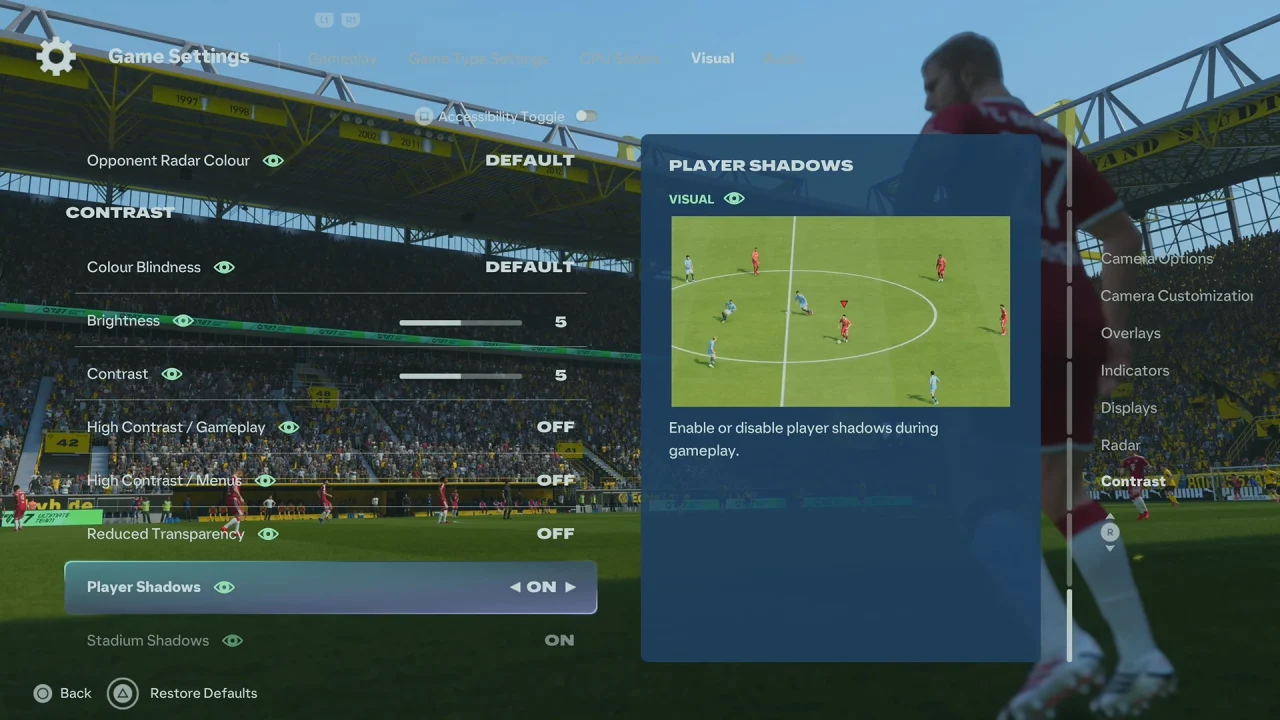
Change the setting to On to display player shadows or Off to disable them.
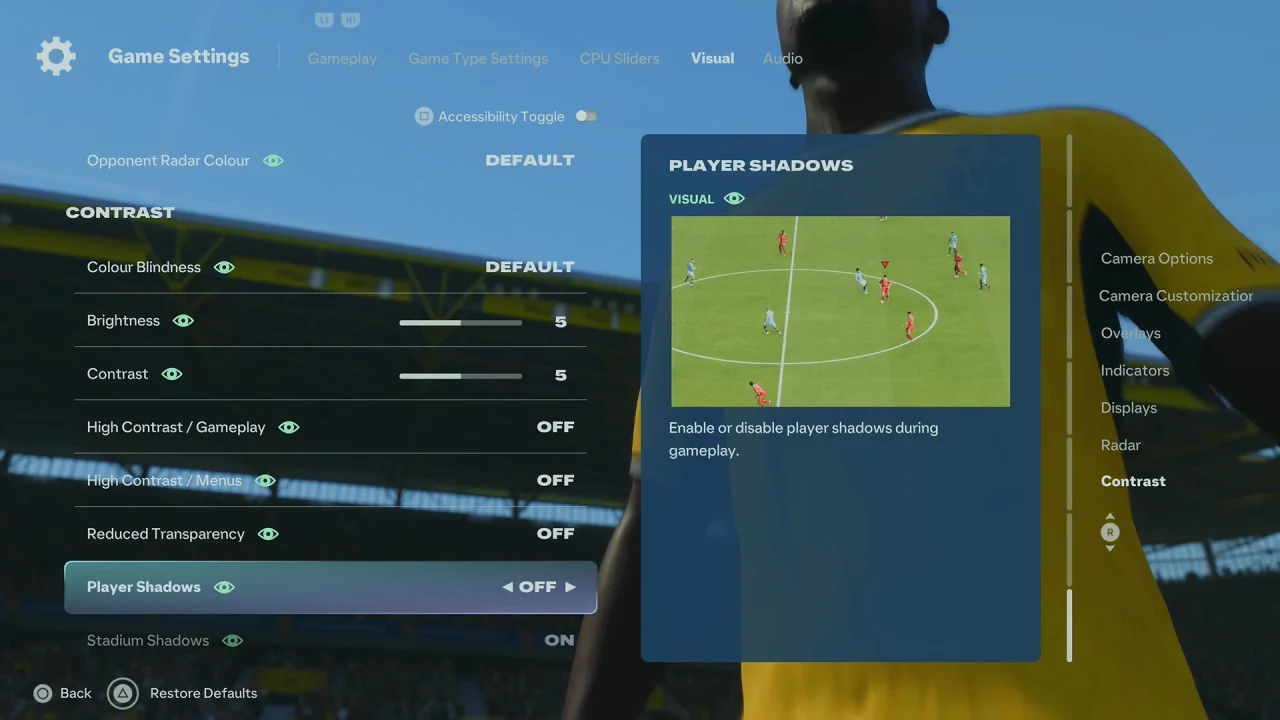
Return to the game and check the pitch to see the change.
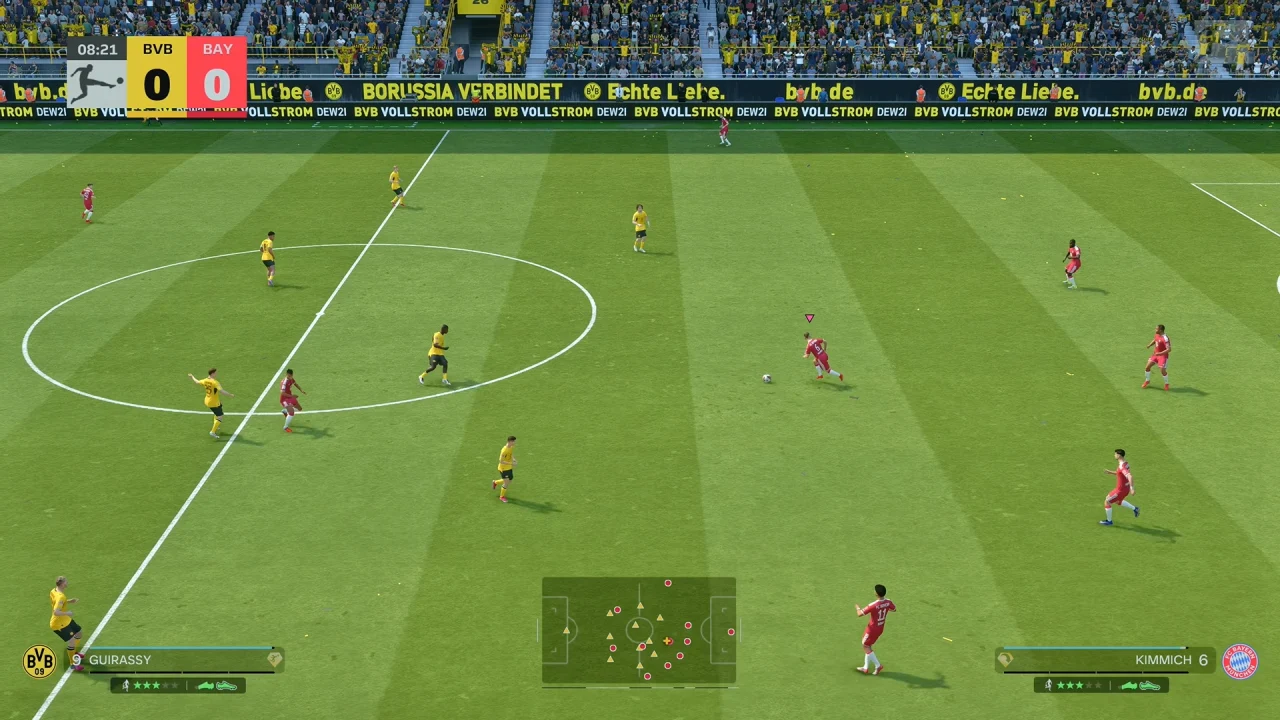
If you prefer a more realistic and visually detailed match experience, keeping Player Shadows enabled allows players to cast shadows on the pitch according to the game’s lighting effects.
Turning off player shadows can give you a cleaner view of the pitch, especially if you find shadows distracting during gameplay. It may also change the visual appearance of matches depending on the stadium, lighting, and camera angle.