WebPro Education

Tech tips everyday
Menu
  • REVIEWS
  • HOW TO
  • TECH NEWS
  • About Us
Home
how to
How To Scan QR Codes On MacBook Neo
how to

How To Scan QR Codes On MacBook Neo

Erick Wachira April 9, 2026

QR codes are everywhere these days — from websites to Wi-Fi networks and payment systems.

If you own a MacBook Neo, you might wonder how to scan these codes directly without reaching for your phone. Here’s how to scan physical QR codes on your MacBook Neo.

Your MacBook Neo doesn’t natively detect QR codes, there are several reliable apps you can install. The most reliable, however, is QR Capture.

Watch: Re-arrange Extended Display On MacBook Neo

Scan QR Codes On MacBook Neo

Start by launching the Apple App Store on your MacBook Neo. Type QR Capture in the search bar.
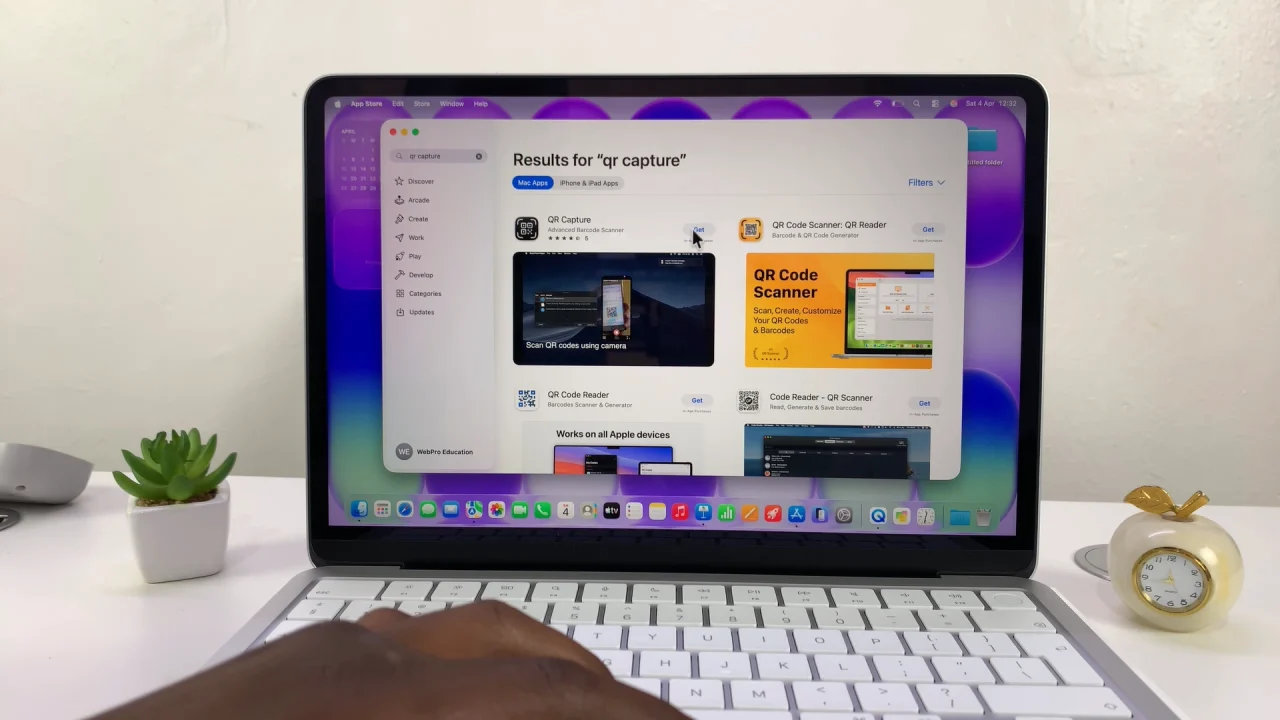
QR Codes Scanner On MacBook Neo

Once you find it, tap on Get, then on Install to install it on to your laptop.
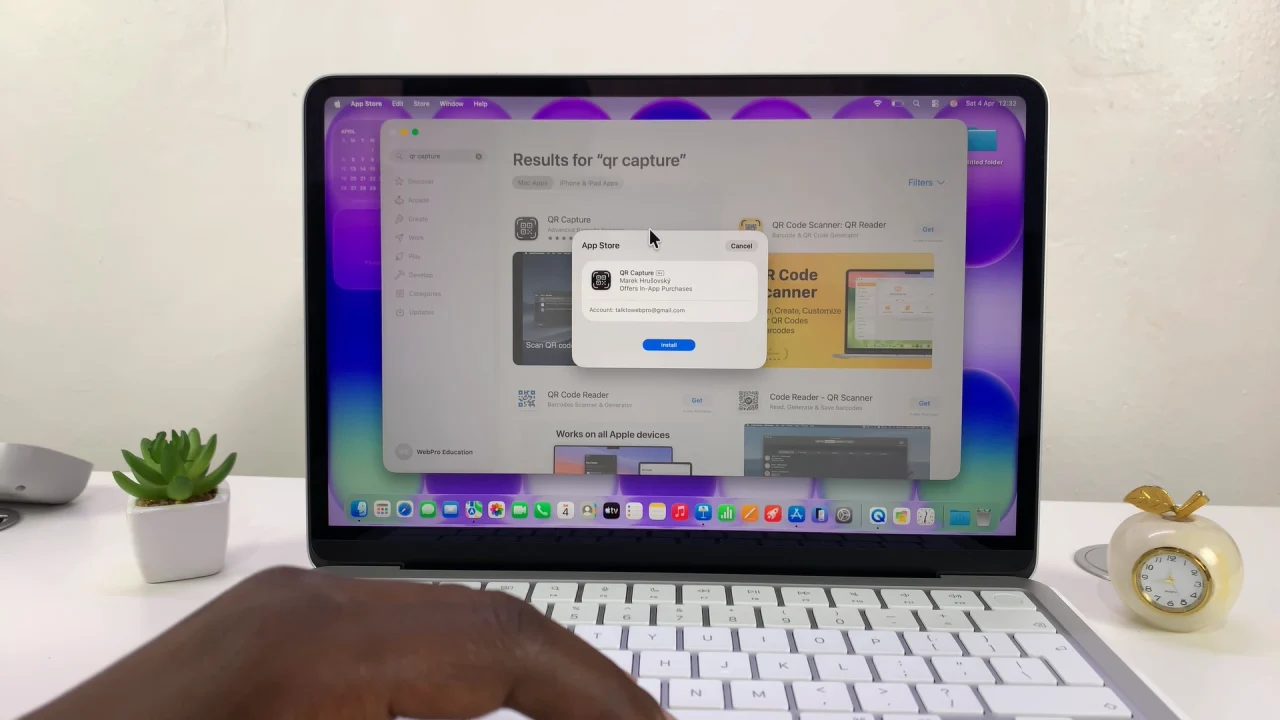
How To Install QR Code Scanner On MacBook Neo

After installing, open the app, point your camera at the QR code, and follow the prompts to set it up. Simply click on Next and on Finish to complete the set up.
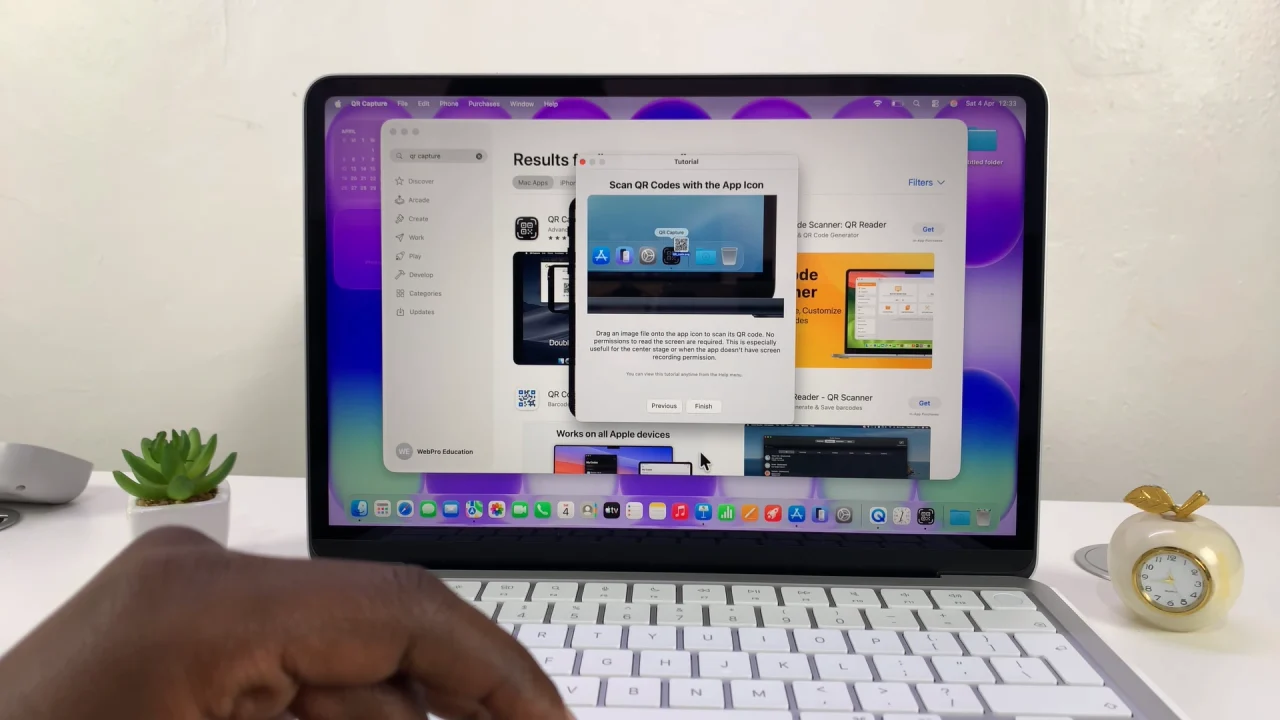
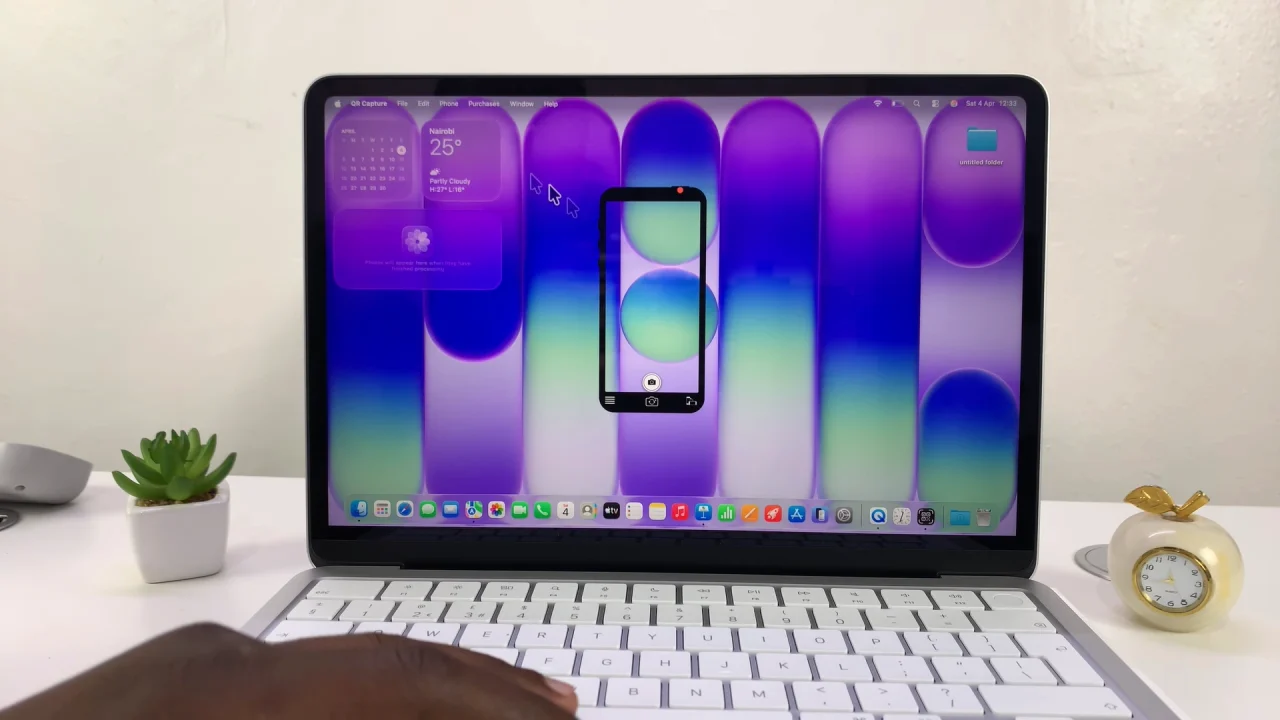
How To Scan QR Codes On MacBook Neo
Scan QR Codes On MacBook Neo

With the app open, it is set to scan QR codes from websites or app links by default. To scan physical QR codes, simply click on the front camera icon, to switch to the webcam on your MacBook Neo.
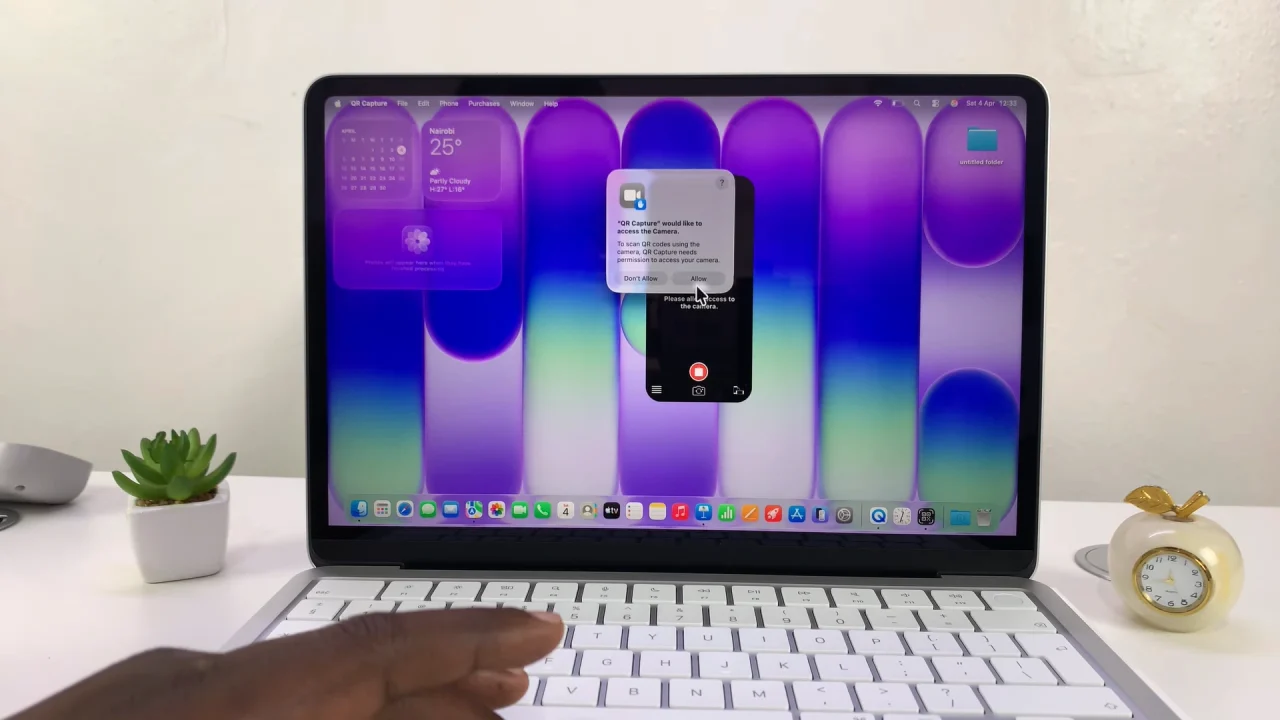
How To Scan QR Codes On MacBook Neo

Now, simply point the physical QR code to your webcam and it will instantly open the link it is set to open upon scanning.
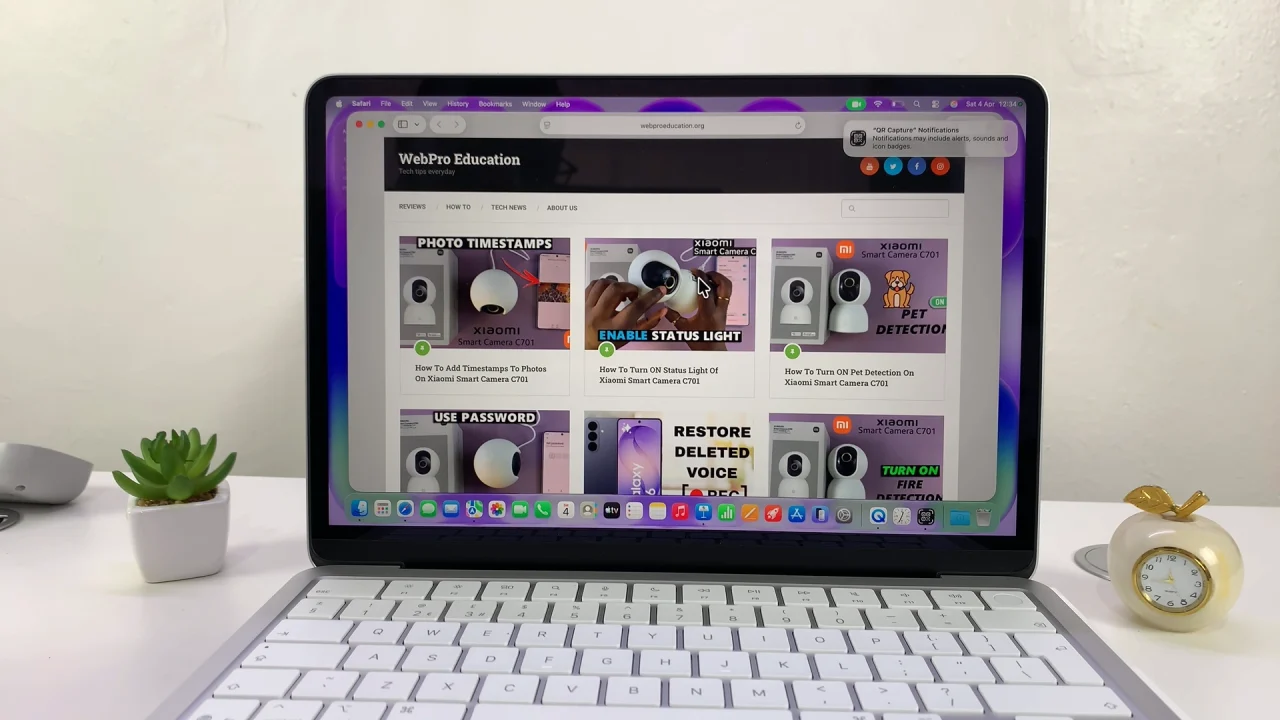
Scan QR Codes On MacBook Neo

Disclaimer: This app gives you the option to scan only 7 different QR codes. you will not be able to scan the same QR code more than once, if you have the free version. You will need to pay for the full version of the application to have more capabilities to do so.

Quick Tips for Smooth Scanning

  • Keep your camera steady and focused on the QR code.
  • Ensure good lighting for accurate detection.
  • Avoid zooming in too much — keep the QR code fully visible.
  • If scanning fails, try using a third-party app or screenshot the code and scan from the image.
    Read: How To Re-arrange Extended Display On MacBook Neo

    Share
    Tweet
    Linkedin
    Reddit
    Tumblr
    Stumble
    Whatsapp
    Telegram
    Email
    Prev Article
    Next Article

    Related Articles

    How To Set Up & Use Two WhatsApp Accounts On Samsung Galaxy S24’s

    How To Set Up & Use Two WhatsApp Accounts On Samsung Galaxy S24’s

    How To Find Wi-Fi Network Name & Password On GoPro HERO12

    How To Find Wi-Fi Network Name & Password On GoPro HERO12

    • How To Purchase Vehicle Warehouse On GTA Online
    • How To Purchase Warehouse On GTA Online
    • How To Install Windows Games via Crossover On Mac / MacBook
    • How To Type Hashtag On MacBook Neo
    • How To Stop Apps From Opening On Startup On MacBook Neo
    DMCA.com Protection Status

    Associates Disclosure

    WebPro Education is a participant in the Amazon Services LLC Associates Program, an affiliate advertising program designed to provide a means for sites to earn advertising fees by advertising and linking to amazon.com.

    WebPro Education

    Tech tips everyday
    Copyright © 2026 WebPro Education

    Ad Blocker Detected

    Our website is made possible by displaying online advertisements to our visitors. Please consider supporting us by disabling your ad blocker.

    Refresh