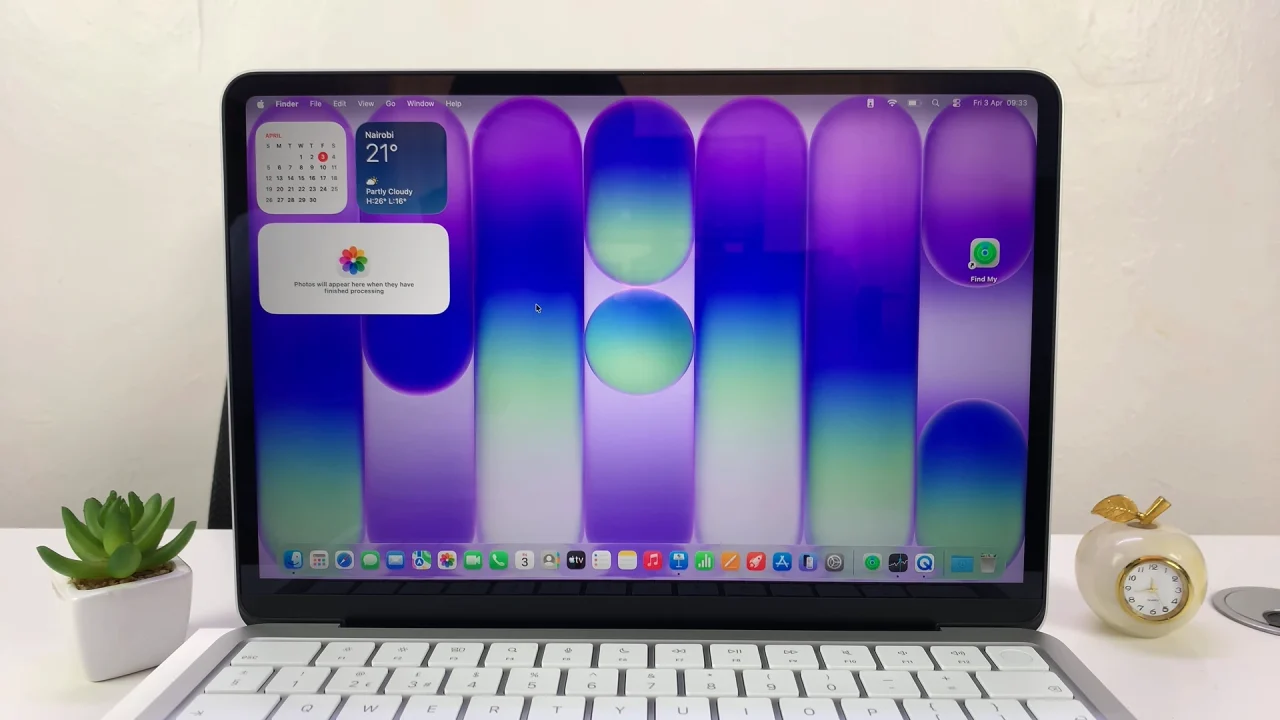
In this guide, you’ll learn how to create desktop shortcuts for apps on your MacBook Neo quickly and efficiently.
Creating desktop shortcuts for your apps on a MacBook Neo is a simple way to speed up your workflow and keep your most-used tools within easy reach.
Unlike some operating systems, macOS didn’t use traditional shortcuts but instead relied on something called aliases, which serve the same purpose. An alias is a small file that links to the original app, allowing you to open it without moving the actual application from its original location.
However, it is now possible to create a shortcut for the actual app.
Watch: Adjust Screen Timeout Period On MacBook Neo
Create Desktop Shortcuts For Apps On MacBook Neo
The quickest way to create a shortcut is to drag the app. Simply open Finder and click on Applications in the sidebar.
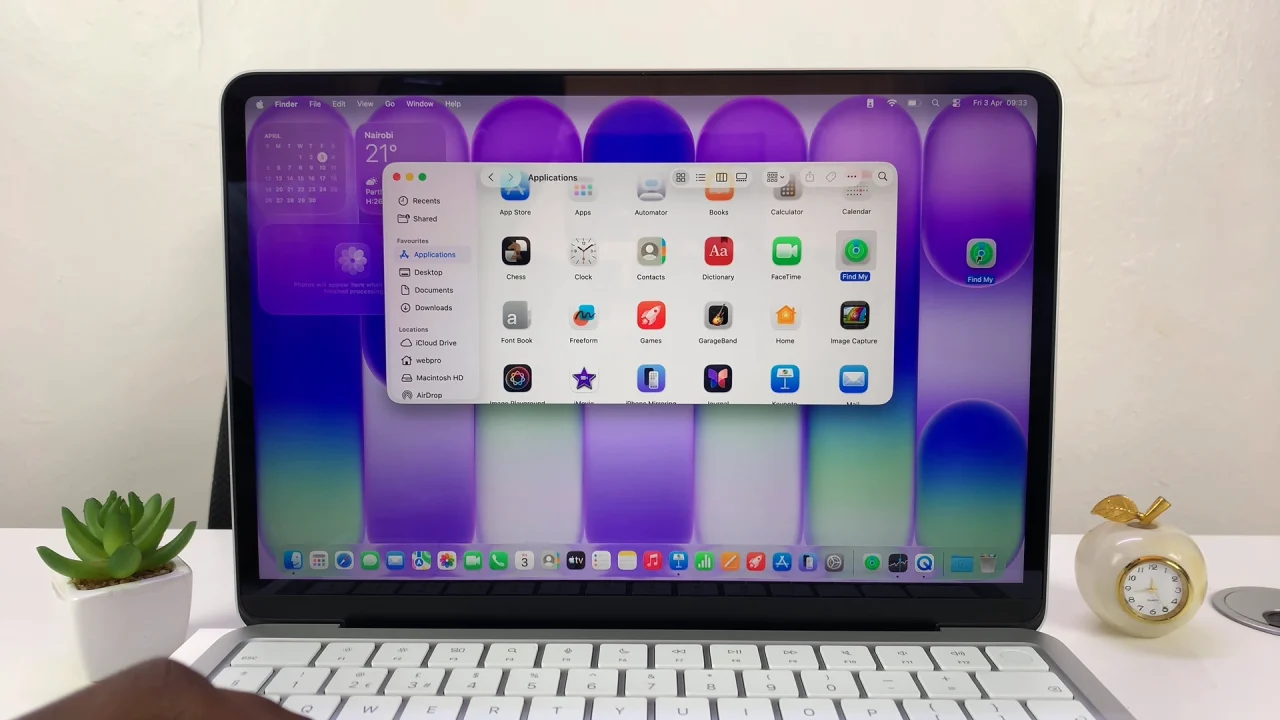
Locate the app you want to create a shortcut for. Finally, select and drag the app to your desktop.