Scanning documents on the Samsung Galaxy S26 / S26 Ultra is very easy, fast, and useful for everyday use. You do not need a physical scanner because your phone can handle the entire process with just a few taps. This is very helpful when dealing with important papers such as forms, receipts, school notes, or office documents. It saves time and makes document handling more convenient wherever you are.
One of the best features is the ability to add multiple pages into one single scan. Instead of saving each page separately, you can scan them one by one and combine everything into a single organized file. This helps you avoid confusion and keeps all your documents neat in one place. It also makes sharing easier since you can send one complete file instead of multiple images.
Watch: How To Change System Sound On Samsung Galaxy S26
Insert Pages To Document Scan On Samsung Galaxy s26:
First, open the Camera app on your Samsung Galaxy S26. This is where the document scan feature is available. It allows you to scan documents directly using your phone.
Tap Add Scan
Next, tap on the “Add Scan” option. This will switch your camera into document scanning mode. You can now start scanning your pages clearly.
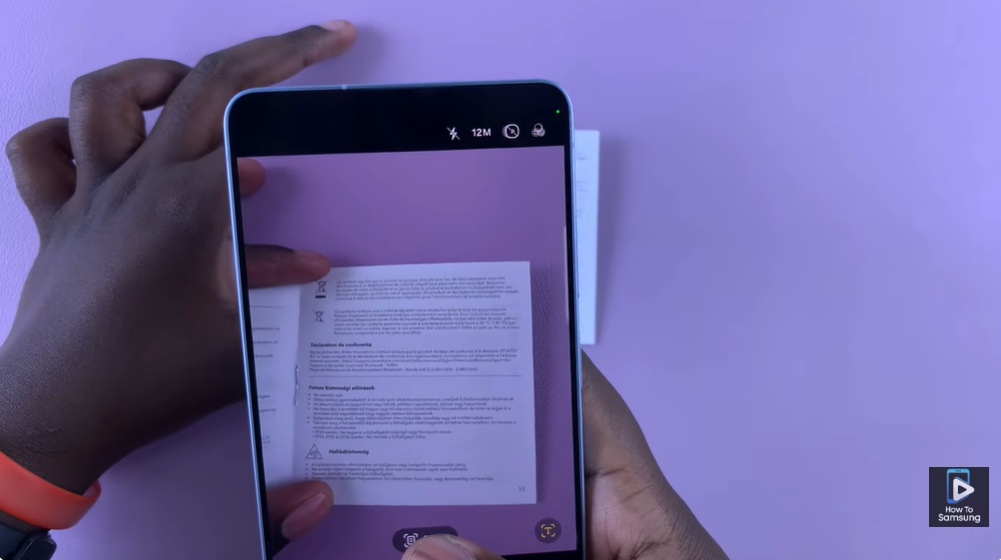
After that, you need to choose either Manual mode or Auto mode depending on how you want to scan your document. Manual mode gives you full control, allowing you to tap and capture each page yourself for more precision, while Auto mode automatically detects and scans the document for you, making the process faster and more convenient. You can simply pick the mode that best suits your needs and continue scanning your pages easily.
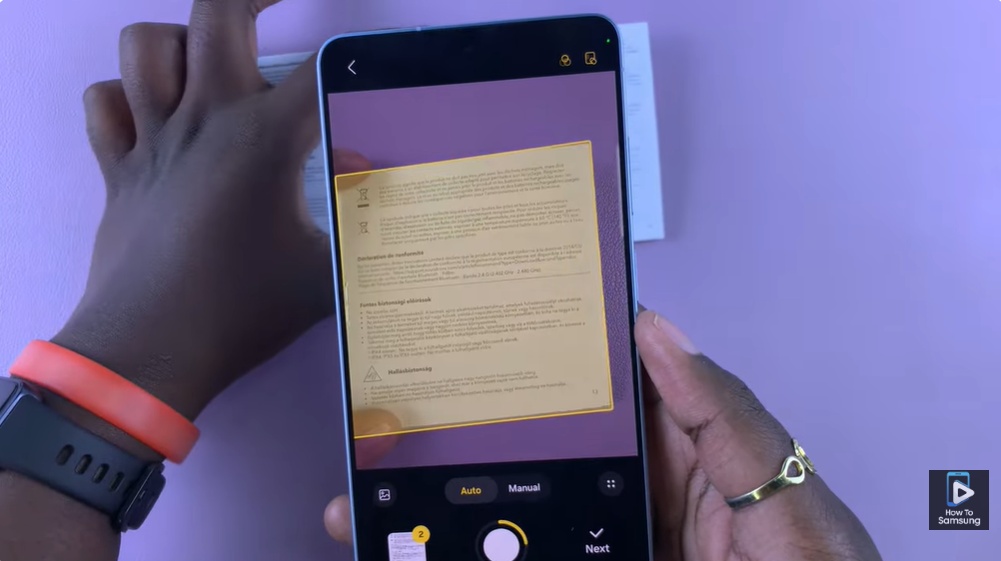
Once you have finished scanning all the pages you need, simply tap on Save. The phone will then combine all the scanned pages into a single document file that you can store, share, or export as needed.