Changing system sound on the Samsung Galaxy S26 / S26 Ultra allows you to customize how your phone responds during everyday use. System sounds include touch feedback, charging tones, screen lock sounds, and other basic audio effects. You can adjust them to make your phone quieter or more interactive depending on your preference.
This feature is built into the system settings, so you do not need any extra apps. Samsung gives you simple options to control system audio and switch sound themes easily. This helps you create a more comfortable and personalized phone experience.
In this guide, you will learn how to change system sound settings on the Samsung Galaxy S26 / S26 Ultra step by step.
Watch:How To Add Pages To Document Scan On Samsung Galaxy s26
Adjust System Sound On Samsung Galaxy S26
You open the Settings app on your Samsung Galaxy S26. This is where all system controls are stored in one place for easy access.
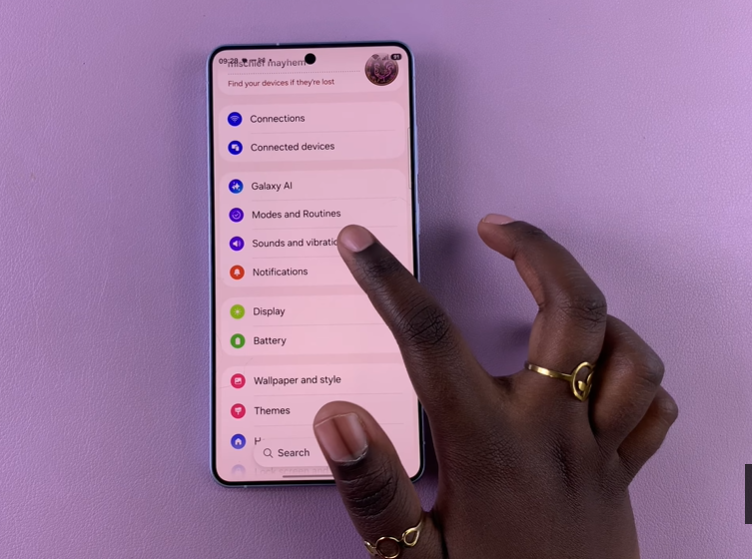
Select Sounds and vibration from the settings menu. This section controls ringtones, notifications, and system audio options.
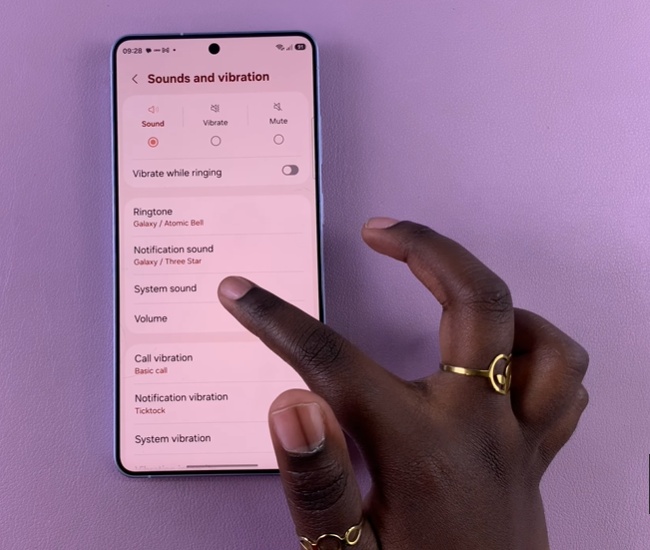
You choose System sound from the available options. Here you can manage how your phone responds to touch and system interactions.
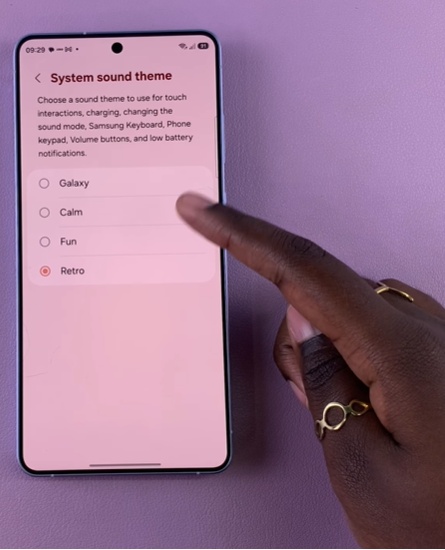
Then you select System sound theme, which allows you to preview and switch between different built-in sound styles that change the overall feel of your device’s system audio, helping you personalize how your phone sounds during everyday use.
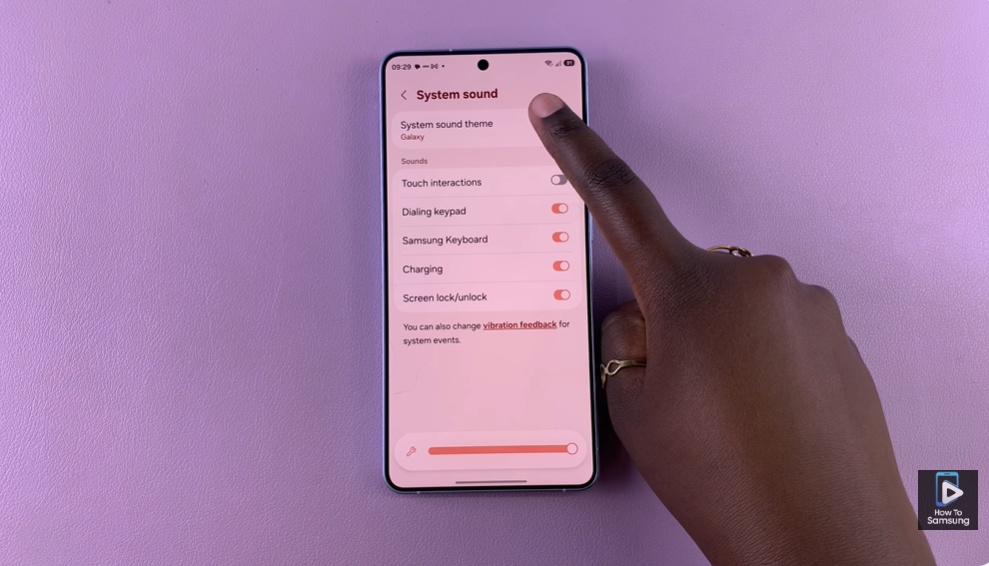
Finally, you choose any option you prefer from the list, and your Samsung Galaxy S26 will automatically apply the new system sound theme instantly, giving your device a refreshed sound experience without requiring any additional steps or manual saving.
Read: How To Add Pages To Document Scan On Samsung Galaxy s26