WebPro Education

Tech tips everyday
Menu
  • REVIEWS
  • HOW TO
  • TECH NEWS
  • About Us
Home
how to
How To Automatically Delete Verification Codes On iPhone 17 / 17 Pro
how to

How To Automatically Delete Verification Codes On iPhone 17 / 17 Pro

Wairimu October 23, 2025

In this guide, you’ll learn how to enable automatic deletion of verification codes on your iPhone 17 or iPhone 17 Pro, allowing you to maintain a tidy inbox and better manage your messages effortlessly.

Verification codes are essential for secure logins and two-factor authentication, but they can quickly clutter your Messages inbox. With the iPhone 17 and iPhone 17 Pro, Apple introduces a smart feature that automatically delete verification codes after use, keeping your messages clean and organized.

This feature helps improve privacy and saves storage space by removing one-time codes once they’ve served their purpose. It’s especially useful for users who frequently receive authentication texts from apps and websites.

Read: How To AirDrop Without Wi-Fi On iPhone 17 Pro

How To Automatically Delete Verification Codes On iPhone 17 / 17 Pro.

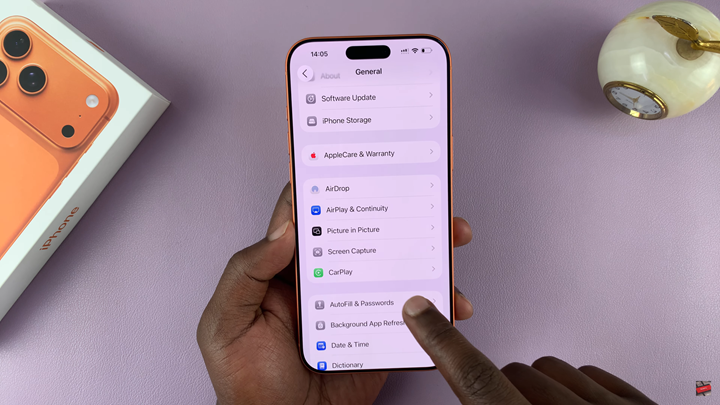
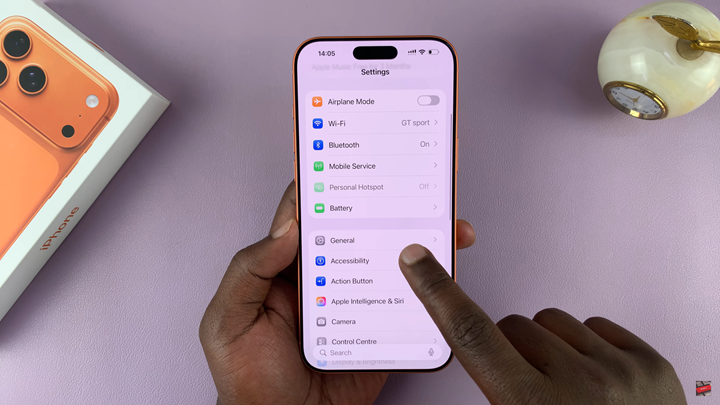
Open the Settings app on your iPhone then scroll down and select General.
How To Automatically Delete Verification Codes On iPhone 17 / 17 Pro

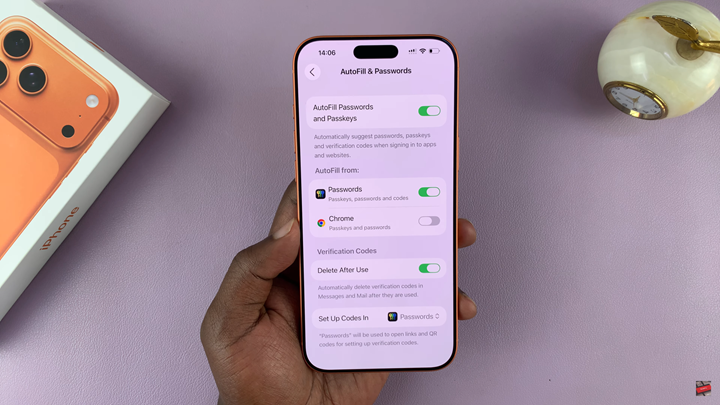
Tap on Autofill and Passwords.

How To Automatically Delete Verification Codes On iPhone 17 / 17 Pro

Find the option labeled Delete Verification Codes After Use. Turn on the toggle to enable it.
How To Automatically Delete Verification Codes On iPhone 17 / 17 Pro

Once you turn on this feature, your iPhone will automatically remove verification codes after they’ve been used, keeping your Messages and Mail inboxes clean and clutter-free.

Watch: How To Find Downloads On iPhone Air


Share
Tweet
Linkedin
Reddit
Tumblr
Stumble
Whatsapp
Telegram
Email
Prev Article
Next Article

Related Articles

How To Use ‘Check In’ On iPhone

How To Use ‘Check In’ On iPhone

How To Transfer Photos & Videos From Flash Drive To Google Pixel 8 & 8 Pro

How To Transfer Photos & Videos From Flash Drive To Google Pixel 8 & 8 Pro

  • How To Update Samsung Galaxy Tab A11
  • How To Open Keyboard Settings On Samsung Galaxy Tab A11
  • How To Factory Reset Samsung Galaxy Tab A11
  • How To Enable & Disable Picture In Picture Mode On Samsung Galaxy Tab A11
  • How To Clear Cache Partition On Samsung Galaxy Tab A11
DMCA.com Protection Status

Associates Disclosure

WebPro Education is a participant in the Amazon Services LLC Associates Program, an affiliate advertising program designed to provide a means for sites to earn advertising fees by advertising and linking to amazon.com.

WebPro Education

Tech tips everyday
Copyright © 2025 WebPro Education

Ad Blocker Detected

Our website is made possible by displaying online advertisements to our visitors. Please consider supporting us by disabling your ad blocker.

Refresh