WebPro Education

Tech tips everyday
Menu
  • REVIEWS
  • HOW TO
  • TECH NEWS
  • About Us
Home
how to
How To Add Google Password Manager To Home Screen On Samsung Galaxy Z Fold 6
how to

How To Add Google Password Manager To Home Screen On Samsung Galaxy Z Fold 6

Dennis Gacheru August 22, 2024


Learn how to add Google Password Manager to the home screen on your Samsung Galaxy Z Fold 6. By following this guide, you can quickly access your saved passwords right from your home screen. First, you’ll need to open the settings app and navigate to the Google Password Manager settings.

Once there, you’ll find the option to add a shortcut to your home screen. This allows you to manage your passwords more conveniently and efficiently.

Watch:How To Reset Keyboard To Default Settings On Samsung Galaxy Z Fold 6

Add Google Password Manager To Home Screen On Samsung Galaxy Z Fold 6

Open Settings
Go to the Settings app on your phone.

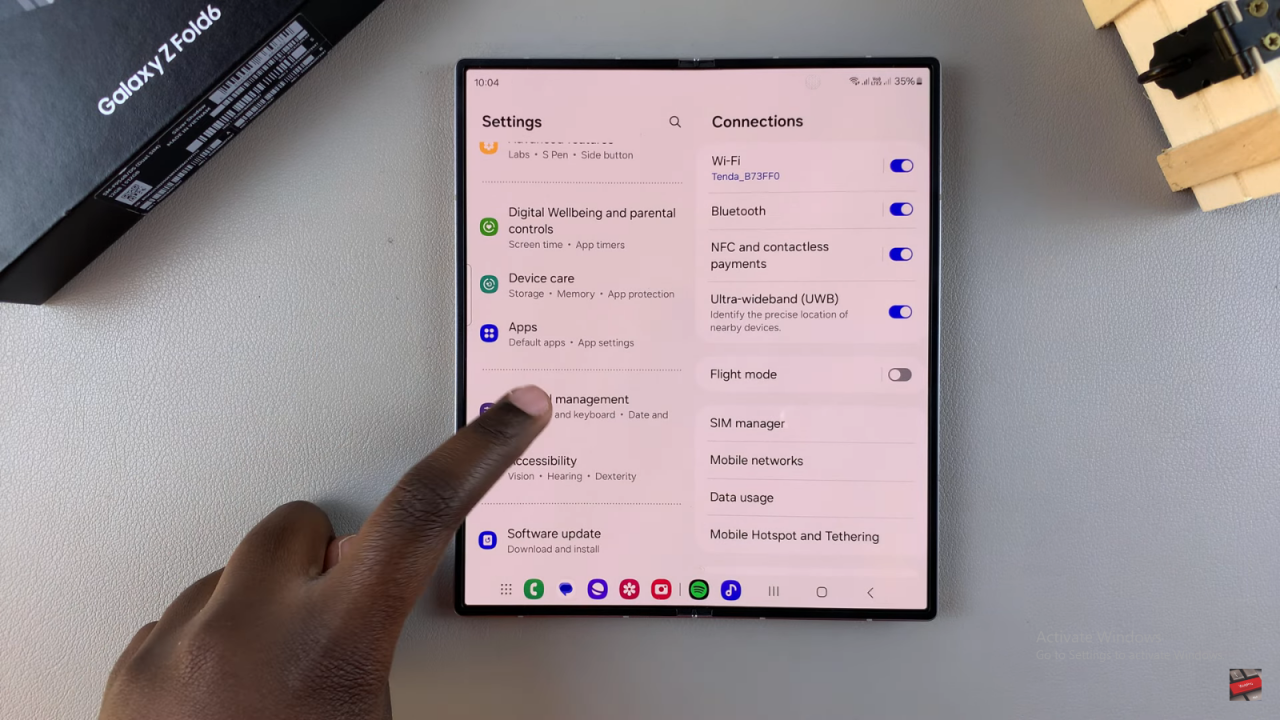
Go to General Management
Scroll down and tap General management.
Add Google Password Manager To Home Screen On Samsung Galaxy Z Fold 6

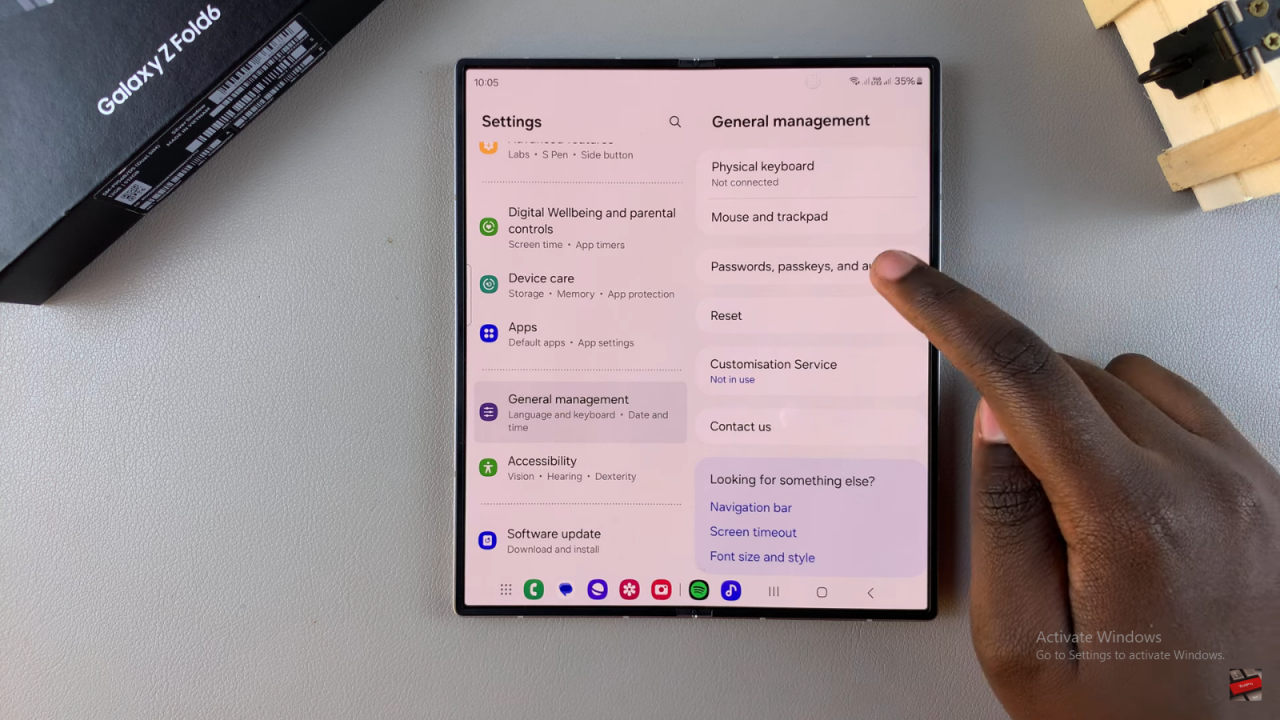
Select Passwords and Autofill
Find and select Passwords and autofill.
Add Google Password Manager To Home Screen On Samsung Galaxy Z Fold 6

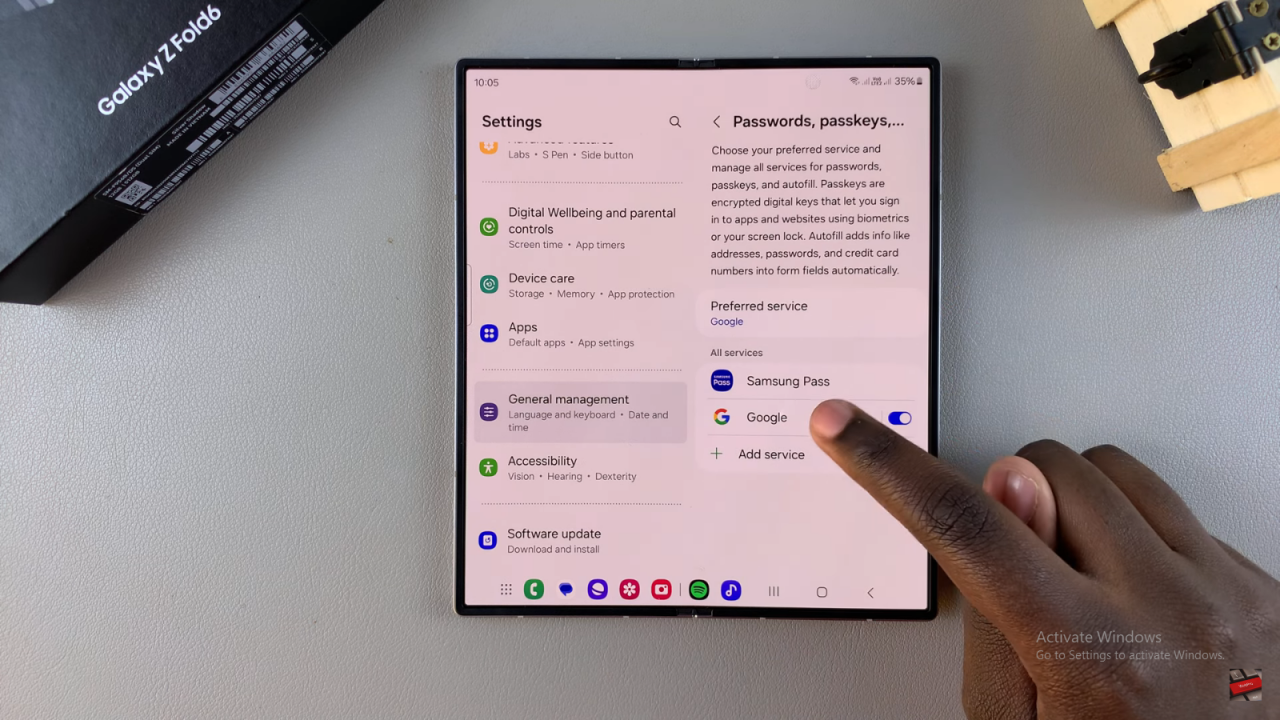
Choose Google
Tap on Google under Services.
Add Google Password Manager To Home Screen On Samsung Galaxy Z Fold 6

Open Google Password Manager
Select Google Password Manager.
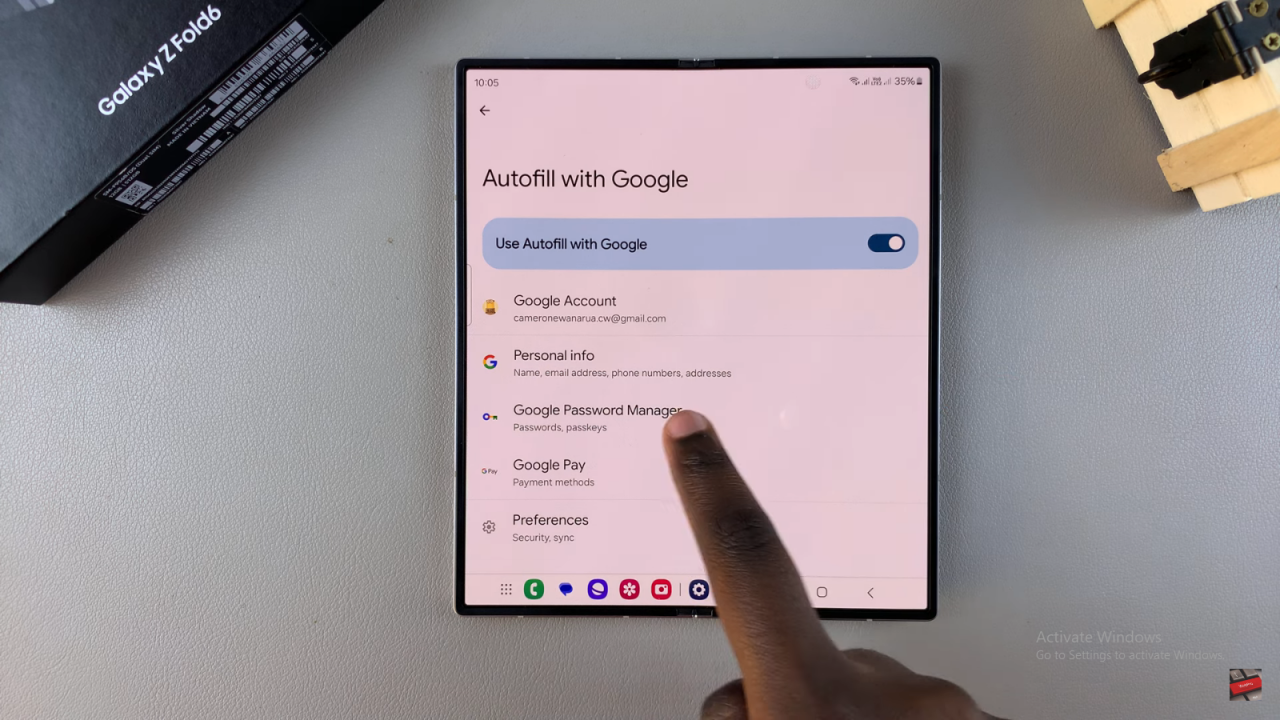
Add Google Password Manager To Home Screen On Samsung Galaxy Z Fold 6

Add Shortcut to Home Screen
Tap on the Settings icon in Google Password Manager. Choose Add shortcut to home screen and confirm.
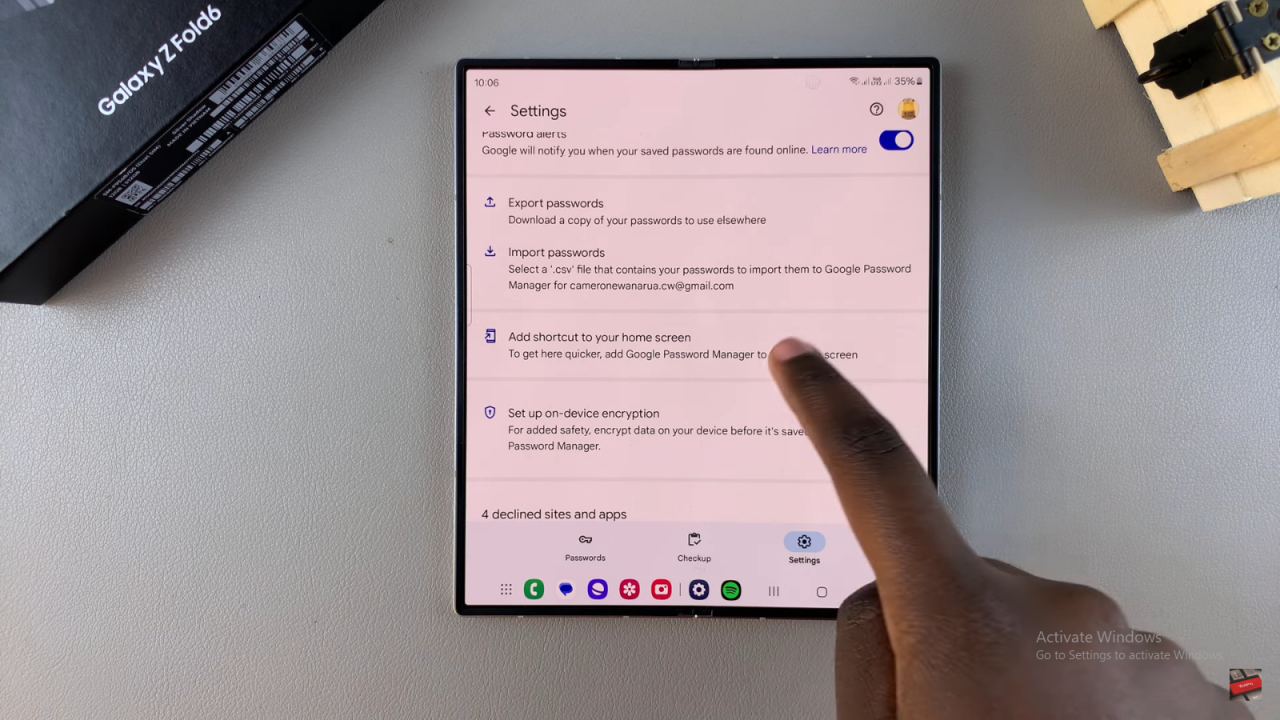
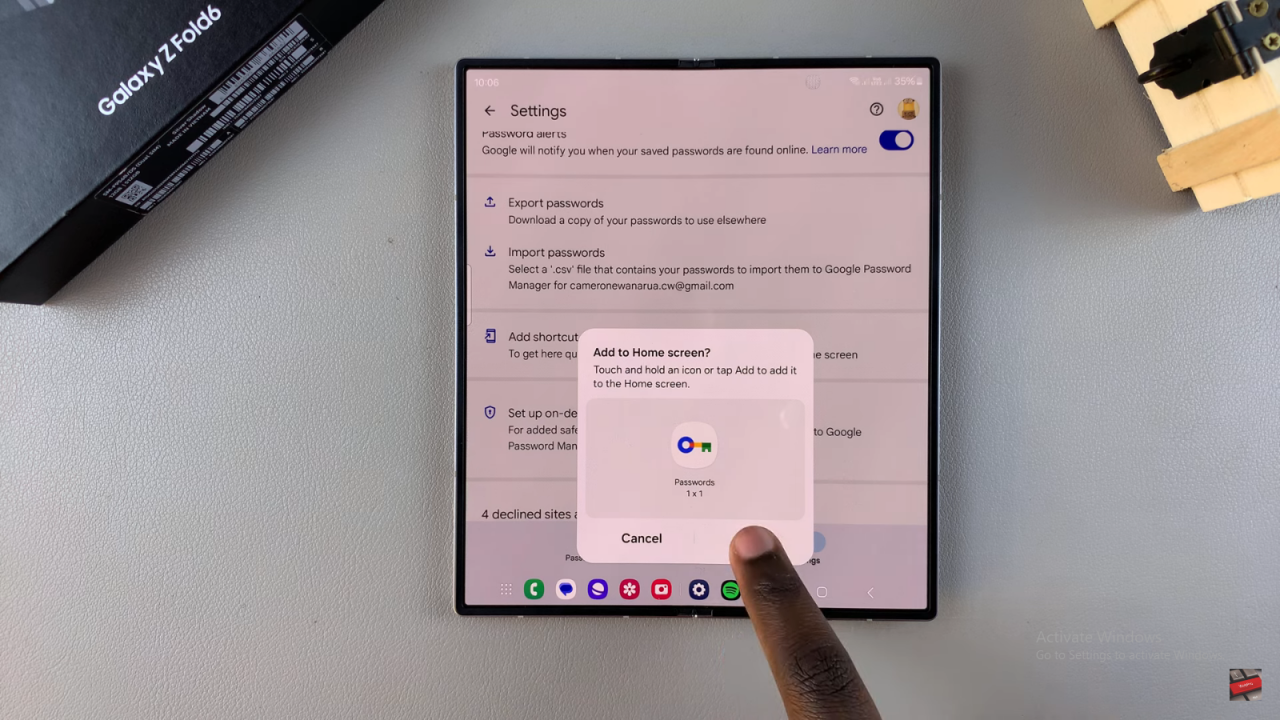
Add Google Password Manager To Home Screen On Samsung Galaxy Z Fold 6

Check Your Home Screen
The Google Password Manager shortcut should now be on your home screen for easy access.
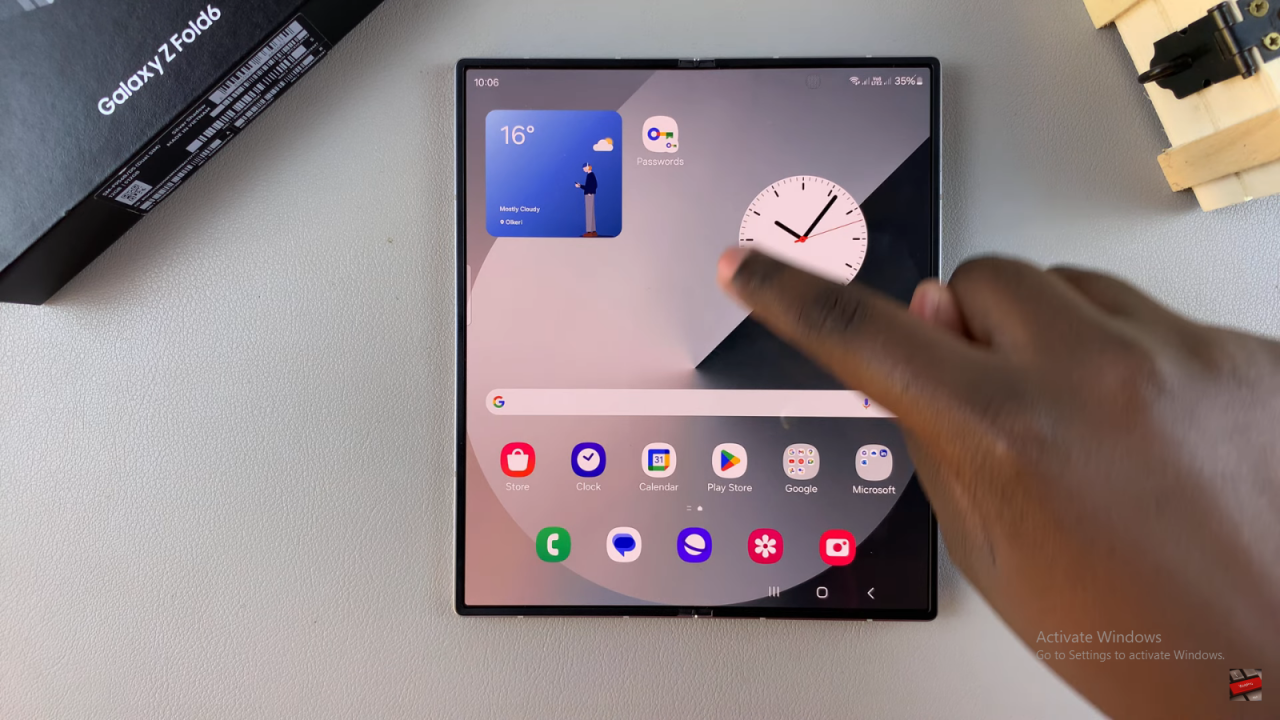
Add Google Password Manager To Home Screen On Samsung Galaxy Z Fold 6

Read:How To Reset Keyboard To Default Settings On Samsung Galaxy Z Fold 6
Share
Tweet
Linkedin
Reddit
Tumblr
Stumble
Whatsapp
Telegram
Email
Prev Article
Next Article

Related Articles

How To Enable & Disable Predictive Text On Samsung Galaxy S24

How To Enable & Disable Predictive Text On Samsung Galaxy S24

How To Remove Someone as Admin In WhatsApp Group

How To Remove Someone as Admin In WhatsApp Group

  • How To Update Samsung Galaxy Tab A11
  • How To Open Keyboard Settings On Samsung Galaxy Tab A11
  • How To Factory Reset Samsung Galaxy Tab A11
  • How To Enable & Disable Picture In Picture Mode On Samsung Galaxy Tab A11
  • How To Clear Cache Partition On Samsung Galaxy Tab A11
DMCA.com Protection Status

Associates Disclosure

WebPro Education is a participant in the Amazon Services LLC Associates Program, an affiliate advertising program designed to provide a means for sites to earn advertising fees by advertising and linking to amazon.com.

WebPro Education

Tech tips everyday
Copyright © 2025 WebPro Education

Ad Blocker Detected

Our website is made possible by displaying online advertisements to our visitors. Please consider supporting us by disabling your ad blocker.

Refresh