In this guide, you’ll learn exactly how to update your Xiaomi Smart Camera C701 quickly and safely. Keeping your Xiaomi Smart Camera C701 updated is essential for maintaining security, improving performance, and unlocking new features.
Firmware updates are released regularly to fix bugs, enhance stability, and sometimes add new capabilities to your device.
Make sure you have a stable Wi-Fi connection and that your camera is connected to the Xiaomi Home app. Also, ensure the camera is sufficiently powered (plugged in or fully powered), with your smartphone with the Mi Home app installed.
Why Updating Your Xiaomi Smart Camera C701 Is Important
Before jumping into the steps, here’s why updates matter:
Improved Security: Protects your camera from vulnerabilities.
Better Performance: Fixes lag, freezing, or connectivity issues.
New Features: Access the latest improvements from Xiaomi.
Bug Fixes: Resolves known problems and errors.
Read: How To Connect Xiaomi Smart Camera C701 To Google Home
Update Xiaomi Smart Camera C701
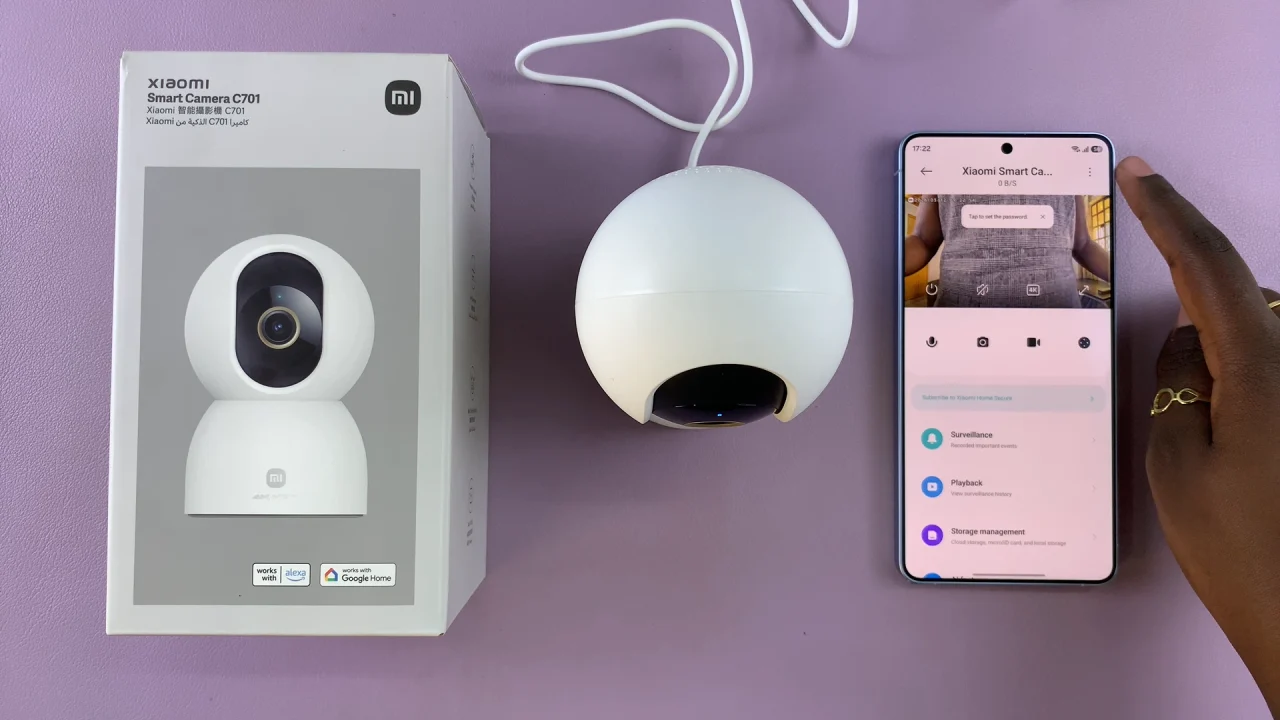
Launch the Mi Home app on your smartphone. From the device list, tap on Xiaomi Smart Camera C701 to open its control panel.
Tap the three dots in the top corner of the screen.
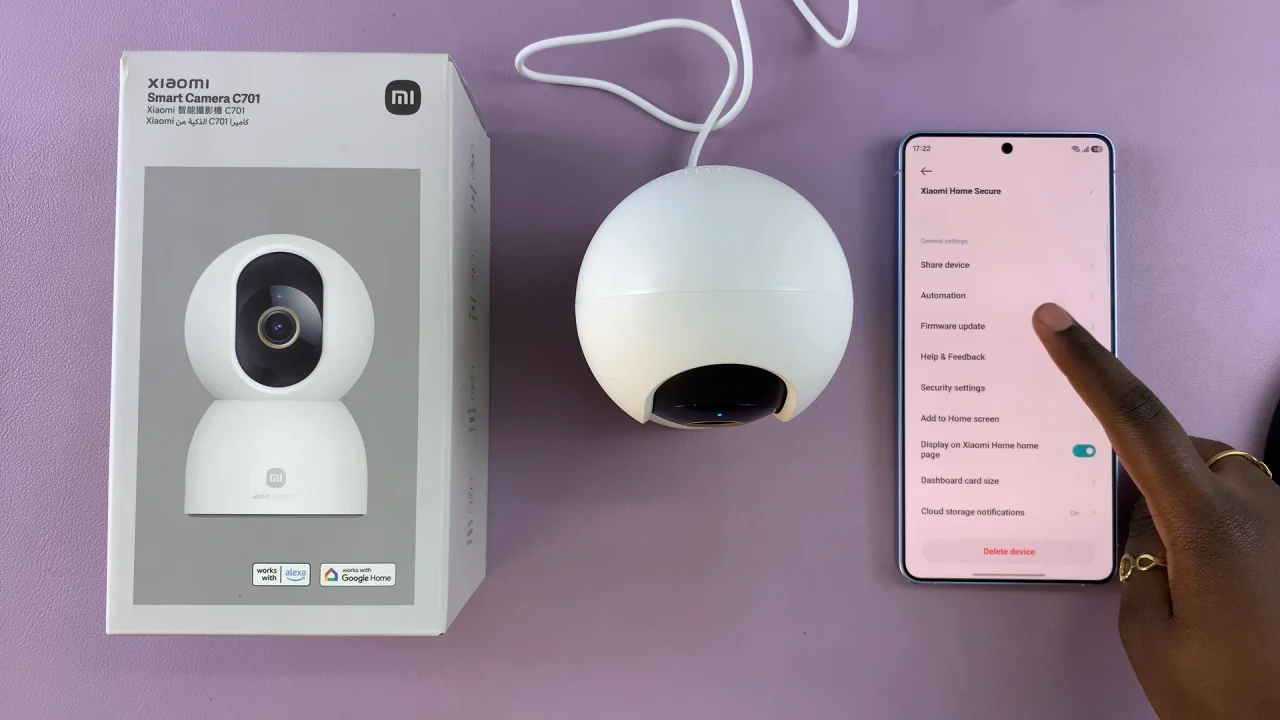
Scroll down and select Firmware Update.
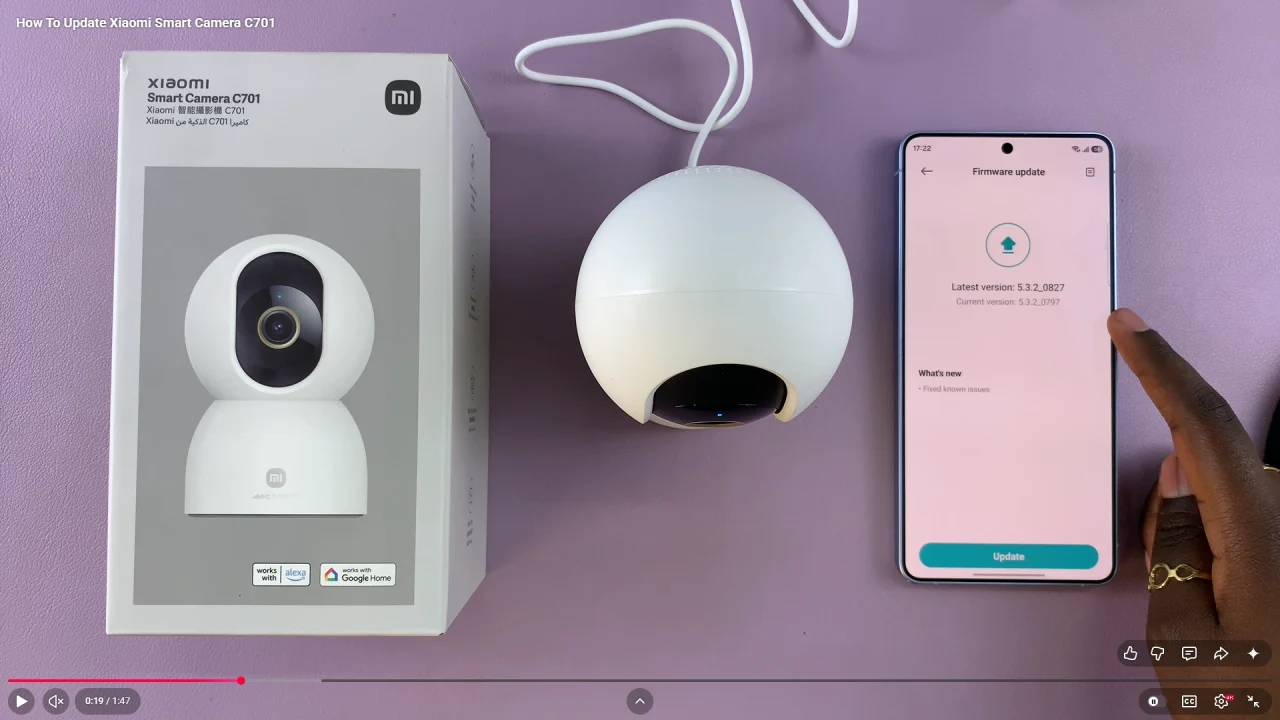
If an update is available, tap on Update. Wait for the download to complete. Allow the camera to install the update automatically.
Do not unplug or turn off the camera during the update process. The camera will reboot once the update is complete. This may take a few minutes.
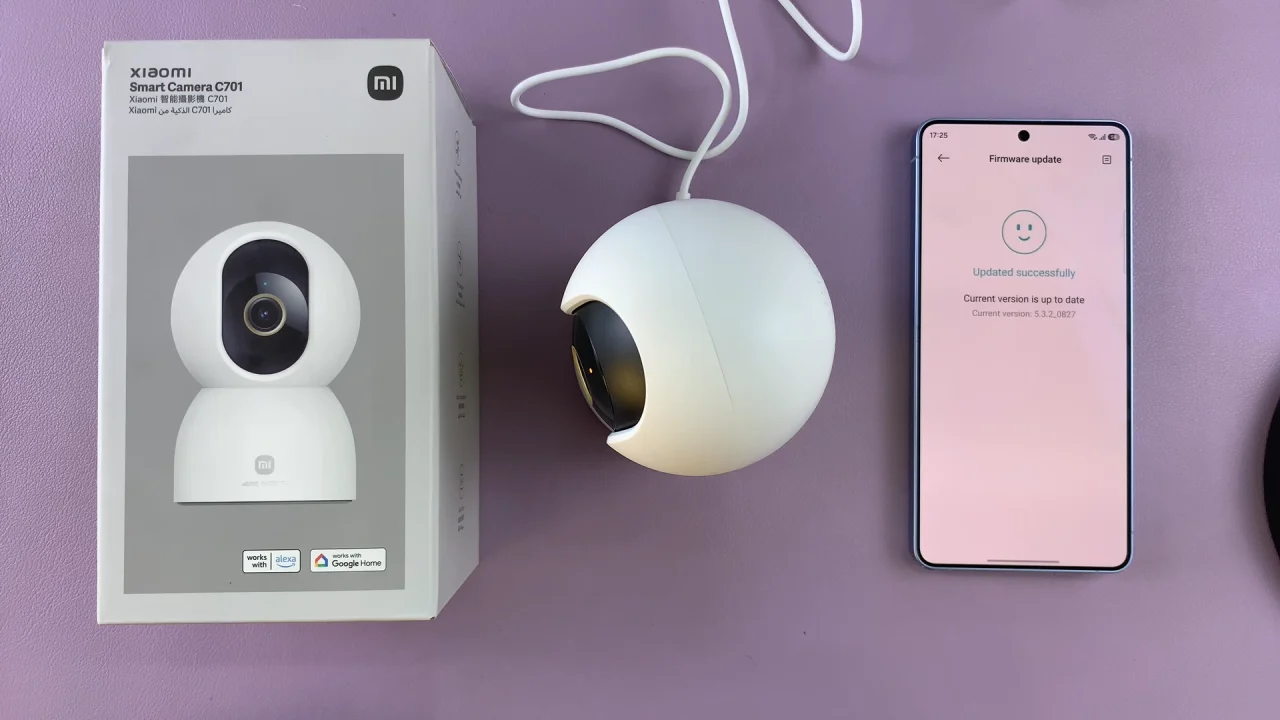
After the restart, go back to the Xiaomi Home app update menu. Check the firmware version and ensure it matches the latest version available.
Troubleshooting Update Issues
If you run into problems, try the following:
Restart the camera and try again.
Check your Wi-Fi connection.
Update the Mi Home app.
Ensure the camera remains powered throughout.
If the update fails, retry after a few minutes.
For a smooth update, update during low network usage times and keep your camera close to the router. Avoid interrupting the process.