Managing your privacy in today’s digital world is more important than ever. This includes controlling whether your phone number displays when you call people. The Samsung Galaxy A06 makes managing caller ID settings on your device pretty easy.
You can easily turn your Caller ID on/off in the Samsung Galaxy A06. This will be quite useful at times if you need to make calls for business purposes, block spam, or simply keep your number private for personal reasons.
Knowing how to show/hide your caller ID on your Galaxy A06 puts you in a better position. This guide will walk you through the steps to adjust caller ID settings on the Samsung Galaxy A06.
Watch: How To Change Default Messaging App On Samsung Galaxy A06
Show/Hide Caller ID On Samsung Galaxy A06
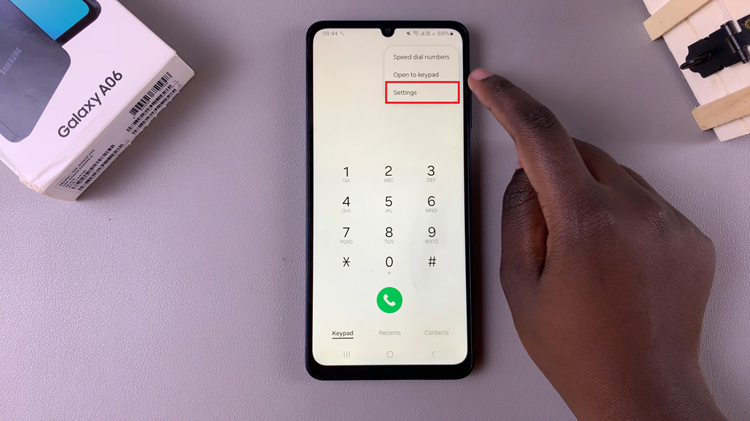
Firstly, unlock your Samsung Galaxy A06 and navigate to the home screen. Then, locate the “Phone” app and tap on it to open the application. From here, tap on the three dots (ellipsis tool) at the upper right corner and select “Settings.”
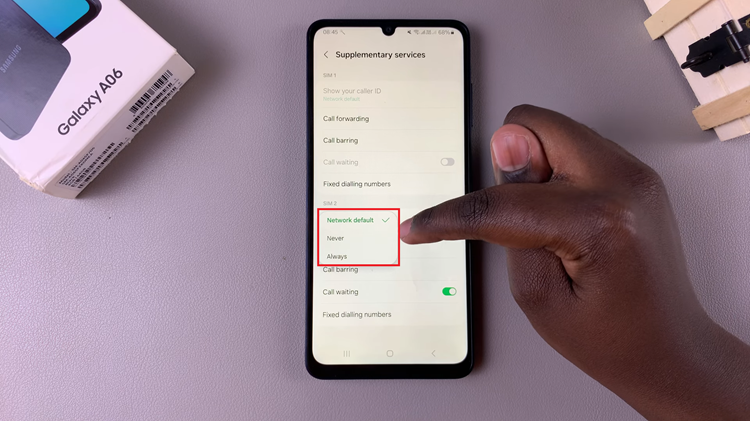
Following this, scroll down until you find the “Supplementary Services” option, then tap on it to access additional call settings. At this point, locate and select the “Show Caller ID” option.
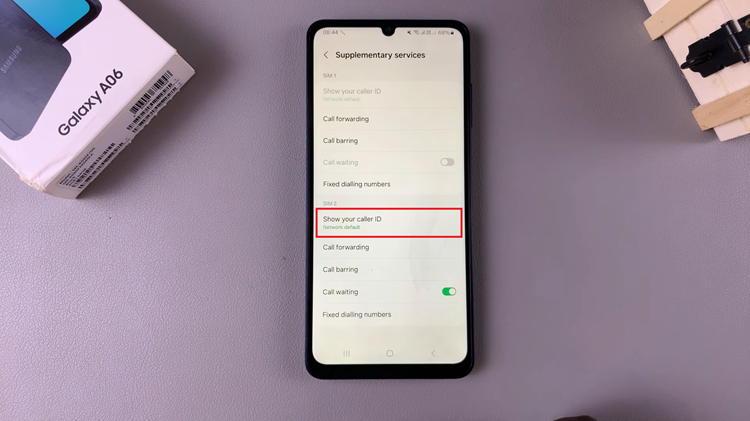
To show caller ID, choose the “Always” or “Network Default” option. Once enabled, your caller ID will be displayed when you make outgoing calls. However, if you want to hide your caller ID, select “Never.”
In conclusion, managing your caller ID settings on the Samsung Galaxy A06 empowers you to take control of your privacy and how your contact information is presented to others. Following the steps outlined in this guide, you can easily switch between showing and hiding your caller ID, ensuring your communication preferences are met.