WebPro Education

Tech tips everyday
Menu
  • REVIEWS
  • HOW TO
  • TECH NEWS
  • About Us
Home
how to
How To Set Up 360 Reality Audio On Sony WF-1000XM6
how to

How To Set Up 360 Reality Audio On Sony WF-1000XM6

David Frank March 26, 2026

The Sony WF-1000XM6 earbuds are considered to be one of the best true wireless earbuds out there, boasting exceptional sound quality and a snug fit. One of their most intriguing features is 360 Reality Audio, which completely changes your listening experience by providing an immersive, 3D audio experience when listening to music.

360 Reality Audio gives you the ability to place any instrument in a virtual space around you, so it feels like you are actually inside the music studio or at an actual concert. While it may seem difficult to set up 360 Reality Audio on your first try, you can do this easily with the right help. 

This guide will show you how to set up 360 Reality Audio on Sony WF-1000XM6 earbuds. Once you finish following this guide, you will be able to enjoy a whole new level of music.

Watch: How To Perform Earbud Fit Test On Sony WF-1000XM6

Set Up 360 Reality Audio On Sony WF-1000XM6

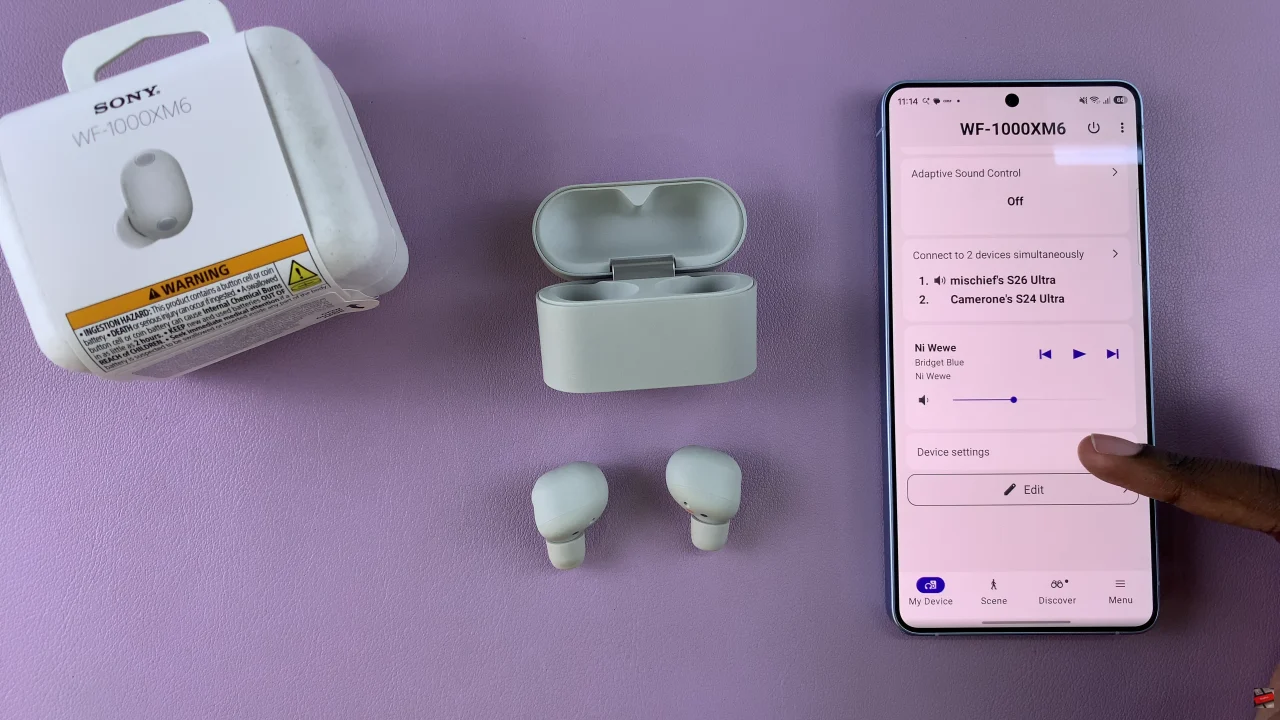
Begin by launching the Sony Connect app on your device. If you don’t have the app installed, head to App Store or Google PlayStore and download it from there. Then, scroll down and find the ‘Device Settings‘ within the app.
How To Set Up 360 Reality Audio On Sony WF-1000XM6

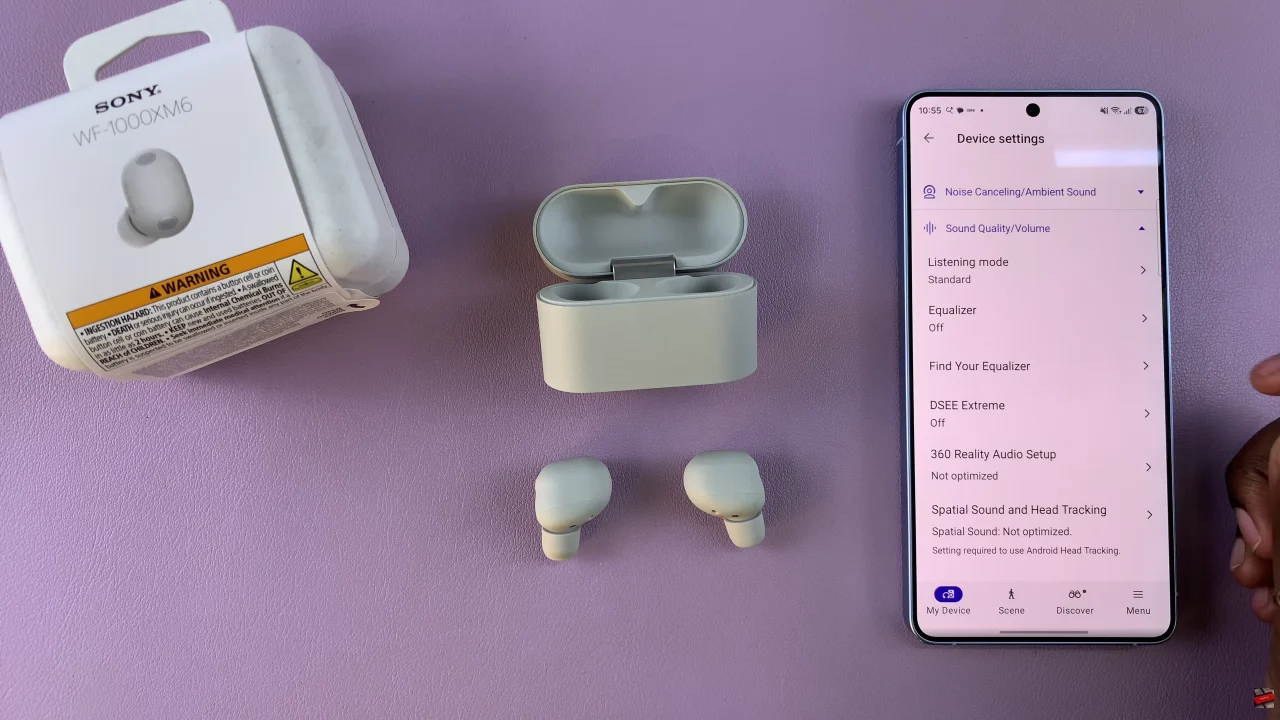
Following this, tap on ‘Sound Quality/Volume‘ and select ‘360 Reality Audio‘ from the menu that appears.
How To Set Up 360 Reality Audio On Sony WF-1000XM6

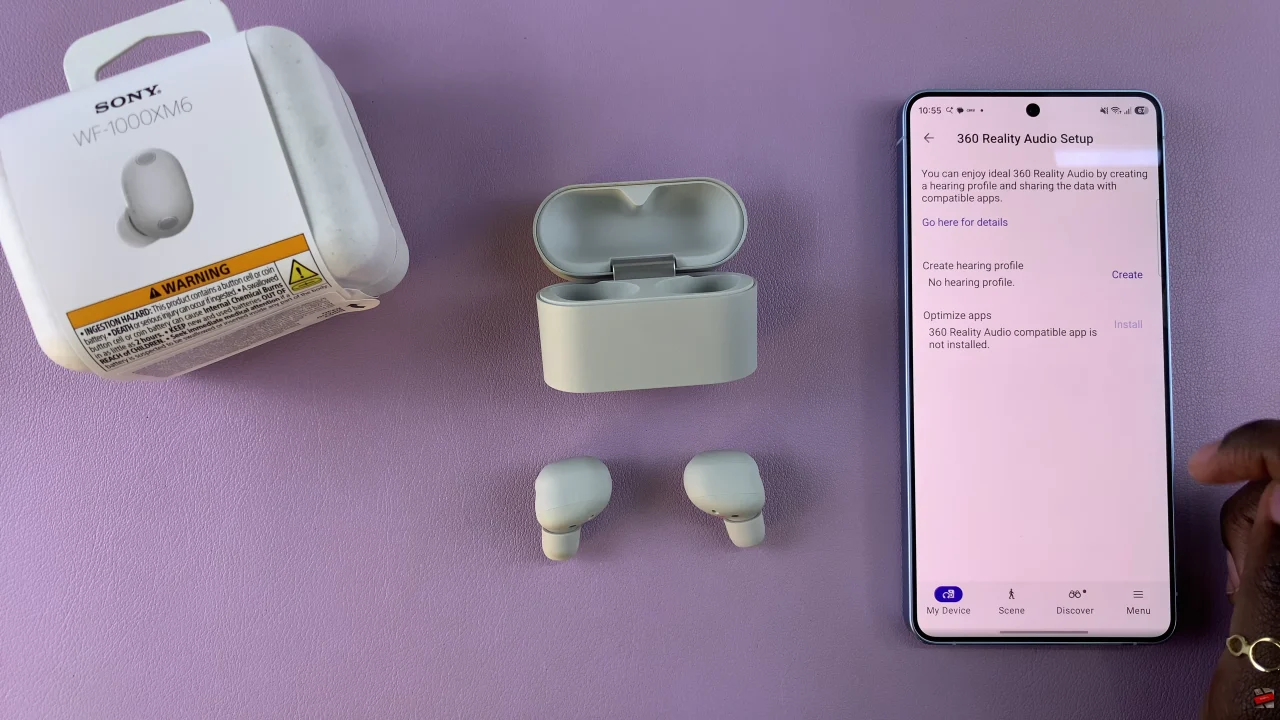
From here, tap on ‘Create‘ and follow the on-screen instructions that will appear.
How To Set Up 360 Reality Audio On Sony WF-1000XM6

Afterwards, the 360 Audio will be created and personalized for your listening experience.
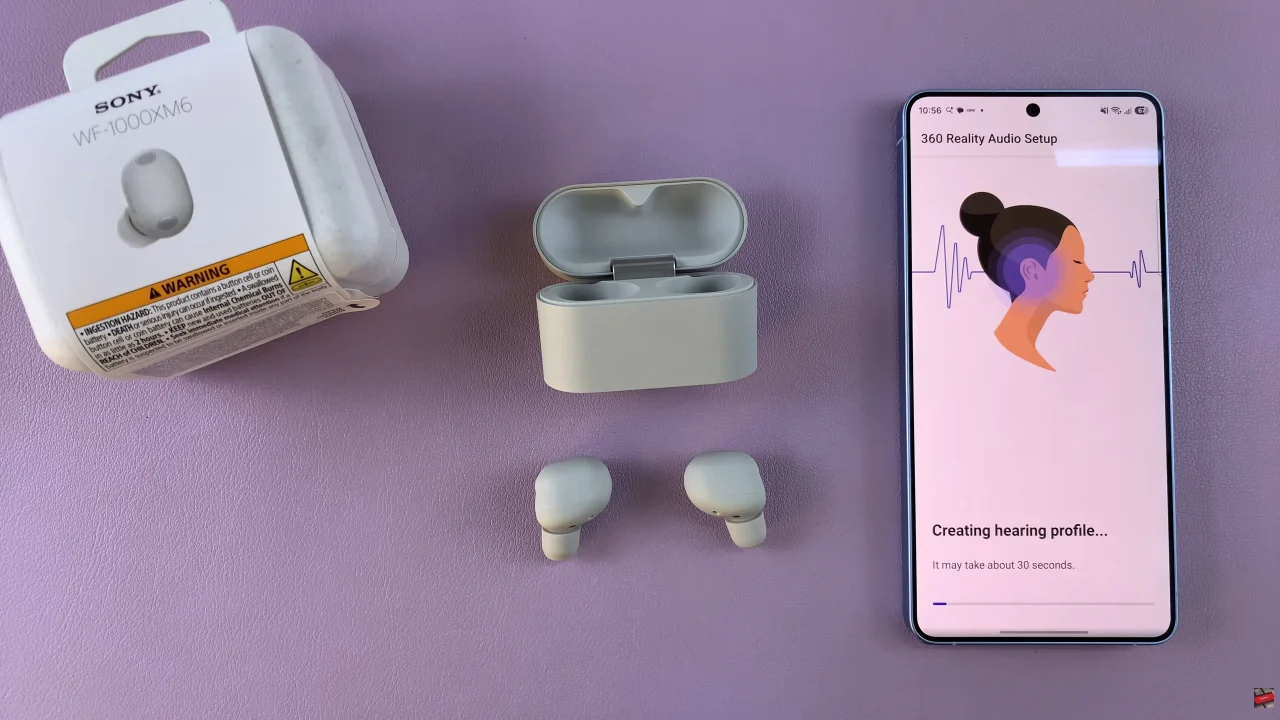
How To Set Up 360 Reality Audio On Sony WF-1000XM6

By following the steps above, you can enjoy a fully immersive, 3D sound that makes every song feel alive.

Read: How To Reset WIFI Settings (Network Settings) On Samsung Galaxy Tab A11
Share
Tweet
Linkedin
Reddit
Tumblr
Stumble
Whatsapp
Telegram
Email
Prev Article
Next Article

Related Articles

How To Add/Remove The Media Page On Home Screen Of Samsung Galaxy A14

How To Add/Remove The Media Page On Home Screen Of Samsung Galaxy A14

How To Enable & Disable Google Assistant On Samsung Galaxy S24

How To Enable & Disable Google Assistant On Samsung Galaxy S24

  • How To Perform Earbud Fit Test On Sony WF-1000XM6
  • How To Set Up 360 Reality Audio On Sony WF-1000XM6
  • How To Automatically Update Sony WF-1000XM6 Earbuds
  • How To Set Up Speak To Chat On Sony WF-1000XM6
  • How To Rename Sony WF-1000XM6 Earbuds On Android
DMCA.com Protection Status

Associates Disclosure

WebPro Education is a participant in the Amazon Services LLC Associates Program, an affiliate advertising program designed to provide a means for sites to earn advertising fees by advertising and linking to amazon.com.

WebPro Education

Tech tips everyday
Copyright © 2026 WebPro Education

Ad Blocker Detected

Our website is made possible by displaying online advertisements to our visitors. Please consider supporting us by disabling your ad blocker.

Refresh